Olivia Harper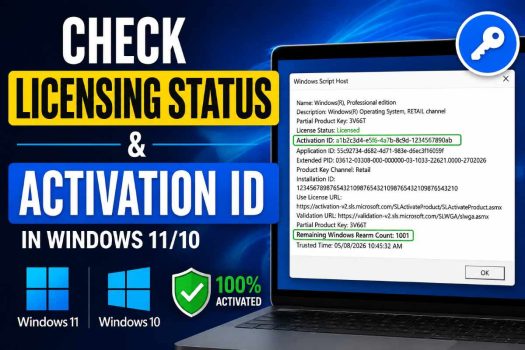
Microsoft Windows includes several built-in tools that allow you to verify whether your copy of Windows is properly licensed and activated. Besides checking the activation state, you can also view detailed licensing information such as the Activation ID, License Status, Product Key Channel, Partial Product Key, License Expiration, and Activation Type.
These details can be useful if you are troubleshooting Windows activation problems, transferring a license, contacting Microsoft Support, verifying an enterprise license, or simply confirming that Windows is activated correctly.
In this guide, you’ll learn multiple ways to check the licensing status and Activation ID in Windows 11 and Windows 10.
What Is the Windows Licensing Status?
The licensing status indicates whether your Windows installation has been successfully activated. Depending on your device, you may see statuses such as:
- Licensed
- Notification
- Initial Grace Period
- Extended Grace Period
- Unlicensed
A properly activated Windows installation should display Licensed.
The Activation ID is a unique identifier assigned to the installed Windows license. Microsoft Support often asks for this information while diagnosing activation issues.
Method 1: Check Licensing Status Using Command Prompt (slmgr /dlv)
This is the most detailed method and works on all editions of Windows.
Step 1
Press Windows + S, type Command Prompt, then select Run as administrator.
Step 2
Type:
slmgr /dlvPress Enter.
Step 3
After a few moments, a Windows Script Host window appears.
Here you’ll find information including:
- License Status
- Activation ID
- Installation ID
- Extended PID
- Product Key Channel
- Partial Product Key
- Remaining Windows Rearm Count
- Trusted Time
- License Expiration (if applicable)
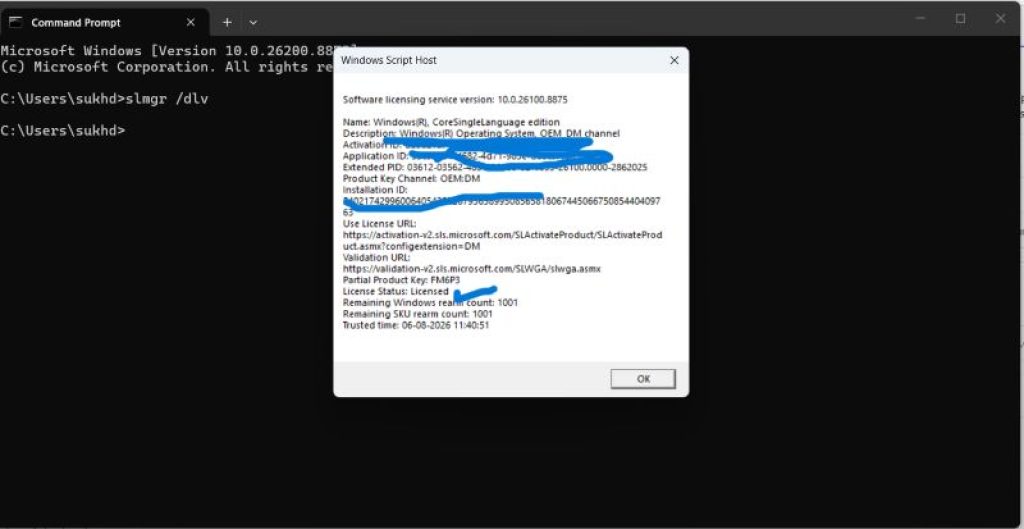
If Windows is activated successfully, the License Status will display:
LicensedThis method provides the most comprehensive licensing information available.
Method 2: Check Basic Activation Status Using slmgr /xpr
If you only want to know whether Windows is permanently activated, this command is much faster.
Step 1
Open Command Prompt as Administrator.
Step 2
Run:
slmgr /xprStep 3
A small dialog box appears.
Possible results include:
- The machine is permanently activated.
- Windows is in notification mode.
- Windows license expires on a specified date.
This is the quickest way to verify activation.
Method 3: View License Information Using slmgr /dli
The /dli command provides a shorter summary than /dlv.
Step 1
Open Command Prompt with administrative privileges.
Step 2
Run:
slmgr /dliStep 3
The dialog displays:
- Windows edition
- Activation ID
- License Status
- Partial Product Key
This method is useful when you only need essential licensing details.
Method 4: Check Windows Activation from Settings
Windows Settings provides a simple graphical interface.
Windows 11
- Press Windows + I.
- Open System.
- Click Activation.
You can view:
- Activation State
- Activation Method
- Linked Microsoft Account
- Troubleshooting options
- Upgrade options
Windows 10
- Open Settings.
- Select Update & Security.
- Click Activation.
Here Windows displays whether your copy is activated and how it was activated.
Method 5: Check Activation ID Using Windows PowerShell
PowerShell can retrieve licensing information using Windows Management Instrumentation (WMI).
Step 1
Open Windows PowerShell as Administrator.
Step 2
Run:
Get-CimInstance SoftwareLicensingProduct |
Where-Object {$_.PartialProductKey} |
Select Name, LicenseStatus, ID
Step 3
PowerShell displays:
- Product Name
- License Status
- Activation ID
The ID column represents the Activation ID.
Method 6: View Detailed License Information Using WMIC
Although WMIC is deprecated in newer Windows versions, it still works on many systems.
Step 1
Open Command Prompt.
Step 2
Run:
wmic path SoftwareLicensingProduct where "PartialProductKey is not null" get Name,LicenseStatus,IDStep 3
Windows displays:
- Product Name
- Activation ID
- License Status
Some newer Windows builds may no longer include WMIC.
Method 7: Use PowerShell to Display Complete Licensing Details
PowerShell can display much more than just the Activation ID.
Step 1
Open PowerShell as Administrator.
Step 2
Run:
Get-CimInstance SoftwareLicensingProduct |
Where-Object {$_.PartialProductKey} |
Format-List *
Step 3
This command displays numerous properties including:
- Activation ID
- License Status
- Partial Product Key
- Description
- Product Name
- Grace Period
- Remaining Evaluation Time
- Product Key Channel
- Application ID
This method is ideal for administrators.
Method 8: Check Windows Activation Using System Information
Windows also provides basic licensing information through System Properties.
Step 1
Press Windows + Pause/Break.
Or open:
Settings > System > About
Step 2
Select Product Key and Activation (Windows 11) or Activation (Windows 10).
You can verify whether Windows has been activated.
Although this method doesn’t show the Activation ID, it provides an easy confirmation of the activation state.
Understanding the Information Displayed
When using slmgr /dlv, you may encounter several technical fields. Here’s what they mean:
| Field | Description |
|---|---|
| License Status | Shows whether Windows is activated. |
| Activation ID | Unique identifier for the installed Windows license. |
| Installation ID | Used during phone activation. |
| Product Key Channel | Indicates Retail, OEM, MAK, KMS, or Volume license. |
| Partial Product Key | Displays the last five characters of the installed product key. |
| Remaining Windows Rearm Count | Number of times activation can be reset. |
| Trusted Time | The system time used by the licensing service. |
| Expiration | Shows expiration date for temporary or volume licenses. |
Understanding License Status Values
Windows licensing can report different states.
Licensed
Windows has been successfully activated.
Notification
Windows is not activated. You may receive activation reminders.
Initial Grace Period
Windows is within its initial activation grace period.
Extended Grace Period
The grace period has been extended after certain activation events.
Unlicensed
Windows does not have a valid license.
Understanding Product Key Channels
The Product Key Channel identifies how Windows was licensed.
Retail
Purchased individually from Microsoft or an authorized retailer.
OEM
Preinstalled by the computer manufacturer.
Volume MAK
Activated using Microsoft’s Multiple Activation Key.
Volume KMS
Activated using a Key Management Service server.
Digital License
Activation is linked to Microsoft’s activation servers and sometimes your Microsoft account.
Why You Might Need the Activation ID
Most home users never need the Activation ID. However, it becomes useful in several situations.
You may need it when:
- Contacting Microsoft Support
- Troubleshooting activation failures
- Managing enterprise licensing
- Verifying Volume Licensing
- Checking activation after major hardware changes
- Investigating licensing issues after reinstalling Windows
The Activation ID helps Microsoft identify the installed license without revealing your full product key.
Which Method Should You Use?
Each method serves a different purpose.
- Use slmgr /dlv if you need complete licensing information, including the Activation ID.
- Use slmgr /xpr to quickly verify whether Windows is permanently activated.
- Use slmgr /dli for a concise summary.
- Use Settings if you simply want to confirm activation through a graphical interface.
- Use PowerShell or WMIC if you prefer scripting or need to automate license checks.
For most users, slmgr /dlv offers the best balance of detail and simplicity.
Conclusion
Checking your Windows licensing status is an easy way to verify that your operating system is properly activated. Whether you’re troubleshooting activation issues, confirming the authenticity of your Windows installation, or gathering information for Microsoft Support, Windows provides several built-in tools to access licensing details.
Among all the available methods, slmgr /dlv remains the most comprehensive because it displays the License Status, Activation ID, Product Key Channel, Partial Product Key, Installation ID, and other useful licensing information in one place. If you only need a quick confirmation, slmgr /xpr or the Activation page in Settings can provide the answer within seconds. PowerShell commands are also excellent for administrators and users who want to automate license verification.
By understanding what the licensing status and Activation ID represent, you can more confidently manage your Windows installation and quickly diagnose activation-related problems whenever they arise.
Frequently Asked Questions
Is the Activation ID the same as the product key?
No. The Activation ID is a unique identifier assigned to the installed Windows license. It is different from the 25-character Windows product key.
Can I find my full Windows product key using these methods?
No. Windows intentionally hides the full product key. Most tools only display the last five characters of the installed key.
Why does my license status show “Notification”?
This usually means Windows is not activated or the activation has expired. You may need to activate Windows using a valid license or troubleshoot the activation issue.
Which command provides the most detailed licensing information?
The slmgr /dlv command provides the most complete licensing report, including the Activation ID, License Status, Product Key Channel, Installation ID, and several additional licensing details.