
 Sukhdev Kamboj
The search bar in Windows 11 sits right on your taskbar, giving you instant access to apps, files, settings, and even web results with a single click. For many users, it’s one of the most useful tools on the desktop — a fast shortcut to almost anything on the PC. But not everyone wants it front and center. Some find it distracting, others feel it takes up too much taskbar space, and some simply prefer a cleaner, minimalist desktop.
The good news is that Windows 11 gives you full control over this feature. You can show it as a full search box, shrink it to just an icon, or remove it entirely from view. And if you’re a power user or IT administrator, you also have deeper options through the Registry Editor and Group Policy Editor to enable or disable the search bar system-wide.
In this guide, you’ll learn four different methods to enable or disable the desktop search bar in Windows 11 — ranging from the simplest one-click option to advanced techniques for administrators managing multiple devices. Whether you’re using Windows 11 Home or Pro, there’s a method here that will work for you.
Let’s get started.
Why Enable or Disable the Search Bar?
Before diving into the methods, it helps to understand why someone might want to change this setting:
- To declutter the taskbar — removing the search bar frees up space for pinned apps and open windows.
- To speed up workflow — some users prefer keyboard shortcuts (like the Windows key) over a visible search box.
- To customize appearance — a minimal taskbar looks cleaner on smaller screens or ultrawide monitors.
- To restore functionality — if the search bar has disappeared unexpectedly, re-enabling it fixes the issue.
- For managed devices — organizations may disable search bar and web-connected search results for privacy or productivity reasons.
Now let’s look at the actual methods.
Method 1: Enable or Disable Search Bar via Taskbar Settings
This is the easiest and most recommended method for most users, since it doesn’t require editing any system files.
Right-click on an empty area of the taskbar.
From the context menu, select Taskbar settings.
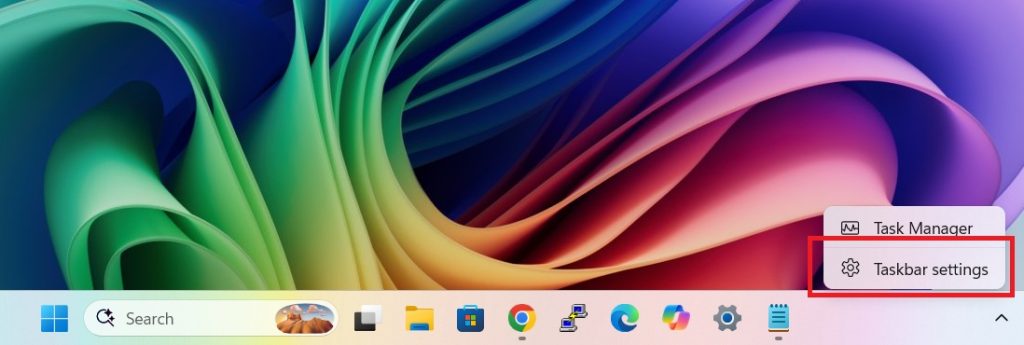
This opens the Settings app directly to the Personalization > Taskbar page.
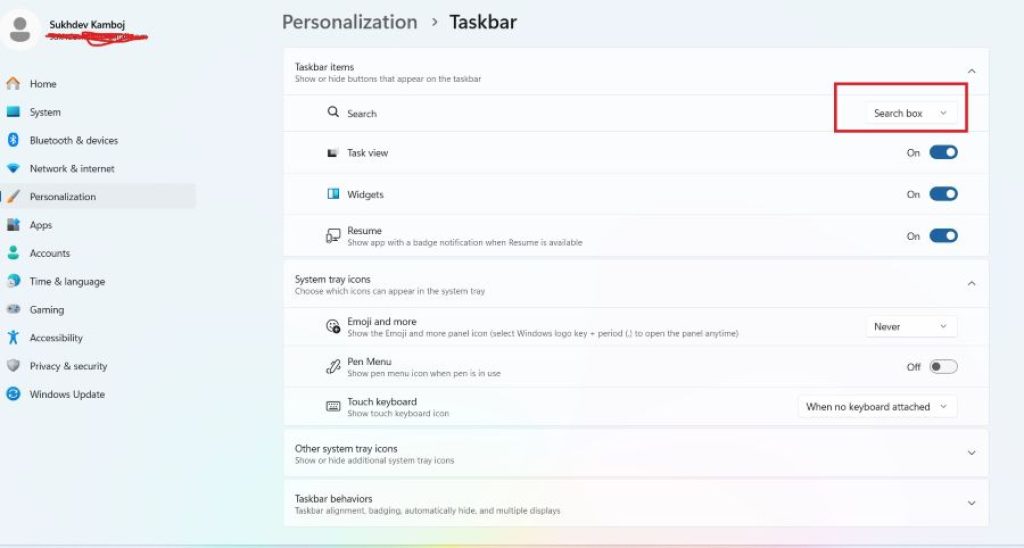
Click on the Taskbar items section to expand it (in some builds, this may appear as Search near the top).
Locate the Search option.
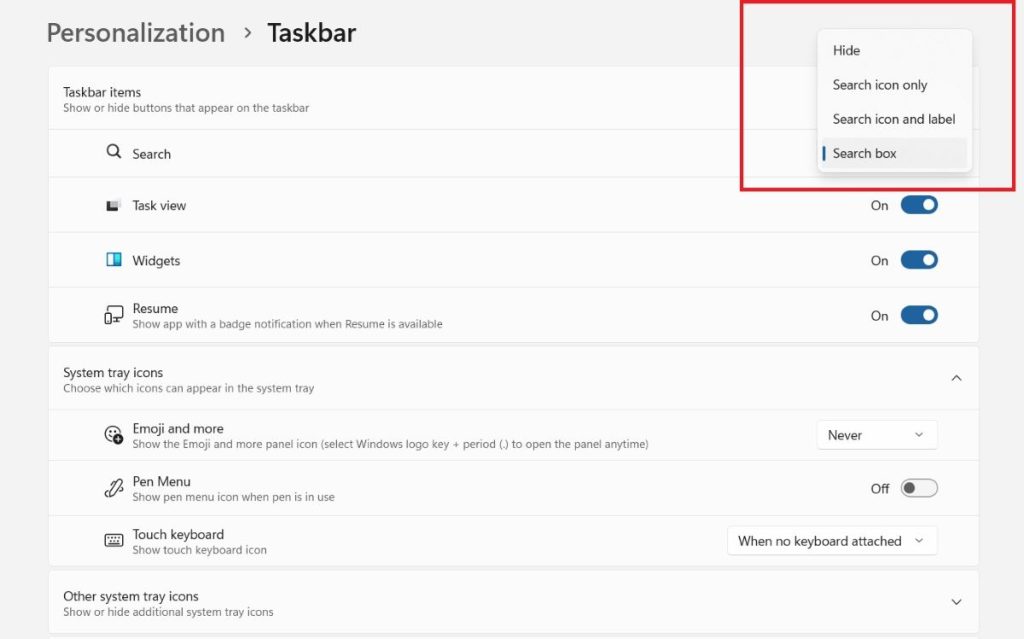
Use the dropdown or toggle next to it to choose your preferred view:
- Hide – completely removes the search bar and icon.
- Search icon only – shows just a magnifying glass icon.
- Search icon and label – shows the icon with the word “Search” beside it.
- Search box – displays the full search bar with placeholder text.
Close the Settings window. The change applies instantly — no restart needed.
This method is fully reversible, so you can switch between these views anytime.
Method 2: Enable or Disable Search Bar via Right-Click Context Menu
If you want a faster route without opening the full Settings app, you can use the taskbar’s built-in context menu shortcut.
- Right-click anywhere on an empty part of the taskbar.
- Hover over the Search option in the menu (on some Windows 11 versions, this appears as a submenu directly).
- A flyout menu will appear showing the same four options: Hidden, Icon only, Icon and label, and Box.
- Click your preferred option.
This method achieves the exact same result as Method 1 but skips a couple of clicks, making it convenient if you change this setting often.
Method 3: Enable or Disable Search Bar Using Registry Editor
For advanced users who want more granular control — or who are troubleshooting a search bar that won’t appear through normal settings — the Registry Editor offers a reliable alternative. Be careful when editing the registry, and consider backing it up first.
- Press Windows + R to open the Run dialog.
- Type
regeditand press Enter (approve the User Account Control prompt if it appears). - Navigate to the following path by pasting it into the address bar at the top:
HKEY_CURRENT_USER\Software\Microsoft\Windows\CurrentVersion\Search- Look for a DWORD value named SearchboxTaskbarMode in the right-hand pane.
- If it doesn’t exist, right-click in the empty space, choose New > DWORD (32-bit) Value, and name it
SearchboxTaskbarMode.
- If it doesn’t exist, right-click in the empty space, choose New > DWORD (32-bit) Value, and name it
- Double-click the value and set it according to what you want:
- 0 = Hidden
- 1 = Icon only
- 2 = Icon and label
- 3 = Search box (full bar)
- Click OK, then close the Registry Editor.
- Restart Windows Explorer (via Task Manager) or simply sign out and back in for the change to take effect.
This method is especially useful when the search bar setting appears “greyed out” or unresponsive through the normal Settings app, since it directly modifies the underlying value that controls the feature.
Method 4: Enable or Disable Search Bar Using Group Policy Editor (Windows 11 Pro, Enterprise, Education)
This method is intended for administrators managing multiple PCs, or for users on Windows 11 Pro/Enterprise/Education editions who want to enforce a specific search bar behavior — including disabling web search results that appear alongside local search.
Note: Group Policy Editor is not available on Windows 11 Home edition by default.
- Press Windows + R, type
gpedit.msc, and press Enter. - In the Local Group Policy Editor, navigate to:
Computer Configuration > Administrative Templates > Windows Components > Search- Find the policy named “Configure search box display.” Double-click to open it.
- Choose Enabled, then select your desired display mode from the dropdown (Hide, Icon only, Icon and label, or Box).
- Click Apply, then OK.
- Additionally, you can find the policy “Don’t search the web or display web results in Search” in the same folder if you want to restrict search to local files only, without disabling the bar entirely.
- Close the Group Policy Editor and restart your PC (or run
gpupdate /forcein Command Prompt) for changes to take effect.
This method is ideal for IT administrators deploying consistent settings across an organization’s devices, since it can also be pushed via Group Policy Management in a domain environment.
Comparison of the Four Methods
| Method | Best For | Requires Restart | Skill Level |
|---|---|---|---|
| Taskbar Settings | Everyday users | No | Beginner |
| Right-click Menu | Quick toggling | No | Beginner |
| Registry Editor | Fixing stuck/greyed settings | Yes (Explorer restart) | Intermediate |
| Group Policy Editor | IT admins, Pro/Enterprise users | Yes | Advanced |
Frequently Asked Questions (FAQ)
1. Why did my Windows 11 search bar disappear on its own? This can happen after a Windows update, a display language change, or a corrupted taskbar configuration. Try Method 1 first to check if it’s simply set to “Hidden,” and if the option is greyed out, use Method 3 (Registry Editor) to reset it.
2. Can I move the search bar to a different position on the taskbar? No, Windows 11 does not currently allow repositioning the search bar within the taskbar layout. Its location is fixed by the system, though third-party taskbar customization tools may offer this functionality unofficially.
3. Will disabling the search bar affect the Windows key shortcut for search? No. Even if the search bar is hidden from the taskbar, you can still open the full Search interface anytime by pressing the Windows key and typing your query, or by pressing Windows + S.
4. Is it safe to edit the Registry to change this setting? Yes, as long as you only modify the specific SearchboxTaskbarMode value described in Method 3 and don’t alter unrelated keys. It’s still good practice to back up the registry (File > Export) before making changes, in case you need to revert.
5. Does disabling the search bar improve system performance? The performance impact of the search bar itself is minimal on modern hardware. However, disabling web search integration through Group Policy (Method 4) can reduce background network activity and improve perceived responsiveness on lower-end machines.
6. Can I apply this setting to multiple computers at once? Yes. If you’re managing computers in a business or school environment, use Group Policy (Method 4) combined with Active Directory’s Group Policy Management Console to push the same search bar configuration across all connected devices simultaneously.
Conclusion
Customizing the search bar in Windows 11 is a small but meaningful way to tailor your desktop experience. Whether you want a cleaner taskbar, quicker access to search, or centralized control across multiple machines, Windows 11 offers a method suited to every skill level.
Whichever method you choose, the search bar toggle is fully reversible — so feel free to experiment until you find the setup that fits your workflow best. A tidy, well-organized taskbar can make a noticeable difference in how efficiently you navigate Windows 11 every day.





