
 Sukhdev Kamboj
A keyboard that stops responding, types the wrong characters, or lags behind your fingers can turn even the simplest task into a frustrating ordeal. Whether you’re typing an important email, coding late into the night, or just browsing the web, keyboard issues on Windows 11 are more common than most people realize — and thankfully, most of them are fixable without a trip to the repair shop.
Windows 11 introduced a redesigned interface and updated driver architecture, and while this brought many improvements, it also introduced a fresh set of quirks that can affect keyboard performance. Users have reported problems ranging from keys not registering at all to delayed input, sticky keys, autocorrect issues, language layout mix-ups, and even keyboards that work fine in one app but fail in another.
The good news is that keyboard problems are almost always software-related rather than hardware failures — and even when hardware is the culprit, there are diagnostic steps that can confirm this before you consider replacing anything. This guide walks you through the most effective, tested methods to diagnose and fix keyboard problems in Windows 11, followed by a conclusion and answers to frequently asked questions.
Before diving into fixes, it helps to identify what type of keyboard issue you’re facing. Is the keyboard completely unresponsive? Are only certain keys not working? Is there a lag between pressing a key and seeing it appear on screen? Are you experiencing random character input, or is autocorrect interfering with your typing? Pinpointing the symptom will help you jump to the most relevant fix faster, though we recommend reading through all the methods since some issues have overlapping causes.
Methods to Fix Keyboard Problems in Windows 11
Method 1: Restart Your Computer and Check Physical Connections
It sounds almost too simple, but a large percentage of keyboard issues are resolved with a basic restart. When Windows 11 runs for extended periods without a reboot, background processes can accumulate glitches that interfere with input devices, including keyboards.
Start with these basic steps:
Save your work and restart your computer completely (not just sleep mode).
If you’re using a wired USB keyboard, unplug it and plug it into a different USB port. Sometimes a specific port has power delivery issues or driver conflicts.
If you’re using a wireless keyboard, check that the batteries are fresh and that the USB receiver (if applicable) is firmly connected.
For Bluetooth keyboards, turn Bluetooth off and back on, then reconnect the device from Settings.
Inspect the keyboard cable for any visible damage, fraying, or bent connector pins.
If the keyboard works fine after a restart, the issue was likely a temporary software glitch. If the problem persists, move on to the next method.
Method 2: Run the Windows Keyboard Troubleshooter
Windows 11 includes a built-in troubleshooter specifically designed to detect and fix common keyboard problems automatically. This should be one of your first stops because it can identify issues you might not think to check manually.
To run the keyboard troubleshooter:
Open Settings by pressing Windows + I.
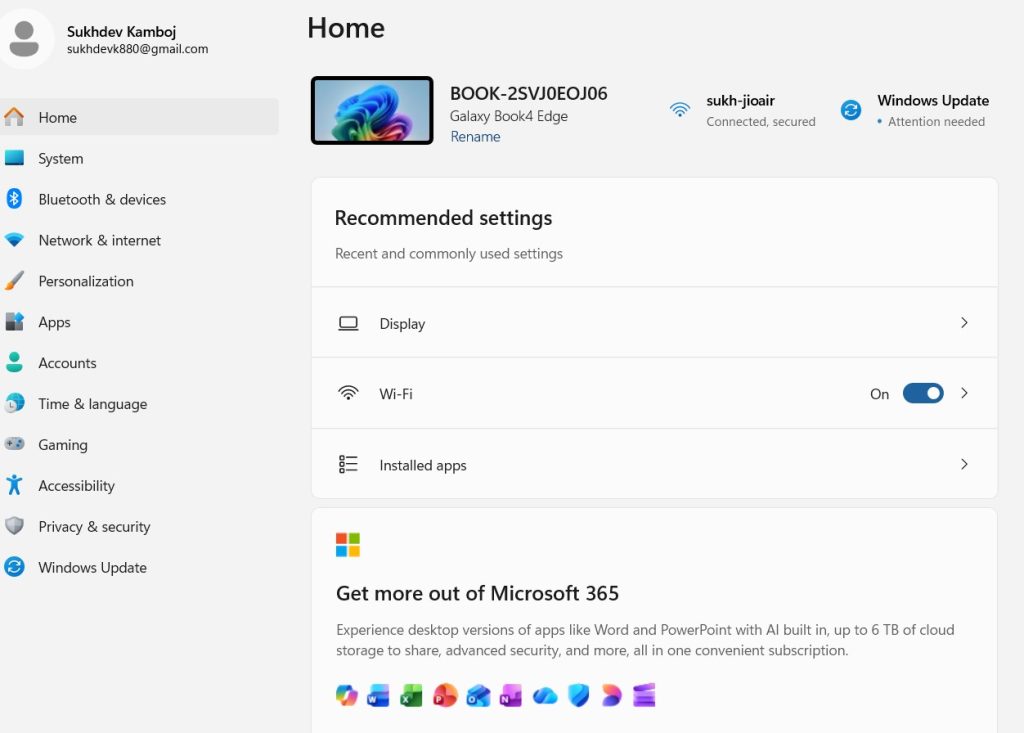
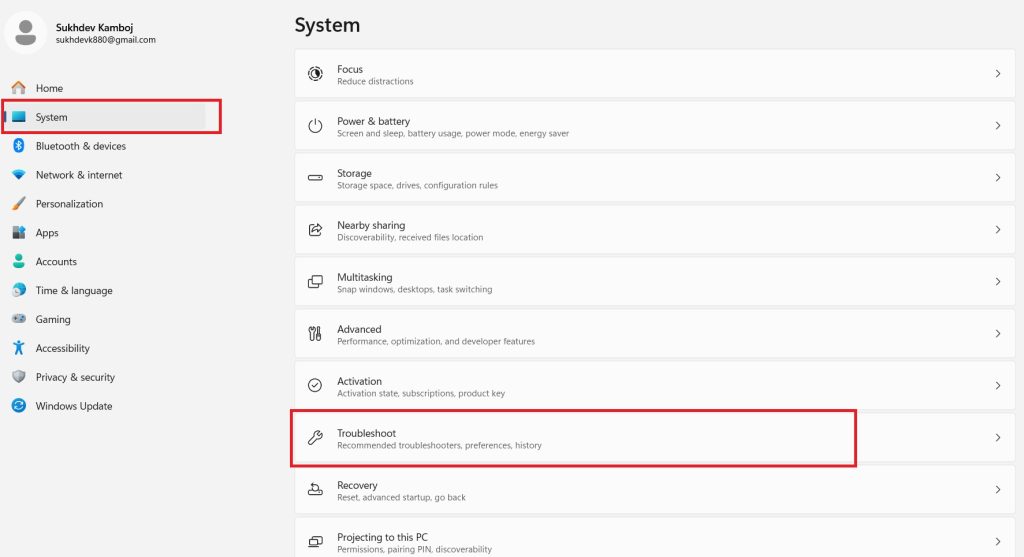
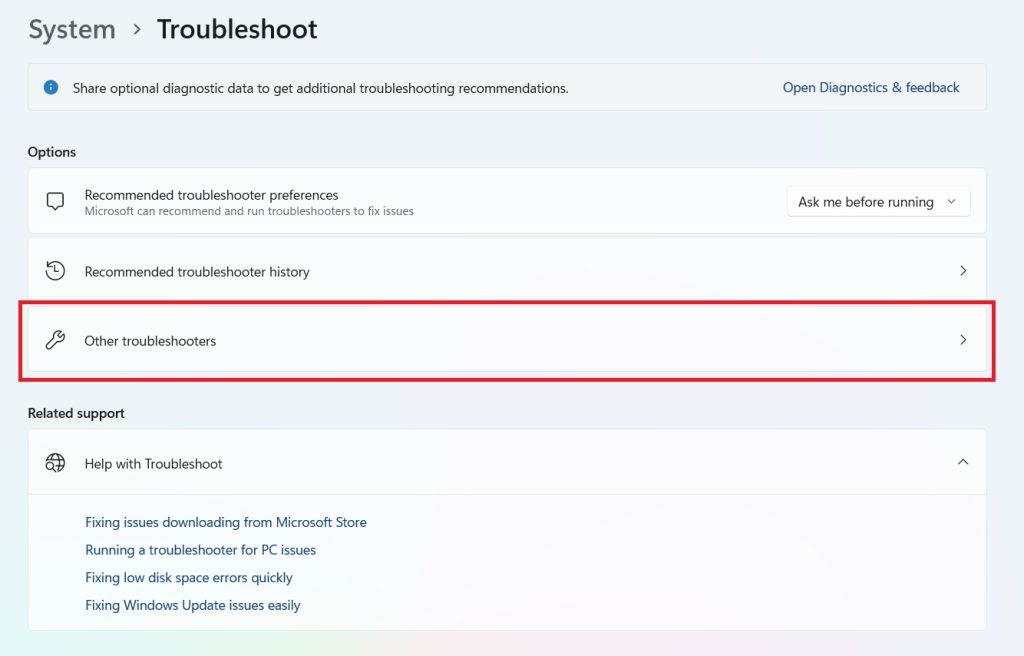
Navigate to System > Troubleshoot > Other troubleshooters.
Scroll down to find Keyboard and click Run.
Windows will scan for common problems and either fix them automatically or provide recommendations.
Follow any on-screen prompts and restart your computer once the process completes.
This troubleshooter checks for driver issues, incorrect keyboard layout settings, and conflicts with other software that might be intercepting keyboard input.
Method 3: Update or Reinstall Keyboard Drivers
Outdated, corrupted, or incompatible drivers are one of the most common causes of keyboard malfunctions in Windows 11, especially after a major Windows update. Updating or reinstalling the driver often resolves the issue entirely.
To update the keyboard driver:
Right-click the Start button and select Device Manager.
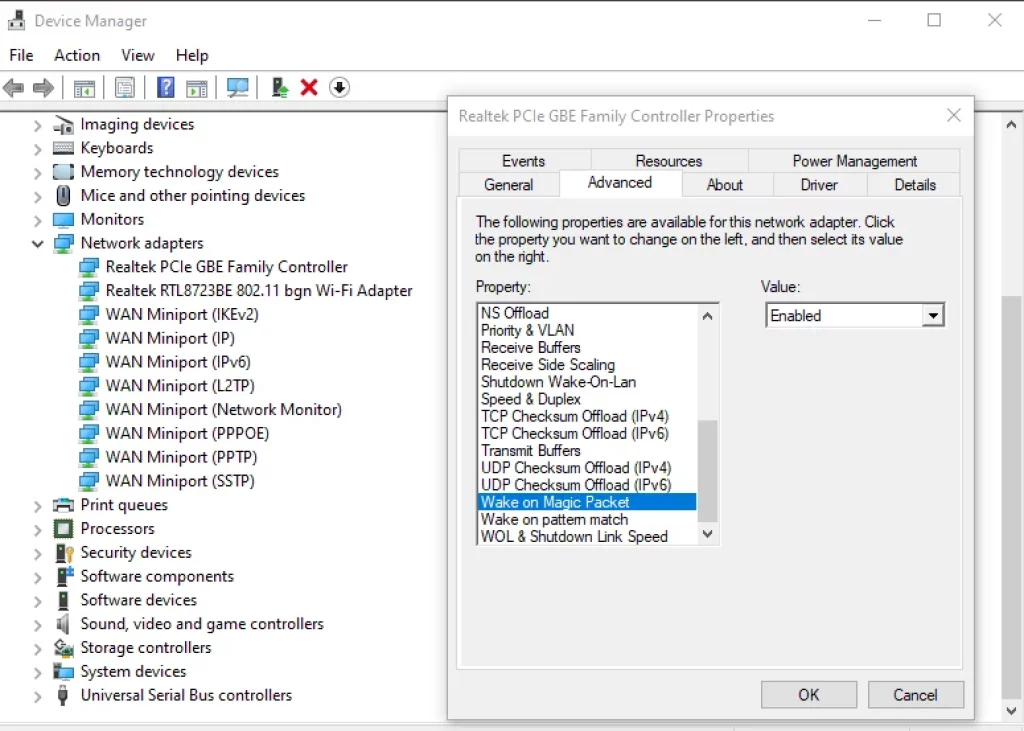
Expand the Keyboards category.
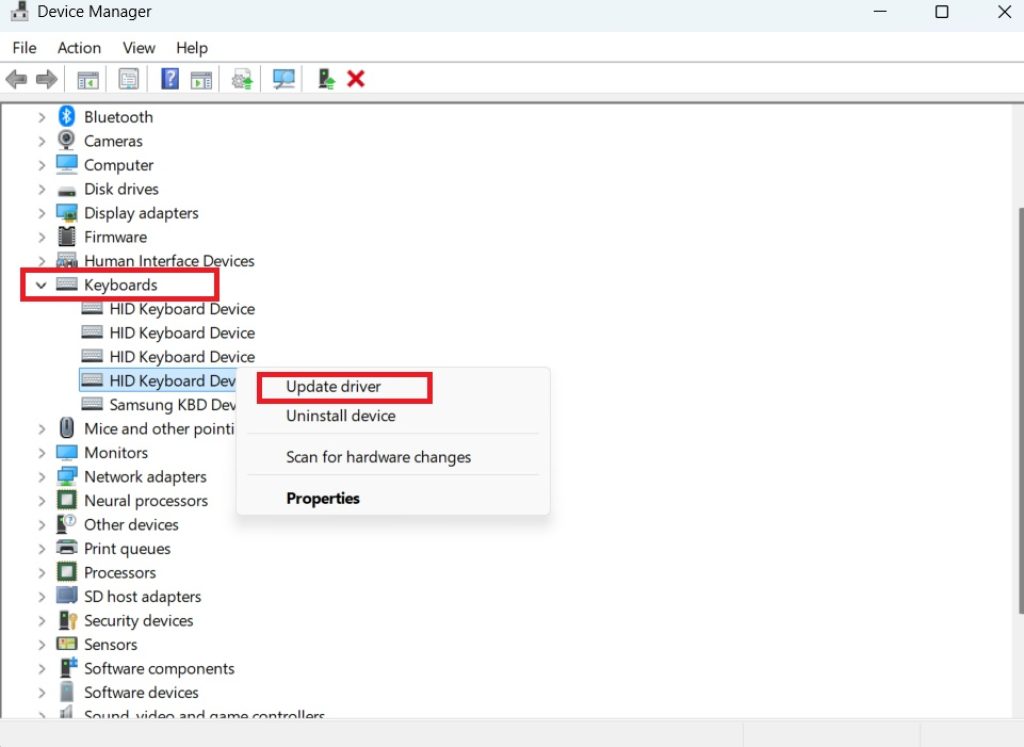
Right-click your keyboard device and select Update driver.
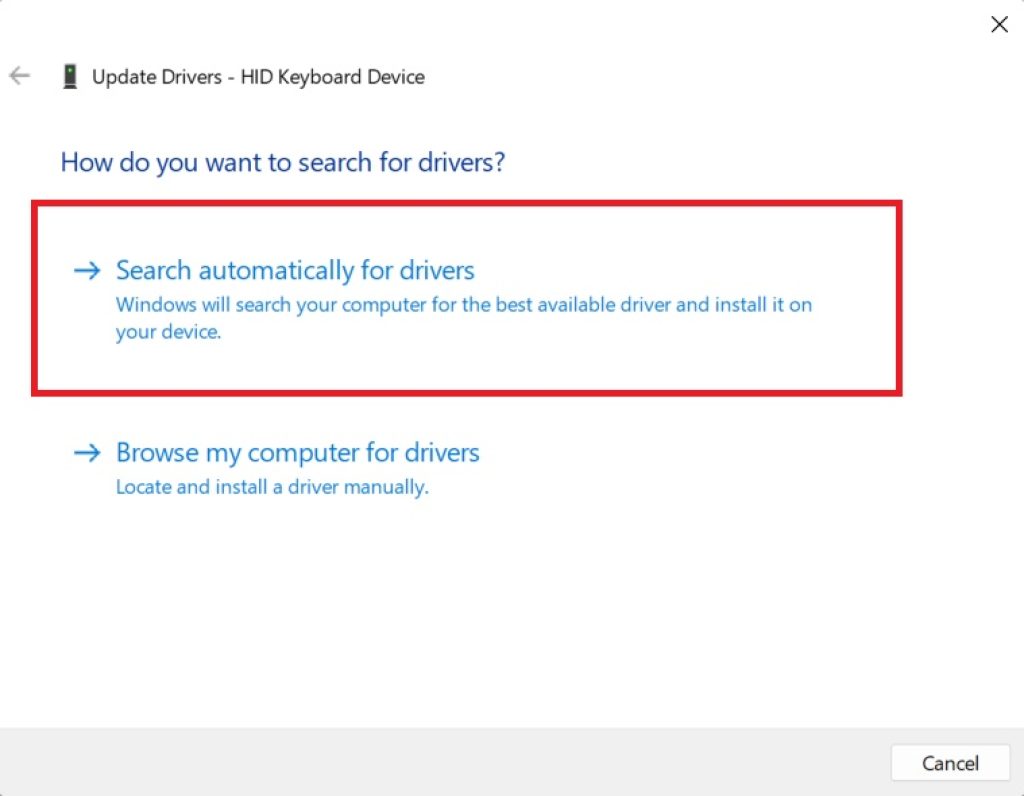
Choose Search automatically for drivers and let Windows find and install the latest version.
Restart your computer once the update is complete.
To reinstall the keyboard driver (if updating doesn’t help):
- In Device Manager, right-click your keyboard under the Keyboards category.
- Select Uninstall device and confirm.
- Restart your computer. Windows will automatically detect the keyboard and reinstall the default driver.
If you have a specialized gaming or mechanical keyboard, check the manufacturer’s website (Logitech, Razer, Corsair, etc.) for the latest dedicated software and drivers, as generic Windows drivers sometimes lack full feature support for these devices.
Method 4: Disable Filter Keys, Sticky Keys, and Toggle Keys
Windows 11 includes accessibility features that can sometimes be accidentally activated, causing keyboard behavior that looks like a malfunction but is actually a setting. Filter Keys can ignore brief or repeated keystrokes, Sticky Keys can change how modifier keys behave, and Toggle Keys can produce unexpected sounds or behavior.
See Also: Ease of Access Keyboard Settings in Windows 11
To check and disable these:
- Open Settings and go to Accessibility > Keyboard.
- Turn off Sticky Keys, Toggle Keys, and Filter Keys if they are enabled.
- Also check Accessibility > Text input for any settings that might be altering how your keystrokes are processed.
Many users unknowingly trigger Sticky Keys by holding Shift for extended periods, which can make it seem like the keyboard is malfunctioning when it’s actually functioning exactly as designed by an activated accessibility feature.
Method 5: Check and Fix Language and Keyboard Layout Settings
If your keyboard is producing the wrong characters or symbols, an incorrect language or layout setting is often the cause. This is especially common after a Windows update, which can sometimes reset or duplicate language preferences.
- Open Settings > Time & language > Language & region.
- Check the list of installed languages and keyboard layouts. Remove any duplicate or incorrect entries.
- Click the three-dot menu next to your primary language and select Language options to verify the correct keyboard layout is set (e.g., US, UK, or your region-specific layout).
- If needed, add the correct keyboard layout and remove the incorrect one.
- Press
Windows + Spaceto cycle through installed keyboard layouts if you have multiple ones and need to switch quickly.
Method 6: Perform a Clean Boot to Identify Software Conflicts
Sometimes third-party applications running in the background interfere with keyboard input, particularly software that uses global hotkeys or input hooks (like certain productivity tools, remote desktop software, or older games). A clean boot helps isolate whether a background application is the culprit.
- Press
Windows + R, typemsconfig, and press Enter. - Go to the Services tab, check Hide all Microsoft services, then click Disable all.
- Go to the Startup tab and open Task Manager, then disable all startup applications.
- Restart your computer and test the keyboard.
- If the keyboard works normally, gradually re-enable services and startup items to identify which one was causing the conflict.
Method 7: Run System File Checker and DISM Scans
Corrupted system files can affect a wide range of Windows functions, including keyboard input processing. Running these built-in repair tools can fix underlying corruption without needing a full reinstall.
- Open Command Prompt or Windows Terminal as Administrator.
- Run
sfc /scannowand let it complete. This checks for and repairs corrupted system files. - If issues are found that SFC can’t fix, run
DISM /Online /Cleanup-Image /RestoreHealth. - Restart your computer after both scans complete and test your keyboard again.
Conclusion
Keyboard problems in Windows 11 can range from mildly annoying to seriously disruptive, but the vast majority stem from fixable software causes rather than permanent hardware failure. Starting with simple steps like restarting your PC and checking physical connections, then working through driver updates, accessibility settings, language configurations, and deeper system repairs gives you a systematic path to resolving nearly any keyboard issue you encounter.
If you’ve worked through every method in this guide and your keyboard still isn’t functioning correctly, it may be worth testing the keyboard on a different computer to rule out hardware failure definitively. If it fails on multiple devices, the keyboard itself likely needs repair or replacement. For laptop users experiencing built-in keyboard issues, this may point to a physical connection problem inside the device that requires professional service.
Keeping Windows 11 updated, maintaining current drivers, and periodically reviewing your accessibility and language settings can help prevent many of these issues from recurring in the future.
Frequently Asked Questions
1. Why did my keyboard suddenly stop working after a Windows 11 update?
Windows updates occasionally reset or conflict with existing drivers, especially for third-party or specialized keyboards. This can cause the device to stop being recognized correctly. Updating or reinstalling the keyboard driver through Device Manager, as described in Method 3, resolves this in most cases. If the issue persists, checking for a pending Windows update rollback or a newer patch that addresses the driver conflict can also help.
2. My keyboard works in some apps but not others — what’s causing this?
This typically indicates a software-level conflict rather than a hardware or driver issue, since a fully broken keyboard would fail across all applications. Common causes include the affected app running with different administrator privileges than your keyboard’s driver process, security software blocking specific input hooks, or a corrupted app-specific configuration. Try running the problematic app as Administrator, and consider performing the clean boot described in Method 6 to check for background interference.
3. How do I fix a keyboard that types the wrong characters or symbols?
This is almost always a keyboard layout or language mismatch rather than a hardware defect. Follow Method 5 to check your installed languages and keyboard layouts in Settings, removing duplicates and confirming the correct regional layout is active and set as default. If you frequently switch between layouts unintentionally, disable the Windows + Space shortcut or be mindful of it, since accidentally triggering it is a common cause of this issue.
4. Should I try a hardware fix before software troubleshooting?
It’s best to rule out software causes first, since they account for the overwhelming majority of keyboard problems and are quicker and free to fix. Only after exhausting the driver, settings, and system repair methods in this guide should you consider hardware troubleshooting, such as testing the keyboard on another computer, opening a laptop to check internal connections, or replacing the keyboard entirely. Jumping straight to hardware replacement without software troubleshooting often wastes money on unnecessary repairs.





