
 Sukhdev Kamboj
Windows 11 includes several built-in troubleshooting tools that can automatically diagnose and sometimes fix common problems with Windows Update, network connections, audio, Bluetooth, printers, applications, and other system components. Traditionally, many of these troubleshooters could be launched directly from the Command Prompt or Run dialog using the Microsoft Support Diagnostic Tool, commonly known as MSDT.
However, Windows troubleshooting has changed significantly in recent versions of Windows 11. Microsoft has retired the old MSDT-based troubleshooters and moved many troubleshooting experiences to the Get Help application. Microsoft states that the MSDT platform was deprecated and that the platform was removed from supported Windows updates in 2025.
This means many older tutorials that recommend commands such as msdt.exe -id WindowsUpdateDiagnostic are now outdated for current Windows 11 installations. The commands may still be relevant to older Windows versions or older Windows 11 builds, but they should not be considered the primary method for current Windows 11.
Fortunately, you can still use the Command Prompt, PowerShell, and Run dialog to launch Windows troubleshooting interfaces and other diagnostic tools. You can also use command-line tools for specific problems when a traditional troubleshooter is no longer available.
In this guide, you will learn how to run or launch troubleshooters from the command line in Windows 11, how to open the modern troubleshooting page, how to launch Get Help troubleshooting experiences, what happened to the old msdt.exe commands, and which command-line alternatives you can use for common Windows problems.
What Is the Windows Troubleshooter?
A Windows troubleshooter is a diagnostic tool designed to check for common configuration or system problems.
Depending on the problem, a troubleshooter may check settings, services, drivers, network configurations, Windows components, or other system conditions. Some troubleshooters can automatically make changes to correct a detected problem, while others simply provide recommendations.
Windows 11 currently uses the Get Help platform for many built-in troubleshooting scenarios. Microsoft says Get Help includes troubleshooters for common issues involving areas such as audio, Bluetooth, camera, network and internet, printers, program compatibility, video playback, Windows Media Player, and Windows Update.
This is different from the older troubleshooting system based on msdt.exe.
If you are following an older Windows tutorial that tells you to run an MSDT command, it is important to understand that the command may no longer work on an updated Windows 11 computer.
Method 1: Open Windows 11 Troubleshooting Settings From Command Prompt
The simplest current command-line method is to use Command Prompt or PowerShell to open the Windows troubleshooting page.
Press Windows + R.
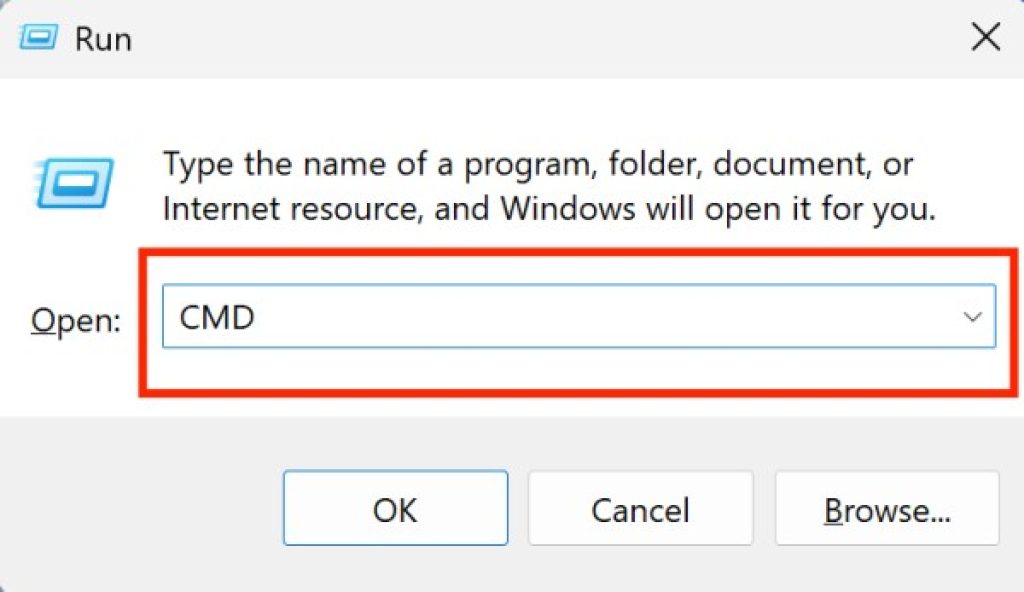
Type:
cmd
Press Enter.
At the Command Prompt, enter:
start ms-settings:troubleshoot
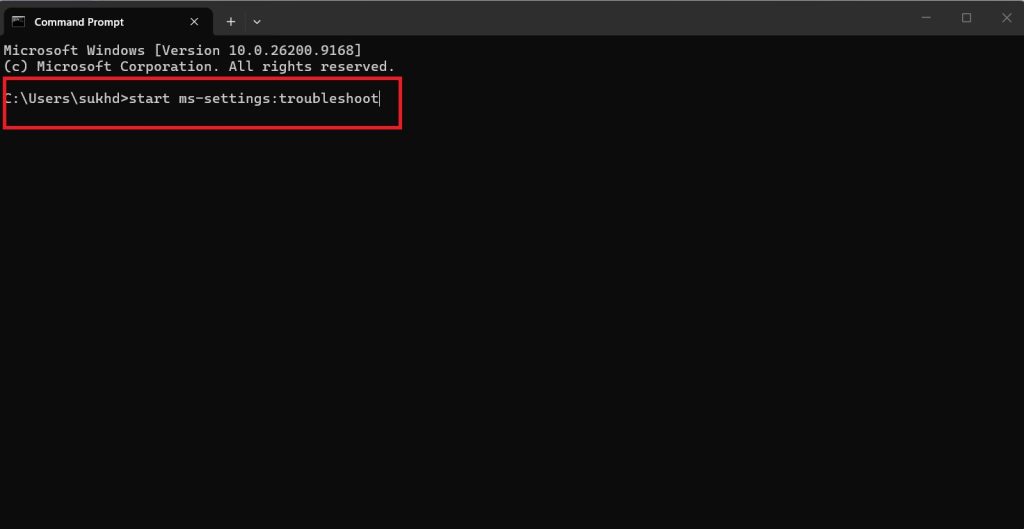
Press Enter.
Windows 11 will open:
Settings > System > Troubleshoot
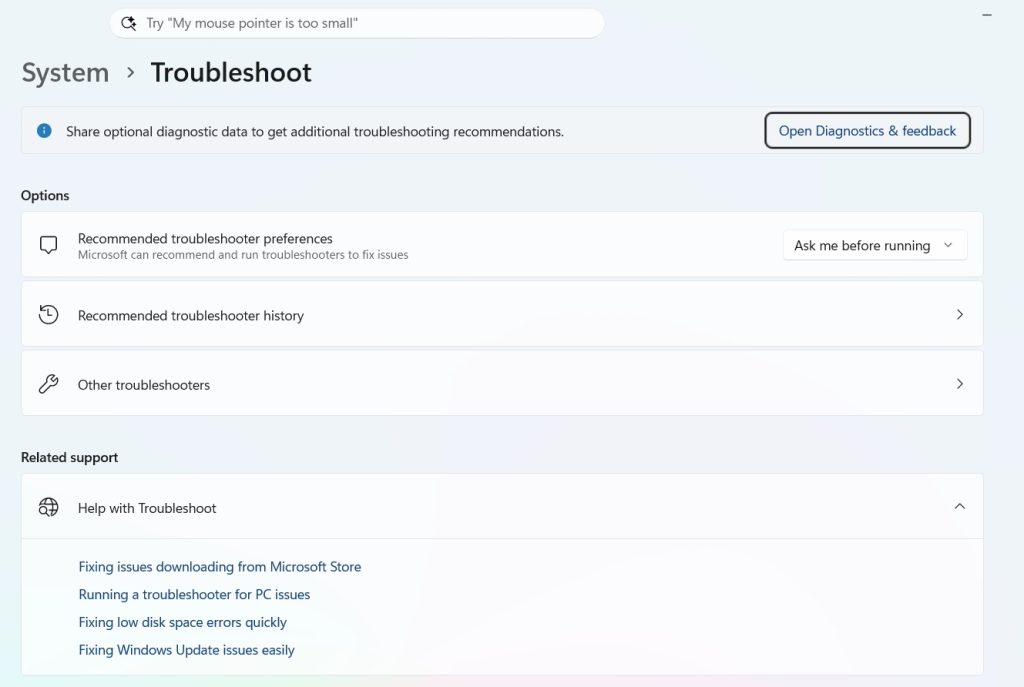
From there, select:
Other troubleshooters
You will see the troubleshooters currently available on your Windows installation.
This method does not run the troubleshooter entirely inside the Command Prompt. Instead, the command uses the Windows Settings URI system to open the correct troubleshooting page.
This is useful when you are already working in Command Prompt, creating a batch file, or remotely instructing someone to open a particular Windows settings page.
You can use the same command from PowerShell:
Start-Process "ms-settings:troubleshoot"
This opens the same Windows troubleshooting section.
Microsoft currently recommends accessing the available Windows troubleshooters through Settings > System > Troubleshoot > Other troubleshooters on Windows 11.
Why This Method Is Useful
This approach is particularly useful if the Start menu or Settings search is not convenient.
For example, you can open Command Prompt and enter:
start ms-settings:troubleshoot
Windows immediately takes you to the troubleshooting section.
You can then choose the appropriate troubleshooter from the graphical interface.
It is also a safer modern alternative to relying on old msdt.exe commands that may no longer work on current Windows 11 builds.
Method 2: Launch the Get Help Troubleshooter From Command Line
Microsoft has moved many Windows troubleshooters to the Get Help application.
The Get Help app provides troubleshooting experiences for several common Windows problems. Microsoft explains that when a troubleshooter is available, you can start it from Get Help and follow the diagnostic steps provided by the application.
You can launch the Get Help application from the command line using Windows’ application URI mechanism.
Open Command Prompt and enter:
start ms-contact-support:
Press Enter.
If the URI is supported and the Get Help application is installed, Windows can open the Get Help experience.
You can then search for the problem you are experiencing.
For example, you can search for:
Windows Update troubleshooter
or:
Bluetooth troubleshooter
or:
Audio troubleshooter
or:
Printer troubleshooter
Microsoft’s current Windows troubleshooting documentation directs users to search for the relevant troubleshooter inside Get Help.
The exact Get Help experience can vary depending on the Windows version and the troubleshooting scenario.
This is important because there is no longer one universal msdt.exe command that should be used for every Windows 11 troubleshooter.
Example: Start Get Help
Open Command Prompt and run:
start ms-contact-support:
After Get Help opens, search for the problem you want to troubleshoot.
For example:
Windows Update troubleshooter
Select the appropriate troubleshooting option and follow the instructions.
Get Help may ask for permission to perform diagnostics. Microsoft states that some troubleshooters automatically run diagnostics and provide suggested remedies based on their findings.
Method 3: Launch a Specific Troubleshooter Through a Get Help URI
Some Get Help troubleshooting experiences can be launched through specific ms-contact-support:// links.
For example, a Windows Update troubleshooting experience has been documented using:
start ms-contact-support://smc-to-emerald/WindowsUpdateTroubleshooter
This can open the Windows Update troubleshooting experience in Get Help on systems where the corresponding Get Help experience and URI are available.
However, this method needs an important qualification.
Microsoft has migrated troubleshooters from the old MSDT platform to Get Help, and the available troubleshooting experiences can change between Windows releases. Therefore, you should not assume that every old ms-contact-support:// URI found online will continue to work indefinitely.
For a general Windows 11 tutorial, the more reliable command is:
start ms-settings:troubleshoot
You can then select the current troubleshooter from Other troubleshooters.
For a specific Microsoft-supported scenario, however, a documented Get Help URI can be useful.
Method 4: Run the Windows Update Troubleshooter From Command Line
Windows Update is one of the most common reasons users want to run a troubleshooter.
Microsoft currently directs Windows 11 users to the automated Windows Update troubleshooter in Get Help.
You can first open the troubleshooting section from Command Prompt:
start ms-settings:troubleshoot
Then select:
Other troubleshooters > Windows Update > Run
Depending on the current Windows 11 build, selecting Run can open the appropriate Get Help troubleshooting experience.
Another option is to launch the Windows Update troubleshooting experience through the documented Get Help URI:
start ms-contact-support://smc-to-emerald/WindowsUpdateTroubleshooter
If the URI is not recognized on your system, use the Settings method instead.
After the troubleshooter runs, Get Help can display its findings and recommended actions. Microsoft states that the Windows Update troubleshooter can automatically run diagnostics and attempt to fix common update problems.
Frequently Asked Questions
Can I run Windows 11 Troubleshooter from Command Prompt?
Yes. The most reliable current method is to open the Windows troubleshooting page with:
start ms-settings:troubleshoot
You can then select the required troubleshooter from Other troubleshooters.
Does the old msdt.exe command still work in Windows 11?
MSDT is deprecated, and Microsoft has retired the old troubleshooting platform from current supported Windows updates. Old msdt.exe commands may work on older Windows installations but should not be relied upon for current Windows 11.
How do I open Get Help from Command Prompt?
Open Command Prompt and run:
start ms-contact-support:
If Get Help is installed and the URI is supported, Windows will open the Get Help experience.
What is the command to open Windows Troubleshoot settings?
Use:
start ms-settings:troubleshoot
This opens Settings > System > Troubleshoot, where you can access the available Windows 11 troubleshooters.
Conclusion
Running a troubleshooter from the command line in Windows 11 is still possible, but the process has changed significantly compared with older versions of Windows. The traditional msdt.exe tool was Microsoft’s command-line troubleshooting platform for many years, but Microsoft has deprecated and retired that platform as Windows troubleshooting moves to the newer Get Help experience.
For current Windows 11 systems, one of the most useful commands is:
start ms-settings:troubleshoot
This opens the Troubleshoot section of Windows Settings and allows you to select the appropriate troubleshooter.
You can also launch the Get Help platform with:
start ms-contact-support:
when the Get Help application and the relevant URI are available.
For older Windows installations, you may still encounter commands such as msdt.exe -id WindowsUpdateDiagnostic, but these commands belong to the legacy troubleshooting platform and should not be presented as the primary solution for fully updated Windows 11 computers.
When a dedicated troubleshooter is unavailable, Windows’ command-line repair tools can still be extremely useful. SFC can check protected system files, while DISM can repair the Windows component store.
The key point is that command-line access and command-line troubleshooting are not always the same thing. In modern Windows 11, the command line can launch the appropriate Settings or Get Help troubleshooting experience, while specialized commands such as SFC and DISM perform deeper system diagnostics and repairs.





