Geeksdigit Team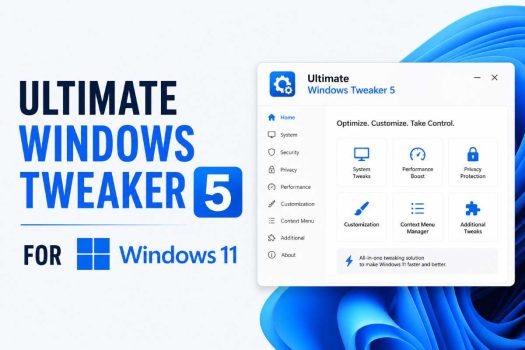
Windows 11 ships with a redesigned Settings app, a cleaner interface, and a handful of new visual flourishes — but underneath that polish, Microsoft has actually made some system-level customization harder to reach than it used to be. Many of the options power users relied on in Windows 10 have been buried, removed from the visible UI, or pushed into the Registry and Group Policy Editor, where casual users are understandably reluctant to go poking around. This is exactly the gap that Ultimate Windows Tweaker 5 (UWT5) was built to fill.
Developed by Anand Khanse, MVP, and distributed through TheWindowsClub, Ultimate Windows Tweaker 5 for Windows 11 adds a large number of new features and tweaks and is widely regarded as one of the best Windows 11 tweaking tools available. It has a long pedigree — earlier versions of Ultimate Windows Tweaker have been a staple recommendation for Windows power users for well over a decade — and version 5 is a ground-up refresh built specifically to address the quirks of Windows 11.

This guide walks through what UWT5 actually is, how it’s organized, what you can do with it, and how to use it safely so you get the benefits without introducing instability into your system.
What Exactly Is Ultimate Windows Tweaker 5?
Ultimate Windows Tweaker 5 is a free customization tool that lets you tweak system settings, improve privacy, and adjust performance options from a single interface, giving you more control over Windows 11 beyond what the built-in Settings app offers. Rather than reinventing the wheel, it acts as a front end: it’s a lightweight portable utility that provides access to hidden or advanced system settings that are normally scattered across different menus or registry locations.
That “portable” part matters. You don’t need to install Ultimate Windows Tweaker — it runs as a standalone executable file. This is a deliberate design choice that keeps the tool trustworthy: there’s no installer routine that could bundle unwanted extras, no background service quietly running after you close it, and no registry footprint left behind by the program itself (only by the tweaks you choose to apply). You can keep the executable on a USB stick and carry it between machines, or drop it in a folder and run it whenever you need it.
In terms of footprint, the tool is remarkably small. The whole utility is just around 219 KB in size, yet it includes over 200 individual tweaks. Like its predecessors, UWT5 uses a familiar, clean, minimalistic interface with navigation links in a left-hand panel and tabs at the top within some categories. Every option is documented in plain language, too — hovering over any tweak brings up a helpful tooltip explaining exactly what it does, so you’re rarely left guessing about the consequences of a checkbox.
Fundamentally, everything UWT5 does could technically be done manually — through the Settings app, the Registry Editor, or the Group Policy Editor. The value of the tool is that it collects all of these useful tweaks into a single, organized user interface instead of forcing you to hunt through dozens of different menus, dialog boxes, and registry keys to find the setting you’re after.
Why Windows 11 Specifically Needed This Tool
Windows 11’s redesign wasn’t just cosmetic. The taskbar was rebuilt from scratch and lost long-standing customization options (like moving it to the top or sides of the screen), the right-click context menu was simplified and hides many familiar actions behind a “Show more options” entry, and several classic Control Panel-era paths were nudged further out of sight in favor of the new Settings app.
Windows 11 made visible changes to the taskbar, Start menu, spacing, menus, and Explorer design, and not every user prefers the defaults. For anyone who upgraded from Windows 10 and immediately missed a familiar workflow, or who simply wants their desktop to feel more efficient and less “designed for touchscreens,” UWT5 restores a lot of that lost flexibility. It can help reduce friction by exposing practical customization options in one place, letting a user who wants a less animated interface, a cleaner desktop, or quicker access to legacy tools achieve that without manually editing system files or creating Registry entries themselves.
The Main Categories of Tweaks

UWT5 organizes its 200+ tweaks into a set of clearly labeled sections. While the exact wording of each section can vary slightly between builds, the core structure looks like this:
System Information
This is the landing page you see when you first launch the tool. It shows basic information about your system, such as the operating system version, build number, and system type. It’s also functional, not just informational — UWT5 calculates a Windows Experience Index-style score right from this main page, and you can click “Run assessment” to recalculate it. As a bonus for troubleshooting corrupted files, you can run the DISM and SFC commands to fix a corrupted system image or damaged system files with a single click, without having to open an elevated Command Prompt or PowerShell window yourself.
Customization
This tends to be the most-visited section, and for good reason — it governs the things people interact with every single day: the taskbar, Start menu, File Explorer, and general UI behavior. Here you’ll typically find options to adjust taskbar alignment and behavior, tweak Start menu layout, restore older right-click context menu behavior, disable animations, and generally pare back visual elements that feel unnecessary. There’s also an option to enable accent color for the Start menu and taskbar, letting you bring a splash of personalization back to an interface that, by default, leans heavily on flat white and gray tones.
Performance
Aimed at speeding up the experience of using Windows 11, this section groups together tweaks that reduce background overhead — disabling unnecessary startup processes, adjusting visual effects for speed rather than appearance, and tuning system responsiveness. Some of these options are particularly useful for older or lower-spec hardware that struggles to keep up with Windows 11’s default resource usage.
Security and Privacy
Given how much attention has been paid to telemetry and data collection in recent versions of Windows, this section is one of the tool’s biggest draws. Several dedicated privacy tweaks live under this section, and broadly speaking they let you rein in what Windows shares and how much it watches. According to TheWindowsClub and other trackers of the tool, Ultimate Windows Tweaker 5 lets you disable telemetry and tracking services, turn off location access, block ads that appear inside built-in Windows apps, restrict background app activity, and even lock the Control Panel or specific system settings for other user accounts on a shared PC. Collectively, this gives you a cleaner, more private Windows experience without needing to install separate third-party privacy tools.
A companion write-up on the tool’s security angle notes that this same section provides controls for telemetry-related features, app permissions, Windows security settings, and other privacy-sensitive components — treating security and privacy as two sides of the same coin rather than separate concerns.
Context Menu
Windows 11’s simplified right-click menu was one of its more polarizing changes. UWT5’s Context Menu section directly addresses this. You can add Windows Store apps, features, and other useful functions to the right-click context menu — for example, adding a “Scan with Windows Defender” entry, a “Clear Clipboard” shortcut, or quick links to built-in default Windows Store apps directly into the menu you already use dozens of times a day. TheWindowsClub’s own rundown adds that this section includes many tweaks specifically for the context menu of Store apps, to better support how Windows 11 handles them.
Additional System Tweaks
This is something of a catch-all category for settings that don’t fit neatly elsewhere. Here you’ll find some additional system and network tweaks, plus meta-settings about how UWT5 itself behaves. By default, whenever you apply a tweak and click Apply, UWT5 automatically restarts explorer.exe to make the change take effect immediately — but this behavior can be changed if you’d rather apply changes in batches and restart Explorer manually.
Network, Edge, and Search
Later builds of UWT5 expanded coverage beyond the desktop itself. There are additional sections for Context Menu, Search, Edge, and Network, each offering deeper, more specific tweaks. The Edge tab gives you control over browser startup behavior, new tab page behavior, and privacy settings, while the Network tab lets you optimize bandwidth usage and DNS settings for better connectivity.
Search Bar
Given how many tweaks the tool now contains, finding a specific one by scrolling through categories could get tedious — which is why UWT5 added a dedicated search feature. Ultimate Windows Tweaker 5 includes a search bar so you can easily search for a tweak by keyword, then double-click on the search result to jump straight to it.
Why Use It Instead of Doing It Manually?
It’s a fair question — every single tweak inside UWT5 is technically achievable without it, using tools Microsoft already ships with Windows. So what’s the actual value-add?
According to a breakdown of the tool’s advantages, the case for UWT5 comes down to a handful of practical points. It’s easy to use and doesn’t require technical knowledge, since every option comes with a clear label and a short description. The tweaks themselves are considered safe because it only exposes features and settings that already exist within Windows, so you’re not hacking together anything unstable or unsupported. On top of that, it requires no installation and runs as a fully portable program, meaning you can even keep a copy on a USB drive for use across multiple PCs. And because it bundles hundreds of options covering performance, privacy, UI, security, and network settings all in one place, it saves you from having to remember dozens of separate registry paths or Group Policy nodes. Most tweaks apply instantly, while a smaller number take effect only after a quick restart.
In short: the underlying capability isn’t unique to UWT5, but the convenience, discoverability, and safety net of tooltips absolutely is.
How to Download and Use It Safely
Because a tool like this modifies system-level settings, and because “Windows tweaker” downloads are exactly the kind of software that scammers love to clone and bundle with junk, sourcing it correctly matters.
- Get it from the official source. Go to TheWindowsClub website directly, and avoid downloading it from random third-party sites to steer clear of fake or bundled versions.
- Download and extract. Download the ZIP file for Ultimate Windows Tweaker 5 and extract the folder anywhere on your computer.
- Launch it. Double-click the file named “Ultimate Windows Tweaker 5.exe.” You’ll see a simple interface divided into sections like System, Personalization, Security, Performance, and more.
- Create a restore point first. Since the tool modifies system settings, it’s strongly recommended to create a System Restore point before applying any changes, so you can revert if something doesn’t behave the way you expected.
- Browse, read, and select carefully. Browse through the categories, read the description attached to each tweak, and check or select only the ones you actually want to apply.
- Apply and restart if prompted. Click Apply once you’re ready — some changes may require restarting Windows Explorer or rebooting your PC to fully take effect.
Is it actually safe to use? Yes, when downloaded from a trusted source — the tool does not install background services or any bundled software, and careful, deliberate usage helps ensure system stability. That said, one detailed overview of the tool makes an important distinction worth keeping in mind: a visual tweak is generally easy to reverse, but privacy, security, account, or performance-related changes can affect things like Windows Updates, app behavior, network access, or your ability to troubleshoot problems later on. In other words, don’t treat every checkbox the same way — a change to your taskbar alignment carries essentially zero risk, while disabling a background service tied to updates or security is worth a moment’s more thought.
It’s also worth being realistic about what the Performance section can and can’t do. These tweaks can help reduce background noise by disabling suggestions, promotional content, unnecessary visual effects, or features you don’t personally use — and while they won’t turn an aging PC into a high-end machine, they can make the system feel more focused and responsive. The benefit is strongest when tweaks are chosen deliberately based on how you actually use your PC, rather than blindly applying every available option at once.
Who Should (and Shouldn’t) Use It
Ultimate Windows Tweaker 5 is especially useful for power users and IT administrators who manage several machines and want a fast, repeatable way to apply a consistent set of tweaks without manually opening the Registry Editor on each one. It’s equally handy for enthusiasts who simply enjoy fine-tuning their setup and want a safer, more guided alternative to editing registry keys by hand from instructions found online.
On the other hand, it may simply not be necessary if you’re already satisfied with the default Windows 11 settings — there’s no obligation to use every feature it exposes just because it’s available. If your system already runs the way you like and you don’t have specific privacy or UI complaints, there’s little reason to go looking for tweaks to apply.
Final Thoughts
Ultimate Windows Tweaker 5 doesn’t try to be flashy. It’s a utility in the truest sense: a single, well-organized window into hundreds of settings that Windows 11 already supports internally but doesn’t surface easily. Its portability, small footprint, and plain-language tooltips make it approachable for less technical users, while its sheer breadth of options — spanning performance, privacy, security, the context menu, Edge, and networking — gives power users and IT professionals a genuinely efficient way to configure a machine (or several) exactly the way they want.
The one habit worth carrying into any session with it: read before you click. Most tweaks are harmless and reversible, but a few touch settings that affect updates, security, or troubleshooting down the line. Combined with a restore point as a safety net, that’s really all the caution UWT5 requires — after that, it’s simply a faster, friendlier route to the Windows 11 you actually want to use.