
 Sukhdev Kamboj
If you’ve searched for a “Gmail app” to download on Windows 11, you may have noticed that Google doesn’t offer one in the traditional sense — there’s no .exe installer on the Microsoft Store or Google’s website labeled “Gmail Desktop App.” That doesn’t mean you’re stuck using a browser tab, though. Windows 11 has several built-in and Google-supported ways to turn Gmail into something that looks, feels, and behaves like a real desktop app: complete with its own window, taskbar icon, notifications, and Start menu entry.
This guide walks through every practical method, from the quickest (installing Gmail as a Progressive Web App) to alternatives like using the Outlook app or the Mail app with your Gmail account. By the end, you’ll know exactly which option fits your workflow and how to set it up step by step.
Why There’s No Official Gmail Desktop App
Google has historically kept Gmail as a web-first product. Instead of building and maintaining separate native apps for Windows, macOS, and Linux, Google relies on modern browsers to deliver an app-like experience through a technology called a Progressive Web App (PWA). A PWA is essentially a website that can be “installed” so it runs in its own window, gets pinned to your taskbar or Start menu, and can send desktop notifications — without needing a separate download from an app store.
This is actually good news: it means the “Gmail app” you install is always running the latest version of Gmail, with zero manual updates required, and it takes up a fraction of the storage a native app would.
Method 1: Install Gmail as a PWA Using Google Chrome (Recommended)
This is the closest thing to an official “Gmail app” and the method most people should use. It creates a standalone Gmail window separate from your regular browser tabs.
Step 1: Open Google Chrome If you don’t already have Chrome installed on Windows 11, download it from Google’s official site and install it like any other application.
Step 2: Sign in to Gmail Navigate to gmail.com and log in with your Google account credentials. Make sure you’re fully logged into your inbox, not just the Google account chooser screen.
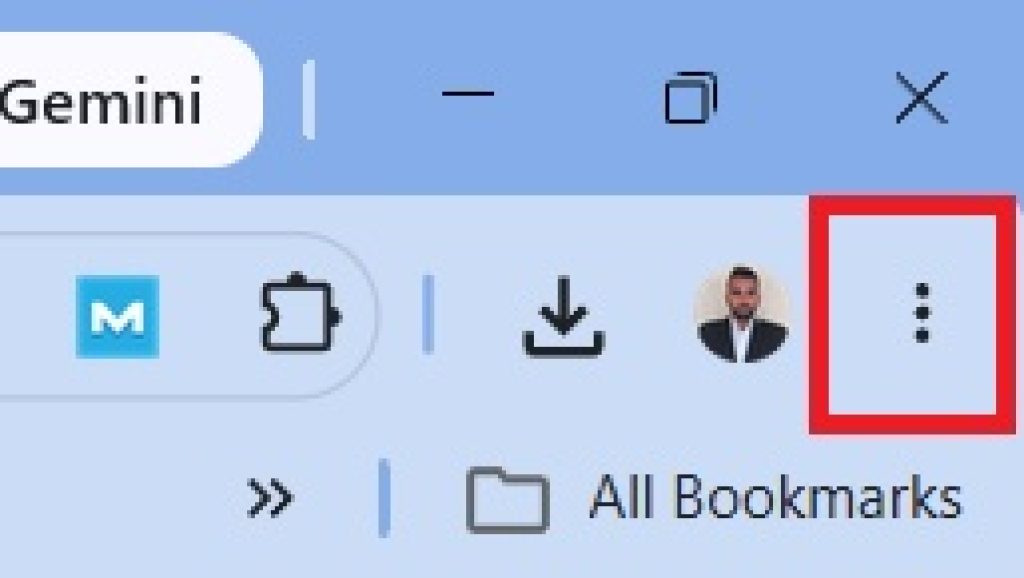
Step 3: Open the Chrome menu Click the three vertical dots (⋮) in the top-right corner of the Chrome window. This opens the main Chrome menu.
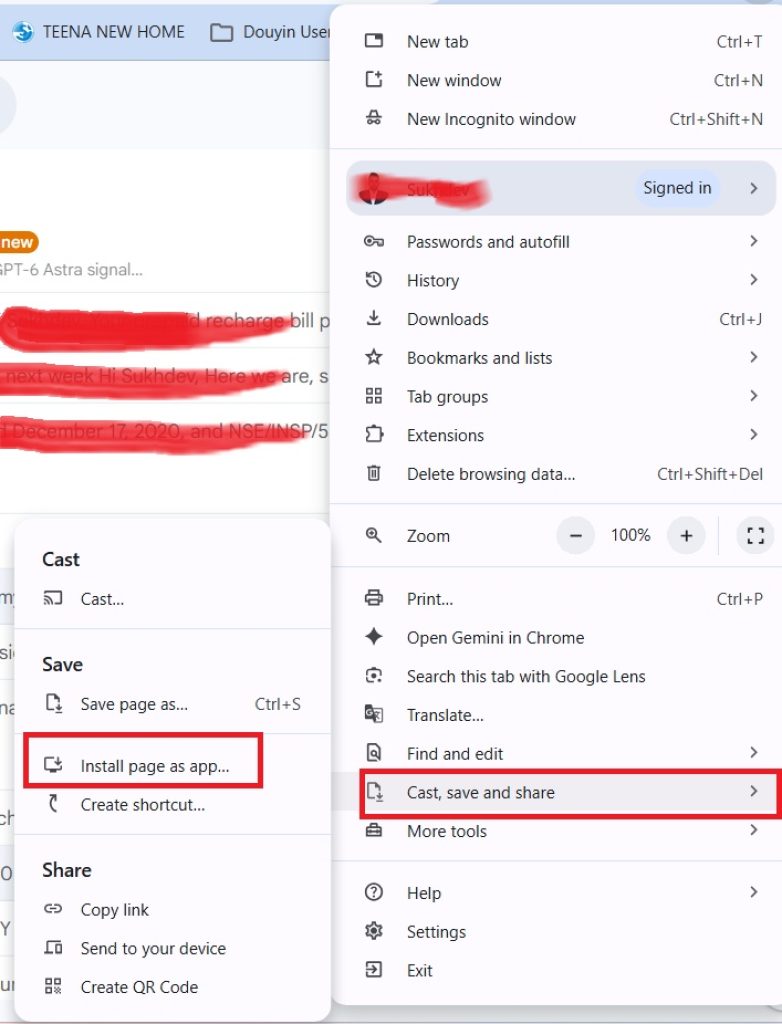
Step 4: Find the “Cast, save, and share” or “More tools” option Depending on your Chrome version, hover over or click “Cast, save, and share” or “More tools.” Newer versions of Chrome may show this as a single menu item.
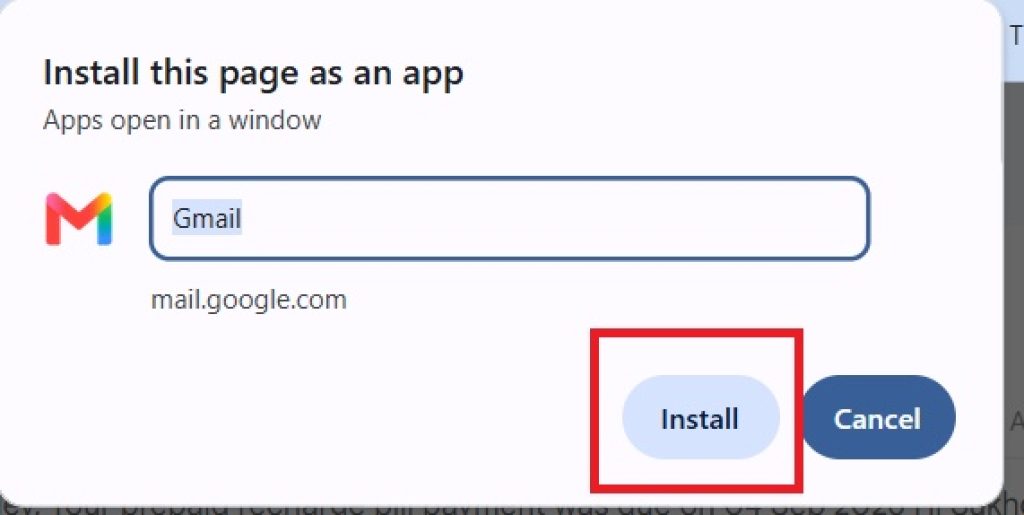
Step 5: Click “Install Gmail” You should see an option that reads “Install Gmail…” with the Gmail icon next to it. Click it.
Step 6: Confirm the installation A small dialog box will pop up showing the Gmail icon and asking you to confirm. Click Install.
Step 7: Launch and pin your new Gmail app Once installed, Gmail opens in its own dedicated window — no address bar, no tabs, just your inbox. Windows 11 also automatically creates a Start menu entry. To pin it to your taskbar for quick access, right-click the Gmail icon in the taskbar (while it’s open) and select “Pin to taskbar.”
Also Read: How to Pin a Folder to Taskbar in Windows 11
From now on, you can launch Gmail exactly like any other installed application — from the Start menu, taskbar, or by searching “Gmail” in Windows Search.
Enabling Desktop Notifications for the PWA
Once installed, Gmail can alert you to new emails even when the window is closed, similar to a native app:
- Open your newly installed Gmail app window.
- Click the gear icon in the top-right corner and select “See all settings.”
- Under the General tab, scroll to Desktop Notifications and select “New mail notifications on.”
- Scroll down and click Save Changes.
- Windows may prompt you to allow notifications the first time a new email arrives — click Allow.
You can also manage notification permissions directly through Settings > Apps > Installed apps, find Gmail, and adjust its notification permissions there.
Method 2: Install Gmail as a PWA Using Microsoft Edge
If you prefer to avoid installing Chrome and want to use the browser that comes built into Windows 11, Edge supports the exact same PWA installation process.
Step 1: Open Microsoft Edge and go to gmail.com Sign in with your Google account.
Step 2: Open the Edge menu Click the three-dot menu (⋯) in the top-right corner.
Step 3: Select “Apps” Hover over Apps in the menu, which expands a submenu.
Step 4: Click “Install this site as an app” Edge will detect that Gmail supports PWA installation and shows this option directly.
Step 5: Name the app and confirm A dialog appears letting you rename the app if you’d like (most people leave it as “Gmail”). Click Install.
Step 6: Access from Start menu or taskbar Just like with Chrome, Edge will create a shortcut. You can pin it to the taskbar, Start menu, or desktop from the app’s window by right-clicking its taskbar icon.
One advantage of using Edge for this is tighter integration with Windows 11’s app management — installed PWAs show up in Settings > Apps > Installed apps exactly like traditional software, making them easy to uninstall or manage permissions for later.
Method 3: Access Gmail Through the New Outlook App
Windows 11 replaced the old Mail and Calendar apps with a redesigned Outlook app, which now supports adding Gmail accounts directly via IMAP. This is a good option if you already use Outlook for other accounts and want everything unified in one inbox.
Step 1: Open the Outlook app Click the Start menu, type “Outlook,” and open it. If it’s not installed, get it from the Microsoft Store first.
Step 2: Open Settings Click the gear icon in the top-right corner of the app.
Step 3: Go to Email Accounts In the settings panel, find the Email accounts section and click Add account.
Step 4: Enter your Gmail address Type your full Gmail address and click Continue.
Step 5: Sign in through Google’s sign-in page A browser window opens automatically. Select your Google account from the list, or enter your credentials if prompted.
Step 6: Grant permissions Google will ask if you want to allow Outlook to access your Gmail messages, contacts, and calendar. Click Allow.
Step 7: Confirm the connection Once complete, your Gmail inbox appears alongside any other connected accounts in the Outlook sidebar, and you can send, receive, and organize emails without leaving the app.
This method is useful if you manage multiple email accounts (work, personal, Gmail) and want one unified interface, complete with a shared calendar view. The trade-off is that some Gmail-specific features — like advanced label filtering or Gmail’s native search operators — work a bit differently inside Outlook than they do in the actual Gmail interface.
Method 4: Create a Simple Desktop Shortcut
If you don’t want a full PWA installation but just want a one-click way to open Gmail in your default browser, you can create a basic desktop shortcut.
- Right-click any empty space on your desktop.
- Select New > Shortcut.
- In the location field, type:
https://mail.google.com - Click Next, name the shortcut “Gmail,” and click Finish.
This method won’t give you a separate app window or notifications, but it’s a fast way to get a clickable icon without going through browser menus.
Choosing the Right Method for You
- Want the closest thing to a real Gmail app, with its own window and notifications? Use Method 1 or Method 2 (PWA installation via Chrome or Edge).
- Already manage several email accounts and want them together? Use Method 3 (the Outlook app).
- Just want a quick shortcut with no extra setup? Use Method 4.
For most people, installing Gmail as a PWA is the best balance of simplicity and functionality — it’s officially supported by Google, updates automatically, and behaves like a proper installed application in every way that matters day to day.
Troubleshooting Common Issues
The “Install Gmail” option doesn’t appear in Chrome’s menu. Make sure Chrome is fully updated. Go to the three-dot menu, select Help > About Google Chrome, and let it install any pending updates, then restart the browser and try again.
The installed Gmail app opens but shows a blank or broken page. Try clearing the app’s cache. Go to Settings > Apps > Installed apps, find Gmail, click the three-dot menu next to it, and select Advanced options, then Reset.
Notifications aren’t appearing. Check two places: Gmail’s own notification setting (inside the app, under Settings > See all settings > General) and Windows’s notification permissions (Settings > System > Notifications, and also Settings > Apps > Installed apps > Gmail). Both need to be enabled.
Multiple Google accounts are causing sign-in conflicts. If you use more than one Google account in your browser, make sure you install the PWA while signed into the correct inbox. You can also open Gmail in an Incognito/InPrivate window first to sign in with just one account, then perform the installation steps from there.
Final Thoughts
While Windows 11 doesn’t ship with a dedicated Gmail application the way it does with Outlook, Google’s Progressive Web App support means you can get a nearly identical experience in just a few clicks. Once installed, your Gmail app behaves like any other program on your system — it appears in your Start menu, can be pinned to your taskbar, launches instantly, and delivers desktop notifications for new messages. Whichever method you choose, you’ll be checking email without a cluttered browser tab getting in the way.





