Olivia Harper
Windows Update usually works quietly in the background, downloading and installing patches without you ever needing to think about where they come from. But every so often, something goes wrong: an update fails silently, a driver won’t install, or you need to patch a computer that has no internet connection at all. That’s where the Microsoft Update Catalog comes in — a free, official website that lets you search for, download, and manually install almost any update Microsoft has ever released for Windows and its related products.
This guide explains what the Microsoft Update Catalog is, when you should actually use it, and walks through the full process of finding, downloading, and installing updates yourself — including how to handle both the common .msu files and the trickier .cab packages.
What Is the Microsoft Update Catalog?
The Microsoft Update Catalog is a web-based repository maintained directly by Microsoft that hosts standalone installer files for updates, security patches, driver packages, and service packs across Windows versions and other Microsoft software. Rather than waiting for Windows Update to detect and deliver a patch automatically, you can search the catalog by a specific update’s Knowledge Base (KB) number, or by a hardware ID for drivers, and download the exact package you need.
Unlike Windows Update, which decides what to install and when based on your system’s configuration, the catalog puts you in full control. You choose the version, the processor architecture, and the exact build the update targets. This makes it especially useful for IT administrators managing dozens or hundreds of machines, but it’s also a handy tool for regular users troubleshooting a single stubborn PC.
Every update listed in the catalog includes metadata such as the update title, a description, the products and Windows versions it applies to, its classification (security update, driver, feature update, and so on), and its KB number. Files are typically distributed as .msu (Microsoft Update Standalone Package) or .cab (Windows Cabinet) files, both of which can be installed manually using built-in Windows tools.
When Should You Use the Microsoft Update Catalog?
For most home users running a single PC with a stable internet connection, the ordinary Windows Update process through Settings is enough, and there’s no real need to visit the catalog at all. But there are specific situations where downloading updates manually becomes genuinely useful:
- A specific update keeps failing. If Windows Update shows an error code (common ones include 0x80070002 or 0x80244022) for a particular patch, downloading that same update directly from the catalog and installing it manually often succeeds where the automatic process didn’t.
- You’re managing offline or air-gapped systems. In secure environments, labs, or networks where machines aren’t allowed direct internet access, the catalog lets you download updates on a connected computer and transfer them via USB drive.
- You manage multiple machines. IT administrators can download a single update once and deploy it across many computers, or feed it into tools like WSUS (Windows Server Update Services) for organization-wide distribution.
- You need a specific driver. Hardware manufacturers don’t always publish drivers in an easy-to-find place, and the catalog lets you search by hardware ID to pull the exact Microsoft-hosted driver package for a device.
- You’re rebuilding a system image. Technicians who create custom Windows images often “slipstream” cumulative updates directly into an image using DISM, which requires the raw .cab files from the catalog.
- You want a specific older version. Sometimes you need to roll back to, or specifically apply, an update from a particular month rather than whatever the latest cumulative update happens to be.
If none of these apply to you — if Windows Update is working fine and you’re not troubleshooting anything specific — there’s little reason to bother with the catalog. Automatic updates are simpler and just as secure.
Before You Start: Find the Right KB Number
Nearly every search in the Microsoft Update Catalog starts with a KB (Knowledge Base) number, a code Microsoft assigns to each individual update, such as KB5034441. Before opening the catalog, it helps to know exactly which update you’re after.
If you’re chasing a failed update:
Open Settings (Windows key + I).
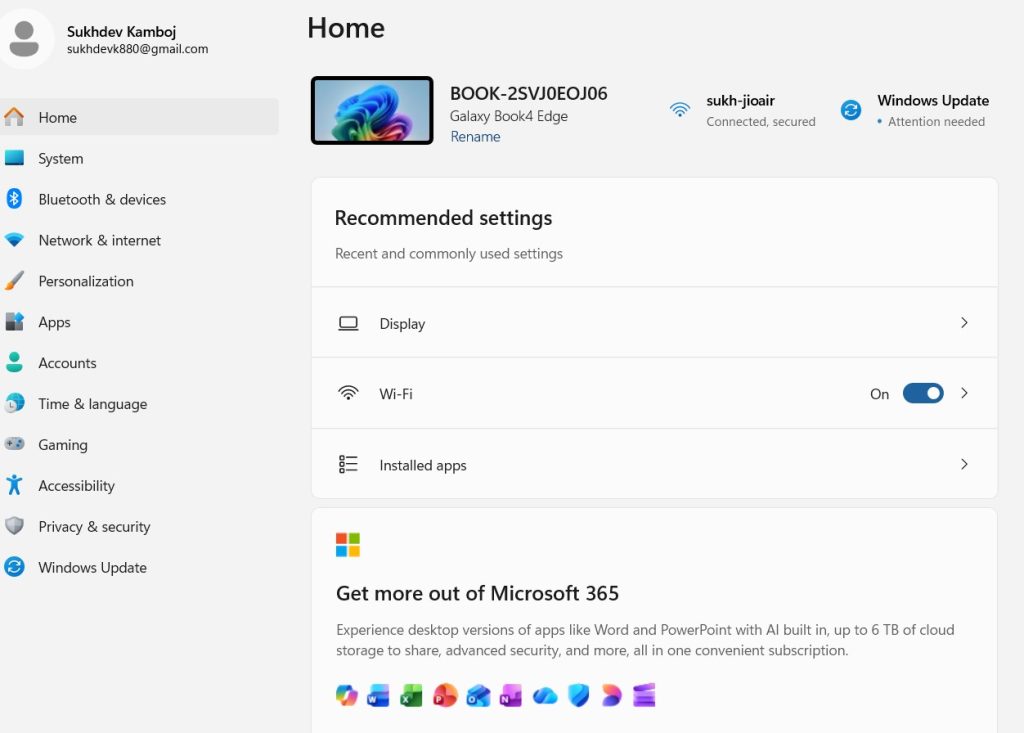
Go to Windows Update, then select Update history.
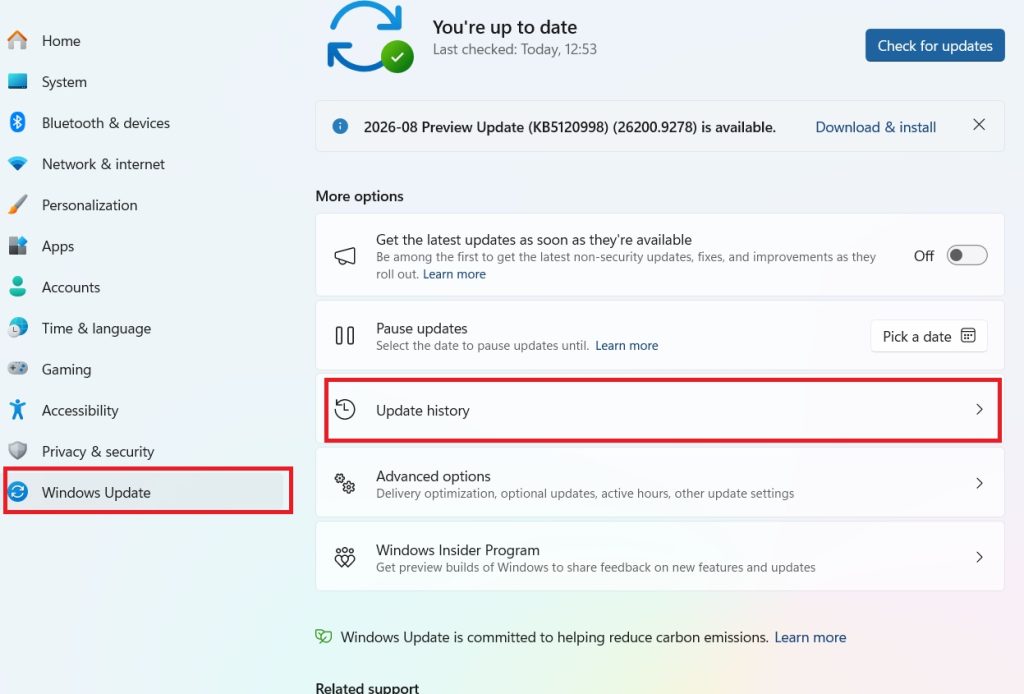
Look for updates marked as failed; each one is listed with its name, install date, and KB number in parentheses.
If you’re following general Windows patch news: Microsoft publishes a release health dashboard and monthly patch summaries that list the current cumulative update’s KB number for each supported Windows version. This is useful if you simply want the latest available patch rather than one tied to a specific error.
If you’re hunting for a driver:
- Open Device Manager.
- Right-click the device in question and choose Properties, then the Details tab.
- From the dropdown, select Hardware Ids.
- Copy the shortest ID string shown (for example,
PCI\VEN_8086&DEV_1502) — this is what you’ll paste into the catalog’s search box.
You’ll also want to confirm your system’s architecture before downloading anything, since installing the wrong one will fail or, in rare cases, cause instability. Go to Settings > System > About and check the System type field; it will say something like “64-bit operating system, x64-based processor” or, for Arm-based Surface devices, “ARM-based processor.”
Step-by-Step: Searching and Downloading from the Catalog
Step 1: Open the Microsoft Update Catalog
Navigate to the official site at catalog.update.microsoft.com. The site requires a modern browser with scripting enabled; older guidance about needing Internet Explorer or an ActiveX plugin is long outdated — any current version of Edge, Chrome, or Firefox works fine today.
Step 2: Search for Your Update or Driver
Type the KB number (for example, KB5034441) or the hardware ID you collected earlier into the search box at the top of the page, then press Enter or click the search icon.
Step 3: Review the Results List
The catalog will return a table of matching packages. This is the step people most often get wrong, because a single KB number can produce a dozen entries — one for every combination of Windows version and processor architecture Microsoft supports. Pay close attention to:
- Product — make sure it matches your exact Windows edition and feature update version (for example, “Windows 11, version 23H2” is not interchangeable with “Windows 11, version 22H2”).
- Architecture — x64 for standard Intel/AMD systems, ARM64 for devices like Surface Pro X or Snapdragon-based laptops, and x86 for older 32-bit systems (increasingly rare).
- Classification — confirms whether the file is a security update, a driver package, a cumulative update, or something else.
- Last updated / size — useful for confirming you have the most current version of a package and roughly how long the download will take.
Sort or scan through the list until you find the row that matches your system exactly, then click the Download button in that row.
Step 4: Grab the File From the Pop-up
Clicking Download opens a small pop-up window containing one or more direct links to the file. If nothing appears, your browser’s pop-up blocker is likely intercepting it — allow pop-ups for the catalog site (an ad blocker can occasionally interfere too, so disable it specifically for this site if needed) and click Download again.
Click the link inside the pop-up to actually begin the download. Depending on the update, the file will be several megabytes for a small driver up to a few gigabytes for a major cumulative update, so downloads for large security patches can take anywhere from under a minute to several minutes depending on your connection.
The file that lands in your Downloads folder will have one of two extensions:
- .msu — a self-contained standalone package with its own installer.
- .cab — a raw cabinet archive that needs to be applied through a command-line tool.
Installing an .msu File
This is the simpler of the two formats. Once the file has finished downloading:
- Locate the .msu file in File Explorer (usually in your Downloads folder).
- Double-click it. This launches the built-in Windows Update Standalone Installer.
- Click Yes through the User Account Control prompt if asked.
- Follow the on-screen prompts; the installer will check applicability and then apply the patch.
- Restart your PC if prompted — many system-level updates won’t finish taking effect until after a reboot.
If the installer reports the update isn’t applicable to your system, double-check that you downloaded the version matching your exact Windows build and architecture; this is the single most common reason .msu installs fail.
Installing a .cab File
Cabinet files are more common for driver packages and for updates meant to be applied to a Windows image rather than double-clicked directly. Installing one requires the Deployment Image Servicing and Management tool (DISM), which comes built into every modern version of Windows.
- Right-click the Start button and choose Terminal (Admin) or Windows PowerShell (Admin).
- Click Yes on the UAC prompt.
- Run the following command, replacing the path with the actual location of your downloaded file:
DISM /Online /Add-Package /PackagePath:"C:\Users\YourName\Downloads\windows10.0-kb1234567.cab"
- Wait for DISM to report that the operation completed successfully. This can take a few minutes for larger packages.
- Restart the computer if DISM indicates a restart is required to finish applying the update.
If you’re working with a driver .cab rather than a system patch, you can alternatively extract its contents and install the driver manually through Device Manager, or point Device Manager’s “Update driver > Browse my computer” option at the extracted folder.
Applying Updates to an Offline Image
One of the more advanced but genuinely useful capabilities of the catalog is supplying updates you can “slipstream” directly into a Windows installation image, so that new PCs or reimaged machines come pre-patched without needing a separate update pass after setup. This is typically done by mounting a Windows image (.wim or .vhdx) with DISM, applying the downloaded .cab package to the mounted image using the same /Add-Package syntax shown above, and then unmounting and committing the changes. This workflow is mainly relevant to IT professionals building custom deployment images rather than everyday users, but it’s worth knowing the catalog is the source for the raw files that make it possible.
Using the Catalog for Enterprise Deployment
Organizations running Windows Server Update Services (WSUS) can also pull updates from the Microsoft Update Catalog into their local WSUS instance for controlled internal distribution. This lets an administrator test an update on a small pilot group before approving it for rollout across the wider network — something that isn’t possible with the fully automatic consumer version of Windows Update. Similarly, tools like Microsoft Endpoint Configuration Manager can import catalog updates as part of a broader patch management strategy, giving administrators granular control over exactly which updates reach which machines and when.
Is the Microsoft Update Catalog Safe?
Yes. It’s an official Microsoft-run service, and every file hosted there comes directly from Microsoft rather than a third party. That said, safe use still comes down to a few habits:
- Always access it through the official
catalog.update.microsoft.comdomain rather than a link from an email or unfamiliar site. - Avoid third-party “mirror” sites that claim to host the same update files; there’s no reason to use them when the source is free and official.
- Double-check that the KB number, product version, and architecture all match your system before installing anything — installing the wrong package is far more likely to cause a problem than a security risk from the catalog itself.
Common Problems and Fixes
The Download button doesn’t do anything. This is almost always a pop-up blocker. Check your browser’s address bar for a blocked pop-up notification and allow pop-ups for the site.
DISM reports the package isn’t applicable. This means the .cab file doesn’t match your Windows version, edition, or architecture. Go back to the catalog and re-check the Product column against your system’s exact build number (found under Settings > System > About).
The .msu installer says a newer update is already installed. This isn’t an error — it means your system is already patched to an equal or later level, so there’s nothing more to do.
A driver update doesn’t show up in Device Manager afterward. Some driver packages need a restart before Windows recognizes them, and others require using the “Update driver” wizard pointed at the extracted .cab contents rather than a direct double-click install.
Final Thoughts
The Microsoft Update Catalog isn’t something most people need to touch during everyday computer use, but it’s an invaluable tool the moment something goes wrong with automatic updates, or when you need precise, manual control over what gets installed and when.
Knowing how to find a KB number, match it to your exact system configuration, and apply the resulting .msu or .cab file with DISM turns what looks like an obscure corner of Microsoft’s website into a genuinely practical troubleshooting skill — one that’s just as useful for a home user working through a stuck update as it is for an IT professional managing an entire fleet of machines.