
 Sukhdev Kamboj
Few things are more frustrating than settling in to watch a video on YouTube, only to have it stutter, freeze, or drop frames every few seconds. If you’re running Windows 11 and using Chrome or Edge as your browser, you’re not alone — this is one of the most commonly reported playback issues on the platform. The good news is that YouTube lag is rarely caused by a single, mysterious problem. It’s almost always the result of a handful of well-known culprits: outdated hardware drivers, browser hardware acceleration conflicts, background processes eating up resources, or simple network bottlenecks.
This guide walks through the most effective, tested methods to eliminate laggy YouTube playback on both Chrome and Edge in Windows 11. Whether you’re dealing with choppy 1080p video, audio that falls out of sync, or a browser that freezes entirely during playback, the steps below are organized from the quickest fixes to the more advanced ones. You don’t need to be a tech expert to follow along — each method includes clear, step-by-step instructions you can complete in just a few minutes.
By the end of this article, you’ll have a clear troubleshooting path to follow, along with an understanding of why each fix works, so you can diagnose similar issues in the future.
Method 1: Update Your Graphics Driver and Browser
Video playback relies heavily on your GPU (graphics processing unit) to decode and render frames smoothly. An outdated or corrupted graphics driver is one of the single biggest causes of video lag in any browser, and it’s the first thing worth ruling out.
Update your graphics driver:
Right-click the Start button and select Device Manager.
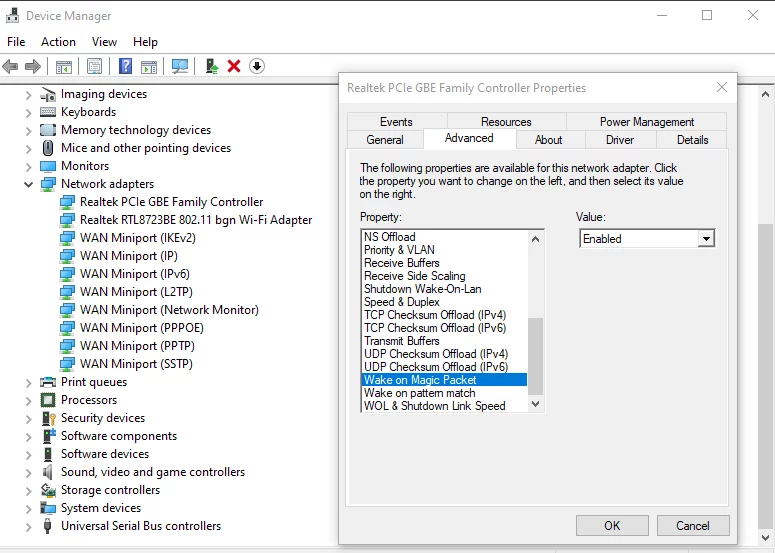
Expand Display adapters to see your GPU (Intel, NVIDIA, or AMD).
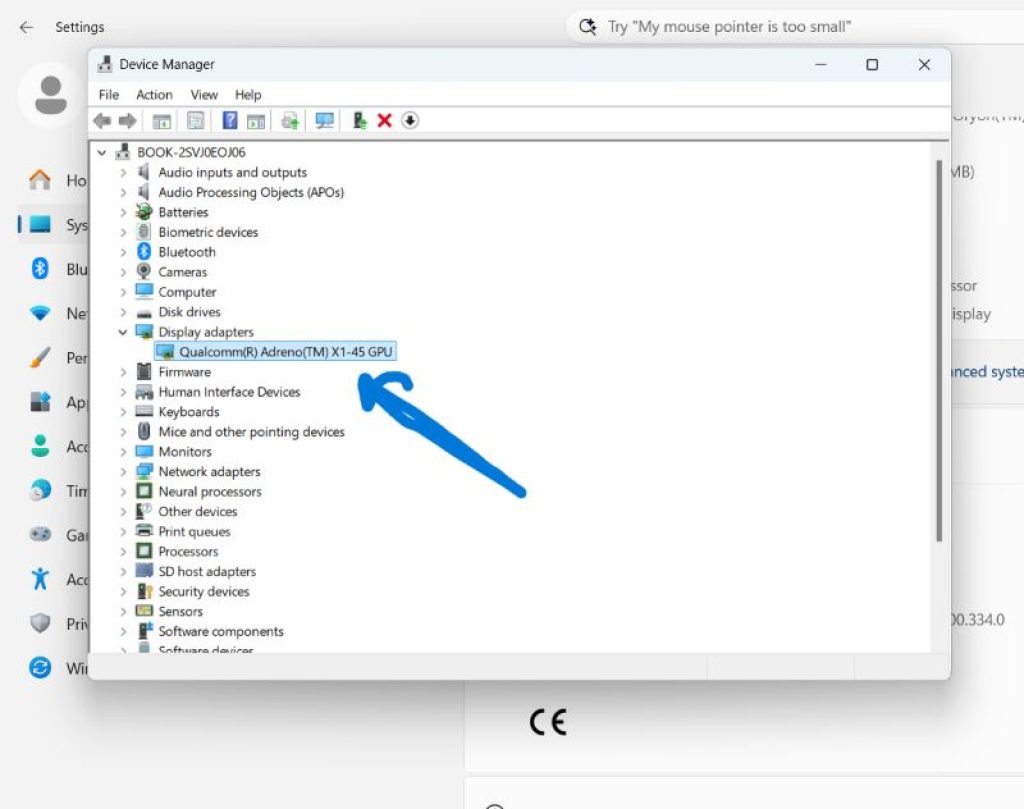
Right-click your graphics card and choose Update driver.
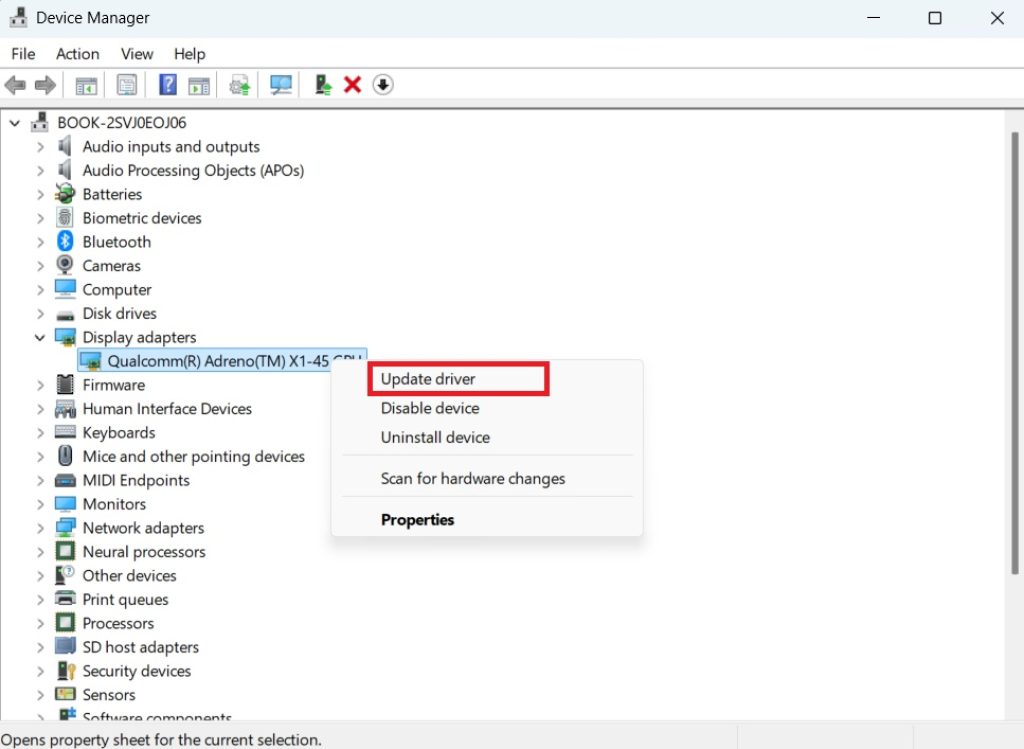
Select Search automatically for drivers and let Windows install any available update.
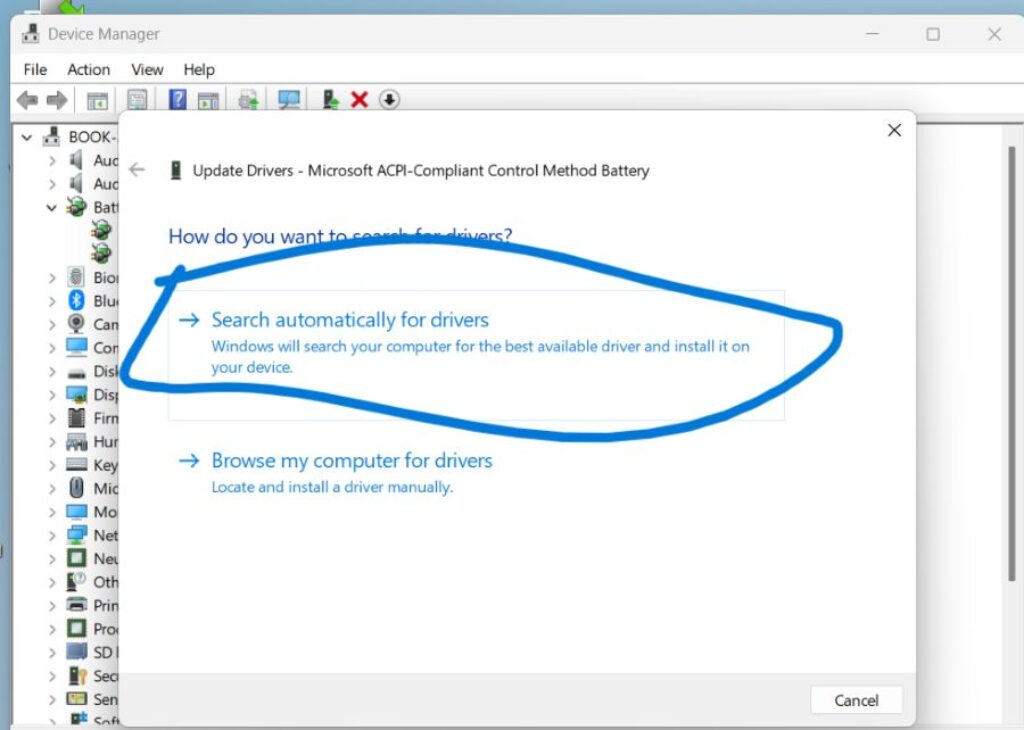
Restart your PC once the update completes.
For more thorough results, especially with NVIDIA or AMD cards, download the latest driver directly from the manufacturer’s website (NVIDIA GeForce Experience, AMD Adrenalin, or Intel Driver & Support Assistant) rather than relying solely on Windows Update, which sometimes lags behind official releases.
Update your browser:
Outdated browser versions can also introduce bugs in the video decoding pipeline that Google or Microsoft has since patched.
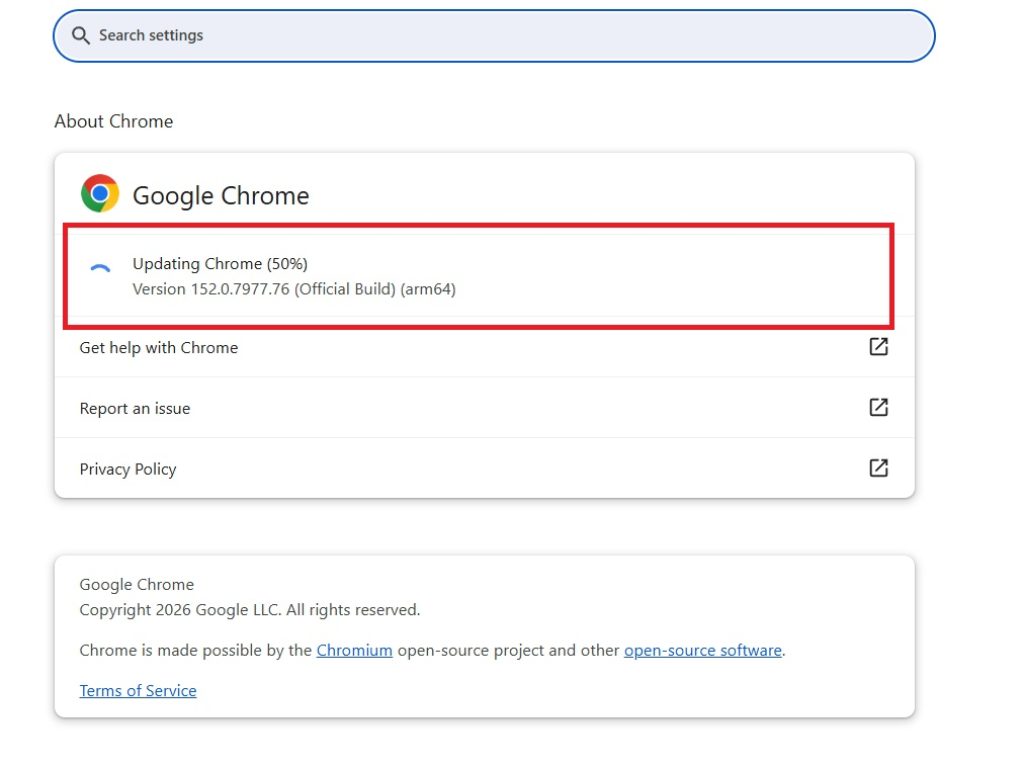
In Chrome, go to the three-dot menu → Help → About Google Chrome. It will automatically check for and install updates.
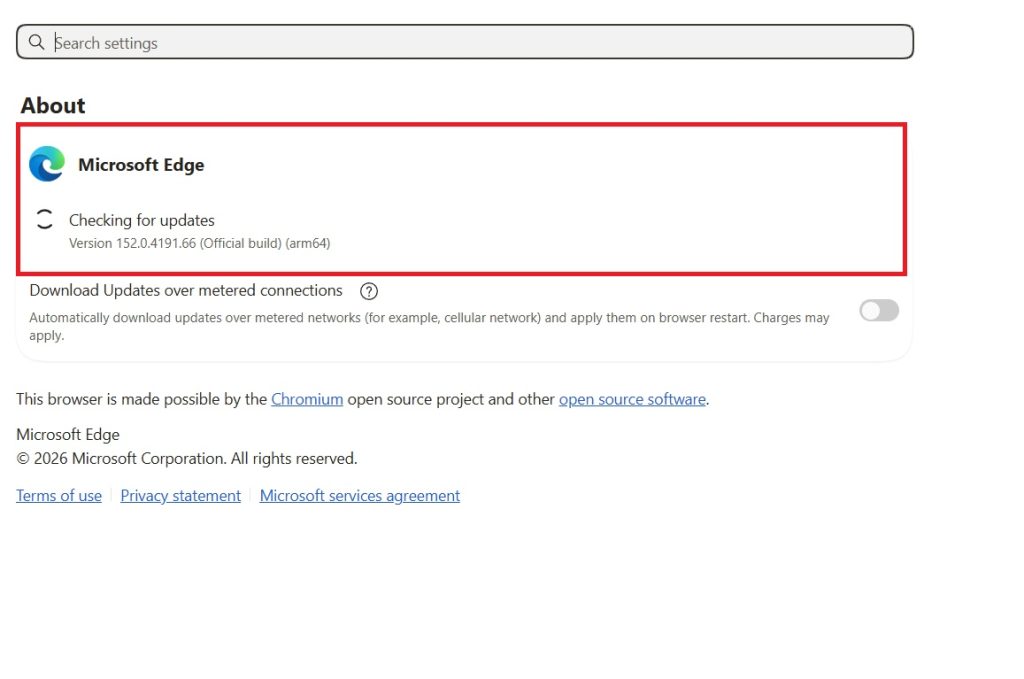
In Edge, go to the three-dot menu → Help and feedback → About Microsoft Edge, which triggers the same automatic update check.
Restart the browser after updating. This single step resolves a surprising number of playback issues, since both Chrome and Edge frequently ship codec and rendering improvements tied to specific driver versions.
Method 2: Adjust Hardware Acceleration Settings
Hardware acceleration is designed to offload video decoding to your GPU instead of your CPU, which should make playback smoother. However, when your graphics drivers are mismatched or your GPU struggles with certain codecs (like VP9 or AV1, which YouTube commonly uses), hardware acceleration can actually cause lag, stuttering, or even browser crashes instead of preventing it.
Try disabling hardware acceleration:
In Chrome:
- Open
chrome://settings/systemin the address bar. - Toggle off Use graphics acceleration when available.
- Relaunch Chrome when prompted.
In Edge:
- Open
edge://settings/systemin the address bar. - Toggle off Use hardware acceleration when available.
- Relaunch Edge when prompted.
Test YouTube playback afterward. If the video runs smoothly with hardware acceleration off, it confirms your GPU driver or hardware is the bottleneck — in which case, keep it disabled until you’ve fully updated your drivers, then re-enable it and test again. For most modern systems with up-to-date drivers, hardware acceleration on gives the best performance, so treat this as a diagnostic step rather than a permanent fix unless disabling it is what solves your issue.
Method 3: Clear Cache, Disable Extensions, and Check for Background Interference
Over time, a browser’s cache can become bloated or corrupted, and extensions can silently interfere with how video content loads and renders. This method tackles both.
Clear browsing data:
- Press
Ctrl + Shift + Deletein either Chrome or Edge. - Set the time range to All time.
- Check Cached images and files (and optionally cookies, though this will log you out of sites).
- Click Clear data.
Disable extensions temporarily:
Ad blockers, VPNs, and privacy extensions are common offenders, as they intercept and inspect video traffic in ways that can introduce delay.
- In Chrome, go to
chrome://extensions. In Edge, go toedge://extensions. - Toggle off all extensions.
- Reload YouTube and test playback.
- If the lag disappears, re-enable extensions one at a time to identify the culprit.
Check background processes:
Open Task Manager (Ctrl + Shift + Esc) and look at the Performance and Processes tabs while a video is playing. High CPU or memory usage from unrelated apps — cloud sync tools, other browser tabs, or background updates — can starve your browser of the resources it needs for smooth playback. Close unnecessary applications and browser tabs, especially other tabs running video, audio, or heavy web apps, and test again.
It’s also worth checking Settings → System → Power & battery to confirm your laptop isn’t running in a battery-saving mode that throttles performance, which is a frequently overlooked cause of lag on Windows 11 laptops.
Method 4: Adjust YouTube Playback Settings and Check Your Network
Sometimes the issue isn’t your PC at all — it’s the video quality YouTube is trying to stream versus what your connection or device can comfortably handle.
Lower the video resolution:
- Click the gear icon in the YouTube player.
- Select Quality and choose a lower resolution (720p or 480p instead of 1080p or 4K).
- See if playback smooths out.
If lowering the resolution fixes the lag, your network bandwidth or your CPU/GPU’s decoding capacity for higher resolutions is the limiting factor.
Test and improve your network connection:
- Run a speed test (search “speed test” in Google, or use a dedicated tool) to confirm you have enough bandwidth for HD or 4K streaming. YouTube recommends at least 5 Mbps for 1080p and considerably more for 4K.
- If you’re on Wi-Fi, try moving closer to your router or switching to a wired Ethernet connection, which eliminates wireless interference entirely.
- Restart your router and modem if speeds seem lower than expected.
- Close other devices or apps on your network that may be consuming bandwidth (large downloads, streaming on other devices, cloud backups).
Try YouTube’s stats for nerds:
Right-click anywhere on a playing YouTube video and select Stats for nerds. This overlay shows dropped frames, buffering health, and the codec in use. A high “dropped frames” count relative to total frames points toward a hardware decoding issue (revisit Methods 1 and 2), while frequent buffering points toward a network issue.
Conclusion
YouTube lag on Chrome or Edge in Windows 11 almost always traces back to one of four areas: outdated drivers and browser versions, hardware acceleration conflicts, cache or extension interference, or network and playback-quality mismatches. Working through the methods above in order — starting with driver and browser updates, then testing hardware acceleration, clearing out browser clutter, and finally checking your network and playback settings — will resolve the vast majority of lag issues without needing any advanced technical knowledge.
If you’ve worked through all four methods and still experience consistent lag, it may be worth checking whether your hardware simply meets the recommended specifications for the resolution you’re trying to stream, particularly if you’re attempting 4K playback on an older or integrated GPU. In rare cases, a clean reinstall of the browser or a Windows update check (Settings → Windows Update) can resolve deeper system-level conflicts that these methods don’t directly address.
Smooth YouTube playback shouldn’t require constant troubleshooting — with these fixes in place, you should be back to enjoying stutter-free video without interruption.
FAQ
Q1: Why does YouTube lag only in Chrome or Edge, but not in other apps or browsers?
This usually points to a browser-specific setting rather than a system-wide problem. Hardware acceleration behaves differently across browsers, and each one manages its own cache, extensions, and rendering pipeline independently. If a competing browser (like Firefox) plays YouTube smoothly, it’s a strong signal that the issue lies in Chrome or Edge’s settings — most often hardware acceleration, a misbehaving extension, or a corrupted cache — rather than your GPU, driver, or internet connection. Working through Methods 2 and 3 above should isolate the cause.
Q2: Will disabling hardware acceleration permanently fix lag, or is it just a workaround?
Disabling hardware acceleration is best treated as a diagnostic step, not a permanent solution. It works because it shifts video decoding from your GPU back to your CPU, which sidesteps a faulty or outdated graphics driver. However, CPU-based decoding is generally less efficient and can cause higher power consumption and fan noise, particularly on laptops. The better long-term fix is to update your graphics driver fully (Method 1) and then re-enable hardware acceleration, since a properly updated GPU driver paired with hardware acceleration on will almost always outperform software-only decoding, especially for high-resolution or high-frame-rate video.
![Fix YouTube Videos Lag on Chrome or Edge [Windows 11]](https://www.geeksdigit.com/wp-content/uploads/thumbs_dir/Enable-RDP-for-Multiple-Users-on-Windows-11-rt07pm2w20fsoresdb8xtjfrwriey9pn7jgzco4fng.jpg)
![Fix YouTube Videos Lag on Chrome or Edge [Windows 11]](https://www.geeksdigit.com/wp-content/uploads/thumbs_dir/How-to-Use-MBR2GPT-Disk-Conversion-Tool-in-Windows-11-rt08g29ed6n9dqzox8u0hd5po358jnpqigbuhywmkc.jpg)



