Olivia Harper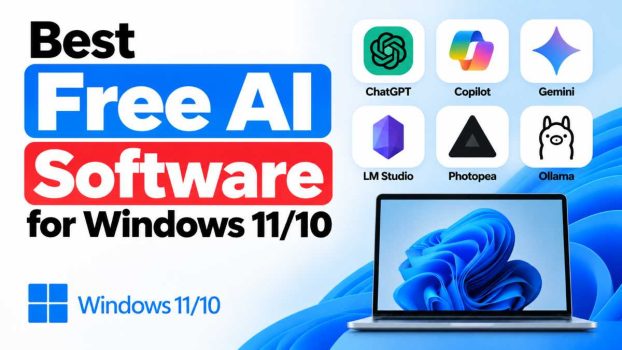
Artificial intelligence has moved from a novelty to a genuine productivity layer on the Windows desktop. Whether you want a chatbot for everyday questions, a private AI that runs entirely offline, a tool that edits your photos in seconds, or an assistant that writes and debugs code, there’s now a free option that runs comfortably on Windows 11 or Windows 10. This guide walks through the best free AI software available right now, organized by what you’re actually trying to do, with official download links for each one.
A quick note before you start: always download AI software from the vendor’s own website, the Microsoft Store, or an official GitHub repository. Avoid “cracked,” repackaged, or third-party installer sites — they’re a common vector for malware, and there’s rarely any reason to use them since almost everything below is legitimately free.
1. Best Free AI Chatbots and General Assistants
If you only install one category of AI software, this is it. General-purpose assistants can answer questions, summarize documents, draft emails, brainstorm ideas, and much more.
Microsoft Copilot
Copilot is baked directly into Windows 11 (and available through Edge on Windows 10), so there’s technically nothing to install for most users — just click the Copilot icon in the taskbar or press Win + C. It’s tightly integrated with Windows settings, File Explorer, and Microsoft 365 apps, making it the most convenient option for everyday tasks like summarizing a webpage or generating a quick image. Download/Access: copilot.microsoft.com
ChatGPT (Desktop App)
OpenAI’s official Windows app is free to use without a paid subscription, though usage limits and model access are more generous on paid tiers. The desktop client adds a global hotkey, screen-sharing so it can “see” what you’re working on, file uploads, and voice mode — all without needing a browser tab open. Download: chatgpt.com/download
Claude
Anthropic’s Claude is well-regarded for long-document analysis, writing quality, and careful reasoning. The free tier includes generous daily usage, and the desktop app supports file uploads, artifacts (documents, code, and interactive content rendered inline), and project-based organization. Download: claude.ai/download
Perplexity AI
Perplexity functions like a hybrid between a chatbot and a search engine — every answer is backed by cited sources, which makes it especially useful for research and fact-checking. It’s available as a Windows app or through the browser. Download: perplexity.ai/downloads
2. Best Free AI You Can Run Completely Offline (Local AI)
Cloud chatbots are convenient, but they send your prompts to a remote server. If privacy matters to you, or you simply want an AI assistant that works without an internet connection, “local AI” tools let you download an open-source language model and run it directly on your own hardware. Performance depends on your CPU, RAM, and especially your GPU — but many modern laptops can run a capable model smoothly.
Ollama
Ollama has become the de facto standard for running AI models locally. It handles model downloading, updating, and serving through a simple command-line interface, and other apps (including several on this list) can connect to it as a local backend. It runs quietly in the background once installed. Download: ollama.com/download
LM Studio
LM Studio is the most polished option for people who want a graphical interface rather than the command line. It includes a built-in model browser (pulling from Hugging Face), live performance stats like tokens-per-second, and a local server mode so other applications can call it the same way they’d call an OpenAI API. It’s closed-source but completely free. Download: lmstudio.ai
GPT4All
GPT4All is arguably the easiest way to get a ChatGPT-like experience running entirely on your PC with no internet connection required. It’s lightweight enough to work on machines without a dedicated GPU, making it a good pick for older laptops, and it keeps every conversation stored locally. Download: gpt4all.io
Jan.ai
Jan is an open-source alternative to LM Studio with a similar chat-first interface, model marketplace, and offline-first philosophy. It’s a good option if you want something fully open-source rather than closed-source freeware. Download: jan.ai
AnythingLLM
If your goal is less “chat with an AI” and more “ask questions about my own files,” AnythingLLM is built specifically for that. Point it at a folder of PDFs, Word documents, or notes, and it builds a searchable local knowledge base you can query in plain English — ideal if you’re drowning in research papers or reports. Download: anythingllm.com
3. Best Free AI for Images, Design, and Photo Editing
Canva (with AI tools)
Canva’s desktop app bundles several AI features into a familiar design-and-templates workflow: Magic Eraser removes unwanted objects from photos, Magic Write drafts on-brand text, and the Text-to-Image tool generates original graphics from a prompt. The free tier covers most of this; only the higher-resolution and premium-asset features are paywalled. Download: canva.com/download
Microsoft Designer
Built by Microsoft and free to use with a Microsoft account, Designer turns plain-English prompts into social posts, posters, and other graphics without any design experience required. It’s a natural companion to Copilot for anyone already living in the Microsoft ecosystem. Access: designer.microsoft.com
Stable Diffusion WebUI (AUTOMATIC1111)
For people who want full creative and technical control over AI image generation — custom models, LoRAs, inpainting, upscaling — the open-source Stable Diffusion WebUI is still the most widely used interface. It requires more setup than a simple app install and runs best with a dedicated NVIDIA GPU, but it’s entirely free and runs 100% locally. Download: github.com/AUTOMATIC1111/stable-diffusion-webui
Fooocus
Fooocus is a simplified front-end for Stable Diffusion aimed at people who found AUTOMATIC1111’s interface overwhelming. It trades some flexibility for a much friendlier default experience, closer to Midjourney’s simplicity, while remaining completely free and local. Download: github.com/lllyasviel/Fooocus
Upscayl
Upscayl is a free, open-source AI image upscaler that runs locally on Windows. Feed it a low-resolution photo or old scan and it uses AI models to intelligently enlarge and sharpen it — genuinely useful for restoring old family photos or cleaning up graphics for print. Download: upscayl.org
4. Best Free AI for Writing and Productivity
Grammarly
Grammarly’s free tier remains one of the most useful everyday AI tools: it checks grammar, tone, and clarity in real time across your browser, Word, and other apps via its desktop client, and its AI-assisted rewriting suggestions go well beyond simple spellchecking. Download: grammarly.com/download
Notion AI (within Notion’s free plan)
If you already organize your notes, tasks, or projects in Notion, its built-in AI can summarize pages, draft content, translate text, and generate action items directly inside your workspace. The free plan includes limited AI credits, which is enough for light, regular use. Download: notion.so/desktop
5. Best Free AI Coding Assistants
GitHub Copilot (Free Tier)
GitHub now offers a free tier of Copilot with a monthly cap on completions and chat interactions — plenty for students, hobbyists, or anyone testing the waters before considering a paid plan. It integrates directly into Visual Studio Code, which is itself free. Download (VS Code): code.visualstudio.com — then install the GitHub Copilot extension from within the editor.
Cursor
Cursor is a full code editor built around AI from the ground up rather than an extension bolted onto an existing one. You describe what you want in plain English and it writes, edits, or debugs code across your project, with a free tier that covers a solid amount of daily use. Download: cursor.com
6. Best Free AI for Audio, Video, and Transcription
DaVinci Resolve
Blackmagic Design’s free video editor includes AI-powered tools like automatic scene-cut detection, speed warp frame interpolation, and voice isolation — features that used to be exclusive to expensive professional suites. It’s a serious editor with a real learning curve, but the free version has no watermark and very few restrictions. Download: blackmagicdesign.com/products/davinciresolve
Whisper (via whisper.cpp or a GUI front-end)
OpenAI’s open-source Whisper model remains one of the most accurate free speech-to-text engines available, and it runs entirely offline once downloaded. Developers can use it directly; less technical users can pair it with a simple front-end app for drag-and-drop transcription of audio and video files. Download: github.com/openai/whisper
How to Choose the Right Tool for You
With this many options, it helps to think about what you actually need rather than trying to install everything at once:
- Want one general-purpose assistant you’ll use daily? Start with Microsoft Copilot (it’s already on your PC) or ChatGPT.
- Care about privacy or want AI that works offline? Install Ollama or LM Studio, plus AnythingLLM if you want to query your own documents.
- Need to generate or edit images? Canva covers casual use; Stable Diffusion WebUI or Fooocus if you want full local control.
- Write for a living, or just want cleaner emails? Grammarly’s free tier is hard to beat.
- Write code? GitHub Copilot’s free tier inside VS Code is the lowest-friction starting point.
- Edit video or need transcripts? DaVinci Resolve and Whisper cover both without a subscription.
A note on hardware: cloud-based tools like Copilot, ChatGPT, and Claude run on remote servers, so they work fine on almost any Windows PC. Local AI tools (Ollama, LM Studio, GPT4All, Stable Diffusion) do the processing on your own machine — they’ll run on a modest laptop, but a dedicated NVIDIA or AMD GPU with more VRAM will make them noticeably faster and let you use larger, more capable models. If you plan to use local AI regularly, keeping your GPU drivers up to date is worth doing before you install anything.
Staying Safe While Installing AI Software
A few habits will keep you safe as you try out new tools:
- Always use the official link. Every download above points to the vendor’s own site, the Microsoft Store, or an official GitHub repository — bookmark these rather than searching again later, since search ads sometimes lead to fake installers.
- Check what data leaves your PC. Cloud tools process your prompts on remote servers; read the privacy settings (most, including LM Studio, let you disable analytics) if that matters to you.
- Start small. Install one or two tools, use them on non-sensitive files first, and only add more once you know they’re actually saving you time.
- Keep everything updated. AI models and apps improve quickly — outdated versions can lack recent bug fixes, safety improvements, or simply be slower than current releases.
Final Thoughts
The gap between free and paid AI software has narrowed enormously. A student, freelancer, or small business today can build a genuinely capable AI-powered workflow on Windows — chat assistant, image generator, coding helper, and video editor — without paying a single subscription.
The best approach isn’t to chase the “one best” tool, but to match each tool to the job: a cloud assistant like Copilot or ChatGPT for daily questions, a local model runner like Ollama or LM Studio if privacy matters, and specialized free apps like Grammarly, Canva, or DaVinci Resolve for the specific work you do. Try a few from this list, see what fits into how you actually work, and build from there.