Geeksdigit Team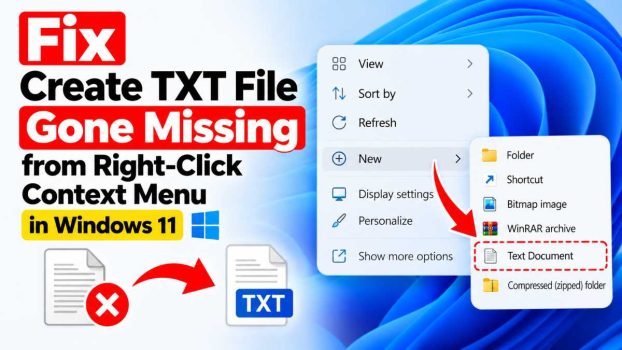
If you’ve right-clicked your desktop or a folder in Windows 11, hovered over New, and noticed the Text Document option has vanished, you’re not alone. This is one of the most commonly reported Windows 11 context menu glitches, and it usually strikes without warning — one day it’s there, the next day it’s gone.
The good news: this issue is almost always fixable in a few minutes, and in most cases you won’t need advanced technical skills. It typically stems from a corrupted registry entry, a Windows Explorer glitch, an uninstalled or reinstalled Notepad app, or leftover conflicts from third-party context menu software. Below, we’ll walk through the most reliable methods to restore the “New Text Document” option, starting with the simplest fixes and moving toward registry-level repairs.
Why Does This Happen?

Before jumping into fixes, it helps to understand the root cause. The “New > Text Document” entry in your right-click menu is controlled by a registry key called ShellNew, tied to the .txt file extension. When this key gets deleted, corrupted, or overwritten — often due to a botched software install/uninstall, a Windows update, or third-party “context menu cleaner” tools — Windows loses track of how to generate a new blank text file, and the option simply disappears from the menu.
Now let’s fix it.
Method 1: Restart Windows Explorer
This is the fastest thing to try first, since a temporary Explorer glitch can hide menu items without any actual corruption.
- Press Ctrl + Shift + Esc to open Task Manager.
- Scroll down to Windows Explorer in the Processes list.
- Right-click it and select Restart.
- Your taskbar and desktop will flicker briefly — this is normal.
- Right-click your desktop again and check the New menu.
If Text Document reappears, the issue was just a temporary rendering glitch. If it’s still missing, move on to the next method.
Method 2: Check the “Show More Options” Legacy Menu
Windows 11 introduced a streamlined right-click menu that sometimes hides classic entries behind an extra click.
- Right-click on your desktop or inside a folder.
- Select Show more options (or press Shift + F10).
- Hover over New and check if Text Document appears there.
If it shows up in the legacy menu but not the new compact one, this confirms the ShellNew registration itself is intact — it’s a display issue, not a missing registry key. In that case, restarting Explorer (Method 1) or updating Windows (Method 6) usually resolves it permanently.
Method 3: Restore the ShellNew Registry Key Manually
This is the most direct fix and works in the vast majority of cases. Before editing the registry, create a System Restore Point as a safety net.
- Press Windows + R, type
regedit, and press Enter (approve the UAC prompt). - Navigate to:
HKEY_CLASSES_ROOT\.txt
- Right-click on the
.txtkey, select New > Key, and name itShellNew. - With the new
ShellNewkey selected, right-click in the right-hand pane and choose New > String Value. Name itNullFileand leave its value data blank. - Create a second String Value named
ItemNameand set its value data toText Document. - Close Registry Editor and sign out, then sign back in (or restart Explorer via Method 1).
- Right-click again and confirm Text Document is back under New.
This recreates the exact registry pointer Windows uses to generate blank .txt files from the context menu.
Method 4: Use a Ready-Made .REG File
If editing the registry manually feels risky, you can automate Method 3 using a .reg script instead.
- Open Notepad and paste the following:
   Windows Registry Editor Version 5.00

   [HKEY_CLASSES_ROOT\.txt\ShellNew]
   "NullFile"=""
   "ItemName"="Text Document"
- Save the file as
restore-txt-menu.reg(choose All Files as the file type when saving). - Double-click the saved file and click Yes on the security prompt to merge it into the registry.
- Restart Windows Explorer or sign out and back in.
This achieves the same result as the manual method but reduces the chance of typos.
Method 5: Repair or Reinstall Notepad
Since Notepad became a Microsoft Store app in recent Windows 11 versions, uninstalling or updating it can sometimes break the association that powers the “New Text Document” shortcut.
- Open Settings > Apps > Installed apps.
- Search for Notepad.
- Click the three-dot menu next to it and select Advanced options (or Repair if available directly).
- Click Repair, wait for it to finish, then click Reset if the problem persists.
- Alternatively, reinstall Notepad from the Microsoft Store if it was fully removed.
- Restart your PC and test the right-click menu again.
Method 6: Run System File Checker (SFC) and DISM
If the problem appeared after a Windows update or a system crash, corrupted system files could be the underlying cause rather than a single registry key.
- Open Start, search for Command Prompt, and run it as Administrator.
- Run the following command and wait for it to complete:
sfc /scannow
- Once finished, run:
DISM /Online /Cleanup-Image /RestoreHealth
- Restart your computer once both scans complete.
- Check the right-click menu again.
This method fixes deeper system corruption that a simple registry tweak can’t address, and it’s especially useful if other context menu items or system tools are also misbehaving.
Method 7: Check for Third-Party Context Menu Software
Tools like disk cleaners, “PC optimizer” apps, or context-menu customization utilities sometimes strip out default Windows entries, including Text Document, either intentionally or as a bug.
- Open Settings > Apps > Installed apps and review recently installed software.
- Temporarily uninstall any recent “cleaner,” “tweaker,” or context-menu editor tools.
- Restart your PC and check if Text Document has returned.
- If it has, you can selectively reinstall trusted tools while avoiding the specific one that caused the conflict.
Conclusion
A missing “Create New Text File” option in Windows 11’s right-click menu is a frustrating but generally minor issue, and it’s almost always solvable without a full system reset. Start with the simple fixes — restarting Explorer and checking the legacy “Show more options” menu — since these resolve the problem instantly in many cases.
If those don’t work, restoring the ShellNew registry key for the .txt extension (either manually or via a .reg file) fixes the vast majority of remaining cases. For persistent or widespread issues affecting multiple file types in the New menu, running SFC/DISM scans or checking for conflicting third-party software rounds out the troubleshooting process. Whichever method resolves your issue, it’s good practice to create a System Restore Point before making registry changes, just in case.
Frequently Asked Questions (FAQ)
1. Is it safe to edit the registry to fix this issue?
Yes, as long as you’re careful and only edit the specific keys mentioned above. Creating a System Restore Point beforehand gives you a safety net in case anything goes wrong, allowing you to roll back instantly.
2. Why did the Text Document option disappear suddenly without me changing anything?
This is usually triggered by a Windows update, a Notepad app update/reinstall, or background software (like a cleanup or optimization tool) that inadvertently deleted the ShellNew registry key associated with .txt files.
3. Will restoring this option affect other file types in the New menu, like Word or Excel documents?
No. The fix specifically targets the .txt extension’s ShellNew key and won’t impact other file type registrations. If other types are also missing, you’ll need to repeat a similar process for each affected extension.
4. Do I need to restart my computer after making these changes?
Not always — restarting Windows Explorer via Task Manager is often enough. However, if that doesn’t refresh the menu, signing out and back in, or doing a full restart, ensures the registry changes are fully applied.