
 Geeksdigit Team
Keyboard shortcuts are one of the most celebrated features of Windows 11. With a quick combination of keys, you can open the Start menu, switch between virtual desktops, snap windows into place, or launch the Action Center in an instant. For most users, these shortcuts are a productivity blessing. But for others, they can be a persistent nuisance.
Maybe you’re a gamer who keeps accidentally minimizing your game because you brushed against the Windows key. Maybe you share a computer with young children who mash random key combinations and unintentionally trigger system settings. Maybe you’re setting up a kiosk, a point-of-sale terminal, or a shared public computer where certain shortcuts could expose sensitive settings or disrupt a locked-down environment. Or perhaps a specific shortcut simply conflicts with a shortcut used in your favorite application, and the constant collision is driving you up the wall.
Whatever the reason, Windows 11 does not offer one single master switch to disable all keyboard shortcuts at once. Without any further delay, let’s get started!
Methods to Disable Keyboard Shortcuts on Windows 11
Method 1: Disable the Windows Key Shortcuts Using the Registry Editor
The Windows key (Win) is responsible for the largest cluster of system-wide shortcuts — Win+D, Win+E, Win+L, Win+Tab, and dozens more. If your main complaint is accidental triggering of these shortcuts, disabling the Windows key itself is often the most efficient fix.
Steps:
Press Win + R to open the Run dialog, type regedit, and press Enter. Approve the User Account Control prompt if it appears.
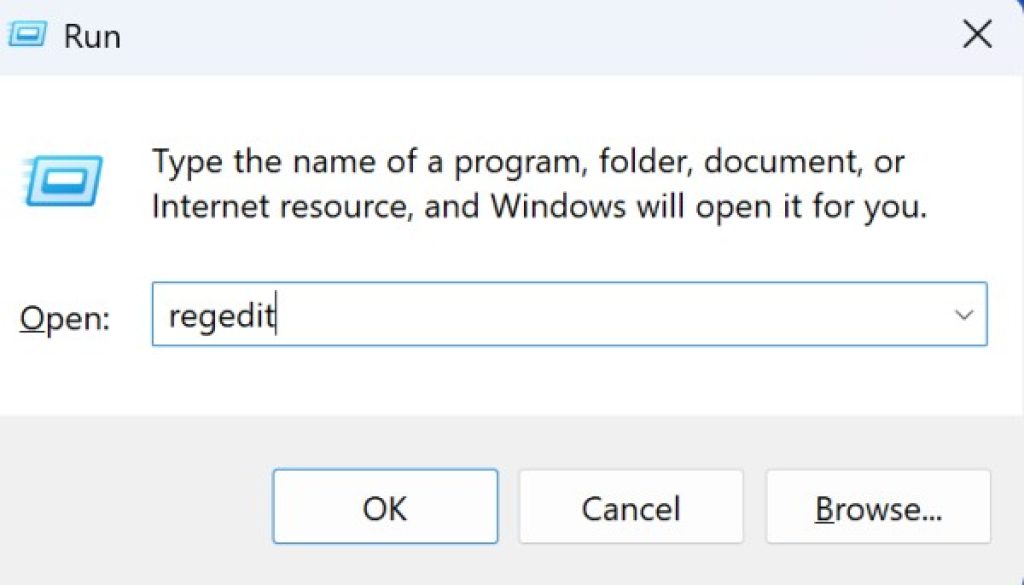
In the Registry Editor, navigate to:
HKEY_LOCAL_MACHINE\SYSTEM\CurrentControlSet\Control\Keyboard LayoutRight-click in the empty space on the right panel, select New, and choose Binary Value.
Name the new value Scancode Map.
Double-click the new entry and enter the following value data, which tells Windows to remap the Windows key to nothing:
00 00 00 00 00 00 00 00 03 00 00 00 00 00 5B E0 00 00 5C E0 00 00 00 00- Click OK, close the Registry Editor, and restart your computer for the change to take effect.
This method disables both the left and right Windows keys system-wide, which in turn disables every shortcut that depends on them. If you ever want to reverse the change, simply delete the Scancode Map value and restart.
Because this method touches the registry directly, it’s a good idea to export the Keyboard Layout key first (right-click it and choose Export) so you have a backup you can restore with a double-click if anything goes wrong.
Method 2: Use Group Policy Editor to Disable Specific Shortcuts
If you’re using Windows 11 Pro, Enterprise, or Education, the Local Group Policy Editor gives you more granular control than the registry approach, particularly for shortcuts tied to the Start menu, Windows Explorer, and lock screen behavior. (Windows 11 Home does not include the Group Policy Editor by default, so skip to Method 3 or 4 if that’s your edition.)
Steps:
- Press Win + R, type
gpedit.msc, and press Enter. - Navigate to:
User Configuration > Administrative Templates > Windows Components > File Explorer- Look for the policy named “Turn off Windows Key hotkeys” (the exact wording can vary slightly between builds). Double-click it.
- Select Enabled, then click Apply and OK.
- For more targeted control, explore the following paths as well:
User Configuration > Administrative Templates > Start Menu and Taskbarfor Start menu and taskbar-related shortcuts.Computer Configuration > Administrative Templates > Windows Components > Windows Explorerfor Explorer shortcuts like Win+E.
- Restart your computer or run
gpupdate /forcein Command Prompt to apply the changes immediately.
Group Policy is particularly useful in managed or shared environments, such as offices, schools, or public kiosks, because policies can be layered, exported, and reapplied consistently across multiple machines.
Method 3: Disable Sticky Keys, Filter Keys, and Toggle Keys Shortcuts
Windows 11 includes several accessibility features that are themselves triggered by keyboard shortcuts — and ironically, these shortcuts are one of the most common sources of “accidental” behavior changes. If you’ve ever pressed Shift five times and suddenly triggered Sticky Keys, or held Shift for eight seconds and activated Filter Keys, this method is for you.
Steps:
- Open Settings (Win + I).
- Go to Accessibility > Keyboard.
- Under Sticky Keys, toggle off “Allow the shortcut key to start Sticky Keys.”
- Scroll to Filter Keys and toggle off “Allow the shortcut key to start Filter Keys.”
- Scroll to Toggle Keys and toggle off “Allow the shortcut key to start Toggle Keys.”
This won’t disable the accessibility features themselves if you turn them on manually, but it stops them from activating unexpectedly through their keyboard triggers — a small change that solves a surprisingly common annoyance, especially for gamers who rapidly tap modifier keys.
Method 4: Remap or Disable Specific Keys with PowerToys or SharpKeys
For shortcuts that don’t have an official Windows toggle — like a specific application shortcut, or an individual key you want completely dead — third-party (but Microsoft-endorsed) tools offer the most flexibility.
Using Microsoft PowerToys (Keyboard Manager):
- Download and install PowerToys from the official Microsoft GitHub repository.
- Open PowerToys and go to the Keyboard Manager section.
- Toggle it on, then click Remap a key or Remap a shortcut.
- Select the key or shortcut you want to disable, and instead of mapping it to another key, choose the Disable option from the target dropdown.
- Click OK to apply the change immediately — no restart required.
PowerToys is ideal because changes apply instantly, can be reversed with a click, and let you target individual shortcuts (like Win+D or Ctrl+Shift+Esc) without touching anything else.
Using SharpKeys (registry-based key disabling):
- Download SharpKeys, a free, open-source utility that writes safe scancode mappings to the registry for you (essentially automating Method 1, but with a graphical interface and support for individual keys rather than just the Windows key).
- Open SharpKeys and click Add.
- Select the physical key you want to disable from the left column, and choose “Turn Key Off” from the right column.
- Click OK, then click Write to Registry.
- Log off or restart for changes to take effect.
Both tools are safer alternatives to manually editing the registry because they reduce the chance of typos in scancode values, and both are simple to reverse.
Conclusion
Windows 11 doesn’t provide a single, unified switch to turn off keyboard shortcuts, but between the Registry Editor, Group Policy Editor, Accessibility settings, and tools like PowerToys or SharpKeys, you have more than enough flexibility to tailor your keyboard behavior exactly how you want it. If your goal is to fully disable the Windows key and everything tied to it, the registry scancode map is the most direct route. If you’re managing a shared or work computer, Group Policy gives you more structured, reversible control. If your issue is just accidental accessibility shortcuts, the Settings app alone will solve it. And if you want precision — disabling one specific key or shortcut without affecting anything else — PowerToys is by far the easiest and safest option for most users.
Whichever method you choose, remember to back up your registry or take note of your original settings before making changes, so you can always restore normal functionality if needed. With the right approach, you can transform Windows 11 into a keyboard environment that works for you instead of against you.
Frequently Asked Questions (FAQ)
1. Will disabling the Windows key also disable Ctrl, Alt, and Shift shortcuts?
No. Disabling the Windows key using the registry scancode method only removes functionality tied to the Windows key itself, such as Win+D, Win+E, and Win+L. Shortcuts that rely on Ctrl, Alt, Shift, or Fn combinations — like Ctrl+C, Alt+Tab, or Ctrl+Shift+Esc — will continue to work normally unless you disable them separately using PowerToys or a similar tool.
2. Is it safe to edit the Windows Registry to disable shortcuts?
Yes, as long as you follow the exact steps and only modify the specific value described. The scancode map method is a well-documented, widely used technique. That said, registry edits carry inherent risk if done incorrectly, so it’s wise to export the relevant registry key or create a system restore point beforehand. If you’re uncomfortable editing the registry directly, tools like SharpKeys or PowerToys accomplish the same result more safely through a graphical interface.
3. How do I re-enable a keyboard shortcut after disabling it?
The reversal process depends on which method you used. For the registry scancode method, delete the Scancode Map value from the Keyboard Layout key and restart. For Group Policy changes, return to the same policy and set it back to Not Configured or Disabled. For PowerToys, simply remove the remapping entry in Keyboard Manager. For SharpKeys, delete the mapping and click Write to Registry again.
4. Can I disable keyboard shortcuts for just one application instead of the whole system?
System-level tools like the registry and Group Policy generally affect shortcuts globally, not per application. To disable or remap shortcuts within a single app, check that application’s own settings or preferences menu, as many programs (browsers, IDEs, creative software) let you customize or disable their internal shortcuts independently. PowerToys’ Keyboard Manager does allow you to remap shortcuts on a per-application basis, so it’s worth checking that option if the built-in app settings don’t offer what you need.





