
 Sukhdev Kamboj
Sound is one of those things you rarely think about until it suddenly becomes a problem. Maybe you’re in the middle of an important video call and a notification chime blares through your speakers. Maybe you’re working late at night and don’t want to wake anyone up with a stray YouTube autoplay. Or maybe your headphones just died mid-meeting and system sound is now blasting through your laptop speakers for the whole office to hear. Whatever the situation, knowing how to quickly mute or unmute your audio in Windows 11 is one of those small but genuinely useful skills that saves you from awkward moments.
The good news is that Windows 11 makes muting and unmuting sound incredibly simple, and it offers several different ways to do it depending on your preference and situation. Some methods are built for speed — a single click or keypress. Others give you more granular control, letting you mute individual apps while keeping others audible. This flexibility is especially useful in a world where most of us are juggling multiple audio sources at once: a Spotify playlist in one tab, a Teams call in another, and maybe a game running in the background.
In this guide, we’ll walk through four practical methods for muting and unmuting sound in Windows 11. Whether you’re a new Windows user still getting familiar with the interface, or a long-time user who just wants a refresher on all the available options, this article covers everything you need. We’ll start with the quickest and most commonly used methods, then move into more advanced options like the Volume Mixer, which lets you control sound on a per-application basis. By the end, you’ll have a full toolkit of techniques to manage your PC’s audio exactly how you want it.
Let’s get started.
Method 1: Mute or Unmute Using the Taskbar Volume Icon
The fastest and most commonly used way to mute or unmute sound in Windows 11 is through the volume icon located in the taskbar. This is the method most people reach for because it requires no menus, no settings pages, and no memorization — just a couple of clicks.
Step-by-Step Instructions
Locate the volume icon. Look at the bottom-right corner of your screen, in the section of the taskbar known as the system tray. You should see a small speaker icon alongside icons for Wi-Fi, battery, and other quick settings.
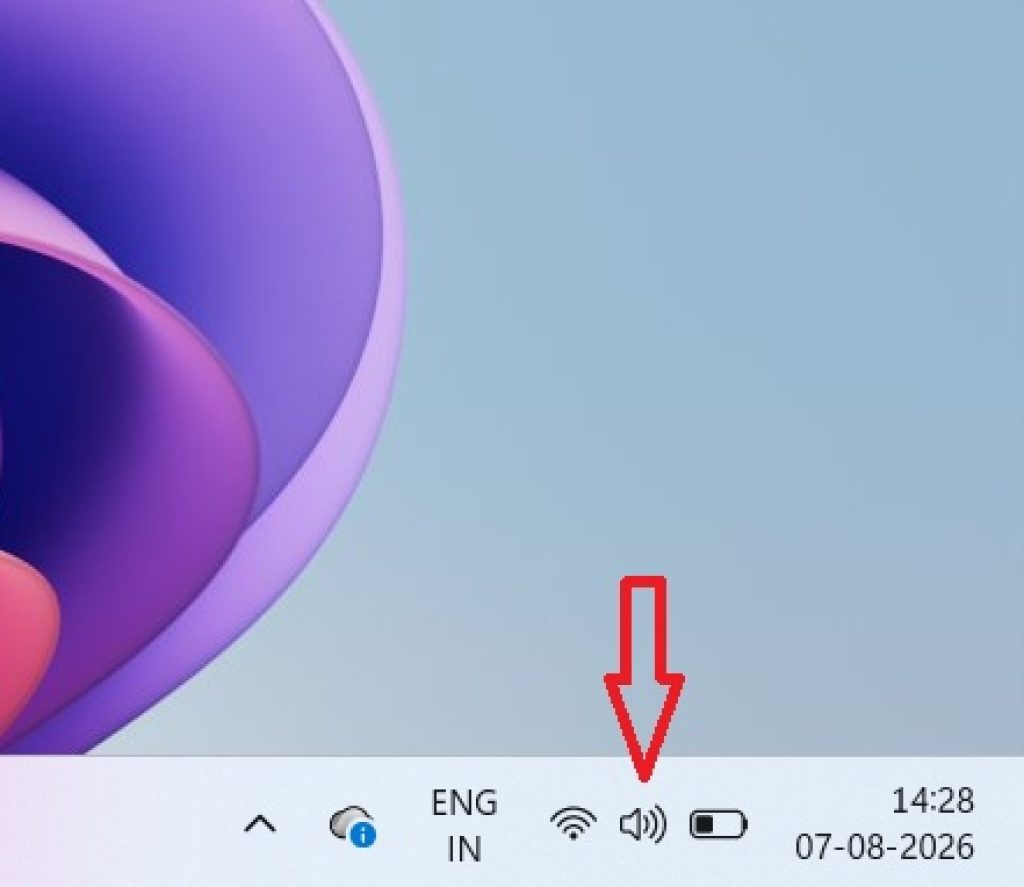
Left-click the speaker icon. This opens the Quick Settings panel, which includes a volume slider along with other toggles like Wi-Fi, Bluetooth, and Focus Assist.
Click the speaker symbol next to the slider. On the left side of the volume slider, you’ll see a small speaker icon. Clicking this icon toggles mute on and off. When muted, the icon will typically show a speaker with an “X” or a line through it, and the slider will visually indicate zero volume.
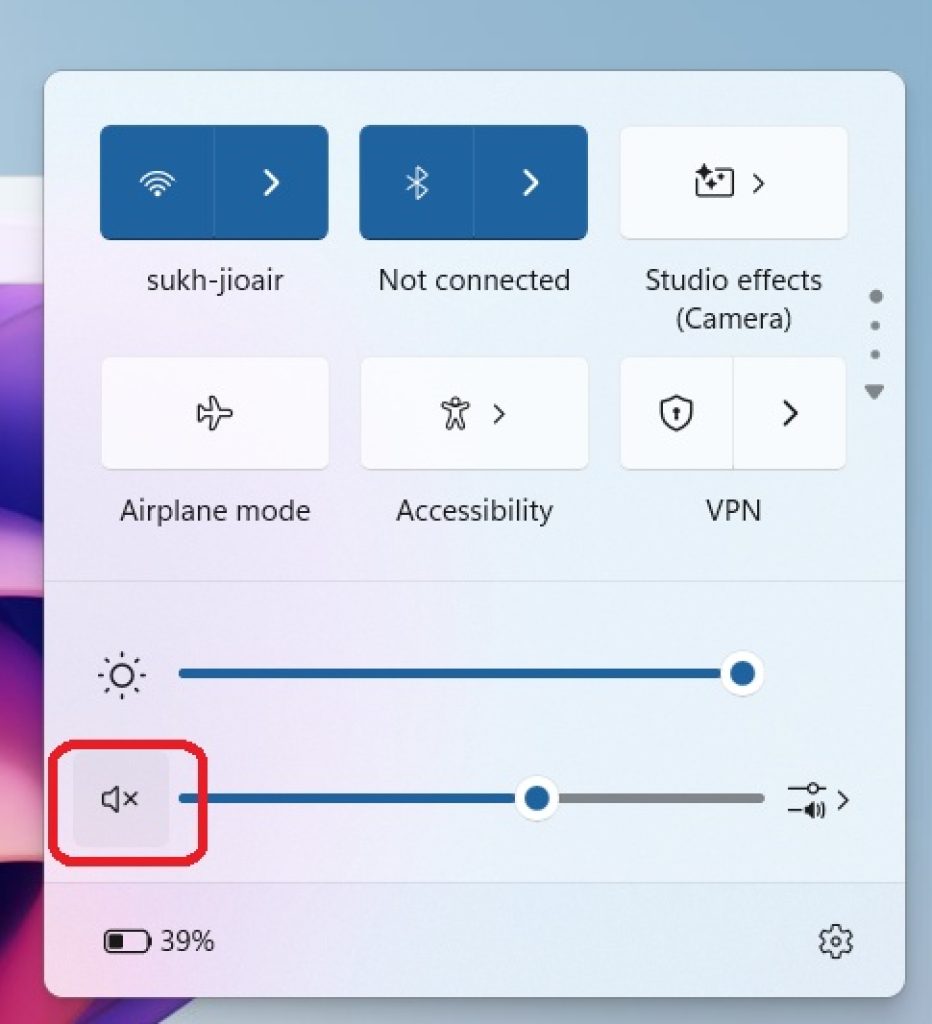
Click again to unmute. Simply click the same speaker icon again to restore sound to whatever level it was previously set at.
Alternatively, you don’t even need to open the full Quick Settings panel. In many configurations, you can right-click directly on the speaker icon in the taskbar to bring up a small context menu with options like “Open Volume Mixer” and “Sound settings,” which offer additional shortcuts.
Why This Method Is Useful
This method is ideal for everyday use because it’s fast, requires no keyboard, and works no matter what app or window you currently have open. If you’re on a video call and someone starts talking loudly in the next room, you can mute your system audio in under two seconds without disrupting your workflow. It’s also a great option for touchscreen users, since the taskbar icon is easy to tap directly.
One small thing to note: muting through this icon mutes your entire system’s audio output, not just a single application. If you only want to silence one specific app (say, a browser tab that’s autoplaying a video) while keeping other sounds active, you’ll want to jump ahead to Method 4, which covers the Volume Mixer.
Method 2: Mute or Unmute Using Keyboard Shortcuts
If you prefer not to take your hands off the keyboard, Windows 11 supports muting and unmuting sound through dedicated keys, assuming your keyboard has them. This is especially convenient for laptop users, since most modern laptops include dedicated volume and mute keys as part of the function row.
Step-by-Step Instructions
- Look for a mute key on your keyboard. Many keyboards, especially laptop keyboards, include a dedicated mute button, often represented by a speaker icon with an “X” or a line through it. It’s commonly found among the F1–F12 function keys, and may require holding the “Fn” key simultaneously to activate it.
- Press the mute key once to mute. The system sound will immediately cut out, and you’ll typically see a small on-screen overlay confirming that audio has been muted.
- Press the same key again to unmute. This restores audio playback to its previous volume level.
If your keyboard doesn’t have a dedicated mute key, you can still use the volume-down key repeatedly to bring the volume to zero, which functions similarly to muting, though it isn’t a true “mute” toggle since it also resets your remembered volume level. Some external keyboards also include multimedia keys that can be mapped or already work out of the box with Windows 11’s built-in drivers.
Why This Method Is Useful
For gamers, streamers, and anyone who frequently multitasks between windows, keyboard shortcuts are often the fastest possible way to control audio. There’s no need to move your mouse or interrupt an active window — you simply tap a key and the sound is gone. This is particularly valuable during live streaming or recording sessions, where a stray notification sound could easily be picked up by a microphone or ruin a recording, and you need to react in a split second.
Keyboard shortcuts are also accessible even if a game or application is running in full-screen mode, since the keypress is captured at the system level regardless of which window currently has focus.
Method 3: Mute or Unmute Through Windows Settings
For users who prefer a more structured approach, or who want to adjust more detailed sound settings while they’re at it, Windows 11’s Settings app provides a dedicated Sound page where you can control muting alongside other audio configurations like output device selection and volume levels for connected devices.
Step-by-Step Instructions
- Open the Settings app. You can do this by pressing
Windows key + I, or by clicking the Start button and selecting the gear-shaped Settings icon. - Navigate to System. This is usually the first item in the left-hand sidebar of the Settings window.
- Click on Sound. This opens a dedicated page showing your current output device, input device, and a master volume slider near the top.
- Adjust the volume slider to zero, or use the mute toggle if available. Depending on your Windows 11 version, you may see a speaker icon next to the volume slider that functions as a direct mute toggle, similar to the taskbar method. If not, dragging the slider all the way to the left effectively mutes system audio.
- To unmute, restore the slider to your preferred volume level, or click the mute toggle again if that option is present.
While you’re in this menu, it’s worth exploring some of the other options available. Windows 11’s Sound settings page also lets you select which speaker or headphone device is currently active, adjust volume levels for individual connected devices, and access advanced sound properties like spatial audio settings.
Why This Method Is Useful
This method is a bit slower than the taskbar or keyboard shortcuts, but it’s useful in situations where you’re already inside the Settings app troubleshooting other audio issues, such as switching output devices or diagnosing a microphone problem. It also offers a good starting point for new users who aren’t yet familiar with the quicker taskbar-based method, since everything is clearly labeled within a full settings page rather than tucked into a small flyout panel.
Additionally, if your taskbar volume icon is missing or hidden (which can sometimes happen due to a display setting or a system glitch), the Settings app provides a reliable backup route to control your audio.
Method 4: Mute or Unmute Specific Apps Using the Volume Mixer
This is arguably the most powerful of the four methods, because it gives you app-level control over your system’s audio rather than a single master switch. The Volume Mixer in Windows 11 lets you independently adjust or mute the volume of each application that’s currently producing sound, which is incredibly useful when you want to silence one source without affecting everything else.
Step-by-Step Instructions
- Right-click the speaker icon in the taskbar. This brings up a small context menu.
- Select “Open Volume Mixer.” This opens a new window displaying a list of all applications currently outputting sound, along with individual volume sliders and mute icons for each one.
- Locate the app you want to mute. For example, if you want to silence your web browser while keeping a music app playing, find the corresponding entry in the list.
- Click the speaker icon next to that specific app to mute it. This silences only that application, while every other app continues to play sound normally.
- Click the icon again to unmute that specific app, restoring its sound output.
You can also access this same functionality through Settings by navigating to System > Sound > Volume Mixer, which presents the same per-app controls in a slightly more detailed layout, often including the ability to route individual apps to different output devices (like sending your music to speakers while your call audio goes to headphones).
Why This Method Is Useful
The Volume Mixer shines in multitasking scenarios. Picture this: you’re on a Zoom call, but you also have a browser tab with background music and a game client that occasionally plays a notification sound. Rather than muting everything at once with the taskbar icon (and missing the ability to hear the call), you can selectively silence just the browser tab or just the game client, keeping the call audio fully intact.
This level of control is also incredibly helpful for streamers and content creators, who often need very specific control over what sounds get picked up in a recording versus what stays private on their own system. It’s a feature that separates casual users from power users, and once you start using it regularly, it’s hard to go back to a single master mute switch.
Frequently Asked Questions (FAQ)
1. Why is my volume icon missing from the taskbar?
Sometimes the speaker icon disappears from the system tray due to a display setting being toggled off, a temporary system glitch, or outdated audio drivers. If this happens, you can still access sound controls through the Settings app method described above. To try to restore the icon, go to Settings > Personalization > Taskbar, expand “Other system tray icons,” and make sure the volume icon is toggled on. Restarting File Explorer or your PC can also resolve temporary glitches.
2. Why won’t my computer unmute even after I click the speaker icon?
This can happen for a few reasons. First, check whether the volume slider itself is set to zero — clicking “unmute” only restores sound to a nonzero level if one was previously set. Second, confirm that the correct output device is selected in Sound settings, since audio might be routing to a disconnected speaker or headphone set. Third, outdated or corrupted audio drivers can sometimes cause muting issues; updating your drivers through Device Manager or Windows Update often resolves this.
3. Can I mute sound for just one app without affecting others?
Yes. This is exactly what Method 4, the Volume Mixer, is designed for. It allows you to control the volume and mute status of individual applications independently, so you can silence a browser tab, a game, or any other app while keeping everything else audible.
4. Is there a way to mute my microphone as well as my speakers?
Muting your microphone is a separate function from muting your speaker output. In Windows 11, you can mute your microphone through the same Quick Settings panel accessed by clicking the speaker icon, where you’ll often find a microphone toggle nearby, or through Settings > System > Sound > Input. Many video conferencing apps like Teams and Zoom also include their own in-app microphone mute buttons.
5. Do all keyboards have a dedicated mute key?
No. Dedicated mute keys are common on laptops and many external multimedia keyboards, but basic keyboards without a function row of media keys may not include one. If your keyboard lacks this feature, the taskbar icon or Settings app methods will still work reliably.
Conclusion
Muting and unmuting sound in Windows 11 might seem like a small, almost trivial task, but having multiple reliable methods at your disposal makes a real difference in day-to-day computer use. Whether you need to silence your system instantly during an unexpected phone call, quickly cut audio while gaming with a keyboard shortcut, dive into Settings for a more detailed adjustment, or fine-tune individual app volumes using the Volume Mixer, Windows 11 gives you the flexibility to handle sound exactly the way you want.
For most everyday situations, the taskbar volume icon or a keyboard shortcut will be all you need — they’re fast, intuitive, and require no extra menus. But when you find yourself juggling multiple audio sources, such as a call, background music, and game notifications all at once, the Volume Mixer becomes an invaluable tool that gives you precise, app-by-app control rather than an all-or-nothing switch.
At the end of the day, sound management is one of those small quality-of-life features that, once mastered, becomes second nature. The next time your speakers unexpectedly blast a notification sound in a quiet room, you’ll know exactly which method to reach for — and you’ll be back to silence in seconds.





