
 Olivia Harper
Windows File Explorer automatically remembers how you prefer to view your folders. Whether you like large icons for photos, detailed lists for documents, or a compact layout for everyday browsing, File Explorer can save those preferences. However, many users notice that new folders often open with different layouts, making navigation inconsistent and sometimes frustrating.
Fortunately, Windows allows you to apply a single folder view to all folders of the same type. By using the built-in Apply to Folders feature, resetting folder templates, or adjusting Folder Options, you can make File Explorer display folders exactly the way you prefer every time.
This guide explains how to set a default folder view for all folders in Windows 11 and Windows 10. We’ll also cover how folder templates work, why Windows sometimes ignores your settings, and how to reset File Explorer when folder views become inconsistent.
What Is a Default Folder View?
A folder view determines how files and folders are displayed in File Explorer. It includes settings such as:
- Icon size
- List, Details, Tiles, or Content view
- Column arrangement
- Sort order
- Grouping
- Navigation pane options
- Preview pane
- Details pane
Windows remembers these settings separately for different folder types. For example:
- General Items
- Documents
- Pictures
- Music
- Videos
This means changing the view for a Pictures folder won’t automatically affect Documents folders unless you explicitly apply the settings.
Before You Begin
Before applying a default folder view:
- Close unnecessary File Explorer windows.
- Decide which view you want to use.
- Remember that Windows applies views based on folder templates.
- Administrative privileges are generally not required.
Method 1: Apply Your Current Folder View to All Similar Folders
This is the easiest and most commonly used method.
Step 1
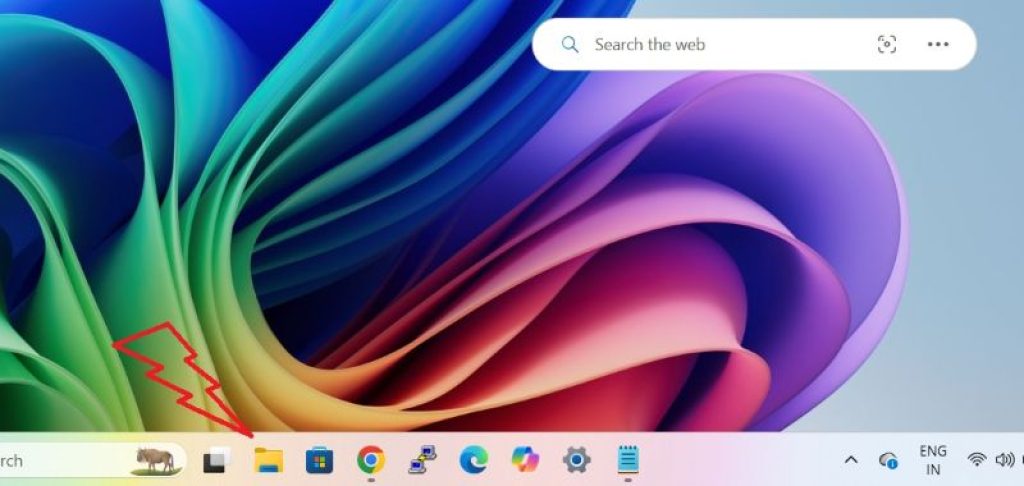
Open File Explorer.
Step 2
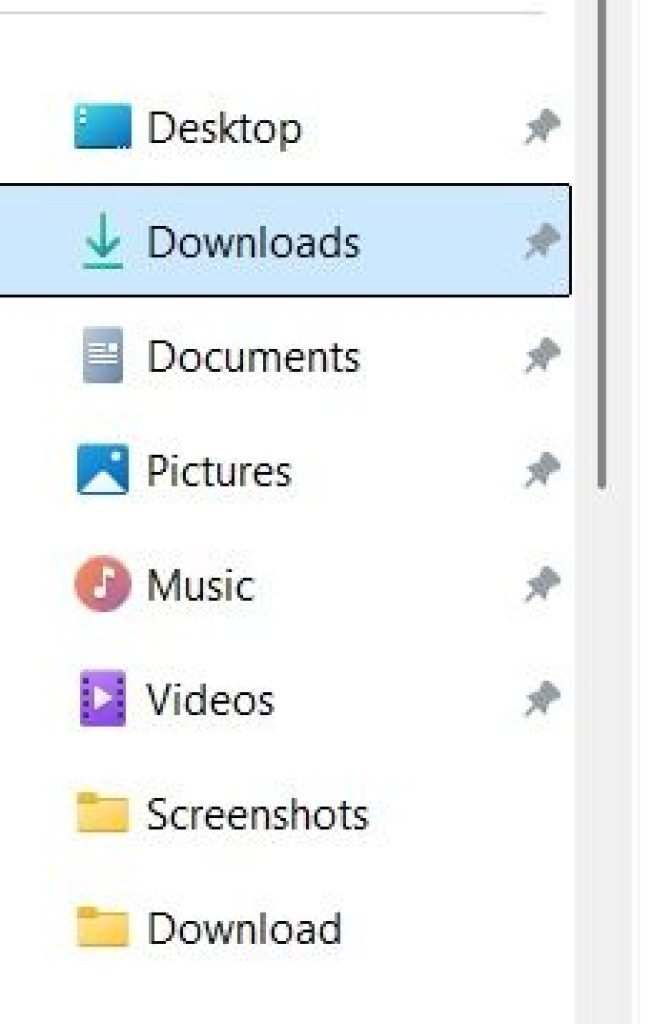
Open a folder that belongs to the category you want to customize.
For example:
- Documents
- Downloads
- Desktop
- Any General Items folder
Step 3
Customize the folder exactly how you want.
You can change:
- View style
- Sort order
- Grouping
- Column widths
- Column order
- Icon size

Step 4
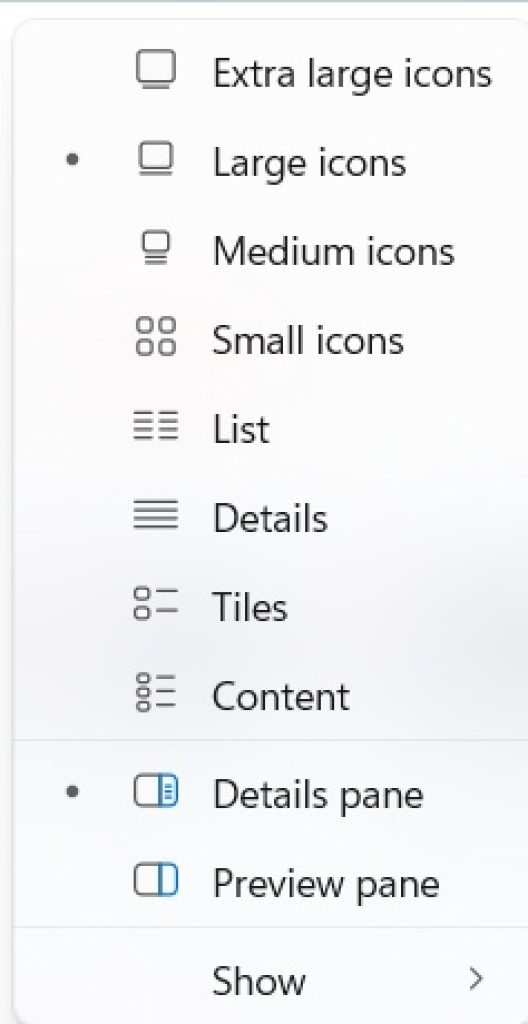
Click the View menu.
Choose your preferred layout.
Examples:
- Details
- List
- Large Icons
- Small Icons
- Extra Large Icons
Step 5
Click the three-dot (See more) menu.
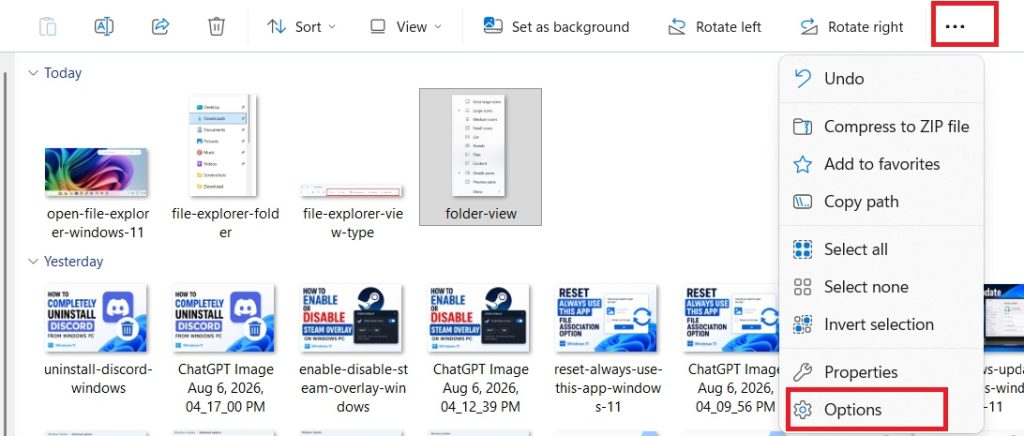
Select Options.
Step 6
Open the View tab.
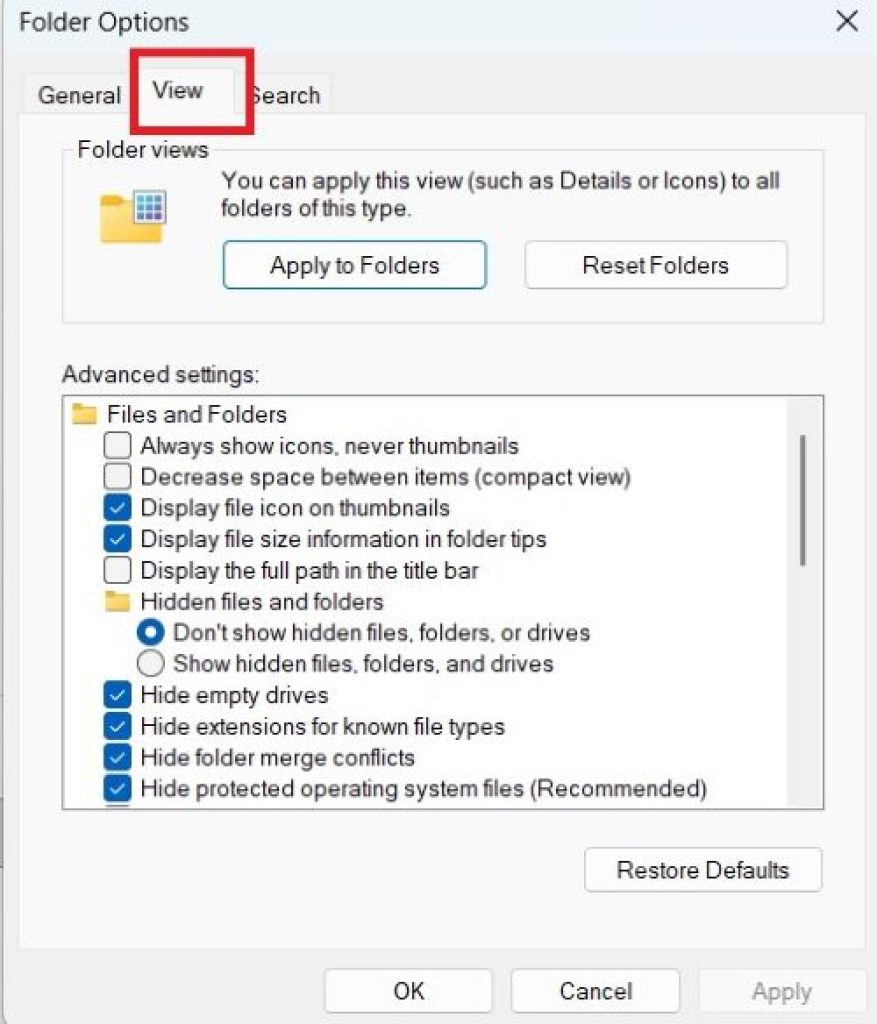
Step 7
Click Apply to Folders.
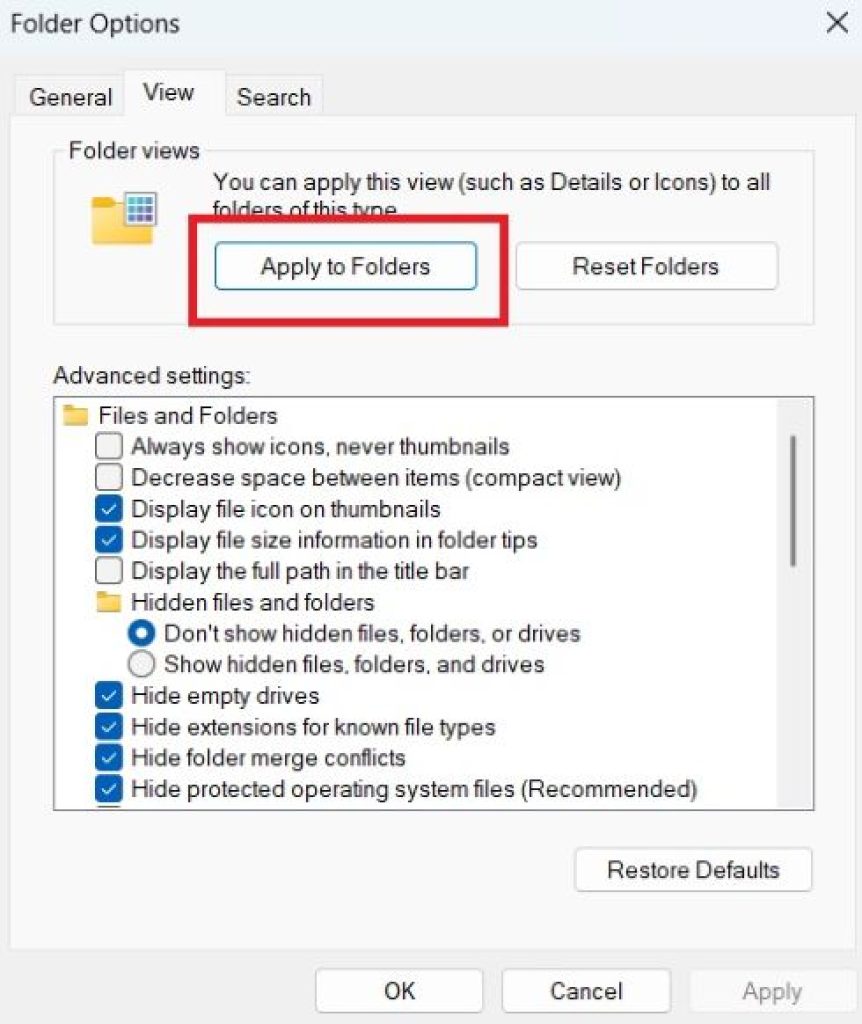
Step 8
Click Yes.
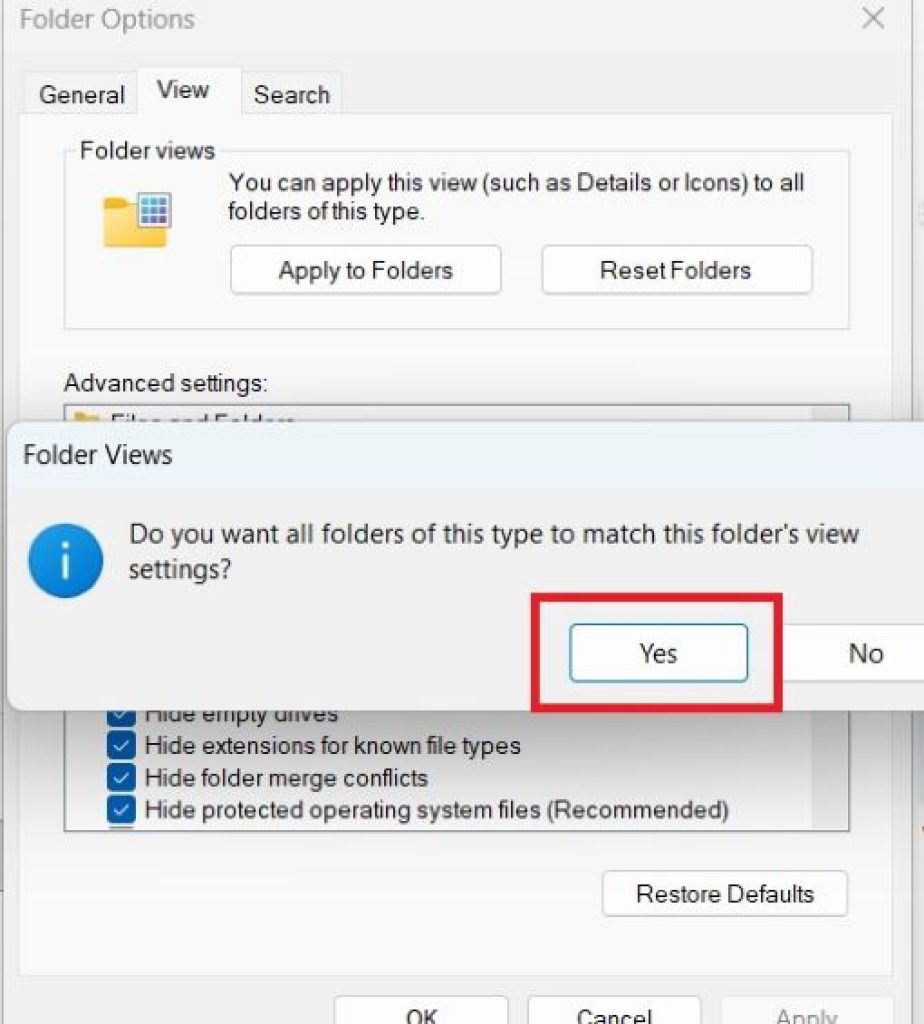
Step 9
Click OK.
Now Windows uses this layout for all folders using the same template.
Method 2: Set Every Folder to the General Items Template
Sometimes Windows automatically classifies folders as Pictures or Videos, causing different layouts.
Changing them to General Items creates more consistent behavior.
Step 1
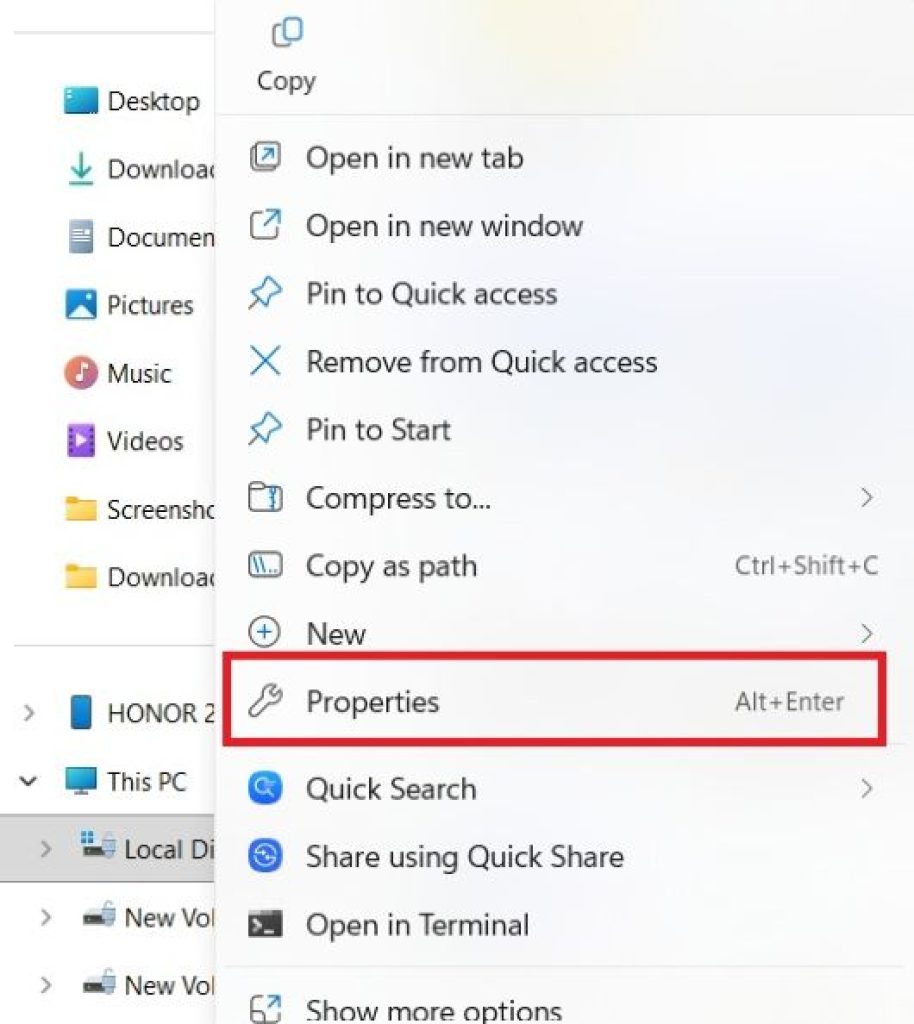
Right-click a folder.
Choose Properties.
Step 2
Open the Customize tab.
Step 3
Under Optimize this folder for, choose:
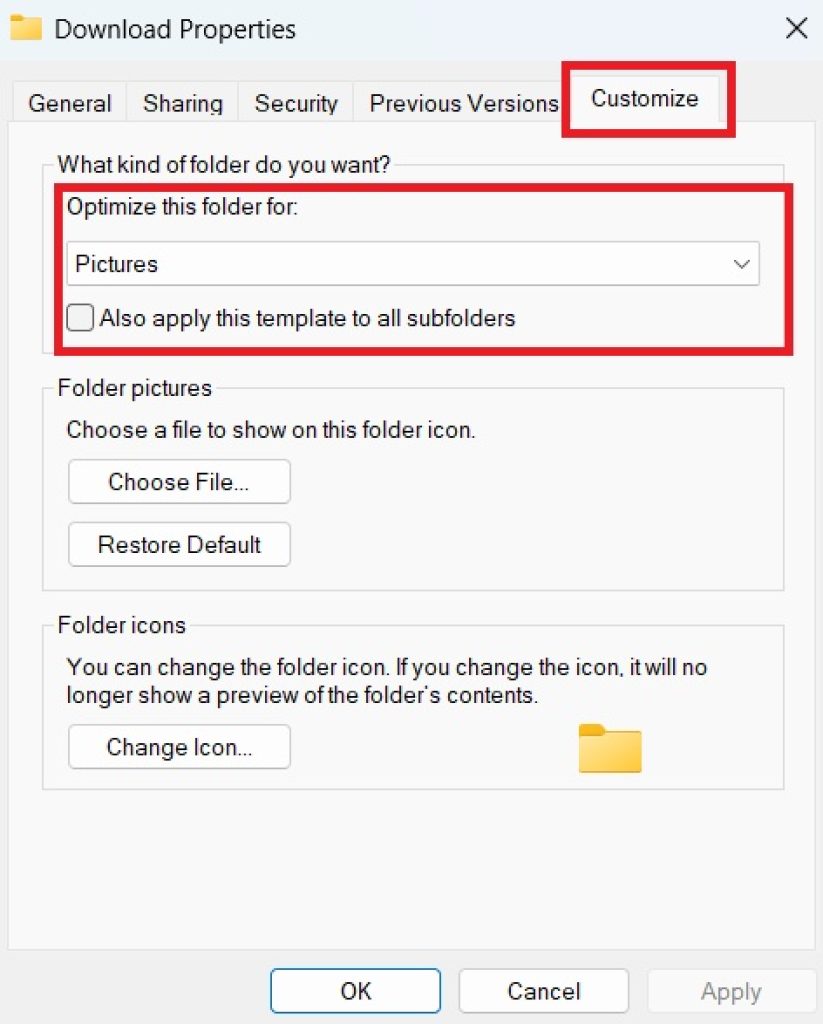
General Items
Step 4
Enable:
Also apply this template to all subfolders
Step 5
Click Apply.
Step 6
Click OK.
Repeat for major folders if needed.
Method 3: Reset Folder Views Before Applying a New Default
If File Explorer ignores your preferred layout, resetting saved views often fixes the problem.
Step 1
Open File Explorer.
Step 2
Click the three-dot menu.
Choose Options.
Step 3
Open the View tab.
Step 4
Click Reset Folders.
Step 5
Confirm the reset.
Step 6
Customize one folder again.
Step 7
Click Apply to Folders.
This removes older saved layouts that may conflict with your new preference.
Method 4: Change the View Using the View Menu
Before applying the layout globally, choose the view you actually want.
Step 1
Open a folder.
Step 2
Click View.
Step 3
Choose your preferred option.
Examples include:
- Extra Large Icons
- Large Icons
- Medium Icons
- Small Icons
- List
- Details
- Tiles
- Content
Step 4
After selecting the layout, use Apply to Folders from Folder Options.
Method 5: Customize Details View Before Applying It Everywhere
Many users prefer the Details view because it shows more information.
You can customize:
- Name
- Date Modified
- Type
- Size
- Authors
- Tags
- Rating
- Dimensions
- Length
Step 1
Switch to Details.
Step 2
Right-click any column header.
Step 3
Select or deselect columns.
Step 4
Drag columns into your preferred order.
Step 5
Resize each column.
Step 6
Use Apply to Folders.
Windows now uses your customized Details layout for similar folders.
Method 6: Disable Folder Grouping
Many users dislike automatic grouping such as:
- Today
- Yesterday
- Last Week
To disable it:
Step 1
Open a folder.
Step 2
Right-click an empty area.
Step 3
Choose:
Group by
Step 4
Select:
None
Step 5
Apply the layout to all folders.
Grouping will remain disabled for that folder type.
Method 7: Reset File Explorer Folder View Cache Using Registry Editor
If File Explorer refuses to remember folder views, its view cache may be corrupted.
Important: Back up the registry before making changes.
Step 1
Press Windows + R.
Step 2
Type:
regeditPress Enter.
Step 3
Navigate to:
HKEY_CURRENT_USER
Software
Microsoft
Windows
Shell
Step 4
Delete:
- Bags
- BagMRU
Step 5
Restart File Explorer or restart your PC.
Step 6
Customize a folder again.
Step 7
Apply the settings to all folders.
Windows rebuilds a fresh folder view database.
Method 8: Increase the Folder View Cache Size
Older Windows versions sometimes forget folder layouts because the cache limit is reached.
Increasing the cache helps Windows remember more customized folders.
Step 1
Open Registry Editor.
Step 2
Navigate to:
HKEY_CURRENT_USER
Software
Classes
Local Settings
Software
Microsoft
Windows
Shell
Step 3
Create a DWORD value named:
BagMRU SizeStep 4
Set it to:
20000(decimal)
Step 5
Restart File Explorer.
Windows can now remember significantly more customized folder views.
Method 9: Restore File Explorer Default Settings
If File Explorer behaves unpredictably after extensive customization, restoring defaults can resolve the issue.
Step 1
Open Folder Options.
Step 2
Open the View tab.
Step 3
Click:
Restore Defaults
Step 4
Click Apply.
Step 5
Customize your preferred folder again.
Step 6
Use Apply to Folders.
This provides a clean starting point for your preferred layout.
Method 10: Restart Windows Explorer
Sometimes File Explorer doesn’t immediately save changes until Explorer restarts.
Step 1
Press:
Ctrl + Shift + Esc
Step 2
Open Task Manager.
Step 3
Locate:
Windows Explorer
Step 4
Select it.
Step 5
Click:
Restart
Explorer reloads with your updated folder view settings.
Why Folder Views Sometimes Don’t Stay Saved
Several factors can prevent Windows from remembering your preferred layout.
Common reasons include:
- Corrupted folder view cache
- Different folder templates
- Registry corruption
- Explorer crashes
- Third-party customization software
- Folder optimization settings
- Low BagMRU cache size
- System file corruption
Identifying the cause helps restore consistent behavior.
Understanding Folder Templates
Windows uses folder templates to automatically optimize folders for different types of content.
The available templates are:
- General Items
- Documents
- Pictures
- Music
- Videos
Each template stores its own:
- View mode
- Columns
- Sorting
- Grouping
- Icon size
This is why applying a layout to one folder type doesn’t necessarily affect another.
Best Folder View Settings for Most Users
Many users find the following setup provides a good balance between readability and productivity:
- General Items: Details
- Documents: Details
- Downloads: Details
- Pictures: Large Icons
- Music: Details
- Videos: Large Icons
Using appropriate layouts for different content types makes File Explorer easier to navigate.
Frequently Asked Questions
Does Apply to Folders affect every folder?
No. It affects folders that use the same template. If another folder uses a different template, you’ll need to repeat the process for that template.
Why does Windows keep changing my folder view?
Windows may detect a different content type, the folder view cache may be corrupted, or File Explorer may have reached its saved folder limit.
Can I use one view for every folder?
Yes. Setting folders to the General Items template and then applying your preferred layout creates the most consistent experience across File Explorer.
Will resetting folder views delete my files?
No. Resetting folder views only removes saved display preferences. Your files and folders remain completely safe.
Conclusion
Setting a default folder view in Windows 11 or Windows 10 helps create a cleaner and more consistent File Explorer experience. Instead of manually changing layouts every time you open a folder, you can configure your preferred view once and apply it across similar folders using the built-in Apply to Folders option. For most users, this is all that’s needed to keep File Explorer organized.
If Windows still refuses to remember your settings, resetting the folder view cache, using the General Items template, increasing the BagMRU cache size, or restoring File Explorer defaults usually resolves the issue. Understanding how Windows uses folder templates is also important, since each template maintains its own display preferences. Once everything is configured correctly, you’ll spend less time adjusting folder layouts and enjoy a much smoother browsing experience throughout Windows.





