
 Geeksdigit Team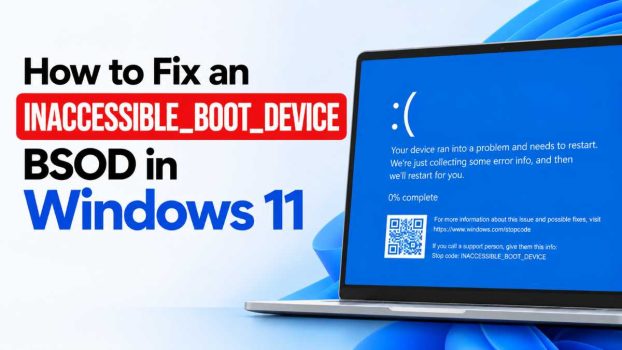
Few things are as alarming as booting up your PC and being greeted with a blue screen reading INACCESSIBLE_BOOT_DEVICE instead of your familiar Windows 11 desktop. This error means Windows has lost the ability to access the drive partition containing the operating system during startup — essentially, your PC can’t find or read the files it needs to boot.
This error can strike after a Windows update, a driver installation, a BIOS change, or even seemingly out of nowhere. The good news is that despite how frightening the blue screen looks, INACCESSIBLE_BOOT_DEVICE is usually fixable without losing your personal files. In most cases, the underlying cause falls into one of a few categories: a corrupted boot configuration, an incompatible storage driver, a disk connection or controller mode mismatch (like AHCI vs. RAID), or file system corruption on the boot partition.
Below are four proven methods to resolve this error, starting with the simplest and moving toward more advanced fixes. You’ll need a Windows 11 installation USB or recovery drive for most of these, so if you don’t already have one, you may need to create it on another working PC first.
Method 1: Run Startup Repair and Check Disk
Startup Repair is Windows’ built-in diagnostic tool designed specifically for boot problems like this one, so it’s the logical first step.
Steps:
- Boot from a Windows 11 installation USB (or if your PC automatically enters the Windows Recovery Environment after repeated failed boots, you can skip this).
- On the setup screen, click Next, then select Repair your computer in the bottom-left corner.
- Navigate to Troubleshoot > Advanced options > Startup Repair.
- Let Windows scan and attempt to fix the issue. This can take several minutes.
If Startup Repair doesn’t resolve the issue, or completes without finding a problem, run a disk check next:
- From the same Advanced options menu, select Command Prompt.
- Type
chkdsk C: /f /rand press Enter (replace C: with your Windows drive letter if different — you can confirm it by runningdiskpart, thenlist volume). - Allow the scan to complete; it repairs bad sectors and file system errors that could be preventing Windows from reading the boot partition.
- Restart your PC normally once finished.
This combination resolves a large share of INACCESSIBLE_BOOT_DEVICE cases caused by minor corruption or an interrupted shutdown.
Method 2: Rebuild the Boot Configuration Data (BCD)
If Startup Repair can’t fix things, the boot configuration data itself may be corrupted or pointing to the wrong partition. Rebuilding it manually often clears this up.
Steps:
- Boot into the Windows Recovery Environment and open Command Prompt as described above.
- Run the following commands one at a time, pressing Enter after each:
bootrec /fixmbr
bootrec /fixboot
bootrec /scanos
bootrec /rebuildbcd- If
bootrec /rebuildbcdfinds an existing Windows installation, type Y to add it to the boot list. - If
/fixbootreturns an “Access is denied” error, run these additional commands first, then repeat the process:
bootsect /nt60 sys- Restart your computer once all commands complete successfully.
If the BCD was the culprit, Windows should now boot normally. If you still see the same blue screen, move on to the next method.
Method 3: Fix Storage Driver and Controller Mode Issues
This is the most common cause of INACCESSIBLE_BOOT_DEVICE after a Windows update or a BIOS/firmware change. Windows loads a specific storage controller driver at boot, and if that driver becomes mismatched, missing, or if the SATA controller mode in BIOS changes unexpectedly (for example, switching between AHCI and RAID/Intel RST), Windows can no longer read the boot drive.
Check and correct BIOS/UEFI SATA mode:
- Restart your PC and enter BIOS/UEFI setup (commonly by pressing F2, F10, F12, Del, or Esc during startup — check your manufacturer’s prompt).
- Locate the SATA Configuration or Storage section.
- Note the current mode (AHCI, RAID, or IDE). If it was recently changed, switch it back to what it was when Windows was originally installed.
- Save changes and reboot.
If you must change the controller mode permanently (for example, moving to RAID for a new drive setup), you’ll need to prepare Windows first by enabling the appropriate driver before switching, since changing modes without this step is a common trigger for this exact error:
- Boot into Windows normally (using the original mode) and open Command Prompt as Administrator.
- Run:
bcdedit /set {current} safeboot minimal- Restart into Safe Mode, then run:
bcdedit /deletevalue {current} safeboot- Restart again, entering BIOS to change the controller mode this time. Windows will now load the necessary storage drivers on the next boot.
Update or roll back storage drivers:
If the issue began right after a driver or Windows update installed a new storage controller driver, you can also try:
- From Recovery Environment, open Command Prompt.
- Boot into Safe Mode instead (via Advanced options > Startup Settings > Restart, then press 4 or F4).
- Once in Safe Mode, open Device Manager, expand IDE ATA/ATAPI controllers and Storage controllers.
- Right-click your storage driver and choose Roll Back Driver if available, or Update driver to fetch the latest manufacturer version from your motherboard or SSD vendor’s website.
Method 4: Use System Restore or Uninstall Recent Updates
If the problem started shortly after installing a Windows update, driver, or new software, reverting to an earlier state can bypass the issue entirely while you investigate further.
System Restore:
- From the Recovery Environment, go to Troubleshoot > Advanced options > System Restore.
- Choose a restore point dated before the problem began.
- Follow the prompts to complete the restoration. Your PC will restart automatically.
Note that this only works if System Restore was enabled and restore points exist — many Windows 11 installations have this off by default, so it’s worth checking and enabling it once your PC is working again.
Uninstall a problematic update:
- From Advanced options, select Uninstall Updates.
- Choose either Uninstall latest quality update or Uninstall latest feature update, depending on which was installed most recently.
- Confirm and let Windows remove it, then restart.
As a last resort — reset while keeping files:
If none of the above works, Reset this PC (found in the same Advanced options menu) with the Keep my files option reinstalls Windows system files while preserving your personal documents, photos, and most user data, though it removes installed apps and some settings. This should be treated as a final option after the other methods have been exhausted, since it takes longer and involves more system-level changes.
Conclusion
INACCESSIBLE_BOOT_DEVICE is one of the more intimidating blue screens you can encounter, but it’s rarely a sign of catastrophic hardware failure — it’s almost always a software-level miscommunication between Windows and your storage controller. Working through these methods in order gives you the best chance of a quick fix with minimal risk: start with Startup Repair and CHKDSK for simple corruption, rebuild your BCD if boot configuration is at fault, check your BIOS storage controller settings if the problem followed a hardware or firmware change, and fall back on System Restore, an update rollback, or a files-preserving reset if all else fails.
Once you’re back up and running, it’s worth taking a few preventive steps: enable System Restore if it was off, keep a Windows 11 recovery USB on hand, and avoid changing BIOS storage settings without first preparing Windows for the change. A little preparation now can save you from repeating this troubleshooting process down the line.
Frequently Asked Questions
1. Will I lose my files when fixing INACCESSIBLE_BOOT_DEVICE?
In most cases, no. Methods 1 through 4 — Startup Repair, CHKDSK, BCD rebuilding, driver fixes, and System Restore — do not touch your personal files, since they only repair boot-related system components. Even the “Reset this PC” option has a Keep my files mode that preserves documents, photos, and similar data while reinstalling system files. Data loss becomes a real risk mainly if the underlying issue is a failing physical drive, which is why backing up important files to an external drive or cloud storage as soon as you can access your data (even briefly) is always a good precaution.
2. What actually causes INACCESSIBLE_BOOT_DEVICE in Windows 11?
The error is triggered when Windows’ boot process can’t communicate with the storage device holding the operating system. Common root causes include a corrupted boot configuration database, an incompatible or corrupted storage controller driver (often after a Windows or driver update), a mismatched SATA/NVMe controller mode in BIOS (such as switching between AHCI and RAID without reconfiguring Windows first), a failing or loose storage drive connection, or file system corruption on the system partition. Identifying which of these applies to your situation is why the methods above are ordered from least to most invasive — you’re essentially ruling out causes one at a time.





