
 Sukhdev Kamboj
Windows Update is the backbone of security and stability on any Windows 11 PC. It delivers security patches, driver updates, feature releases, and bug fixes automatically, keeping your system protected against emerging threats and running smoothly. But for many users, the default update behavior feels intrusive — updates installing at inconvenient times, restarts interrupting work, or bandwidth getting consumed without warning.
The good news is that Windows 11 gives you substantial control over how, when, and even whether updates are applied. From pausing updates for weeks at a time to setting active hours that prevent forced restarts, to fine-tuning bandwidth usage through Delivery Optimization, the Windows Update settings panel is far more flexible than most people realize.
This guide walks through every major setting inside Windows Update, explains what each option actually does, and shows you how to configure your PC for the update experience that fits your workflow — whether that means maximum automation, tighter control, or something in between. We’ll also cover troubleshooting common update failures and answer the questions people ask most often about managing updates in Windows 11.
Why Managing Windows Update Settings Matters
Before diving into the how-to, it’s worth understanding why these settings matter in the first place.
Security: Delaying updates too long leaves your system exposed to known vulnerabilities that attackers actively exploit. Microsoft ships monthly “Patch Tuesday” security updates specifically to close these gaps.
Stability: Occasionally, updates introduce bugs or compatibility issues. Having control over update timing lets you avoid installing a brand-new update on a day you have important work, giving problematic patches time to get flagged and fixed.
Productivity: Forced restarts during a video call or while running a long export process can be disruptive. Configuring active hours and notification preferences prevents these interruptions.
Bandwidth and storage: On metered connections or systems with limited storage, controlling how and when updates download matters a great deal, especially for laptops used while traveling or on mobile hotspots.
With that context, let’s get into the settings themselves.
Getting to Windows Update Settings
There are two quick ways to reach the Windows Update panel:
Press Windows key + I to open Settings, then click Windows Update in the left-hand navigation pane (it’s usually the last item).

Right-click the Start button, choose Settings, and navigate the same way — or simply type “Windows Update” into the taskbar search box and select the top result.
Once you’re in the Windows Update page, you’ll see a summary showing your update status, along with buttons for Check for updates, and links to Pause updates, Update history, and Advanced options. Each of these opens a deeper set of controls, which we’ll cover one at a time.
Method 1: Checking for and Installing Updates Manually
By default, Windows 11 checks for updates automatically in the background. But you can force a manual check at any time:
Open Settings > Windows Update.
Click Check for updates.
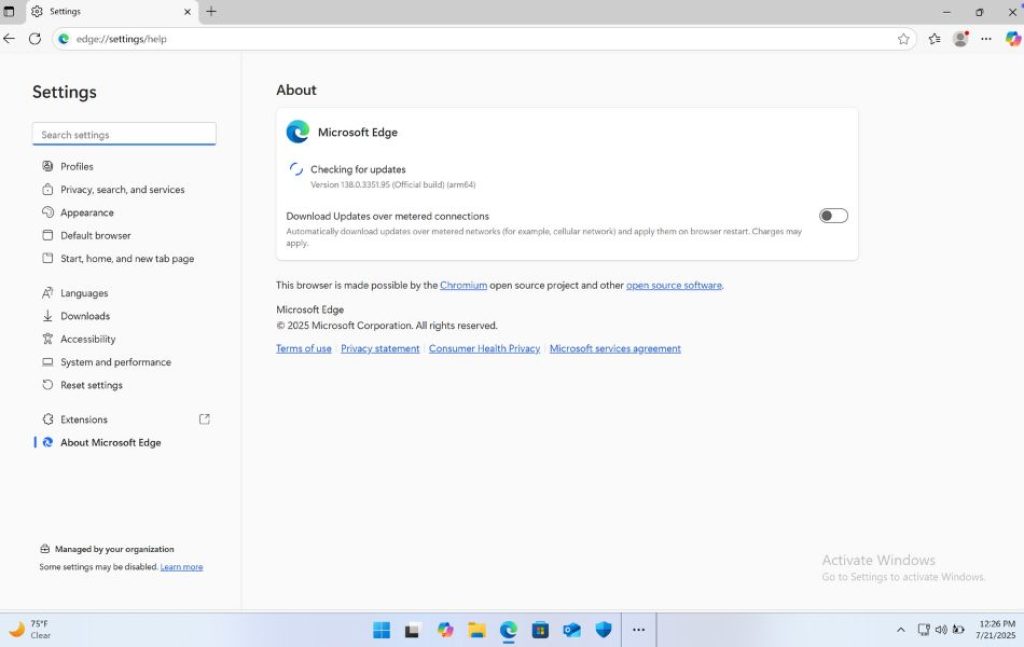
If updates are found, they’ll begin downloading automatically. Once downloaded, click Install now or Restart now if a restart is required.
This is useful right after a known patch release, or when troubleshooting an issue that a recent update might fix.
Method 2: Pausing Updates Temporarily
If you need to avoid updates for a while — before a big presentation, during a busy work sprint, or simply because you don’t want a specific update installed yet — you can pause updates without turning off Windows Update entirely.
Go to Settings > Windows Update.
Click Pause updates > Pick a Date. Each click extends the pause by another week.
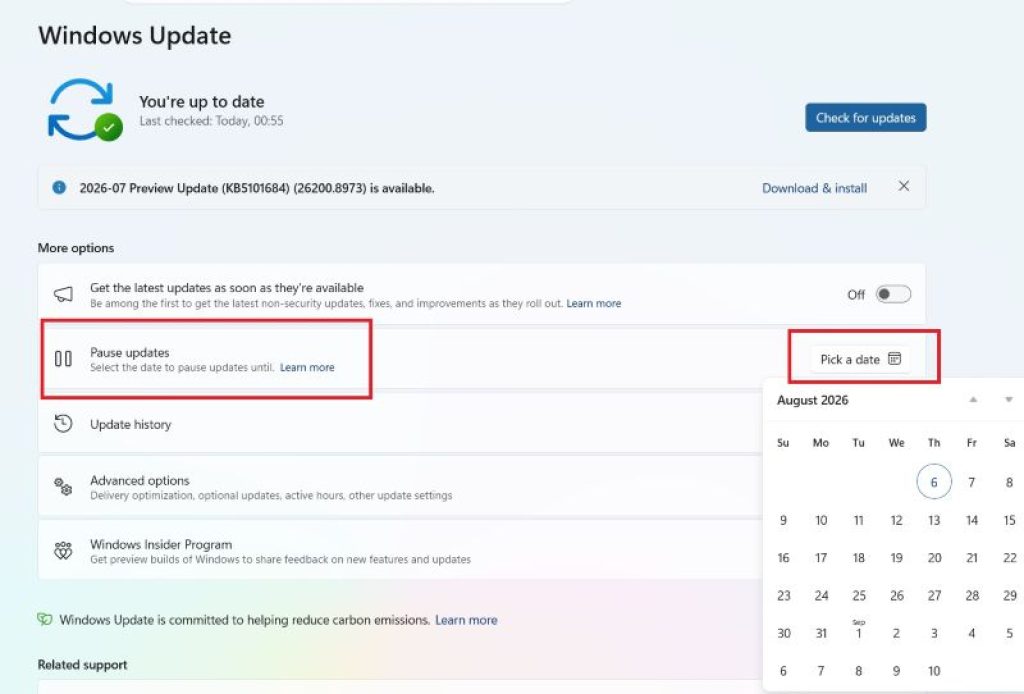
You can pause updates for up to 5 weeks total. After that period expires, Windows will resume checking for and installing updates automatically, and you’ll need to update before you can pause again.
This is the safest way to delay updates because it doesn’t disable Windows Update as a service — it simply postpones new installations while keeping your system protected up to the point you paused.
Method 3: Setting Active Hours
Active hours tell Windows the time window during which you’re typically using your PC, so it avoids automatic restarts during that period.
Navigate to Settings > Windows Update > Advanced options.
Under Active hours, choose between Automatically adjust active hours for this device based on activity (Windows learns your habits) or set them manually.
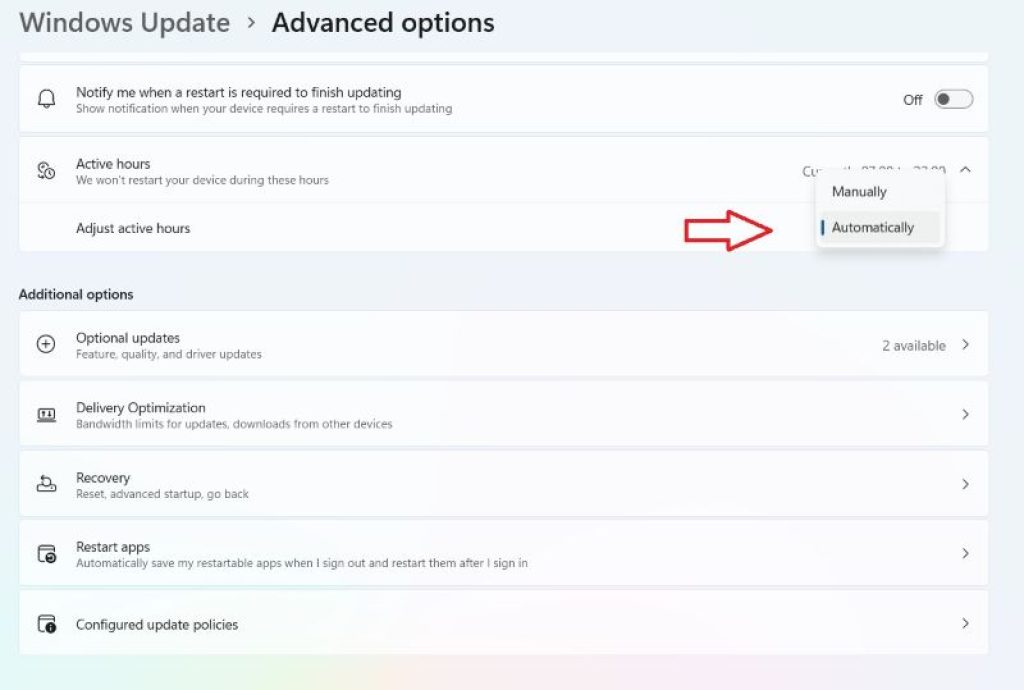
If setting manually, define a Start time and End time — for example, 8:00 AM to 10:00 PM. The maximum window is 18 hours.
Outside of active hours, Windows may schedule a restart to finish installing updates, typically overnight. Within active hours, it won’t interrupt you.
Method 4: Advanced Options — Fine-Tuning Update Behavior
The Advanced options page is where most of the meaningful customization happens. Here’s what you’ll find:
- Get the latest updates as soon as they’re available: Turning this on lets your device receive updates the moment they’re released, rather than waiting for Microsoft’s staged rollout. Useful for enthusiasts; less ideal if you prefer stability.
- Get me up to date: Prioritizes finishing pending updates, including restarting outside active hours if needed, to bring your device current more quickly.
- Receive updates for other Microsoft products: Enabling this bundles updates for Office and other Microsoft apps into the Windows Update process, so you don’t need a separate updater.
- Download updates over metered connections: Off by default to save data; toggle on if you want updates to download even on a connection your PC treats as metered (like a mobile hotspot).
- Notify me when a restart is required: Displays a reminder icon and notification instead of silently restarting.
- Enterprise channel options (on supported editions): Lets you defer feature updates for longer stability windows, common in managed business environments.
Method 5: Delivery Optimization
Delivery Optimization controls how Windows downloads and shares update files, including peer-to-peer sharing across your local network or the internet.
Go to Settings > Windows Update > Advanced options > Delivery Optimization.
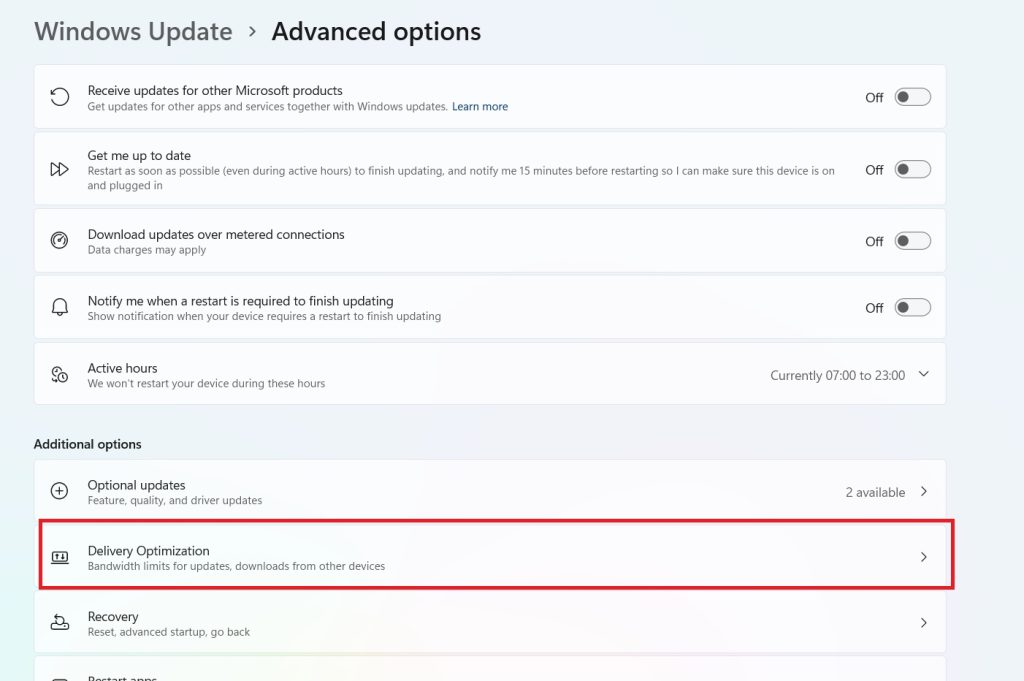
Toggle Allow downloads from other PCs on or off. When on, choose between PCs on my local network or PCs on my local network, and PCs on the Internet.
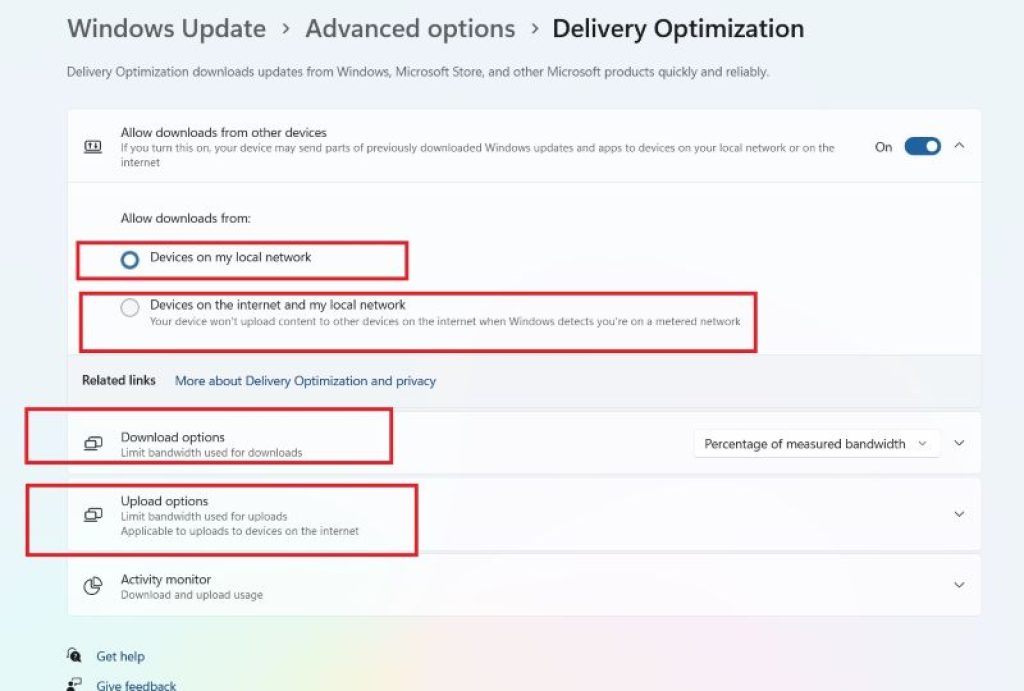
Click Advanced options within this page to set specific bandwidth limits for downloads and uploads, both for foreground and background activity, and to cap monthly upload data.
If you’re troubleshooting failed or stuck downloads, temporarily disabling Delivery Optimization is a common fix, as referenced in several recent Windows 11 troubleshooting guides.
Method 6: Viewing and Managing Update History
To see exactly what’s been installed on your system:
Open Settings > Windows Update > Update history.
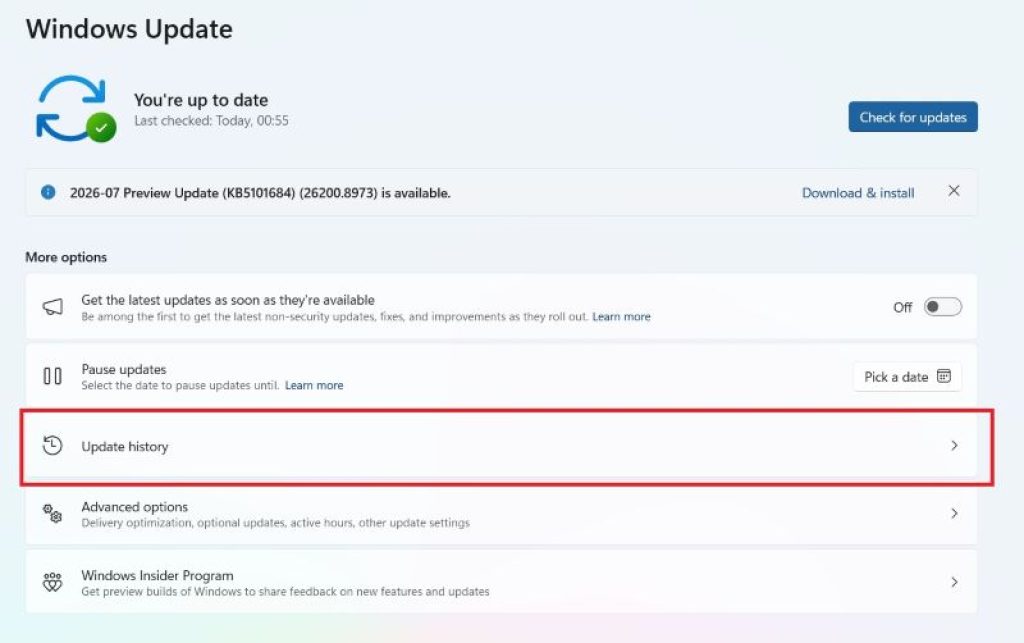
Review the list of installed Quality Updates, Driver Updates, Definition Updates, and Feature Updates, along with installation dates.
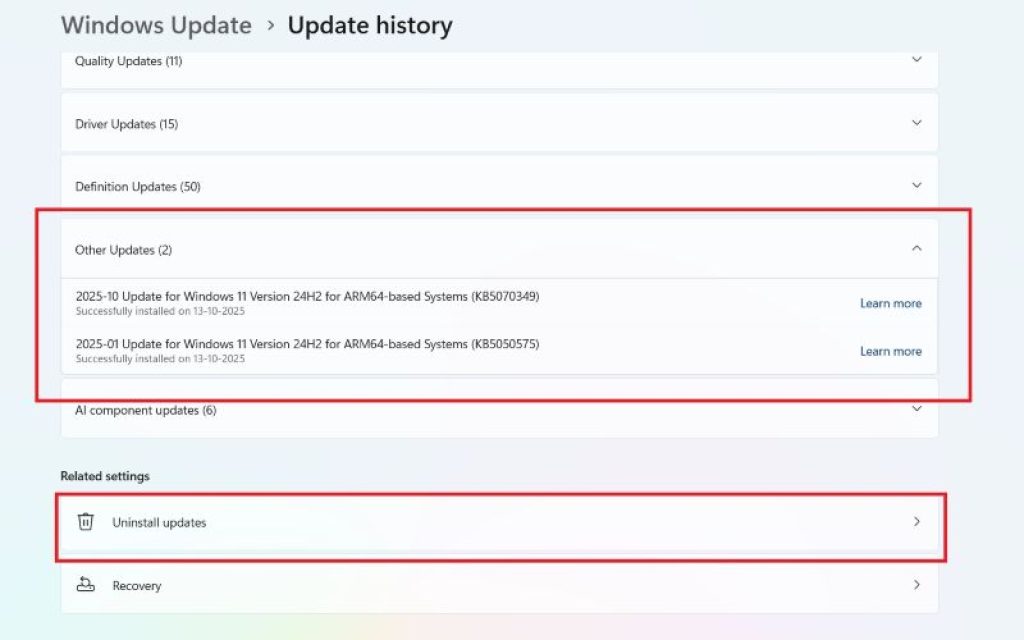
If a recent update is causing problems, click Uninstall updates near the top of this page to remove a specific quality or driver update.
This history view is also the fastest way to confirm whether a particular security patch (identified by its KB number) has actually been applied.
Method 7: Uninstalling a Problematic Update
Sometimes an update causes a driver conflict, performance regression, or compatibility issue. Windows 11 makes rollback straightforward:
- Go to Settings > Windows Update > Update history > Uninstall updates.
- Find the update by its KB number and click Uninstall next to it.
- Restart your PC when prompted to complete the rollback.
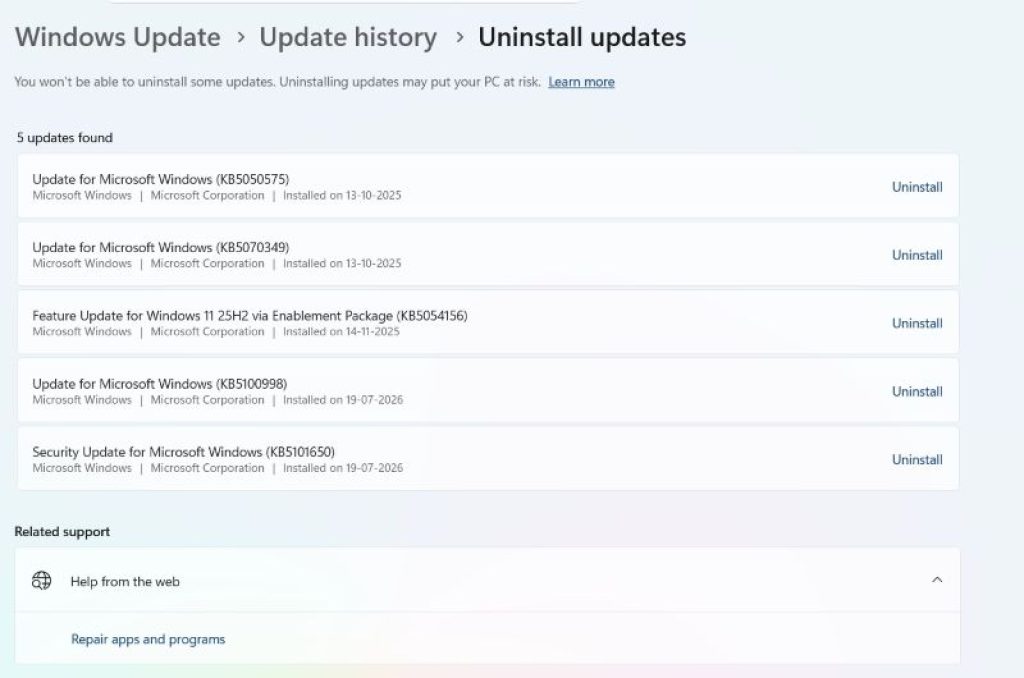
Note that Windows will typically try to reinstall the same update again later unless the underlying issue is fixed or you pause updates in the meantime.
Method 8: Windows Update for Business and Group Policy (Advanced Users)
For managed devices — particularly in workplace or IT-administered environments — deeper controls exist through Group Policy Editor (gpedit.msc, available on Pro and Enterprise editions) or Windows Update for Business policies. These allow administrators to:
- Defer feature updates and quality updates by a specified number of days.
- Set specific deadlines for update installation.
- Control automatic restart behavior at the policy level across many devices.
- Configure Windows Server Update Services (WSUS) as an internal update source instead of the public Microsoft servers.
This method is generally unnecessary for home users but is worth knowing about if you manage multiple machines or work in an IT role.
Method 9: Optional Updates and Driver Updates
Windows 11 separates some driver and feature updates into an Optional updates category so they aren’t forced on everyone automatically.
- Go to Settings > Windows Update > Advanced options > Optional updates.
- Expand Driver updates or Other updates to see what’s available.
- Select the checkbox next to any update you want and click Download & install.
This is particularly useful when you need a specific driver update — say, for a new peripheral — without waiting for it to roll out automatically.
Troubleshooting Common Update Problems
If updates fail to download or install, try these steps in order:
- Restart your PC and run Check for updates again — many failures resolve after a fresh boot.
- Run the Windows Update Troubleshooter: Settings > System > Troubleshoot > Other troubleshooters > Windows Update > Run.
- Check your storage space — updates need free disk space to download and install correctly.
- Temporarily disable Delivery Optimization if downloads seem stuck, then try again.
- Check your internet connection and confirm you’re not on a heavily restricted network or VPN blocking Microsoft’s update servers.
- As a last resort, use the Microsoft Update Catalog to manually download and install a specific update package.
Conclusion
Windows Update in Windows 11 is designed to keep your system secure with minimal effort, but it also respects that different users have different needs. Whether you want to pause updates before an important deadline, restrict downloads to your active hours, limit bandwidth usage through Delivery Optimization, or roll back a problematic patch, every one of these controls lives within a few clicks of the main Windows Update settings page.
The most important habit to build is balance: don’t disable updates indefinitely, since that leaves your PC exposed to security risks, but do take advantage of pausing, active hours, and optional update controls to make sure updates happen on your terms rather than interrupting you unexpectedly. With the methods covered in this guide, you should be able to configure Windows Update to match exactly how you use your PC — whether that’s a home laptop, a work machine, or a system you manage for others.
Frequently Asked Questions (FAQ)
Q 1: Can I permanently disable Windows Update in Windows 11? There’s no built-in, fully permanent way to disable Windows Update, and Microsoft doesn’t recommend doing so, since it’s your primary source of security patches. You can pause updates for up to 5 weeks at a time, which is the safest long-term delay option built into Settings.
Q 2: Why does Windows Update keep restarting my PC automatically? This usually happens because a restart is required to finish installing an update, and it’s occurring outside the active hours you’ve set. Adjust your active hours in Advanced options, or enable “Notify me when a restart is required” so you can choose the timing yourself.
Q 3: How do I know which updates are installed on my computer? Open Settings > Windows Update > Update history to see a full list of installed quality, driver, definition, and feature updates along with their installation dates and KB numbers.
Q 4: What’s the difference between a feature update and a quality update? Feature updates deliver new functionality and typically arrive once or twice a year, forming a new version number (like 24H2 or 25H2). Quality updates are smaller, more frequent patches — usually monthly — focused on security fixes and bug fixes.
Q 5: Is it safe to uninstall a Windows update? Yes, uninstalling a specific update through Update history is a supported and reversible action. It’s a reasonable troubleshooting step if a particular update is causing problems, though keep in mind Windows may attempt to reinstall it later.





