
 Sukhdev Kamboj
If you are setting up a Windows 11 PC, installing Microsoft 365, accessing OneDrive, downloading apps from the Microsoft Store, or signing in to another Microsoft service, you may be asked for your Microsoft account and password.
The problem is that many people are not sure which email address is their Microsoft account or where their password is stored. This can be especially confusing if you normally sign in to Windows using a PIN, fingerprint, or facial recognition instead of typing your Microsoft account password.
Your Microsoft account is generally identified by the email address or phone number you use to sign in to Microsoft services. It can be an Outlook, Hotmail, Live, or another email address that you previously connected to Microsoft. Microsoft also allows account aliases, meaning several email addresses can be associated with the same account and use the same password.
The good news is that if you are already signed in to Windows 11, there are several places where you can find the email address associated with your Microsoft account. If you know the account but forgot its password, you can reset it through Microsoft’s official account recovery process.
This guide explains where to find your Microsoft account, how to determine whether an email address is a Microsoft account, how to recover a forgotten username, and what to do if you have forgotten your password.
What Is a Microsoft Account?
A Microsoft account is a personal account that lets you sign in to Microsoft’s online services and products.
The same account can be used for services such as:
- Windows 11
- Microsoft 365
- Outlook.com
- OneDrive
- Microsoft Store
- Xbox
- Microsoft Edge synchronization
- Microsoft Teams for personal use
- Other Microsoft services
Your Microsoft account normally consists of a username, which is usually an email address, and a password.
For example, your account might look like:
or it could use another email address that you registered with Microsoft.
Microsoft explains that you can use email aliases associated with the same account to sign in, and those aliases share the same password.
This means you may have more than one email address associated with your Microsoft account without actually having multiple Microsoft accounts.
Microsoft Account vs. Windows Password
One of the biggest sources of confusion is the difference between your Microsoft account password and your Windows sign-in method.
When Windows 11 is configured with a Microsoft account, you may use Windows Hello to sign in with:
- A PIN
- Fingerprint
- Facial recognition
- Password
Microsoft says Windows Hello can allow you to use a PIN, fingerprint, or facial recognition instead of your password when signing in to Windows.
Therefore, if you normally type a four- or six-digit PIN when starting your computer, that PIN is not necessarily your Microsoft account password.
For example, you might have:
Microsoft account:[email protected]
Windows Hello PIN:123456
Microsoft account password:
A completely different password
If a website asks for your Microsoft account password, entering your Windows Hello PIN generally won’t work.
This distinction is particularly important when signing into Microsoft 365, OneDrive, Outlook, or another Microsoft service from a new device.
How to Find Your Microsoft Account in Windows 11
If you are already signed in to your Windows 11 computer, finding the Microsoft account associated with the device is usually easy.
Method 1: Check Windows 11 Settings
Windows 11 provides account information through the Settings application.
Follow these steps:
Press Windows + I to open Settings.
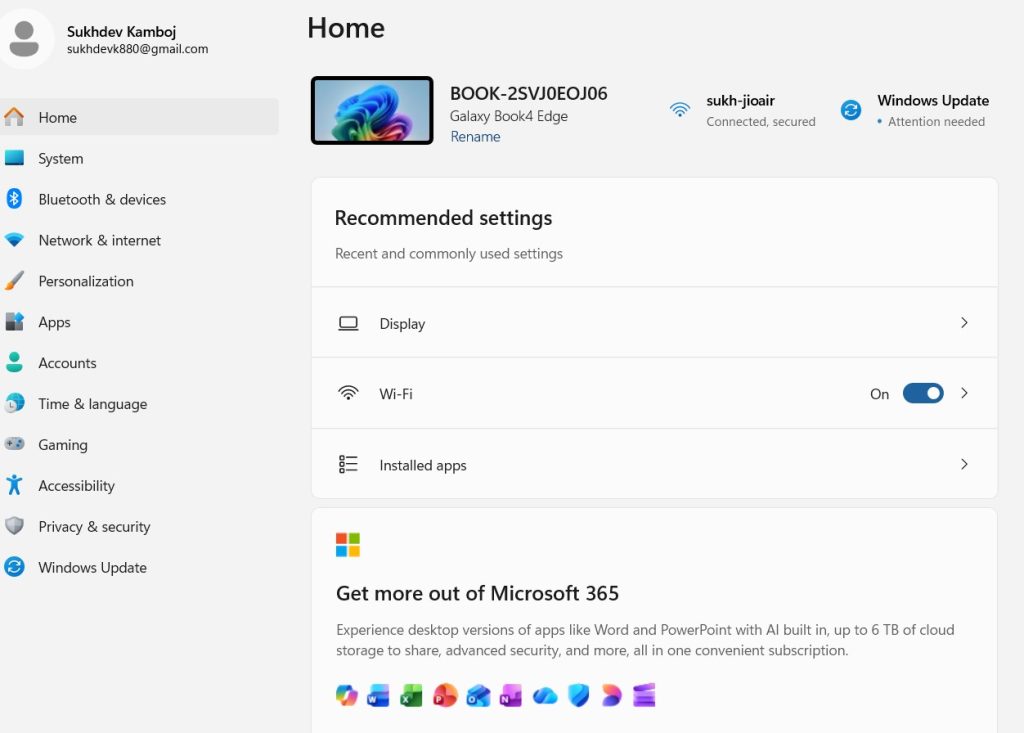
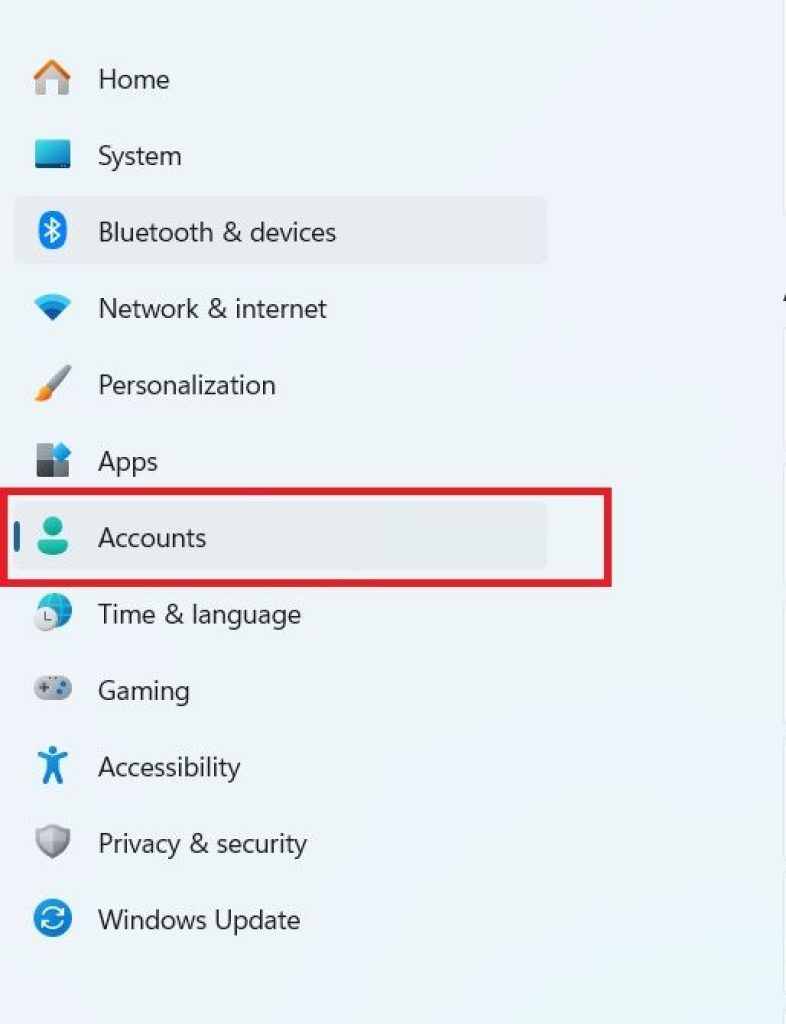
Select Accounts from the left sidebar.
Select Your info.
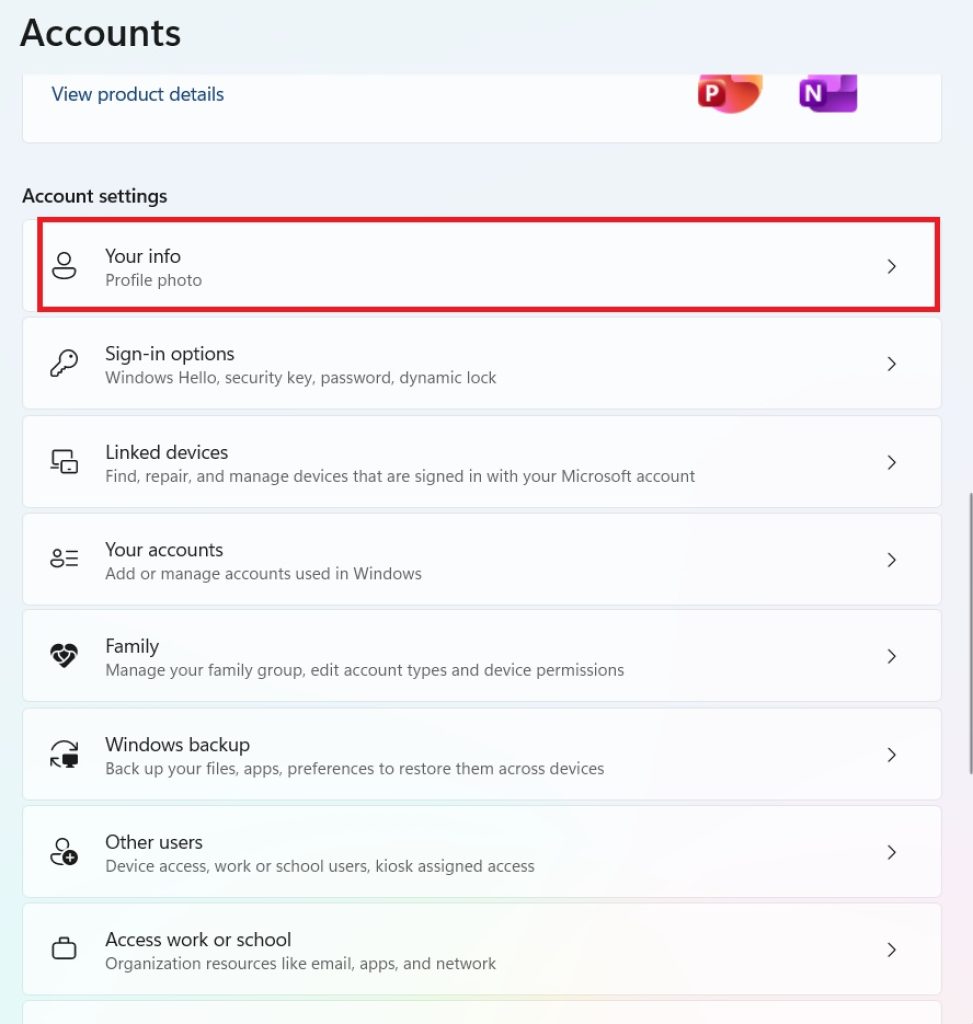
Look for the account information displayed on this page.
If Windows is using a Microsoft account, you should see information associated with that account.
Microsoft’s Windows guidance identifies Settings > Accounts as the area where you can manage your Microsoft account and related account settings.
Another useful location is:
Settings > Accounts > Email & accounts
Microsoft specifically states that on Windows 10 and Windows 11, usernames associated with the device can be found under Email & app accounts.
Depending on your Windows configuration and installed applications, you may see several accounts listed there.
Why You May See Multiple Accounts
Don’t be surprised if Windows displays more than one email address.
You could have:
- Your personal Microsoft account
- A work or school account
- An account used by Microsoft 365
- An account associated with another application
- An old account that was previously added to Windows
The account you need depends on what you are trying to access.
For example, if you are trying to access your personal OneDrive, you normally want your personal Microsoft account rather than your employer’s work account.
Method 2: Check Your Microsoft Account From the Start Menu
Another quick way to identify the account currently associated with your Windows profile is to open the Start menu.
- Click Start.
- Look at your profile picture or account icon.
- Select the account/profile area.
Depending on your Windows 11 version and configuration, Windows may display your name and account information.
If the email address isn’t displayed there, use Settings > Accounts instead.
Method 3: Check Email & App Accounts
Windows can store multiple accounts for applications and services.
To check them:
- Press Windows + I.
- Select Accounts.
- Select Email & accounts.
- Look under the accounts associated with applications.
Microsoft specifically recommends checking Email & app accounts on Windows 10/11 when trying to find a Microsoft account username.
This can be particularly useful if you don’t remember which email address you originally used.
How to Find Your Microsoft Account Through Microsoft 365
If you have Microsoft 365 or Office installed on your computer, you can also check your account from Word, Excel, or another Office application.
For example:
- Open Microsoft Word.
- Select File.
- Select Account.
- Look under Product Information.
Microsoft says that Office 2016 and newer versions can display the username associated with the product under File > Account, including information about which account the product belongs to.
This is especially useful if you purchased Microsoft 365 several years ago and no longer remember which email address you used.
You can repeat the same process in applications such as Excel or PowerPoint.
How to Find Your Microsoft Account Online
If you don’t want to use Windows Settings, you can check your account through Microsoft’s account website.
Open the Microsoft account sign-in page and enter an email address you think might be associated with your account.
Microsoft’s official account sign-in page is:
Enter your email address and select Next.
If Microsoft recognizes the address and proceeds to a password prompt, that address is associated with a Microsoft account. If Microsoft reports that it cannot find an account with that username, check the spelling and domain and try another address.
This is one of the easiest ways to test old email addresses that you think you may have used.
How to Find a Forgotten Microsoft Account Username
What if you don’t remember your Microsoft account email address at all?
Microsoft provides a username lookup process if you previously added security information to the account.
Your security information could include:
- A phone number
- An alternate email address
Microsoft can use that information to verify your identity and provide a hint of the account username.
To try recovering your username:
- Open Microsoft’s account recovery or username lookup page.
- Enter the phone number or alternate email address associated with your account.
- Request a security code.
- Check your phone or alternate email.
- Enter the verification code.
- Follow the instructions provided by Microsoft.
Microsoft may display only part of the username for security reasons. For example, you might see something similar to:
j********@outlook.com
This can be enough to remind you which email address you originally used.
What If Username Recovery Doesn’t Work?
If Microsoft cannot identify your account using a phone number or alternate email address, you can look for the account in products and services where you previously used it.
Microsoft recommends checking places such as:
- Windows
- Microsoft 365 applications
- Email accounts
- Xbox
- Previous Microsoft purchase receipts
For Windows 10 and Windows 11, check Settings > Accounts > Email & accounts.
For Office, open Word or Excel and check File > Account.
You can also search your existing email accounts for Microsoft receipts, subscription confirmations, or other messages that may reveal the email address you used.
Where Do I Find My Microsoft Account Password?
This is where things work differently.
Windows normally does not display your Microsoft account password in plain text.
If you forgot the password, you generally need to reset it rather than simply opening Windows Settings and viewing it.
This is intentional because passwords are sensitive authentication information.
If you normally sign in to Windows with a PIN, don’t assume that the PIN is your Microsoft account password.
Instead, if you don’t remember the password, use Microsoft’s password-reset process.
Microsoft Account vs. Local Account in Windows 11
Another reason people have difficulty finding their Microsoft account is that their Windows PC might actually be using a local account.
Windows 11 can use either a Microsoft account or a local account.
A local account exists only on the Windows device and isn’t the same as a Microsoft account.
To check your account type:
- Open Settings.
- Select Accounts.
- Select Your info.
If you’re using a local account, Windows provides an option such as Sign in with a Microsoft account instead. Microsoft documents this location for switching from a local account to a Microsoft account.
If you see that option, your current Windows profile is using a local account.
This explains why you might not find a Microsoft email address associated with your Windows sign-in.
How to Find Your Microsoft Account in Outlook
If you use Outlook.com, your Outlook email address may be your Microsoft account username.
Open Outlook and check the account you’re currently signed in to.
You can also search your email inbox for Microsoft account messages.
Look for:
- Microsoft account notifications
- Microsoft 365 subscription emails
- Microsoft Store purchase receipts
- Security alerts
- Password-reset emails
- Account verification messages
These messages can help identify which email address you previously used.
Frequently Asked Questions
Where can I find my Microsoft account email address in Windows 11?
Open Settings > Accounts > Your info to check the account associated with your Windows profile. You can also check Settings > Accounts > Email & accounts for usernames associated with the device. Microsoft specifically recommends the Email & app accounts area for finding usernames on Windows 10 and Windows 11.
Where can I find my Microsoft account password?
You normally cannot simply view your Microsoft account password in Windows 11. If you’ve forgotten it, use Microsoft’s password-reset process to create a new password. Microsoft requires identity verification before the password can be reset.
Is my Windows 11 PIN the same as my Microsoft password?
No. A Windows Hello PIN is a separate sign-in method. You can use a PIN, fingerprint, or facial recognition to sign in to Windows without typing your Microsoft account password.
Can I use Gmail as my Microsoft account?
Yes. A Microsoft account does not necessarily have to use an Outlook, Hotmail, or Live email address. You can use another email address when creating or accessing a Microsoft account. Microsoft also supports aliases associated with the same account.
Conclusion
Finding your Microsoft account is usually much easier than finding a forgotten password.
If you’re already signed in to Windows 11, start with Settings > Accounts > Your info. You can also check Settings > Accounts > Email & accounts, where Microsoft says usernames associated with the device can be displayed.
If you use Microsoft 365, open Word, Excel, or another Office application and go to File > Account to see the account associated with the product.
If you have forgotten the email address entirely, Microsoft’s username-recovery process can use a recovery phone number or alternate email address to help identify the account.
A forgotten password works differently. Windows 11 does not normally provide a way to simply display your Microsoft account password. Instead, use Microsoft’s official password-reset process, verify your identity, and create a new password.
Finally, remember that your Windows Hello PIN is not necessarily your Microsoft account password. If you normally unlock Windows with a PIN, fingerprint, or face recognition, you may rarely type your actual Microsoft password. That is why it’s easy to forget it.
The simplest approach is therefore: find your Microsoft account email address first, then reset the password if you no longer remember it. Once you regain access, consider adding current recovery information and storing the new password securely so you can find it when you need it again.





