
 Sukhdev Kamboj
Notifications are meant to keep you informed — a new email, a calendar reminder, a Windows Update alert, or a message from an app. But when they pile up, they can quickly become a source of constant distraction rather than help. Whether you’re trying to focus on deep work, silence a chatty app, or simply clean up your notification center, Windows 11 gives you full control over how, when, and which notifications appear on your screen.
In this guide, you’ll learn every method to turn notifications on or off in Windows 11 — from a quick global toggle to fine-grained, app-specific settings, along with tips on Focus Assist, lock screen notifications, and notification banners. By the end, you’ll know exactly how to customize your notification experience to match your workflow.
Why Managing Notifications Matters
Before diving into the steps, it’s worth understanding why notification management is such a commonly searched Windows 11 topic. Constant pop-ups can:
- Break your concentration during work or study sessions
- Drain battery life on laptops due to background app activity
- Clutter your Action Center with irrelevant alerts
- Cause unnecessary anxiety from a nonstop stream of pings
On the other hand, turning off notifications entirely can cause you to miss something important, like a security alert, a meeting reminder, or a message from a colleague. That’s why Windows 11 doesn’t just offer an all-or-nothing switch — it offers several layers of control so you can strike the right balance.
Method 1: Turn All Notifications On or Off (Master Toggle)
This is the fastest way to control notifications system-wide. Use this method if you want to disable every notification at once or turn them all back on after a break.
Click the Start button or press the Windows key.
Open Settings (you can also press Windows key + I as a shortcut).
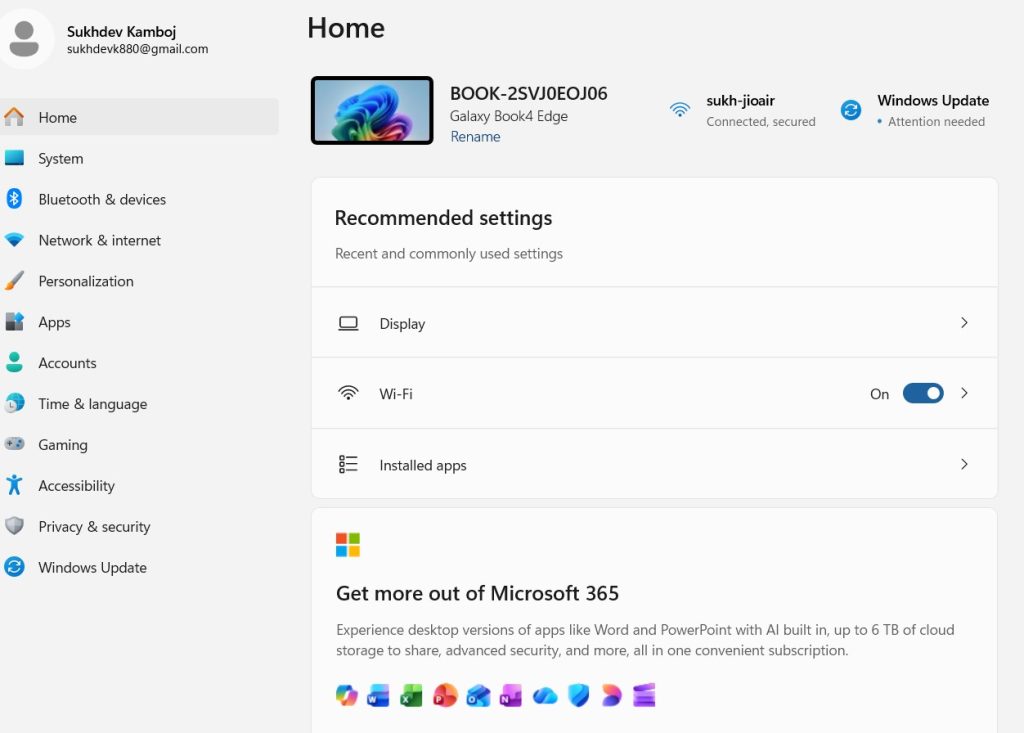
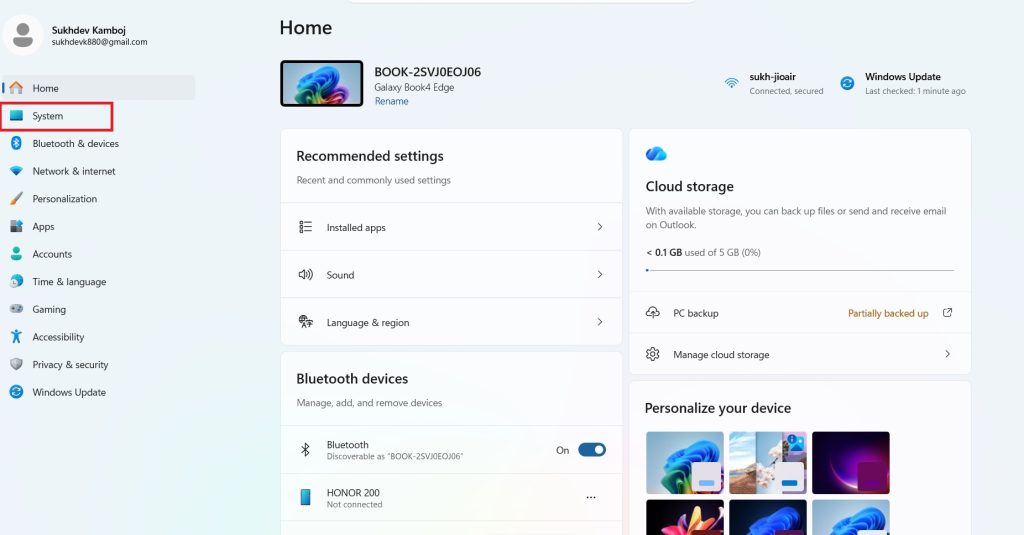
In the left sidebar, select System.
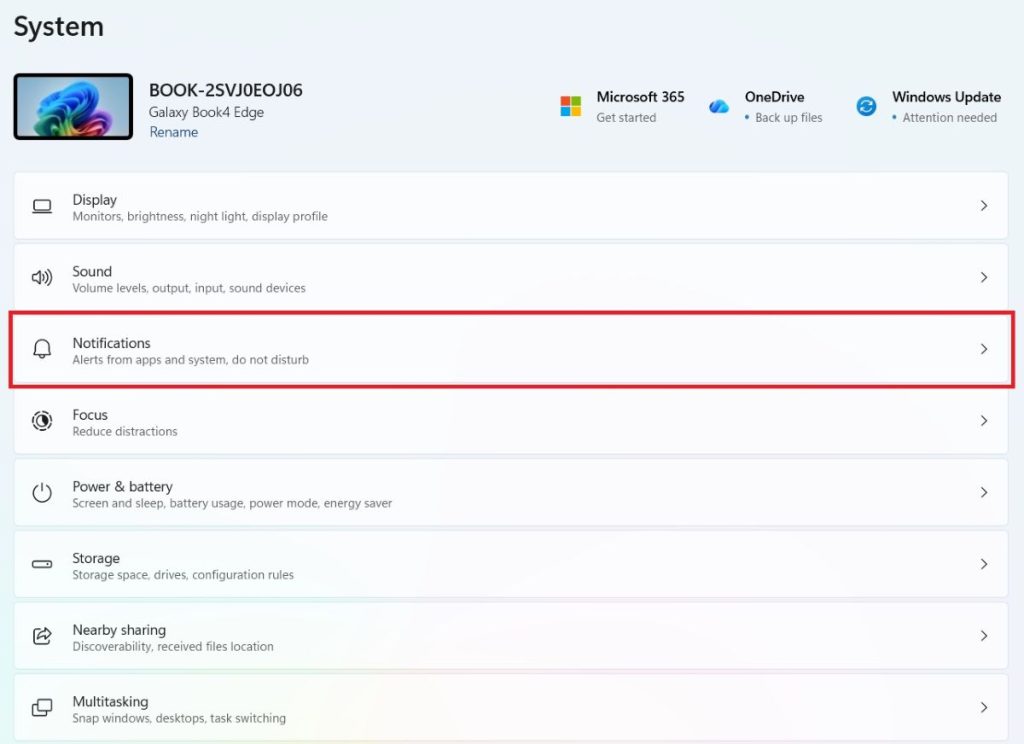
Click on Notifications.
At the top of the page, you’ll see a toggle labeled Notifications.
- Switch it On to enable notifications system-wide.
- Switch it Off to disable all notifications from every app and system feature.
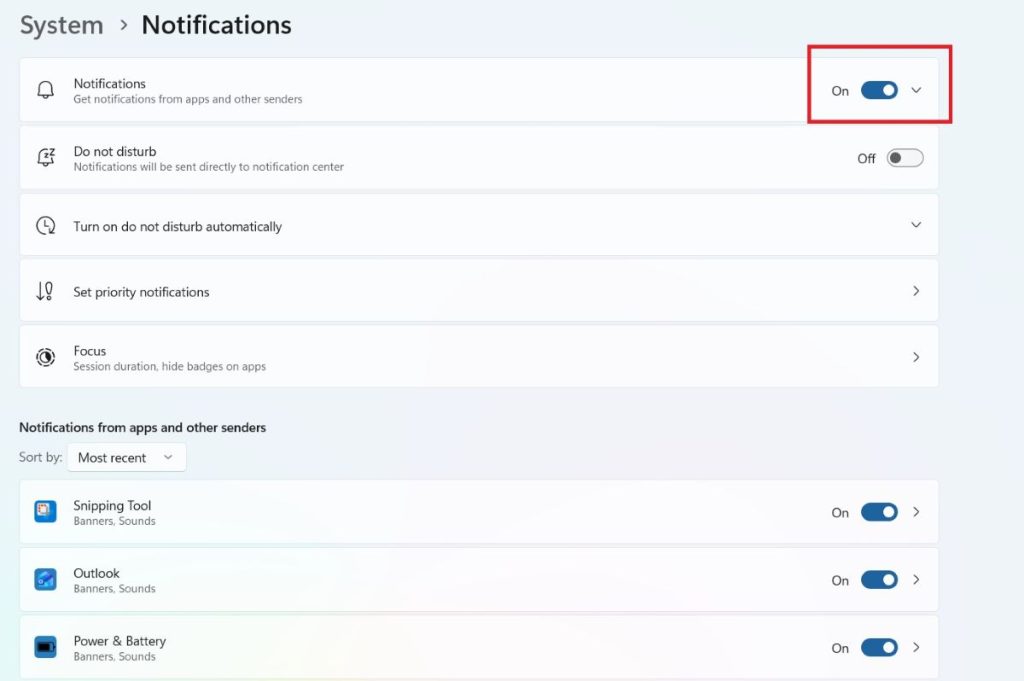
This master switch overrides all individual app settings below it. If it’s turned off, no app — regardless of its own settings — will be able to send you a notification.
This method is ideal for situations like presentations, screen recordings, gaming sessions, or when you simply want total silence without digging into individual app preferences.
Method 2: Turn Notifications On or Off for Specific Apps
Sometimes you don’t want to block everything — you just want to silence one or two noisy apps, like a game, a shopping app, or a social media client, while still receiving alerts from email, calendar, or Teams.
Here’s how to control notifications on a per-app basis:
- Open Settings (Windows key + I).
- Go to System > Notifications.
- Scroll down to the section titled Notifications from apps and other senders.
- You’ll see a list of installed apps, each with its own toggle switch.
- Turn the toggle Off next to any app you want to silence.
- Turn it On for apps you want to continue receiving alerts from.
For even more control, click directly on an app’s name in this list. This opens an expanded settings panel where you can:
- Show notification banners on the screen
- Play a sound with notifications
- Show notifications in the notification center (Action Center)
- Set the priority of that app’s notifications (Top, High, or Normal)
- Choose how many notifications appear in the Action Center
This granular approach is especially useful for productivity. For example, you might disable banners for social media apps but keep them active — with sound — for email and calendar apps.
Method 3: Use Focus Assist to Temporarily Silence Notifications
Focus Assist (formerly known as Quiet Hours) is a built-in Windows 11 feature designed to reduce distractions during specific activities, like gaming, presenting, or working on a deadline, without permanently changing your notification settings.
To set up Focus Assist:
- Open Settings (Windows key + I).
- Navigate to System > Focus assist.
- Choose one of three modes:
- Off – All notifications behave normally.
- Priority only – Only notifications from apps and contacts you’ve marked as priority will appear; everything else is silenced and saved in the Action Center.
- Alarms only – Only alarms will interrupt you; all other notifications are suppressed.
- Below the mode selector, you can configure automatic rules, such as:
- Turning on Focus Assist during specific hours (e.g., 10 PM to 7 AM)
- Activating it automatically when duplicating your display (for presentations)
- Enabling it when playing a game in full-screen mode
- Turning it on when you’re at home (based on location)
Focus Assist is one of the most practical tools in Windows 11 because it doesn’t require you to remember to turn notifications back on manually — the automatic rules handle it for you.
You can also toggle Focus Assist quickly without going into Settings:
- Click the Quick Settings icons in the bottom-right corner of the taskbar (near the Wi-Fi and volume icons), or press Windows key + A.
- Look for the Focus assist tile (if visible) or open the Notification Center by clicking the date and time in the taskbar.
- Click to cycle through Off, Priority only, and Alarms only.
Method 4: Disable Notification Banners, Sounds, and Lock Screen Alerts
If you don’t want to turn off notifications completely but want to reduce how intrusive they are, Windows 11 lets you fine-tune the behavior of notifications rather than just their on/off state.
To turn off notification sounds:
- Go to Settings > System > Notifications.
- Scroll to the bottom and find Additional settings.
- Uncheck Play a sound when a notification arrives.
To stop notifications from appearing on the lock screen:
- In the same Additional settings section under System > Notifications, uncheck:
- Show notifications in the notification center
- Get tips and suggestions when using Windows
- Show reminders and incoming VoIP calls on the lock screen
To disable notification banners (pop-ups) while keeping notifications in the Action Center:
- Go to System > Notifications.
- Click on an individual app under Notifications from apps and other senders.
- Turn off Show notification banners, while leaving Show notifications in notification center turned on.
This way, you’ll still see a full record of alerts when you open the Action Center (by clicking the date/time in the taskbar), but you won’t be interrupted by pop-ups while working.
This method is particularly useful for people who don’t want to miss anything, but also don’t want their screen constantly interrupted by banners popping up in the corner.
Conclusion
Windows 11 offers a genuinely flexible notification system, whether you want to shut everything off in one click, fine-tune alerts app-by-app, automate quiet periods with Focus Assist, or simply tone down banners and sounds without losing your notification history. The right method depends on your goals: use the master toggle for complete silence, app-specific settings for selective control, Focus Assist for temporary or scheduled quiet time, and the additional settings menu for reducing intrusiveness without disabling notifications outright.
Taking a few minutes to set these preferences up properly can make a noticeable difference in your focus, productivity, and overall experience using your PC. Once configured, you likely won’t need to revisit these settings often — Windows 11 will simply work the way you want it to in the background.
Frequently Asked Questions (FAQs)
1. How do I turn off all notifications in Windows 11 quickly? Go to Settings > System > Notifications and switch the main Notifications toggle at the top of the page to Off. This immediately disables all notifications from every app and system feature, overriding any individual app settings.
2. Why am I not receiving notifications even though they’re turned on? This usually happens for one of a few reasons: Focus Assist might be enabled and set to Priority only or Alarms only, the specific app’s notification permission may be disabled individually, or battery saver mode may be limiting background app activity. Check Settings > System > Focus assist and the specific app’s toggle under Notifications from apps and other senders to confirm both are enabled.
3. Can I turn off notifications for just one app without affecting others? Yes. Open Settings > System > Notifications, scroll to Notifications from apps and other senders, and toggle off the switch next to the specific app. All other apps will continue sending notifications as normal.
4. Does turning off notifications save battery life on a laptop? Yes, to a degree. Notifications often rely on background app activity and network requests to check for updates, which consumes some battery and processing power. Disabling notifications for apps you rarely use, especially ones that frequently sync data (like social media or news apps), can modestly improve battery life, though the impact varies depending on how many apps are running and how frequently they check for updates.





