
 Sukhdev Kamboj
If you’ve ever set up an Xbox console, signed into Microsoft Teams on a new laptop, added your Microsoft account to the Authenticator app, or activated Office on a device that doesn’t have a keyboard handy, you’ve probably run into a screen that says something like “Go to microsoft.com/link and enter this code.” For a lot of people, that instruction is more confusing than helpful — what is this page, is it safe, and why can’t you just type your email and password directly on the device?
microsoft.com/link is Microsoft’s official device-linking page. Instead of typing your full username and password into every gadget you own (a smart TV remote, a game controller, or a shared kiosk PC), the device displays a short one-time code. You then open microsoft.com/link on a phone, tablet, or computer you already trust, sign in normally, and enter that code. Microsoft matches the code to the waiting device and finishes the sign-in there. It’s the same idea used by streaming apps and smart TVs everywhere: type a short code on a “real” keyboard instead of hunting and pecking with a remote.
This guide walks through what the page does, the different ways you’ll encounter it depending on your device, and how to troubleshoot the most common hiccups — followed by answers to a few frequently asked questions.
Why Microsoft Uses a Link Code Instead of a Password Field
Before getting into the steps, it helps to understand why this system exists at all.
Many devices Microsoft supports simply aren’t built for comfortable typing. Entering a long password with special characters using an Xbox controller or a TV remote is slow and error-prone, and repeating that process every time you sign in is worse. A short numeric or alphanumeric code, entered once on a device you already trust, solves that problem. It also has a security upside: your actual password is never typed into (or stored on) the secondary device at all, which reduces the number of places your credentials could be intercepted, especially on shared or public hardware.
Under the hood, this pattern is a form of the OAuth 2.0 device authorization flow, a widely used industry standard also seen on services like YouTube, Google TV, and various smart-home platforms. The device requests a temporary code from Microsoft’s servers, displays it, and then polls in the background waiting for you to approve it from a browser. Once you enter the code and confirm your identity on microsoft.com/link, the device receives its sign-in approval automatically.
Method 1: Linking an Xbox Console
Xbox is probably the most common place people encounter this flow.
Turn on your Xbox console and start the sign-in process (either during initial setup or when adding a new profile).
Choose the option to sign in, then look for “Use another device” or a similar prompt if you don’t want to type your password with the controller.
Note the code shown on the TV screen — it’s typically a short string of numbers and letters.
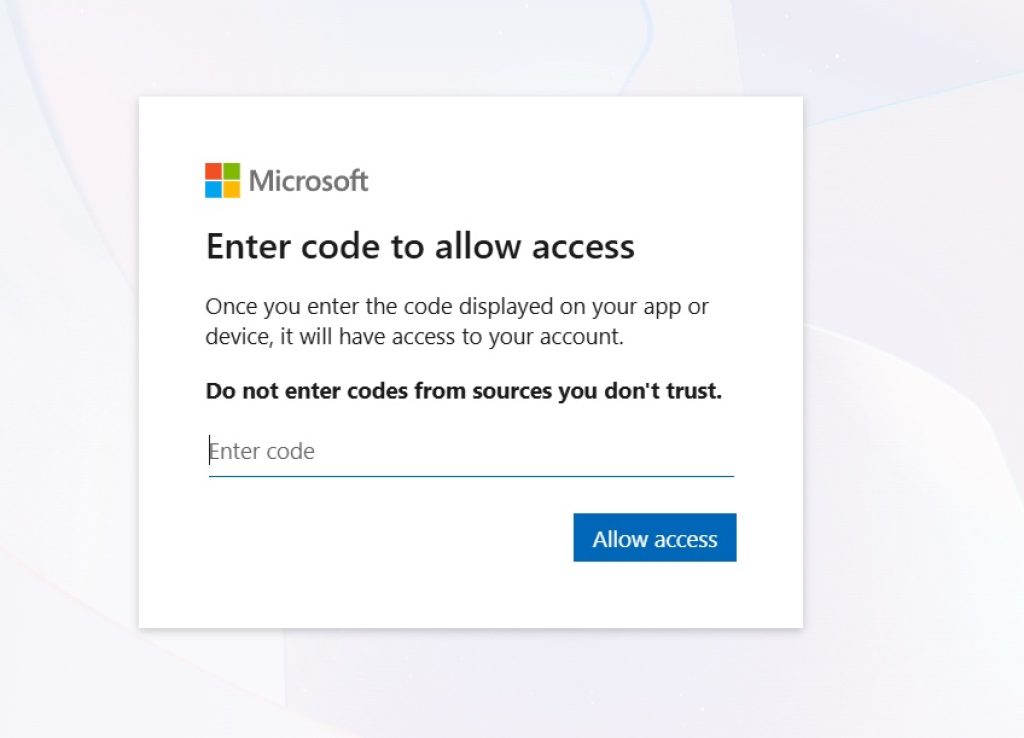
On your phone or computer, open a browser and go to microsoft.com/link.
Sign in with your Microsoft account email and password if you aren’t already signed in.
Enter the code exactly as shown on your Xbox screen, then submit it.
Complete any additional verification, such as a two-factor authentication prompt, if you have that enabled.
Your Xbox will automatically detect the approval and finish signing in within a few seconds.
Method 2: Linking a Windows PC or Tablet
Some Windows setup flows — particularly on devices without a physical keyboard, or during out-of-box setup — offer the same code-based option.
During Windows setup or when adding a new account in Settings > Accounts > Linked Devices
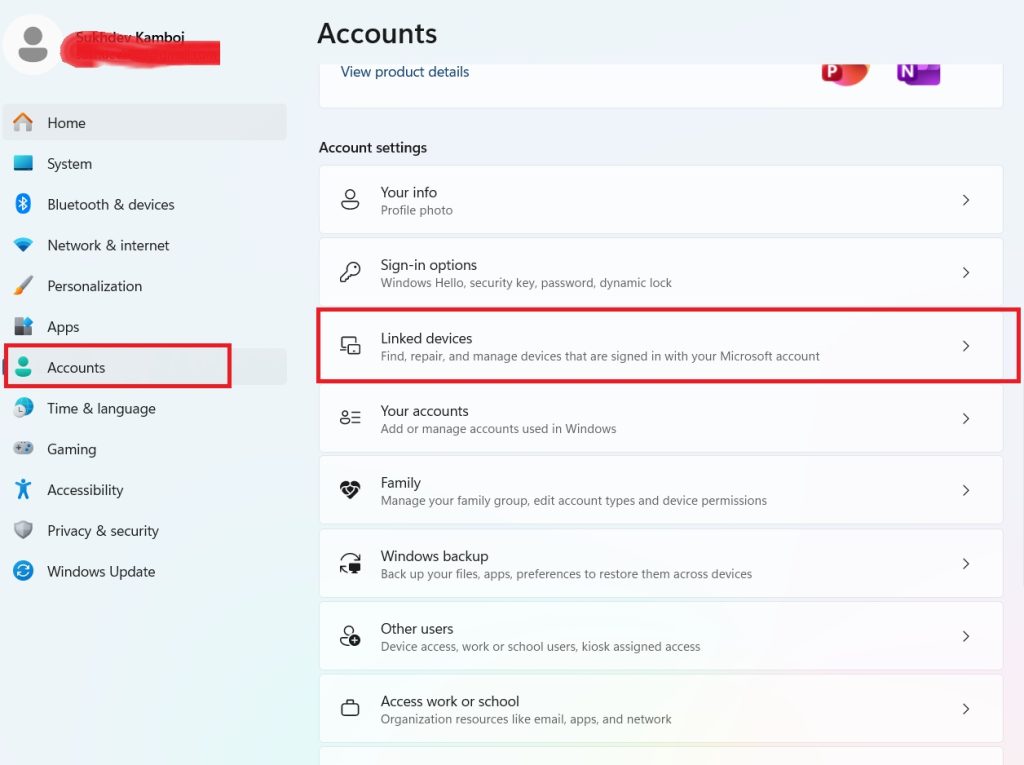
look for a link labeled “Register a new device” or a note about visiting a website.
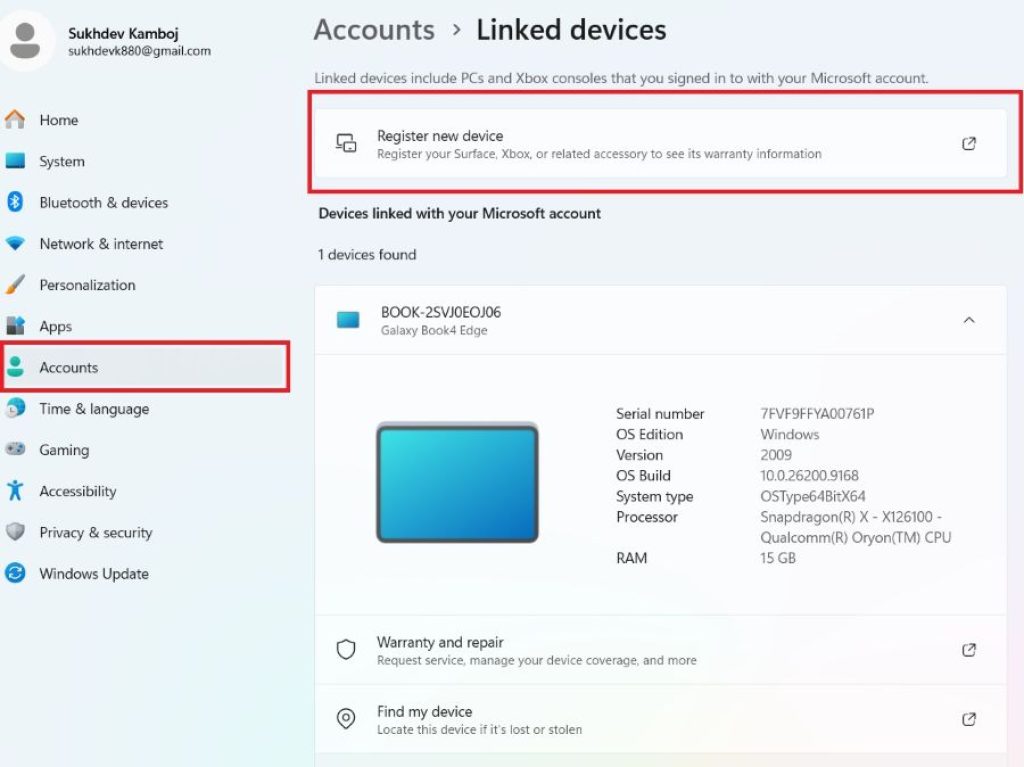
Note the code Windows displays on screen.
On another device, go to microsoft.com/link and sign in with your Microsoft account.
Enter the code and click Next or Submit.
Return to your PC — it should automatically continue the setup once the code is validated.
Method 3: Signing Into Microsoft 365 Apps (Word, Excel, Teams, Outlook)
Office apps and Teams sometimes use this same method, especially on devices where typing a password is inconvenient, such as conference-room displays or kiosks.
- Open the Microsoft 365 app and select Sign in.
- If a code and instructions to visit microsoft.com/link appear instead of a password field, note the code.
- On your phone or another computer, navigate to microsoft.com/link.
- Sign in with your account credentials.
- Enter the displayed code and confirm.
- The app on the original device will automatically authenticate and sign you in.
Method 4: Adding an Account to Microsoft Authenticator
The Microsoft Authenticator app, used for two-factor authentication and passwordless sign-in, can also rely on this linking method when adding a personal Microsoft account.
- Open Microsoft Authenticator on your phone.
- Tap Add account, then choose Personal Microsoft account.
- If prompted with a code and a reference to microsoft.com/link instead of a normal login form, note the code.
- On a separate device, visit microsoft.com/link and sign in.
- Enter the code shown in the app.
- Once verified, your account will be linked and secured in Authenticator.
General Tips That Apply to Any Method
- Codes are case-sensitive and time-limited. Most codes expire after several minutes, so enter them promptly. If a code has expired, generate a new one on the original device rather than trying to reuse the old one.
- Use a device you already trust to visit the link page. Ideally your phone or a personal computer where you’re comfortable typing your password, rather than a public or shared computer.
- Turn on two-factor authentication. Since this method reduces password exposure, pairing it with two-factor verification gives you a strong layer of extra protection on top.
- Double-check the URL. Only ever enter your credentials on the genuine microsoft.com/link address, typed directly into the browser rather than clicked from an unfamiliar email or text message, to avoid phishing pages designed to imitate it.
- You can link more than one device. Each device or app you connect gets its own unique, single-use code, so linking a new console or app doesn’t disturb any devices you’ve already linked.
Troubleshooting Common Issues
Occasionally the process doesn’t go smoothly on the first try. A few fixes cover most situations:
- “Invalid code” errors: Re-check that you typed the code exactly as shown, including capitalization. If it still fails, the code has likely expired — go back to the original device and generate a fresh one.
- Page won’t load or looks broken: Clear your browser’s cache and cookies, or try a different browser or a private/incognito window, then revisit the page.
- Nothing happens after entering the code: Make sure the original device still has an active internet connection; it needs to be online to receive the approval signal.
- Account locked or password forgotten: Use the “Forgot password” option on the Microsoft sign-in page to reset it before attempting to link again.
- Still stuck: Restart the device you’re trying to link and start the process over from the beginning, or reach out to Microsoft support for account-specific help.
Conclusion
microsoft.com/link exists to make signing into Microsoft services on awkward-to-type devices faster and safer. Rather than fumbling through a password on a game controller or a shared kiosk keyboard, you get a short, temporary code, enter it on a browser you already trust, and let Microsoft finish the connection for you.
Whether you’re setting up an Xbox, adding an account to Authenticator, activating Office, or joining a Teams meeting room, the underlying steps are the same: note the code, visit the link page, sign in, and submit. Keeping two-factor authentication turned on and always double-checking that you’re on the genuine microsoft.com/link address will keep the process both convenient and secure.
Frequently Asked Questions
1. Is microsoft.com/link a legitimate Microsoft website? Yes. It’s an official Microsoft domain used specifically for device and app linking through short one-time codes. As with any sign-in page, only ever navigate to it by typing the address yourself rather than clicking a link from an unsolicited email or text message.
2. What happens if my code expires before I enter it? The link will simply fail to validate. Go back to the device or app that generated the code and request a new one — most codes are only valid for a short window, often just a few minutes, so it’s best to enter it as soon as it appears.
3. Can I use microsoft.com/link on my phone instead of a computer? Yes, the page works in any modern mobile browser. You don’t need a computer — a phone or tablet works just as well for entering the code and signing in.
4. Will linking a new device affect the other devices already connected to my Microsoft account? No. Each device or app receives its own unique, single-use code, so approving a new one doesn’t sign you out of, unlink, or otherwise change anything on devices you’ve already connected.





