
 Sukhdev Kamboj
Bluetooth is one of those features you don’t think about — until it suddenly disappears. If you’ve opened Device Manager on your Windows 11 PC and found that the Bluetooth entry is nowhere to be seen, you’re not alone. This is a surprisingly common issue that affects laptops and desktops alike, often appearing out of nowhere after a Windows update, a driver change, or even a simple restart.
When Bluetooth goes missing from Device Manager, it usually means one of three things: the driver has been uninstalled or corrupted, the Bluetooth radio has been disabled at the hardware or firmware level, or Windows simply isn’t detecting the adapter anymore. The good news is that in the vast majority of cases, this is a software-level problem rather than a sign of failed hardware, which means it’s fixable without opening up your device or replacing any parts.
This guide walks through the most effective methods to bring Bluetooth back, starting with the simplest fixes and moving toward more advanced troubleshooting steps. Whether you’re using a Dell, HP, Lenovo, ASUS, or custom-built desktop, these methods apply broadly across Windows 11 systems. Work through them in order, since later methods build on the assumption that earlier ones have already been ruled out.
Methods to Fix Bluetooth Missing in Device Manager
Method 1: Show Hidden Devices in Device Manager
Sometimes Bluetooth isn’t actually gone — it’s just hidden. Device Manager only displays currently connected devices by default, and a driver glitch can cause the Bluetooth adapter to be misclassified as “not present,” even though it’s still physically there.
Press Windows + X and select Device Manager.
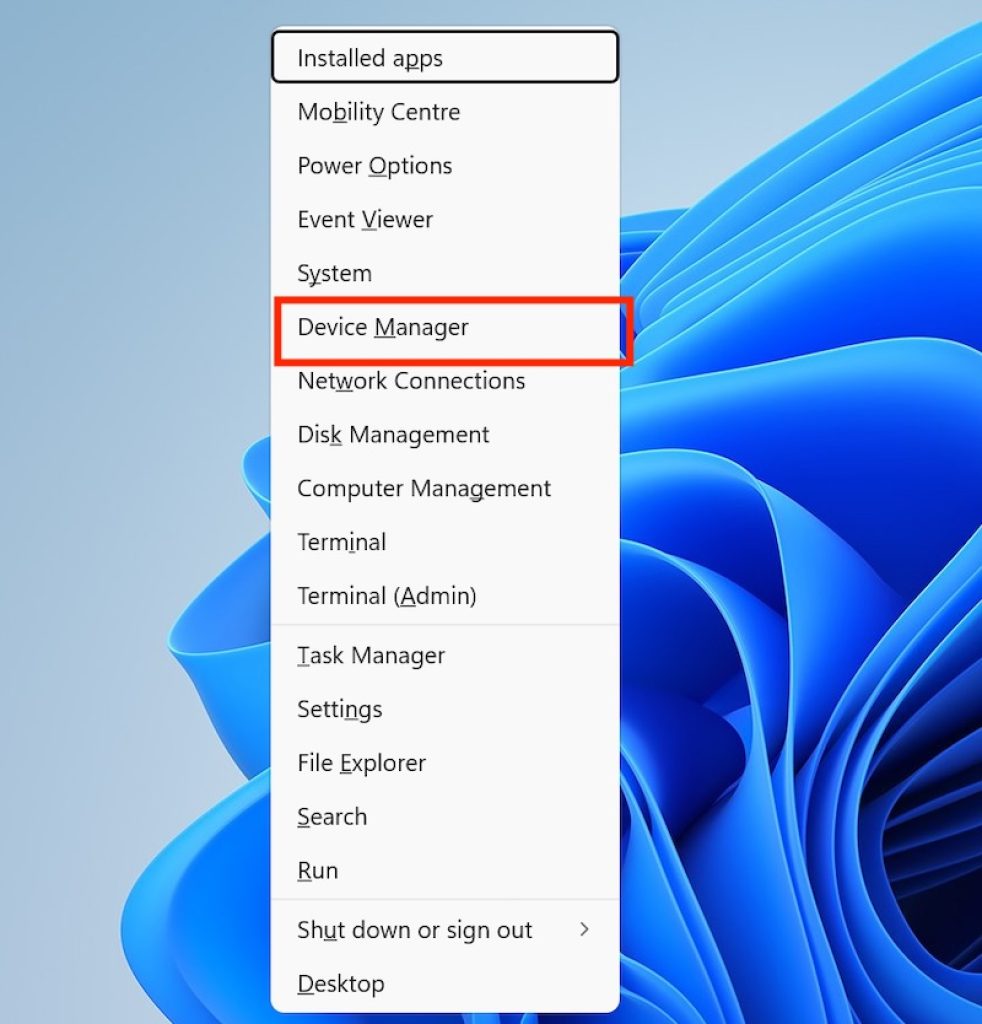
Click the View menu at the top.
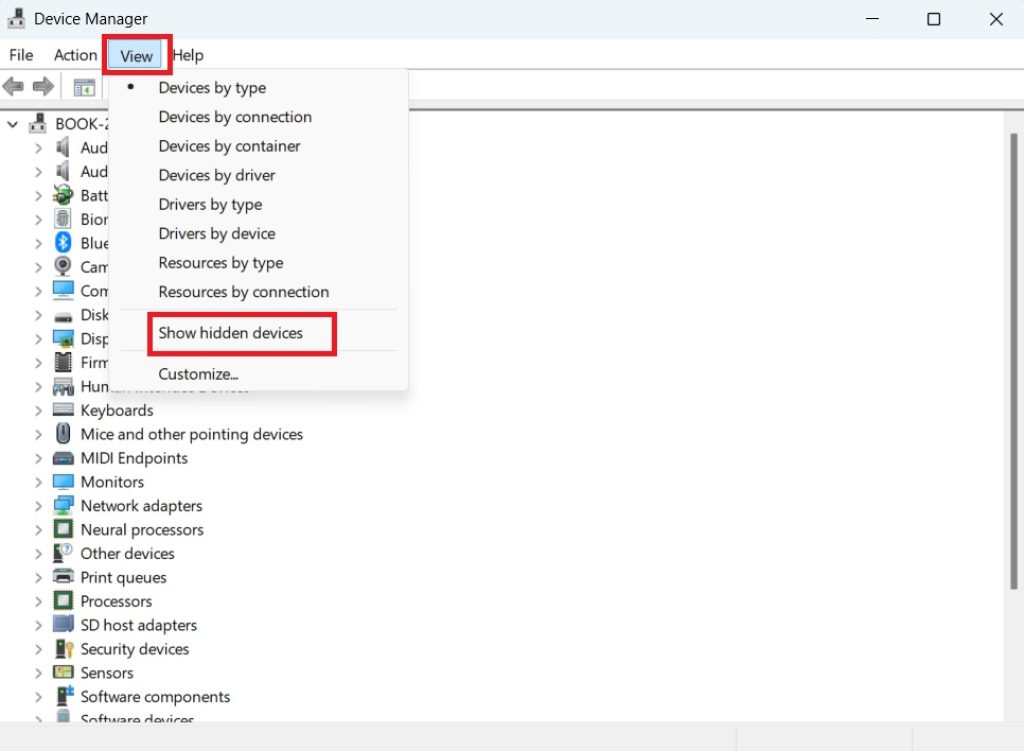
Select Show hidden devices.
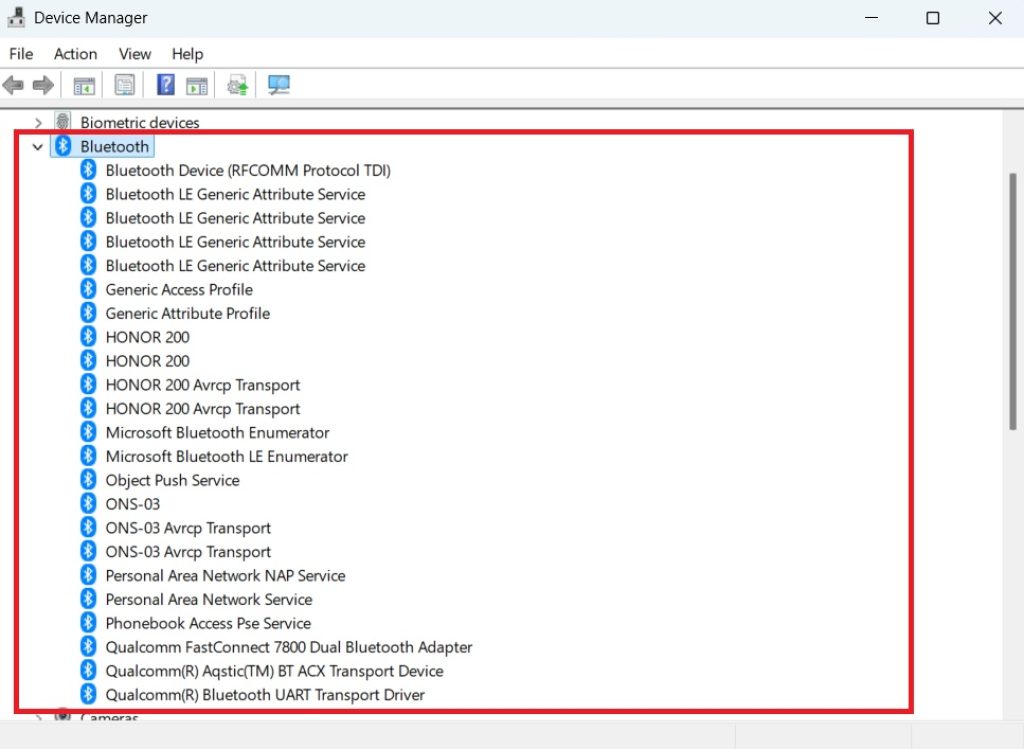
Look through categories like Bluetooth, Network adapters, and Other devices for any grayed-out or unfamiliar entries.
If you spot a Bluetooth device listed here, right-click it and select Enable device. If it doesn’t appear at all, move on to the next method.
Method 2: Check the Bluetooth Support Service
Windows relies on a background service to manage Bluetooth functionality. If this service is stopped or disabled, Bluetooth can vanish from Device Manager entirely.
Press Windows + R, type services.msc, and press Enter.
Scroll down to find Bluetooth Support Service.
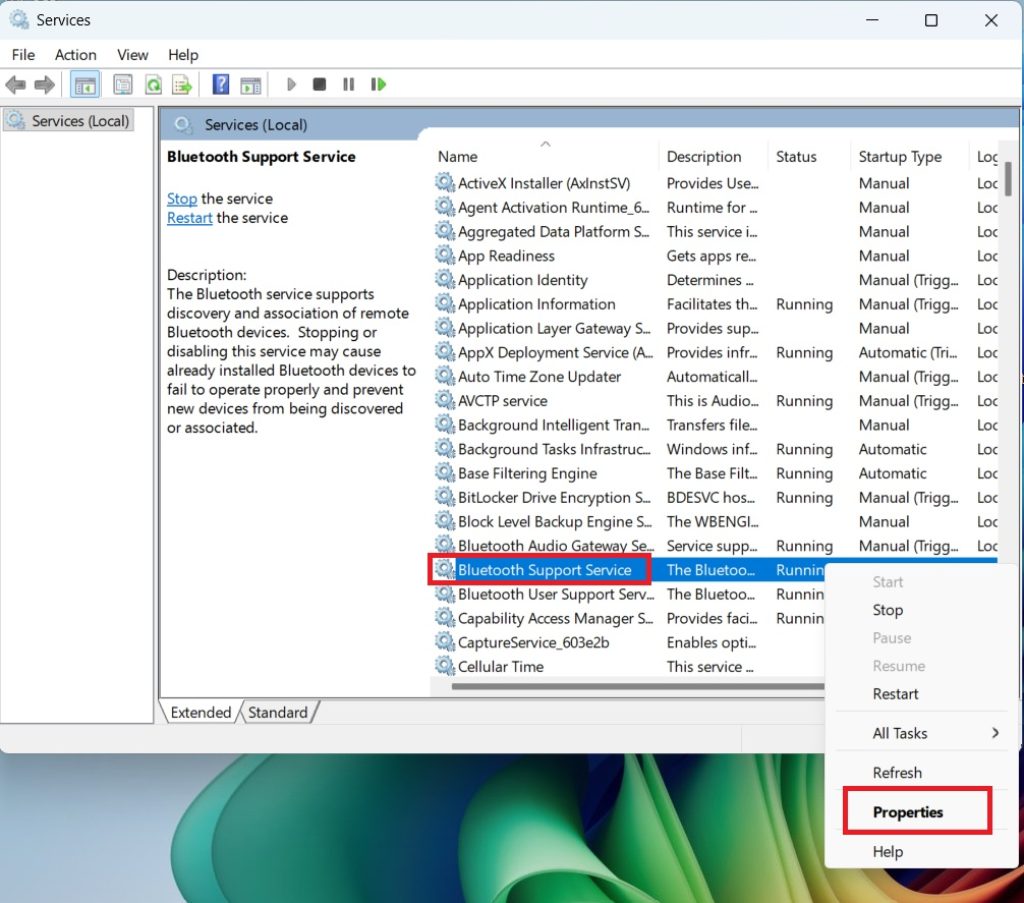
Right-click it and select Properties.
Set the Startup type to Automatic.
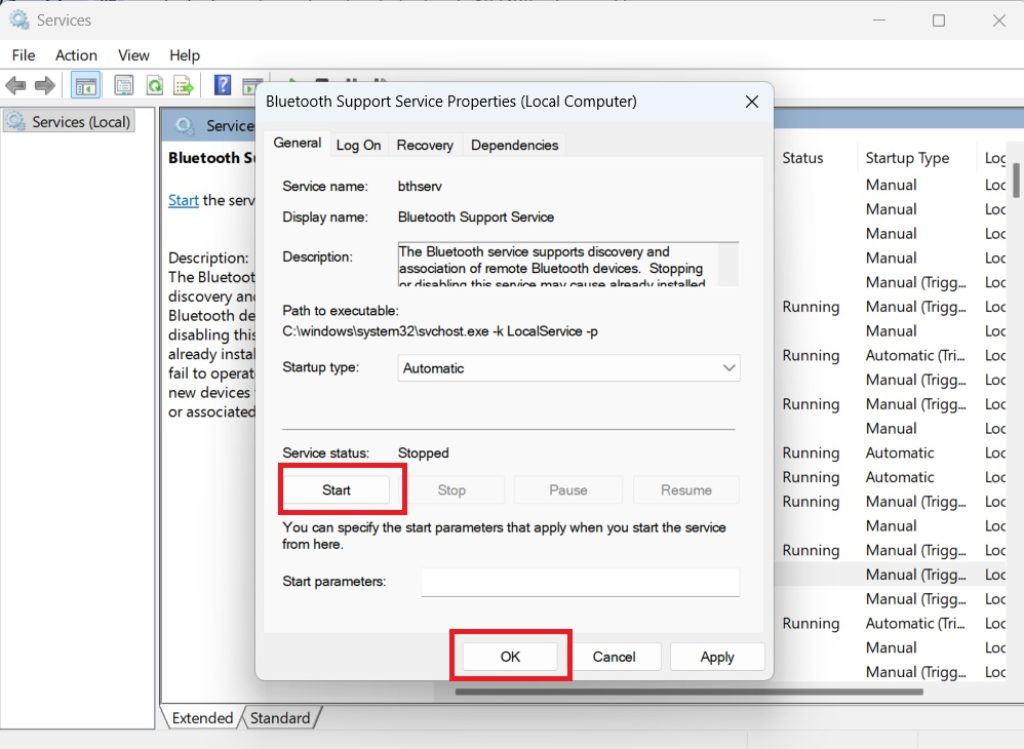
If the service status shows “Stopped,” click Start.
Click Apply, then OK, and restart your computer.
This single fix resolves the issue for a surprising number of users, particularly after a Windows Update has reset service configurations.
Method 3: Run the Bluetooth Troubleshooter
Windows 11 includes a built-in troubleshooter designed specifically to detect and repair common Bluetooth problems, including missing adapters.
- Open Settings by pressing Windows + I.
- Go to System > Troubleshoot > Other troubleshooters.
- Find Bluetooth in the list and click Run.
- Follow the on-screen prompts. Windows will scan for issues and attempt automatic repairs.
This won’t fix everything, but it’s quick, non-destructive, and worth running before diving into manual driver work.
Method 4: Update or Reinstall the Bluetooth Driver
Outdated or corrupted drivers are the single most common cause of Bluetooth disappearing from Device Manager. There are two approaches here: updating the existing driver, or removing it entirely and letting Windows reinstall it fresh.
To update the driver:
- Open Device Manager.
- Expand Network adapters or Bluetooth (if visible), and locate any Bluetooth-related entry.
- Right-click it and choose Update driver.
- Select Search automatically for drivers.
- Restart your PC once the update completes.
To do a clean reinstall (recommended if updating doesn’t help):
- In Device Manager, right-click the Bluetooth adapter entry (or the “Other devices” entry if it’s unrecognized).
- Select Uninstall device.
- Check the box for Delete the driver software for this device, if available.
- Restart your computer. Windows will automatically detect the hardware and reinstall a fresh driver on boot.
If Windows doesn’t reinstall a working driver automatically, visit your laptop or motherboard manufacturer’s support website, search for your exact model number, and download the latest Bluetooth driver directly from them rather than relying solely on Windows Update.
Method 5: Check Airplane Mode and BIOS/UEFI Settings
Occasionally the issue isn’t software at all, but a setting that’s disabling the radio before Windows even loads.
- Check that Airplane mode is turned off in Settings > Network & internet.
- Look for a physical Bluetooth/Wi-Fi switch or function key (often Fn + F2 or similar) on laptops — accidentally toggling this can disable the radio at the hardware level.
- Restart your PC and enter the BIOS/UEFI setup (usually by pressing F2, F10, Del, or Esc during boot).
- Look for a setting related to Bluetooth, Wireless, or Onboard Devices, and make sure it’s enabled.
- Save changes and exit.
This step is especially relevant if Bluetooth disappeared after a BIOS update or a factory reset.
Method 6: Run Windows Update and Check for Optional Driver Updates
Microsoft periodically pushes manufacturer-specific driver updates through Windows Update that don’t install automatically unless you check for them manually.
- Go to Settings > Windows Update.
- Click Advanced options.
- Select Optional updates.
- Expand Driver updates, and install anything related to Bluetooth or your chipset.
- Restart your PC afterward.
Combined with a full Windows Update check (Settings > Windows Update > Check for updates), this often resolves compatibility issues introduced by a recent feature update.
Conclusion
A missing Bluetooth entry in Device Manager is almost always a driver or configuration issue rather than a hardware failure, and the methods above cover the vast majority of cases you’ll encounter on Windows 11. Start with the easy wins — checking hidden devices, restarting the Bluetooth Support Service, and running the built-in troubleshooter — before moving on to a clean driver reinstall or digging into BIOS settings.
If you’ve worked through every method here and Bluetooth still refuses to appear, it may be worth using a third-party tool to check whether the adapter is being detected at all by the hardware, or contacting your manufacturer’s support team, since in rare cases this can point to a genuine hardware fault, particularly on older laptops. For most people, though, one of the six methods above will get Bluetooth back up and running without needing a repair shop.
FAQs
1. Why did my Bluetooth suddenly disappear after a Windows 11 update? Windows updates occasionally reset driver configurations, disable background services, or install a generic driver that doesn’t fully support your hardware. This is one of the most common triggers for Bluetooth vanishing from Device Manager, and it’s usually fixed by reinstalling the driver or restarting the Bluetooth Support Service.
2. How do I know if my PC actually has Bluetooth hardware? Check your device’s official specification sheet on the manufacturer’s website, or look in Device Manager under “Network adapters” for any entry containing “Wireless” — many Bluetooth radios are bundled into the same chip as Wi-Fi. If no Bluetooth hardware is listed anywhere and your manufacturer confirms the model doesn’t include it, you’ll need a USB Bluetooth adapter instead.
3. Can a BIOS update cause Bluetooth to go missing? Yes. BIOS updates can occasionally reset hardware settings to their defaults, which sometimes disables onboard wireless radios. Checking your BIOS/UEFI settings after any firmware update is a good habit if Bluetooth or Wi-Fi stops working unexpectedly.
4. Is it safe to uninstall the Bluetooth driver and let Windows reinstall it? Yes, this is a standard and safe troubleshooting step. Uninstalling the driver simply removes the software Windows uses to communicate with the hardware; the physical Bluetooth chip itself isn’t affected. On restart, Windows automatically detects the hardware and installs a new driver, which often resolves corruption issues that updating alone can’t fix.
![Bluetooth Missing or Not Showing in Device Manager [Windows 11]](https://www.geeksdigit.com/wp-content/uploads/thumbs_dir/network-internet-settings-windows-11-rsps8lr7sco7jlmc7ie6lid2rz4mfy4g4k33nhxdmk.jpg)
![Bluetooth Missing or Not Showing in Device Manager [Windows 11]](https://www.geeksdigit.com/wp-content/uploads/thumbs_dir/deepseek-v3-coder-windows-11-rspt532fy94wqifujju2rbahrb18ff2j9bn4nprmm4.jpg)



