
 Sukhdev Kamboj
If you’ve ever hopped onto a Zoom call, recorded a voiceover, or tried to chat with friends on Discord only to have people constantly asking “can you speak up?”, you already know how frustrating a quiet microphone can be. A low mic volume doesn’t necessarily mean your microphone is broken — more often than not, it’s a settings issue that Windows 11 makes surprisingly easy to fix once you know where to look.
Windows 11 gives you several built-in tools to increase microphone volume, along with a handful of tricks that go a step further using drivers, enhancements, and even third-party software. Whether you’re using a cheap headset mic, a USB condenser microphone, or your laptop’s built-in mic, this guide walks you through every practical method to make your voice louder and clearer, without needing to buy new hardware.
Below, you’ll find a complete breakdown of methods ranging from the simplest slider adjustment to more advanced driver-level tweaks, followed by a conclusion summarizing the best approach for different situations, and answers to four of the most commonly asked questions about microphone volume in Windows 11.
Methods to Boost Microphone Volume in Windows 11
1. Increase Microphone Volume from Windows Settings
The most straightforward way to boost your mic volume is directly through the Settings app.
Open Settings by pressing Windows + I.
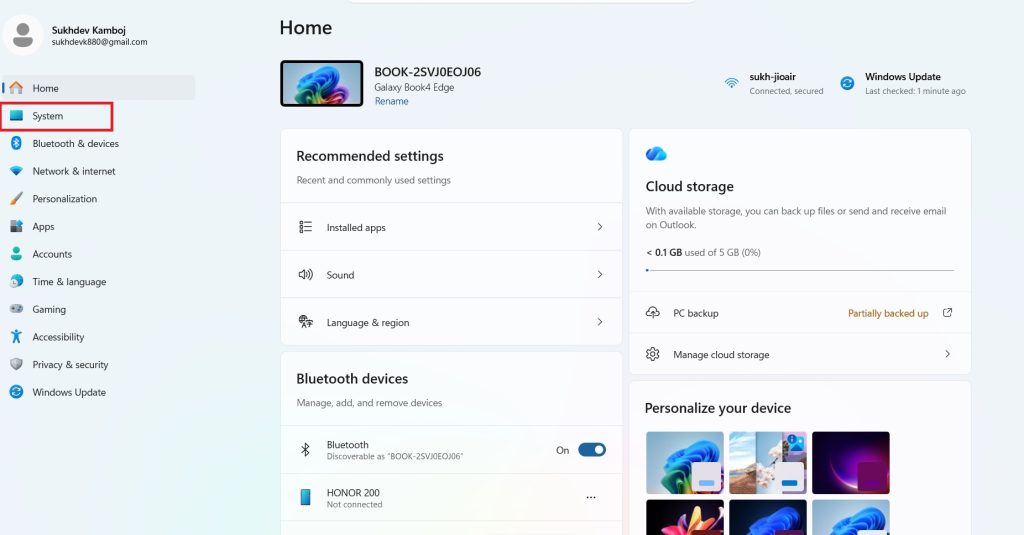
Navigate to System > Sound.
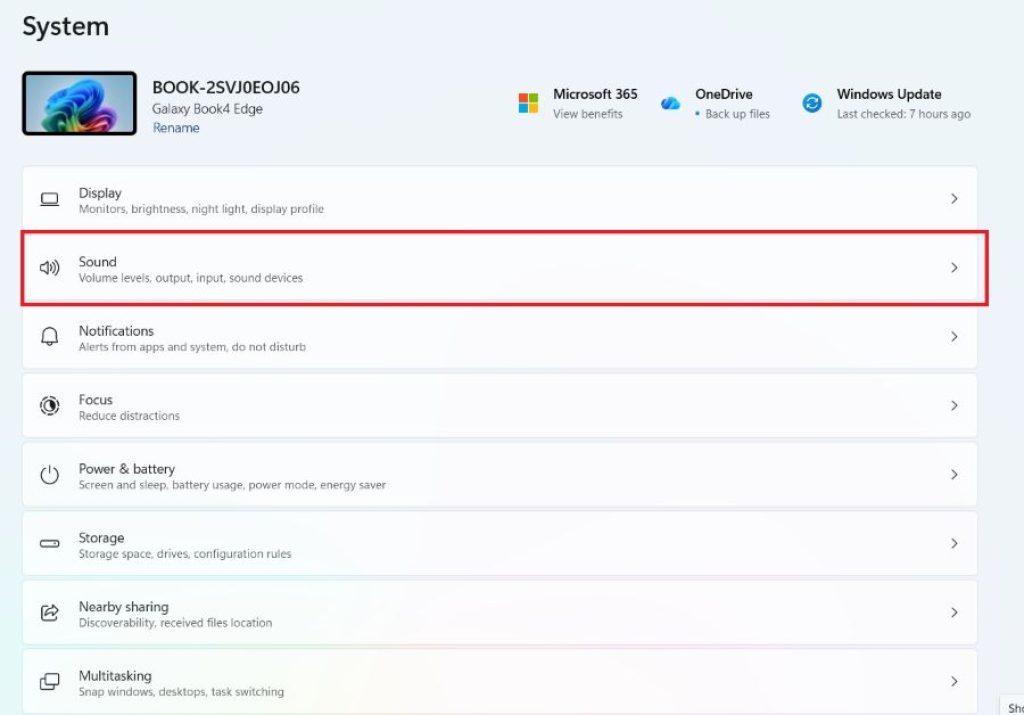
Under the Input section, click on your active microphone.
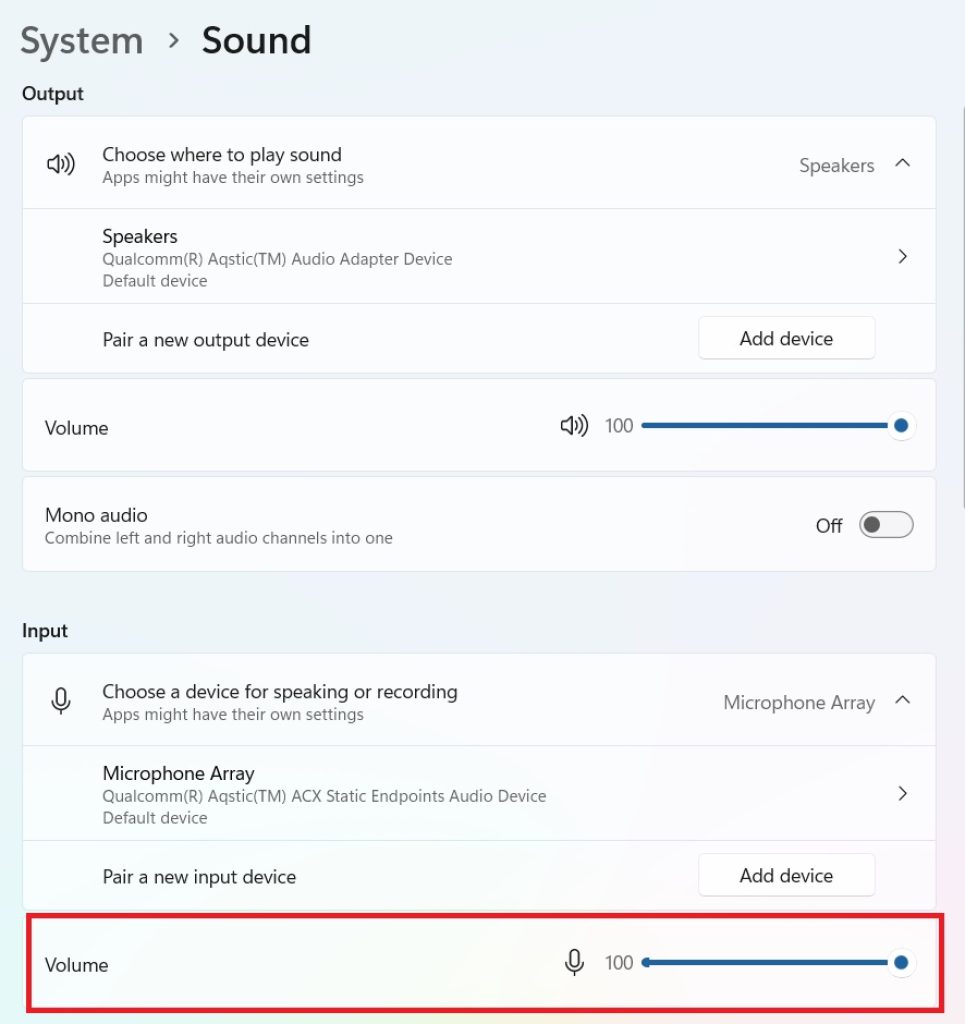
You’ll see a Volume slider — drag it to the right to increase input volume. Windows allows you to push this well past the default level.
There’s also an Input volume test bar that shows you a live representation of how loud your mic is picking up sound, so you can fine-tune it while speaking normally.
This method works for almost any microphone, whether it’s built into your laptop, part of a headset, or a standalone USB mic. It’s the fastest fix and should always be your first step.
2. Use Microphone Boost in Control Panel
If the Settings app slider isn’t giving you enough gain, Windows 11 still includes the classic Control Panel sound settings, which offer a dedicated Microphone Boost option that can add significant extra volume.
- Right-click the speaker icon in your taskbar and select Sound settings, then scroll down and click More sound settings (or search for “Control Panel” and go to Sound).
- In the Sound window, click the Recording tab.
- Select your microphone, then click Properties.
- Go to the Levels tab. Here you’ll see two sliders: Microphone (overall volume) and Microphone Boost (an additional amplification, usually up to +30dB or +20dB depending on your hardware).
- Increase the Microphone Boost slider gradually — pushing it too high can introduce background hiss or static, so test as you go.
This is often the single most effective method for quiet microphones, especially cheaper ones that don’t have a lot of natural gain.
3. Update or Reinstall Your Audio Drivers
Outdated or corrupted audio drivers are a common, often overlooked reason for weak microphone input. Windows 11 relies on the correct driver to properly communicate with your sound hardware, and an old driver may cap your input volume or cause inconsistent performance.
- Open Device Manager (right-click the Start button and select it).
- Expand Audio inputs and outputs or Sound, video and game controllers.
- Right-click your microphone or audio device and select Update driver.
- Choose Search automatically for drivers, and let Windows find the latest version.
If updating doesn’t help, try uninstalling the driver and restarting your PC — Windows will typically reinstall a fresh, default driver automatically, which can resolve volume-capping bugs introduced by a bad update.
4. Turn On Audio Enhancements
Windows 11 includes built-in audio enhancement features designed to improve clarity and, in some cases, automatically adjust volume levels.
- Go back to Sound Control Panel > Recording tab > your microphone > Properties.
- Click the Enhancements tab (note: on some systems this appears under an “Audio effects” section within the Levels tab instead).
- Look for options like Noise Suppression, Acoustic Echo Cancellation, or Automatic Gain Control — enabling Automatic Gain Control in particular helps maintain consistent volume by boosting quiet sounds and reducing loud spikes automatically.
Keep in mind that enhancements vary by manufacturer, and some laptops (especially those with Realtek or proprietary audio chips) will show additional built-in enhancement software instead of the generic Windows panel. Check your manufacturer’s audio control app (like Realtek Audio Console or Dell Audio) if you have one installed, as these often provide their own dedicated microphone gain sliders.
5. Adjust App-Specific Microphone Volume
Sometimes the problem isn’t your system-wide microphone volume, but the input level within a specific app like Discord, Zoom, Teams, or OBS. Windows 11 allows you to control app-specific volume levels separately.
- Open Settings > System > Sound.
- Scroll down to Advanced > Volume mixer (or search “Volume mixer” directly).
- Under the Input section (if shown) or within the individual app’s own audio settings, check whether the app has its own microphone sensitivity or gain slider — most communication apps do.
For example, Discord has an Input Sensitivity and volume slider under Voice & Video settings, and OBS lets you right-click your mic source to open an Advanced Audio Properties panel with a dedicated gain filter you can push above 0dB.
6. Use Third-Party Software for Extra Gain
If Windows’ native boost options still aren’t enough — which can happen with very cheap or damaged microphones — third-party tools can add additional amplification and noise processing:
- Equalizer APO is a free, system-wide audio processing tool that lets you apply a preamp gain to your microphone input beyond what Windows Boost allows.
- NVIDIA Broadcast (for users with compatible NVIDIA GPUs) offers a virtual microphone with built-in noise removal and gain control, often producing a cleaner boosted signal than raw Windows amplification.
- Voicemeeter is a more advanced virtual audio mixer that gives granular control over gain, EQ, and routing, popular among streamers and podcasters.
These tools add a layer of software complexity, but they’re worth exploring if your mic is still too quiet even with hardware-level boost maxed out.
7. Check Physical Connections and Hardware Positioning
It’s easy to overlook the physical side of things. A loose USB connection, a plugged-in-halfway 3.5mm jack, or simply having the microphone positioned too far from your mouth can all mimic the symptoms of a “quiet mic” that no software fix will solve.
- Make sure your microphone or headset is fully and securely plugged in.
- Try a different USB port, ideally directly on the motherboard rather than through a hub.
- Reposition the microphone closer to your mouth (2–4 inches is typical for USB condenser mics).
- If you’re using a laptop’s built-in mic, check that nothing is physically blocking the microphone port.
Sometimes a simple repositioning fixes the issue entirely without touching a single setting.
Conclusion
A quiet microphone in Windows 11 is rarely a hardware failure — in most cases, it’s simply a matter of adjusting the right slider or enabling a setting that isn’t turned on by default. Start with the basics: raise the input volume in Settings, then head into the Control Panel’s Microphone Boost option if you need more amplification. From there, keeping your audio drivers updated, enabling Automatic Gain Control, and checking app-specific volume settings will cover the vast majority of cases.
For persistent issues, third-party tools like Equalizer APO or Voicemeeter can supply additional gain and processing power, while NVIDIA Broadcast is a great option if you also want built-in noise cancellation. And don’t underestimate the physical side of things — a loose cable or a microphone positioned too far away can undo all your software tweaks.
By working through these methods in order, from simplest to most advanced, you should be able to get your microphone volume to a level that’s clear, consistent, and easy for others to hear, whether you’re gaming, streaming, working remotely, or recording content.
FAQ
1. Why is my microphone volume so low even after increasing it in Settings? This usually happens because the Settings app slider only controls the base input level, not the full amplification range your hardware supports. Head into the Control Panel’s Recording tab, open your microphone’s Properties, and use the Microphone Boost slider on the Levels tab for additional gain. If it’s still too quiet, outdated drivers or a hardware limitation may be the cause.
2. Will increasing Microphone Boost too much cause background noise or static? Yes, pushing the boost slider too high amplifies not just your voice but also background hiss, room noise, and static from the microphone circuitry itself. It’s best to increase it gradually while testing with the input volume meter, and pair it with Noise Suppression or Automatic Gain Control in the Enhancements tab to keep things clear.
3. Why does my microphone sound fine in one app but too quiet in another? Many apps, especially Discord, Zoom, and OBS, have their own internal volume, sensitivity, or gain controls that operate independently of Windows’ system-wide settings. If your mic sounds fine system-wide but quiet in a specific app, check that app’s audio or voice settings for its own dedicated volume or sensitivity slider.
4. Do I need special software to boost a really quiet USB microphone? Not necessarily — try the built-in Windows Microphone Boost and driver updates first, since they resolve the issue for most users. However, if your microphone is still too quiet after maxing out Windows’ native options, a tool like Equalizer APO or Voicemeeter can apply additional preamp gain at the system level for a stronger, more consistent boost.





