
 Sukhdev Kamboj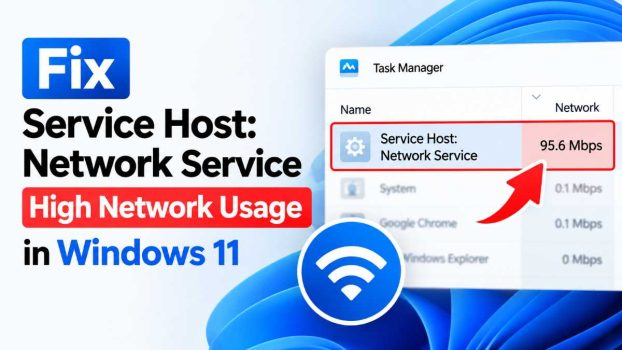
If you’ve opened Task Manager on your Windows 11 PC and noticed that Service Host: Network Service is consuming an unusually large amount of network bandwidth, you’re not alone. This is one of the most common performance complaints among Windows 11 users, especially those on metered connections, slower Wi-Fi networks, or laptops where every bit of bandwidth and battery life matters.
“Service Host” (svchost.exe) is not a single program — it’s a shared container process that Windows uses to run multiple background services under one umbrella instead of spawning a separate .exe for every single service. This design saves memory and system resources, but it also makes troubleshooting trickier, because dozens of unrelated services can hide behind the same generic “Service Host” label. When you see “Service Host: Network Service” specifically, it usually means a set of core networking-related services — things like Windows Update delivery, DNS caching, network location awareness, Windows Push Notifications, or telemetry-related background tasks — are grouped together and one (or more) of them is misbehaving.
High network usage from this process is rarely a sign that your PC is broken. In most cases, it points to one of a handful of usual suspects: a stuck or misconfigured Windows Update process, background app syncing gone haywire, aggressive telemetry and diagnostic data collection, a corrupted delivery optimization cache, third-party software conflicts, or occasionally malware exploiting legitimate system processes to disguise malicious traffic. The good news is that nearly all of these causes are fixable without reinstalling Windows or replacing hardware.
This guide walks through a complete, step-by-step troubleshooting process to identify exactly which service inside “Service Host: Network Service” is responsible for the spike, and then how to fix it. We’ll start with quick diagnostic steps to confirm the source of the problem, move into the most effective fixes — from disabling Delivery Optimization and pausing Windows Update, to resetting network components and checking for malware — and finish with some longer-term habits that prevent the issue from coming back. By the end, you should have a clear, actionable plan to bring your network usage back down to normal and understand what’s actually happening behind that generic-sounding process name.
Whether you’re dealing with a laptop that’s draining data on a mobile hotspot, a desktop that’s slowing down your home network for everyone else, or you’re just curious why Task Manager shows this process eating so much bandwidth, the methods below are ordered from easiest to more advanced, so you can start simple and escalate only if needed.
Methods to Fix High Network Usage
Method 1: Identify Which Service Is Actually Responsible
Before applying any fix, it helps to know exactly which sub-service is causing the spike, since “Network Service” is a group, not a single program.
Open Task Manager (Ctrl + Shift + Esc).
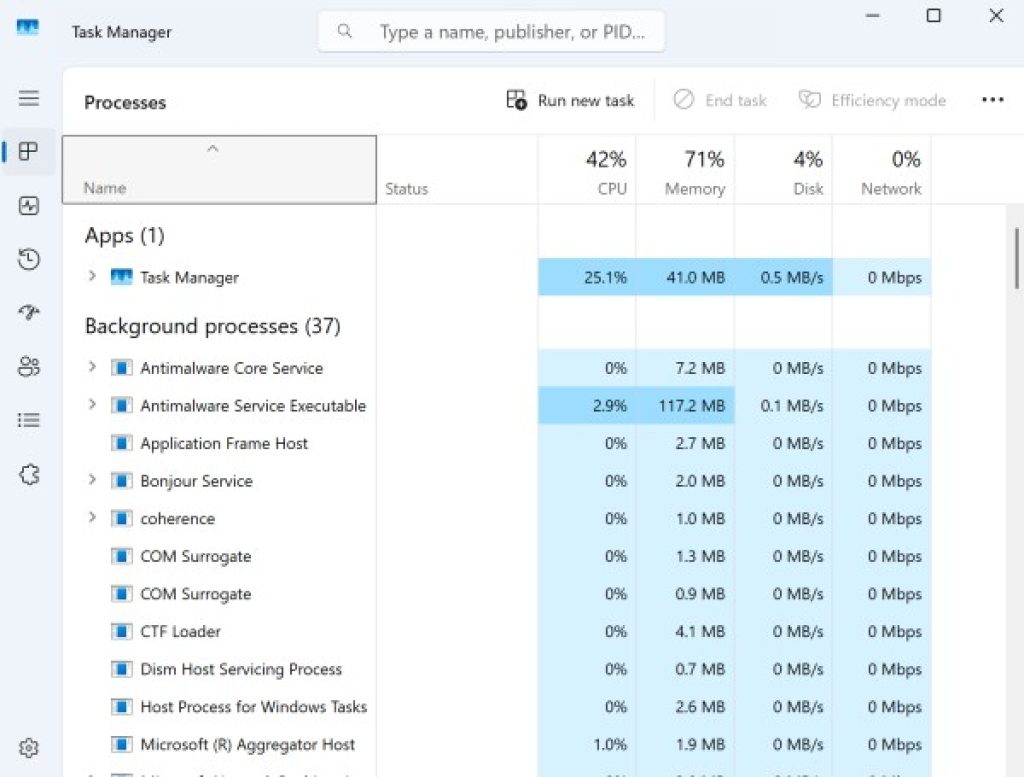
Go to the Processes tab, find Service Host: Network Service, and right-click it.
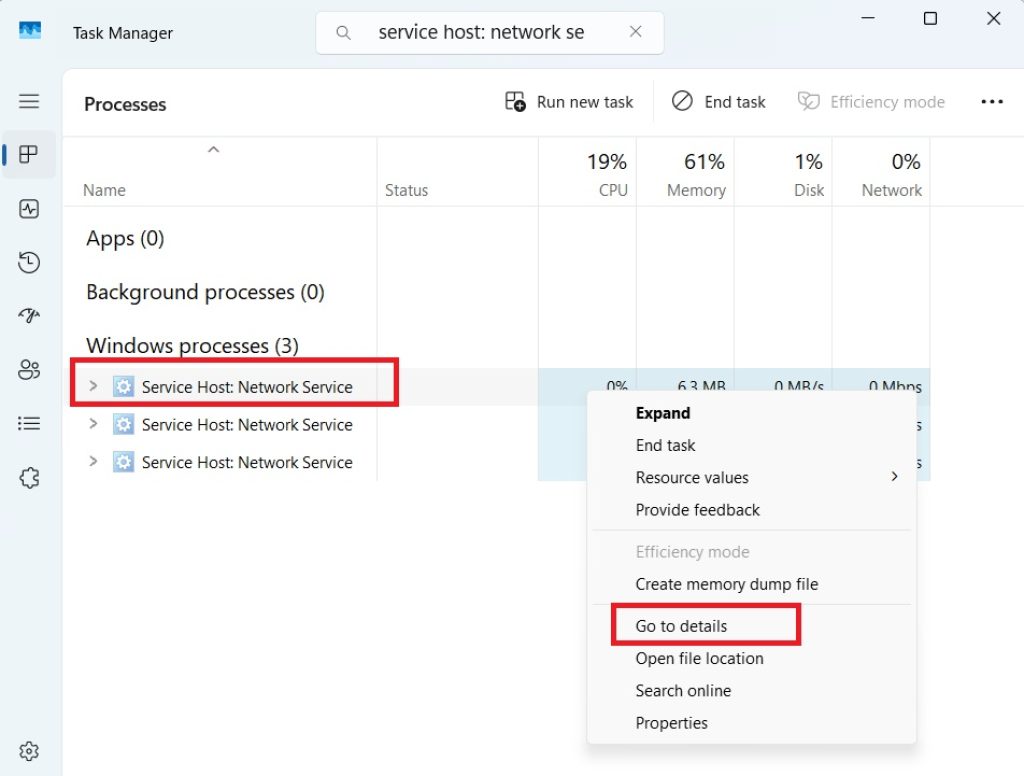
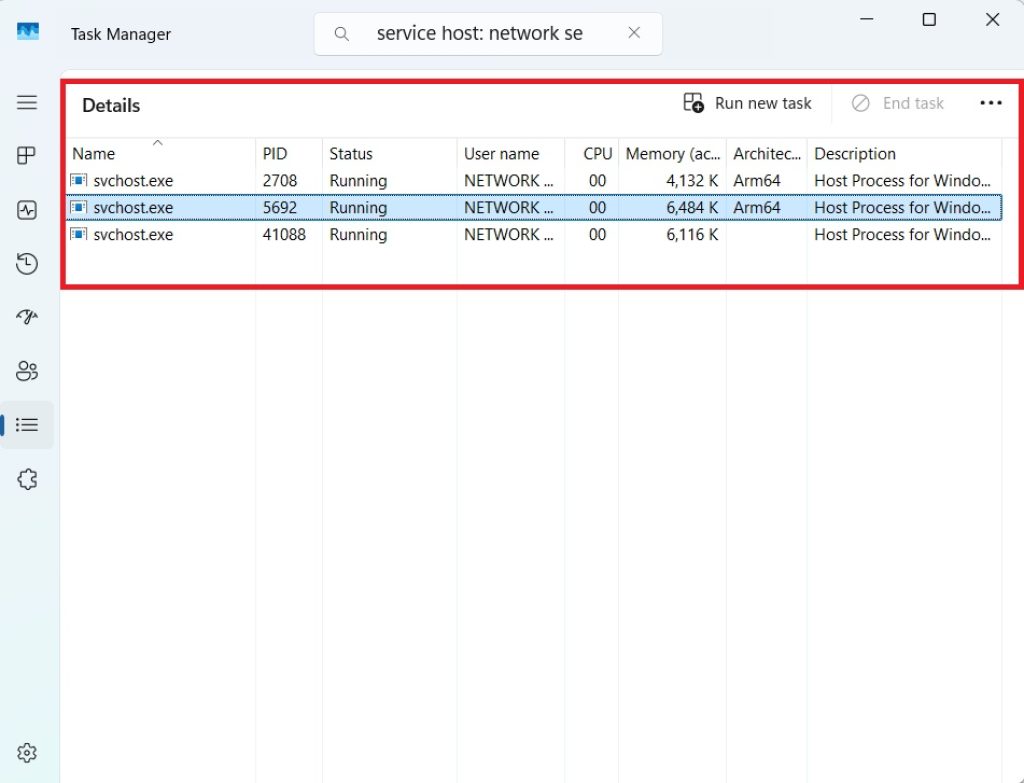
Select Go to details or expand the process (click the small arrow next to it) to see the individual services grouped inside it.
Alternatively, open Resource Monitor (search for it in the Start menu), go to the Network tab, and sort processes by “Total (B/sec)” to see live bandwidth usage per process and even per connection/IP address.
Note the PID (Process ID) of the high-usage instance, then open Services (services.msc), sort by PID, and match it to the specific service name — common culprits include Windows Update, Delivery Optimization, DNS Client, Network Location Awareness, and Connected Devices Platform.
Knowing the exact service narrows down which fix below will actually solve your problem, rather than applying every fix blindly.
Method 2: Disable Windows Update Delivery Optimization
Delivery Optimization is a peer-to-peer feature that lets your PC download update files from — and upload them to — other Windows devices on your local network or the internet. It’s a frequent cause of sustained high background network usage.
- Open Settings > Windows Update > Advanced options.
- Click Delivery Optimization.
- Toggle Allow downloads from other PCs to Off.
- If it’s on, also check Advanced options under Delivery Optimization and reduce or disable background bandwidth usage limits.
This single change resolves a large share of “Network Service” bandwidth complaints, since it stops your PC from acting as a distribution node for other devices’ updates.
Method 3: Pause or Reset Windows Update
A stuck or corrupted update can cause the Windows Update service to repeatedly retry downloads, generating continuous network traffic.
- Go to Settings > Windows Update and click Pause updates for 1 week to confirm whether usage drops.
- If it does, the update process was the cause. Resume updates later and let a fresh download attempt complete.
- If pausing doesn’t help, reset the update components manually:
- Open Command Prompt as Administrator.
- Stop the relevant services:
     net stop wuauserv
     net stop cryptSvc
     net stop bits
     net stop msiserver
- Rename the update cache folders:
     ren C:\Windows\SoftwareDistribution SoftwareDistribution.old
     ren C:\Windows\System32\catroot2 catroot2.old
- Restart the services:
     net start wuauserv
     net start cryptSvc
     net start bits
     net start msiserver
- Restart your PC and check Task Manager again.
Method 4: Turn Off Background Apps and App Syncing
Windows 11 allows many built-in and third-party apps to run in the background, sync content, and send/receive push notifications — all of which route through Network Service.
- Go to Settings > Apps > Installed apps.
- Click the three-dot menu next to bandwidth-heavy apps (cloud storage clients, mail apps, chat apps) and check their Advanced options for a background permissions toggle.
- Alternatively, go to Settings > Privacy & security > Background apps and services, and toggle off apps you don’t need running constantly.
- Also check Settings > System > Notifications and disable notifications for apps you don’t need real-time updates from, since push notification syncing consumes network resources continuously.
Method 5: Disable Diagnostic Data and Telemetry Traffic
Windows continuously sends diagnostic and usage data to Microsoft, and while individual telemetry packets are small, some configurations or bugged services can cause abnormal spikes.
- Open Settings > Privacy & security > Diagnostics & feedback.
- Set Diagnostic data to Required diagnostic data rather than Optional.
- Turn off Tailored experiences and Improve inking and typing.
- For more advanced control (Windows 11 Pro/Enterprise), telemetry can be further restricted via Group Policy Editor under Computer Configuration > Administrative Templates > Windows Components > Data Collection and Preview Builds.
Method 6: Reset Network Components
Corrupted network configuration files can cause services to malfunction and generate erratic traffic patterns, including repeated failed connection attempts that look like high usage.
- Open Command Prompt as Administrator.
- Run the following commands in order:
   netsh winsock reset
   netsh int ip reset
   ipconfig /release
   ipconfig /renew
   ipconfig /flushdns
- Restart your computer.
This resets your network stack to a clean default state, which often resolves misbehaving services without affecting your saved Wi-Fi passwords or other settings.
Method 7: Run a Malware Scan
While less common, malware sometimes disguises malicious network traffic by injecting itself into legitimate system processes like svchost.exe to avoid detection.
- Open Windows Security > Virus & threat protection.
- Run a Quick scan, and if usage persists, follow up with a Full scan or Microsoft Defender Offline scan.
- Consider running a second opinion scan with a reputable on-demand tool as a cross-check.
- In Resource Monitor, check the specific remote IP addresses that “Network Service” is connecting to — unfamiliar or suspicious foreign IP addresses receiving large amounts of data are a red flag worth investigating further.
Method 8: Check for a Faulty Network Driver or Outdated Windows Version
Sometimes the root cause isn’t a specific service but an outdated or buggy network adapter driver misreporting traffic, or a known Windows bug fixed in a later update.
- Open Device Manager, expand Network adapters, right-click your adapter, and select Update driver.
- Alternatively, download the latest driver directly from your adapter manufacturer’s website (Intel, Realtek, Qualcomm, etc.) for the most current version.
- Ensure Windows 11 itself is fully updated: Settings > Windows Update > Check for updates, since Microsoft periodically patches known svchost-related bugs.
Conclusion
“Service Host: Network Service” showing high network usage in Windows 11 looks alarming in Task Manager, but it’s almost always traceable to a normal system process working overtime rather than a sign of serious damage. The most frequent culprits are Delivery Optimization sharing update files across your network, a stuck Windows Update process repeatedly retrying downloads, background apps syncing more aggressively than necessary, or telemetry and diagnostic data collection running at a higher setting than you need. Working through the methods above in order — starting with identifying the specific service, then disabling Delivery Optimization, managing Windows Update, controlling background apps, adjusting diagnostic settings, resetting your network stack, scanning for malware, and finally checking drivers — will resolve the vast majority of cases.
Once you’ve applied a fix, give it some time and monitor Task Manager or Resource Monitor over the next hour or so, since some services (especially Windows Update-related ones) take a while to settle down after a change. If usage remains stubbornly high after trying every method here, it may be worth creating a new local user profile to see if the issue is profile-specific, or as a last resort, performing a Windows repair install that keeps your files and apps intact while replacing system files. For most people, though, disabling Delivery Optimization and clearing a stuck update cache resolves the problem entirely.
FAQs
1. Is “Service Host: Network Service” a virus? No, it’s a legitimate Windows system process. However, malware can occasionally hide within or impersonate svchost.exe processes, so if usage is unusually high and you can’t trace it to a known service, running a malware scan is a reasonable precaution.
2. Will disabling Delivery Optimization affect my Windows updates? No. Disabling Delivery Optimization only stops your PC from downloading updates from, or uploading them to, other devices on your network or the internet. Your PC will still download updates normally and directly from Microsoft’s servers.
3. Why does this happen right after I install Windows 11 or a major update? Right after installation or a feature update, Windows performs a lot of background work — indexing files, syncing settings, downloading additional update components, and re-establishing telemetry baselines. High network usage in the first day or two after an update is common and usually settles down on its own.
4. How can I permanently stop this from happening again? There’s no single permanent fix, since these services are core to Windows functioning properly, but keeping Delivery Optimization off, setting diagnostic data to “Required only,” regularly checking for Windows updates, and periodically reviewing which background apps have permission to run will minimize the chances of recurring spikes.





