
 Sukhdev Kamboj
Restarting a computer sounds like a trivial task, but timing it correctly can save you a surprising amount of frustration. Windows 11 regularly needs a reboot to finish installing updates, clear out memory leaks, or apply changes made by newly installed software. The trouble is that a restart rarely happens at a convenient moment — it interrupts a video call, cuts off a render job, or forces you to save work in a hurry when Windows decides it’s time to reboot on its own schedule.
The good news is that Windows 11 gives you several ways to take control of this process. Instead of letting the operating system restart whenever it wants, you can schedule a restart for a specific time of day, delay it until you’re done working, or automate it so your PC reboots every night without you having to lift a finger. This is useful for home users who want their computer fresh each morning, IT administrators managing dozens of machines, gamers who want updates installed before they sit down to play, and anyone who’s tired of losing unsaved work to a surprise reboot.
In this guide, we’ll walk through every practical method for scheduling a restart in Windows 11 — from built-in Settings options, to Command Prompt and PowerShell commands, to Task Scheduler for full automation, and even third-party tools for people who want a simpler interface. By the end, you’ll be able to pick the method that best matches your comfort level and your goals, whether that’s a one-time delayed restart or a recurring nightly reboot.
Why You Might Want to Schedule a Restart
Before diving into the “how,” it’s worth understanding the “why.” A scheduled restart isn’t just about avoiding annoying update prompts. Here are some of the most common reasons people set one up:
- Applying updates on your terms. Windows Update often wants to restart immediately after downloading patches. Scheduling the restart for outside your work hours means you get security fixes without losing productivity.
- Keeping performance steady. Long-running sessions can accumulate background processes, memory fragmentation, and temporary file buildup. A regular restart clears this out and keeps the system responsive.
- Server and always-on machines. If a PC acts as a home server, media hub, or always-on workstation, a nightly restart at 3 a.m. ensures it stays healthy without disrupting anyone during active hours.
- Avoiding mid-task interruptions. Instead of Windows forcing a restart while you’re in the middle of something, you can set a delay that gives you time to save and close everything first.
- IT and business environments. System administrators often need machines to restart on a fixed schedule for patch management, compliance, or maintenance windows, especially across multiple devices.
With those use cases in mind, let’s look at the actual methods.
Methods to Schedule a Restart in Windows 11
Method 1: Use the Windows Update “Schedule the Restart” Option
The simplest and most user-friendly way to control restart timing is built directly into Windows Update. This is ideal for casual users who don’t want to touch the command line.
Open Settings by pressing Win + I.
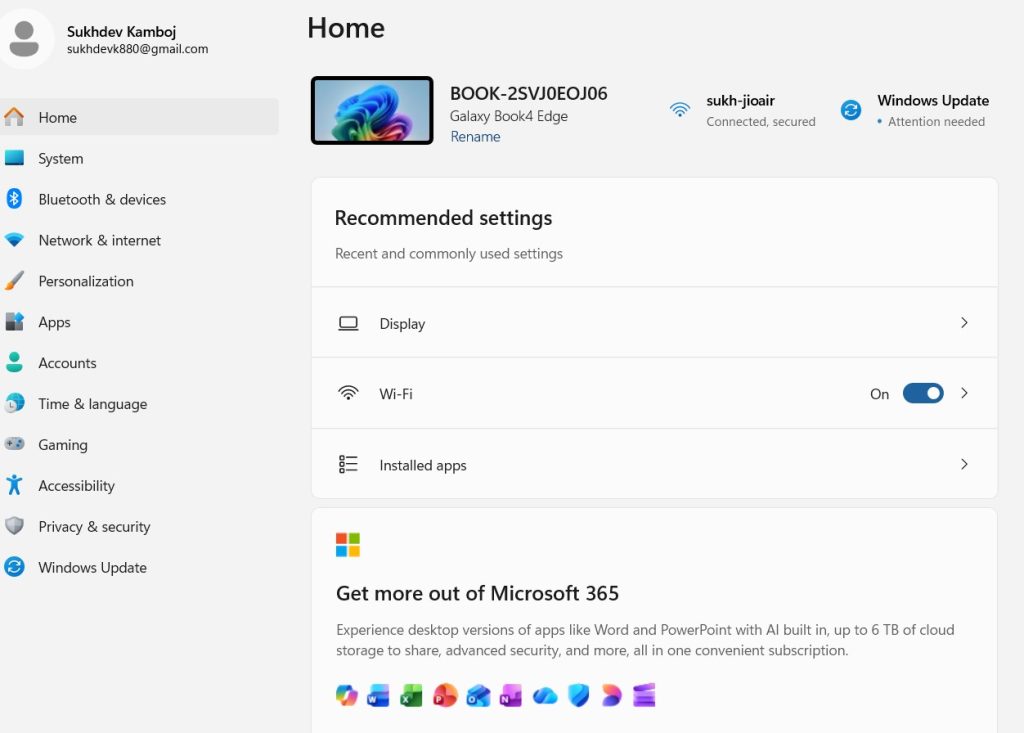
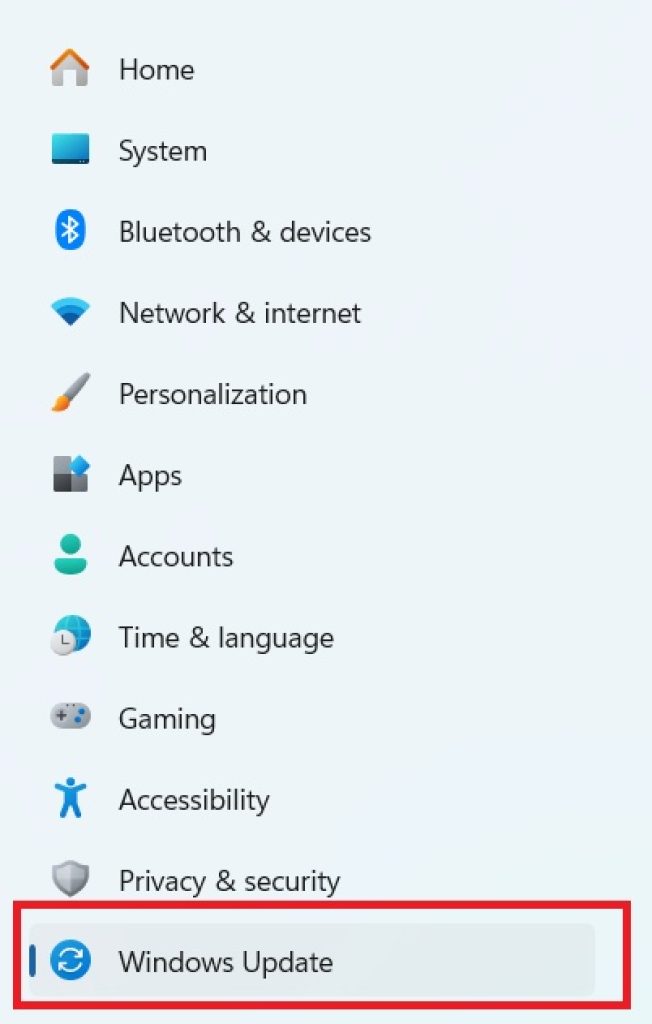
Navigate to Windows Update in the left-hand sidebar.
If an update is pending and requires a restart, you’ll see a notice with a “Schedule the restart” option (sometimes shown as a toggle or a button, depending on your Windows 11 version).
Click it, then choose a preferred time and date for the restart to happen automatically.
Windows will restart your PC at the selected time as long as it’s plugged in and not actively in a presentation or full-screen mode (Windows 11 has built-in “active hours” logic that avoids interrupting you).
You can also configure Active Hours so Windows never auto-restarts during your typical working window:
- Go to Settings > Windows Update > Advanced options.
- Select Active hours.
- Set your preferred start and end times (up to an 18-hour range) so restarts only happen outside that window.
This method is limited to update-triggered restarts — it won’t let you schedule a restart just because you want your PC to refresh at a certain time for other reasons. For that, you’ll need one of the following methods.
Method 2: Schedule a Restart Using Command Prompt (shutdown /r /t)
For a general-purpose, one-time scheduled restart — regardless of whether an update is pending — the built-in shutdown command is fast and reliable.
- Press Win + S, type cmd, and open Command Prompt (you don’t need administrator rights for a basic restart, but running as admin avoids most permission issues).
- Enter the following command, replacing the number with your desired delay in seconds:
shutdown /r /t 3600
This example schedules a restart in exactly one hour (3600 seconds).
- To cancel a scheduled restart before it triggers, run:
shutdown /a
- You can also add a custom message that appears before the restart using the
/cflag:
shutdown /r /t 600 /c "Restarting for maintenance in 10 minutes. Please save your work."
This method is quick, doesn’t require any extra software, and works well for one-off scenarios like “restart this PC in 30 minutes while I grab lunch.” Its main downside is that it only supports a countdown in seconds rather than an exact clock time — you’ll need to calculate the delay yourself, or use PowerShell instead.
Method 3: Schedule a Restart Using PowerShell
PowerShell offers the same underlying functionality as Command Prompt but with more flexibility, especially if you want to specify an exact time rather than a countdown.
- Open PowerShell (search for it in the Start menu; running as administrator is recommended).
- To restart after a delay in seconds, you can call the same shutdown syntax:
shutdown /r /t 1800
- To schedule a restart at a specific clock time, calculate the number of seconds between now and your target time. For example, this snippet restarts the PC at 11:00 PM:
powershell
   $targetTime = Get-Date "23:00"
   $delay = ($targetTime - (Get-Date)).TotalSeconds
   shutdown /r /t $delay
- For a more PowerShell-native approach, you can use
Restart-Computercombined with a scheduled job:
powershell
Register-ScheduledJob -Name "NightlyRestart" -Trigger (New-JobTrigger -Daily -At "3:00 AM") -ScriptBlock { Restart-Computer -Force }
This creates a scheduled job that restarts the computer daily at 3:00 AM, which is handled by the Task Scheduler under the hood.
PowerShell is the best option if you’re comfortable with scripting and want precise control, especially for recurring restarts or restarts tied to specific conditions.
Method 4: Use Task Scheduler for Recurring or Automated Restarts
If you want a restart to happen automatically every day, every week, or on a custom recurring pattern — without having to run a command each time — Task Scheduler is the most robust built-in solution.
- Press Win + S, search for Task Scheduler, and open it.
- In the right-hand panel, click Create Basic Task.
- Give the task a name, such as “Nightly Restart,” and an optional description.
- Choose a trigger: Daily, Weekly, Monthly, or One time, then set the specific time you want the restart to occur.
- On the Action screen, select Start a program.
- In the “Program/script” field, enter:
shutdown
In the “Add arguments” field, enter:
/r /f /t 0
The /f flag forces running applications to close, and /t 0 means the restart happens immediately once triggered.
- Review your settings on the summary screen and click Finish.
- To adjust or fine-tune the task later (for example, to make it run only when the PC is idle, or to set it to run even if you’re not logged in), right-click the task in the Task Scheduler Library, choose Properties, and explore the Conditions and Settings tabs.
Task Scheduler is ideal for anyone who wants a “set it and forget it” solution — for example, a media server that restarts every night at 4 a.m., or a shared office computer that reboots every Monday morning before staff arrive.
Method 5 (Bonus): Third-Party Restart Scheduling Tools
If you’d rather avoid the command line and Task Scheduler entirely, several lightweight third-party utilities offer a simple graphical interface for scheduling shutdowns and restarts. Tools in this category typically let you pick a time from a calendar-style widget, set recurring schedules, and even add countdown notifications before the restart triggers. These are worth considering if you manage a PC for someone less technical, or if you just prefer a visual interface over typing commands. As with any third-party download, only get such tools from reputable sources and verify their permissions before installing.
Conclusion
Windows 11 gives you more control over restart timing than most people realize. If you just want to control update-related restarts, the built-in Windows Update scheduling option and Active Hours setting are the easiest path. For a quick, one-time delayed restart, the shutdown /r /t command in Command Prompt or PowerShell gets the job done in seconds. If you want precision or scripting flexibility, PowerShell’s date-based calculations or scheduled jobs are the way to go. And for fully automated, recurring restarts — daily, weekly, or on a custom pattern — Task Scheduler is the most reliable built-in tool Windows offers.
Whichever method you choose, taking a few minutes to set up a scheduled restart means fewer surprise interruptions, better system performance, and updates that install on your terms rather than Windows’. It’s a small bit of setup that pays off every single day your PC is running.
Frequently Asked Questions
1. Will a scheduled restart close my open programs and cause me to lose unsaved work?
Yes, by default a restart will close all open applications, and any unsaved changes in those programs will be lost. If you use the shutdown command with the /c flag, you can display a warning message beforehand so you have time to save your work. Task Scheduler and PowerShell scheduled jobs can also be configured to send a warning or run only when the PC is idle, reducing the risk of losing work.
2. Can I schedule a restart without using Command Prompt, PowerShell, or Task Scheduler?
Yes. The built-in Windows Update “Schedule the restart” option under Settings > Windows Update lets you pick a time for update-related restarts without touching any command-line tools. For non-update restarts with a graphical interface, third-party scheduling utilities are also available if you prefer not to use Windows’ native tools.
3. How do I cancel a scheduled restart once it’s been set?
If you scheduled the restart using the shutdown command (via Command Prompt or PowerShell), you can cancel it at any time before it triggers by opening a command prompt and running shutdown /a. If you set it up through Task Scheduler, open the Task Scheduler Library, right-click the relevant task, and select Delete or Disable. For Windows Update’s built-in scheduler, revisit the Windows Update settings page and change or clear the scheduled time.
4. Does a scheduled restart work if my laptop is asleep or the lid is closed?
Generally, no — a scheduled restart triggered by the shutdown command or Task Scheduler requires the PC to be powered on and awake at the trigger time. However, Task Scheduler has a setting under a task’s Conditions tab called “Wake the computer to run this task,” which can wake a sleeping PC from certain sleep states specifically to run the restart. This doesn’t always work with modern “Modern Standby” laptops, so it’s worth testing on your specific device to confirm reliability.





