
 Sukhdev Kamboj
Microsoft Copilot is integrated into Windows 11 to provide AI-powered assistance for searching, writing, generating ideas, answering questions, and performing various tasks. While Copilot can be useful for some users, others may prefer a simpler Windows experience without an additional AI assistant appearing on the desktop or taskbar.
If you do not use Copilot, disabling it can help keep the Windows 11 interface cleaner and prevent accidental launches. Windows 11 provides several ways to remove or disable Copilot, depending on the edition of Windows you are using and how deeply you want to restrict access to the feature.
In this guide, we will cover multiple methods to disable Copilot in Windows 11. The methods include removing the Copilot application, disabling Copilot through Group Policy, using the Windows Registry, and removing Copilot from the taskbar. You can choose the method that best matches your Windows edition and requirements.
Method 1: Uninstall the Copilot App from Windows 11
On newer versions of Windows 11, Copilot may be installed as an application. If Copilot appears as a normal installed app, the simplest way to disable it is to uninstall the application.
This method is particularly useful if you want to remove the Copilot app from your computer without changing system policies or editing the Registry.
Step 1: Open Windows Settings
Press Windows + I on your keyboard to open the Settings application.
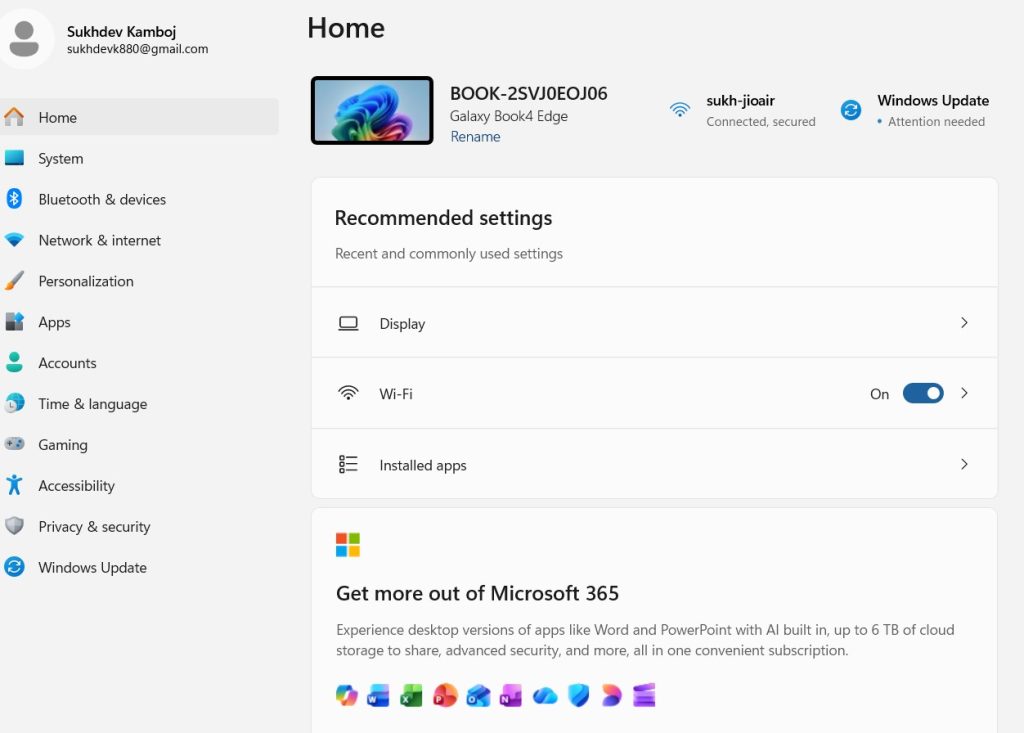
You can also open Settings from the Start menu.
Step 2: Open Installed Apps
In Settings, click Apps from the left sidebar.
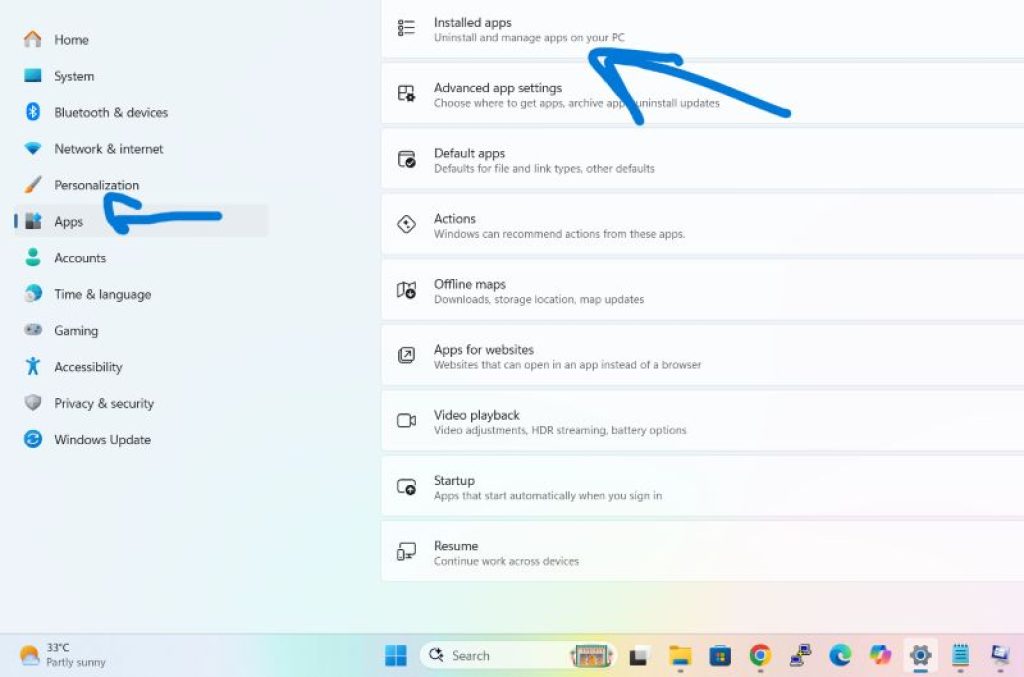
Next, select Installed apps.
Windows will display a list of applications currently installed on your computer.
Step 3: Find Copilot
Use the search box at the top of the Installed apps page and type:
Copilot
Look for the Microsoft Copilot application in the search results.
Step 4: Open the Copilot Menu
Click the three-dot menu next to Copilot.
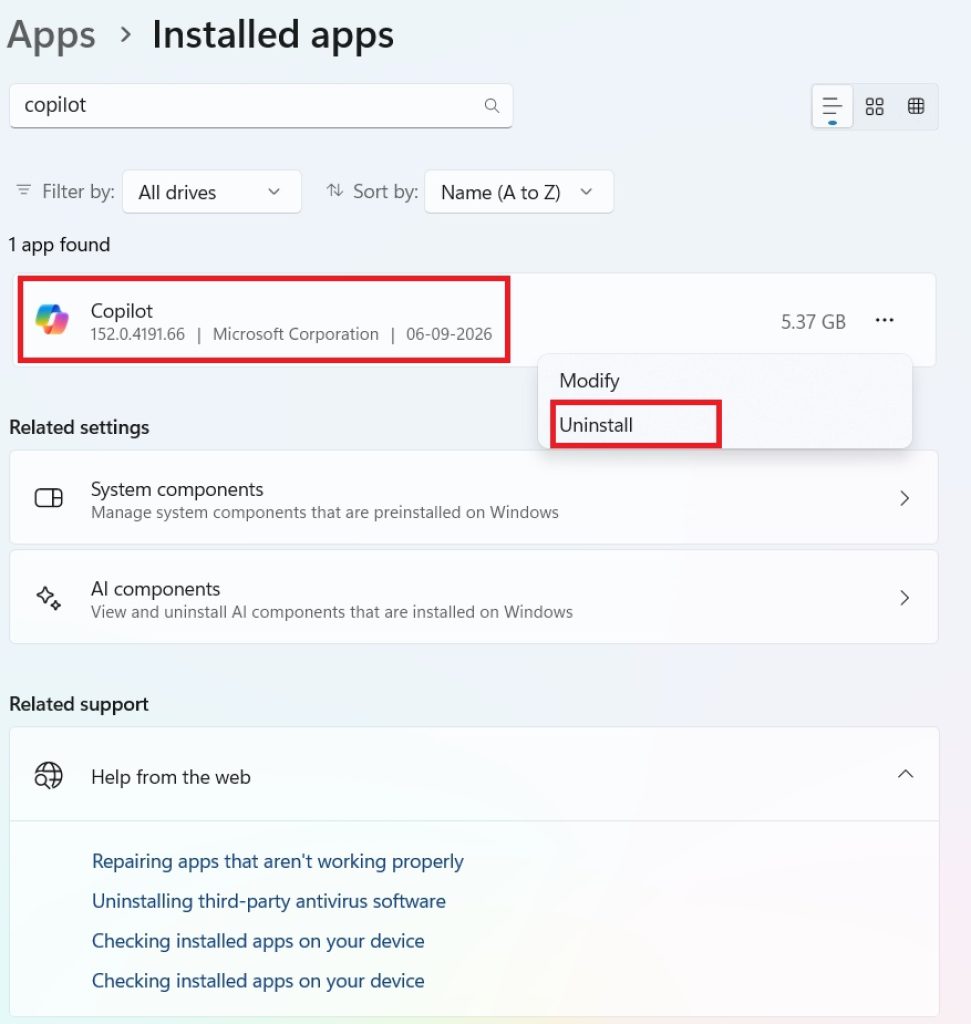
If Windows provides an Uninstall option, click it.
Follow the instructions displayed on the screen to complete the uninstallation.
Step 5: Restart Windows
After uninstalling Copilot, restart your computer.
Once Windows starts again, check the Start menu, taskbar, and desktop to confirm that the Copilot application has been removed.
This is the easiest method because it does not require changing system policies or Registry settings. However, the exact availability of the uninstall option can vary depending on your Windows 11 version.
Method 2: Disable Copilot Using Group Policy
Windows 11 Pro, Enterprise, and Education editions include the Local Group Policy Editor. If you are using one of these editions, you can use Group Policy to prevent Copilot from being used.
This method is useful when you want to disable Copilot through a Windows policy rather than simply removing an application.
Step 1: Open Local Group Policy Editor
Press Windows + R to open the Run dialog box.
Type:
gpedit.msc
Press Enter.
The Local Group Policy Editor will open.
Step 2: Navigate to the Copilot Policy
In the left sidebar, navigate through the following folders:
User Configuration
→ Administrative Templates
→ Windows Components
→ Windows Copilot
Depending on your Windows 11 version, the policy name and location may differ slightly.
Step 3: Open the Copilot Policy
Look for the policy related to turning off or disabling Windows Copilot.
Double-click the policy.
A new configuration window will appear.
Step 4: Enable the Policy
Select:
Enabled
Then click Apply and select OK.
It may seem confusing that you need to select Enabled to disable Copilot. This is because you are enabling the policy that tells Windows to turn off Copilot.
Step 5: Restart Windows
Close the Group Policy Editor and restart your computer.
You can also open Command Prompt as an administrator and run:
gpupdate /force
After the policy has been applied, Copilot should no longer be available according to the configured policy.
This method is convenient for users running Windows 11 Pro or another edition that includes Group Policy Editor.
Method 3: Disable Copilot Using the Windows Registry
If you are using Windows 11 Home, the Local Group Policy Editor may not be available. In that situation, you can use the Registry Editor to configure the corresponding Windows policy.
The Registry contains important Windows configuration settings, so you should follow the steps carefully.
Step 1: Open Registry Editor
Press Windows + R.
Type:
regedit
Press Enter.
If User Account Control asks for permission, click Yes.
Step 2: Navigate to the Required Registry Location
In Registry Editor, navigate to:
HKEY_CURRENT_USER\Software\Policies\Microsoft\Windows
You can also paste the path into the address bar at the top of Registry Editor and press Enter.
Step 3: Create the WindowsCopilot Key
Look for a key named:
WindowsCopilot
If it already exists, select it.
If it does not exist, right-click the Windows key and select:
New → Key
Name the new key:
WindowsCopilot
Press Enter.
Step 4: Create the Required Value
Select the newly created WindowsCopilot key.
Right-click an empty area in the right pane.
Select:
New → DWORD (32-bit) Value
Name the new value:
TurnOffWindowsCopilot
Press Enter.
Step 5: Change the Value
Double-click:
TurnOffWindowsCopilot
Set the Value data to:
1
Make sure the base is set to:
Hexadecimal
Click OK.
The value 1 tells Windows to apply the policy that turns off Windows Copilot.
Step 6: Restart Windows
Close Registry Editor and restart your computer.
After Windows starts again, check whether Copilot is still available.
If the change does not immediately appear, sign out and sign back in or restart Windows again.
Important Registry Note
Be careful when editing the Registry. Changing unrelated Registry entries can cause Windows or applications to behave incorrectly.
Only create or modify the specific key and value described above. Avoid changing other Registry settings unless you know what they do.
Method 4: Remove Copilot from the Windows 11 Taskbar
If your primary goal is simply to stop seeing Copilot on the taskbar, you may not need to disable the feature completely.
Windows 11 allows you to customize which icons appear on the taskbar.
Step 1: Open Settings
Press:
Windows + I
to open Settings.
Step 2: Open Personalization
Click:
Personalization
from the left side.
Then select:
Taskbar
Step 3: Locate Copilot
Depending on your Windows 11 version, Copilot may appear under the available taskbar items or related taskbar settings.
If you see a Copilot toggle, turn it:
Off
The Copilot icon should disappear from the taskbar.
Removing the icon does not necessarily disable Copilot throughout Windows. It simply removes the shortcut from the taskbar.
Therefore, use this method when you want a cleaner taskbar rather than a complete restriction of Copilot.
Method 5: Disable Copilot Through Windows Settings
Some Windows 11 versions provide additional Copilot-related settings directly through Windows Settings.
Because Microsoft continues to change how Copilot is integrated into Windows, the exact settings can vary between Windows 11 releases.
To check for available options, open:
Settings → Personalization
and review the available taskbar and Copilot-related settings.
You can also use the Settings search box and type:
Copilot
Windows will show available settings and configuration options related to Copilot.
If your version provides a toggle for showing Copilot, disable it.
This method is preferable when available because it does not require Registry editing or Group Policy configuration.
Method 6: Disable Copilot for Microsoft Edge
Windows Copilot and Copilot features available inside Microsoft Edge are not always controlled by the same setting.
If you are trying to remove AI assistance from your overall Windows browsing experience, you may also want to check Microsoft Edge settings.
Open Microsoft Edge and enter the following in the address bar:
edge://settings
Review the available settings related to Copilot, sidebar features, and AI assistance.
Depending on your Edge version, you may be able to disable or hide certain Copilot-related features.
After changing the settings, restart Edge.
Remember that disabling a Copilot feature in Edge does not necessarily disable Windows Copilot itself. They can be controlled separately.
Method 7: Prevent Copilot from Launching Automatically
In some cases, users do not want to completely remove Copilot but simply want to prevent it from opening automatically.
You can check Windows startup applications to see whether Copilot or a related application is configured to start with Windows.
Step 1: Open Task Manager
Press:
Ctrl + Shift + Esc
to open Task Manager.
Step 2: Open Startup Apps
Select:
Startup apps
from the left sidebar.
Review the list of applications that start automatically when Windows boots.
Step 3: Check for Copilot
If Copilot or a related Microsoft application appears in the list and you do not want it to launch at startup, select it.
Click:
Disable
This prevents the selected application from starting automatically.
Keep in mind that disabling a startup entry is different from completely disabling Copilot. It only prevents the application from starting automatically.
Which Method Should You Use?
The best method depends on what you want to accomplish.
If Copilot is installed as a standalone application and you simply want it removed, uninstalling it is the easiest option.
If you are running Windows 11 Pro, Enterprise, or Education and want to prevent Copilot through a system policy, Group Policy is a convenient option.
If you are using Windows 11 Home and need a policy-based solution, the Registry method can be used.
If you only dislike the Copilot icon on your taskbar, removing or hiding the taskbar icon is sufficient.
If Copilot appears in Microsoft Edge, configure Edge separately.
For most users who simply do not want to see Copilot, the least invasive approach is to remove its taskbar icon or uninstall the Copilot application when Windows provides that option.
How to Re-Enable Copilot
If you change your mind later, the changes can generally be reversed.
If you uninstalled the Copilot application, reinstall it through the Microsoft Store or the appropriate Windows application source if it is available for your version of Windows.
If you disabled Copilot through Group Policy, open the same policy and change it to:
Not Configured
or the setting appropriate for your Windows version.
If you disabled Copilot through the Registry, navigate to:
HKEY_CURRENT_USER\Software\Policies\Microsoft\Windows\WindowsCopilot
and remove the policy value you created or change its value according to the configuration you want to use.
After making the change, restart Windows or sign out and sign back in.
If you only hid Copilot from the taskbar, return to:
Settings → Personalization → Taskbar
and enable the relevant Copilot or taskbar option if it is available.
Troubleshooting Copilot After Disabling It
If Copilot continues to appear after applying one of these methods, first restart your computer.
Windows may not immediately apply certain policy or Registry changes until you restart or sign out.
If you used Group Policy, open an elevated Command Prompt and run:
gpupdate /force
Then restart Windows.
If you used Registry Editor, verify that the Registry path and value name were entered correctly.
The relevant path is:
HKEY_CURRENT_USER\Software\Policies\Microsoft\Windows\WindowsCopilot
The policy value is:
TurnOffWindowsCopilot
with the value data:
1
Also remember that Windows Copilot, the standalone Copilot application, Microsoft Edge Copilot features, and other Microsoft AI features may not all be controlled by the same setting.
If one Copilot interface disappears while another remains available, configure the corresponding application or Windows feature separately.
Frequently Asked Questions
1. Can I completely disable Copilot in Windows 11?
Yes, depending on your Windows 11 version, you can disable or restrict Copilot using Windows settings, Group Policy, or Registry settings. You can also uninstall the standalone Copilot application when Windows provides an uninstall option.
However, Copilot has changed considerably across Windows 11 versions, so the exact method available on your computer can vary.
2. Is it safe to disable Copilot in Windows 11?
Yes. Disabling Copilot does not normally affect the core operation of Windows 11. Copilot is an optional AI-related feature rather than a fundamental Windows component required for Windows to boot or operate.
If you use other Microsoft services that depend on Copilot features, however, those specific features may no longer be available after you disable them.
3. How do I disable Copilot in Windows 11 Home?
Windows 11 Home does not normally include the Local Group Policy Editor. You can instead use Windows Settings where applicable, uninstall the Copilot application if an uninstall option is available, or configure the corresponding Registry policy.
When using Registry Editor, make sure you modify only the intended Copilot-related key and value.
4. Why does Copilot come back after I disable it?
Windows 11 features can change after updates, and Microsoft may change how Copilot is integrated into newer releases. An update can also reinstall or change the behavior of the Copilot application.
If Copilot returns, check the current Windows settings and repeat the appropriate configuration method. If you previously used Group Policy or Registry settings, verify that the policy is still present and configured correctly.
Conclusion
Copilot can be useful for users who want AI assistance built into their Windows experience, but not everyone wants an AI assistant integrated into the operating system. Fortunately, Windows 11 provides several ways to reduce or disable access to Copilot.
The simplest solution is to uninstall the Copilot application if your version of Windows allows it. If you want a policy-based solution, Windows 11 Pro, Enterprise, and Education users can use Local Group Policy Editor. Windows 11 Home users can use the Registry when a policy-based configuration is required.
If you only want to remove the Copilot icon from your taskbar, changing the taskbar settings is a simpler and less invasive option. Copilot-related features in Microsoft Edge can also be configured separately.
Choose the method that matches your Windows 11 edition and your goal. If you only want a cleaner desktop, hiding the taskbar icon may be enough. If you want Copilot restricted more thoroughly, use the appropriate Group Policy or Registry configuration.





