Sukhdev Kamboj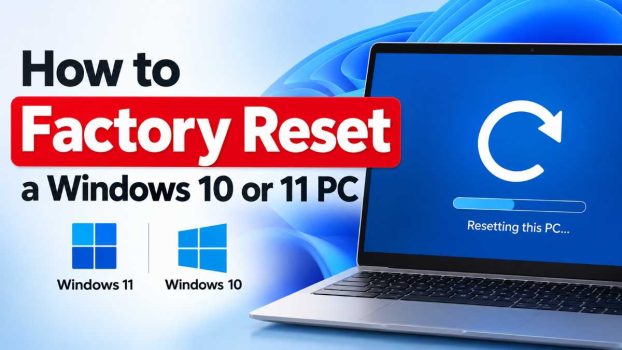
Over time, every Windows PC tends to accumulate clutter — unused programs, leftover files, buggy drivers, and sometimes malware that no amount of manual cleaning can fully undo. A factory reset wipes your system back to a clean, near-original state, giving you a fresh start without buying new hardware. Whether you’re preparing to sell your laptop, fixing a computer that’s become painfully slow, removing a persistent virus, or simply want to start over with a clean slate, resetting Windows can solve problems that troubleshooting alone can’t.
Both Windows 10 and Windows 11 offer several built-in ways to reset your PC, ranging from a simple in-place refresh that keeps your files to a complete wipe that returns the drive to a blank state. Choosing the right method depends on your goal: Are you trying to fix performance issues while keeping your documents? Or are you getting rid of the device entirely and need to erase everything permanently? This guide walks through four practical methods for factory resetting a Windows 11 or Windows 10 PC, explains when to use each one, and answers the most common questions people have before taking the plunge.

Before starting any reset, it’s worth taking a few precautions. Back up important files to an external drive or cloud storage, note down your product keys for any paid software, and make sure your laptop is plugged into power (a reset that gets interrupted by a dead battery can cause serious problems). With that groundwork done, let’s look at your options.
Method 1: Using the “Reset This PC” Feature (Recommended for Most Users)
This is the built-in, most user-friendly way to reset Windows, and it works nearly identically on both Windows 10 and Windows 11.
Steps:
Open Settings (Windows key + I).
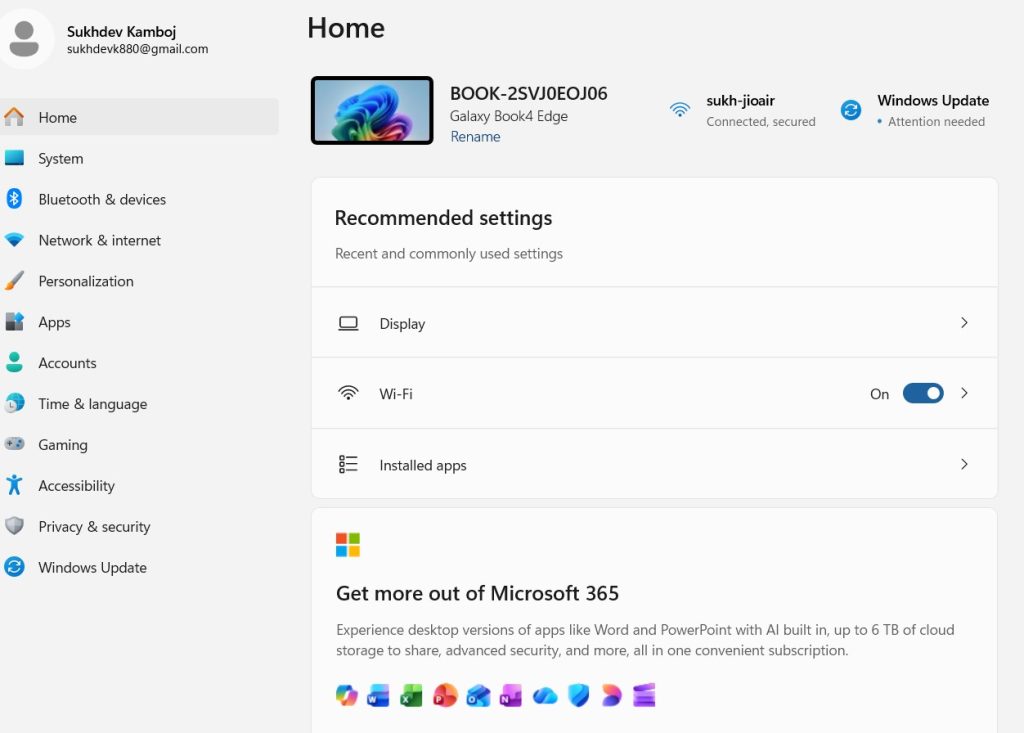
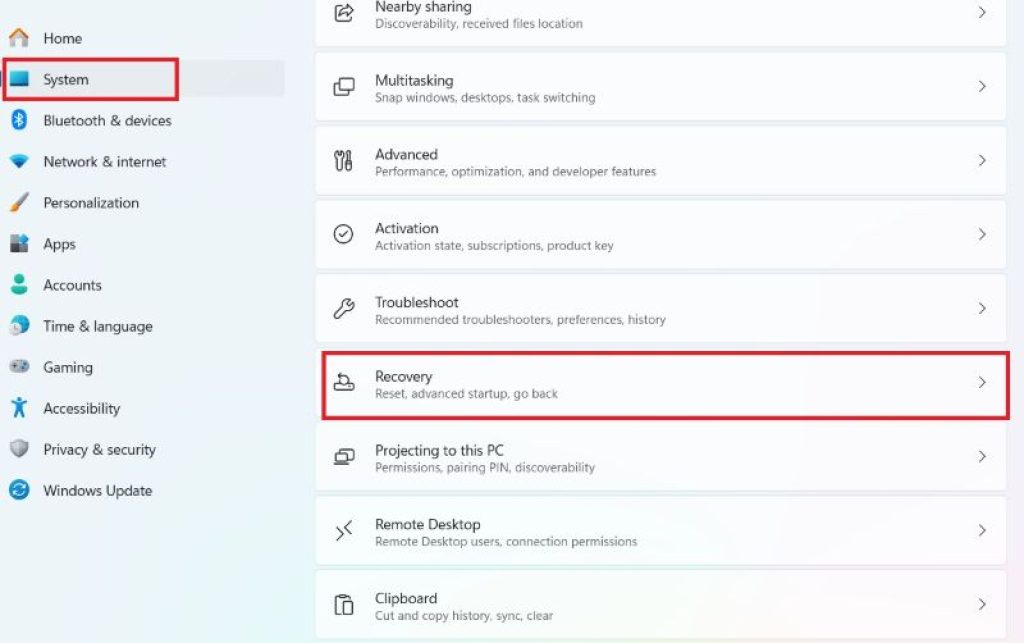
Go to System > Recovery (on Windows 10, this is under Update & Security > Recovery).
Under “Recovery options,” click Reset PC.
You’ll be asked to choose between two options:
- Keep my files – removes apps and settings but preserves your personal files.
- Remove everything – deletes apps, settings, and all personal files, returning the PC to a blank slate.
Next, choose how you want to reinstall Windows:
- Cloud download – downloads a fresh copy of Windows from Microsoft’s servers (requires internet access, roughly 4GB of data).
- Local reinstall – uses files already stored on your device (faster, but can occasionally reinstall corrupted system files if that’s what caused your problem in the first place).
Review your selected settings on the summary screen, then click Next and finally Reset.
Your PC will restart several times during the process. Depending on your hardware and chosen options, this can take anywhere from 20 minutes to a couple of hours.
Best for: Users who want a straightforward reset without needing installation media, especially if you’re keeping the device and just want it to run like new.
Method 2: Resetting from the Windows Recovery Environment (WinRE)
If your PC won’t boot into the normal desktop — perhaps due to corruption, a failed update, or a boot loop — you can still perform a factory reset using the Windows Recovery Environment.
Steps:
- If Windows fails to start three times in a row, it will automatically boot into WinRE (Automatic Repair screen). Alternatively, you can force this by restarting your PC three times while it’s booting.
- From the blue Automatic Repair screen, click Advanced options.
- Select Troubleshoot > Reset this PC.
- Just like Method 1, choose between Keep my files or Remove everything.
- If prompted, select whether to reinstall Windows via cloud download or local files.
- Follow the on-screen prompts to complete the reset.
You can also manually enter WinRE by holding Shift while clicking Restart from the Start menu’s power options, then navigating to Troubleshoot > Reset this PC.
Best for: Situations where Windows won’t boot normally, or when you need to reset a PC that’s frozen on a black screen, stuck in a boot loop, or otherwise inaccessible through normal settings.
Method 3: Clean Install Using Windows Installation Media
For the most thorough reset — one that wipes the drive completely and installs a truly fresh copy of Windows, free of any leftover recovery partitions or manufacturer bloatware — creating bootable installation media is the way to go.
Steps:
- On a working computer, download the Media Creation Tool from Microsoft’s official website (search “download Windows 10” or “download Windows 11” on microsoft.com).
- Insert a USB drive (at least 8GB, and note that it will be erased).
- Run the tool, select Create installation media for another PC, and choose your language, edition, and architecture (64-bit is standard for modern PCs).
- Select USB flash drive as the media type and let the tool download Windows and create the bootable drive.
- Insert the USB drive into the PC you want to reset, then restart it.
- Enter the boot menu (commonly by pressing F12, F2, Esc, or Delete during startup, depending on your PC’s manufacturer) and select the USB drive as the boot device.
- Follow the Windows Setup prompts. When you reach the “Where do you want to install Windows?” screen, you can delete existing partitions and let the installer create new ones — this ensures nothing from the old installation remains.
- Complete the installation and set up Windows as if it were a brand-new PC.
Best for: Selling or donating a PC, dealing with severe malware infections, or anyone who wants a truly clean, bloatware-free installation with full control over partitioning.
Method 4: Using “Fresh Start” or Manufacturer Recovery Tools
Some PCs, particularly those from manufacturers like Dell, HP, Lenovo, and Acer, come with dedicated recovery partitions and tools that restore the system to its original factory configuration, including manufacturer-specific drivers and pre-installed software.
Steps:
- Check for manufacturer-specific recovery software (such as Dell SupportAssist OS Recovery, HP Recovery Manager, or Lenovo OneKey Recovery), usually accessible by pressing a specific key during startup (often F11) or found pre-installed on the system.
- Launch the tool and follow its prompts to restore the system to factory settings. This typically restores the exact software configuration the PC shipped with.
- Alternatively, within Windows itself, older versions of Windows 10 included a “Fresh Start” option under Windows Security > Device Performance & Health, which reinstalls a clean copy of Windows while removing manufacturer-installed bloatware but keeping your files. This feature has largely been folded into the standard “Reset this PC” cloud download option in newer builds, so check both locations depending on your Windows version.
- Follow any additional prompts, which may include reconnecting to Wi-Fi and signing back into your Microsoft account.
Best for: Restoring a PC to exactly how it came out of the box, including OEM drivers and utilities — useful for warranty returns or when you want manufacturer support tools reinstalled automatically.
Conclusion
Factory resetting a Windows 11 or Windows 10 PC doesn’t have to be intimidating. For most everyday situations — a sluggish computer, minor software conflicts, or preparing to hand off a device to someone else — the built-in Reset this PC feature is quick, safe, and requires no extra tools. If your system won’t boot at all, the Windows Recovery Environment provides a lifeline even when the desktop is unreachable. For a completely clean slate free of old partitions and bloatware, creating installation media and performing a clean install is the gold standard. And if you want your PC to look and function exactly as it did the day you bought it, manufacturer recovery tools are built for that exact purpose.
Whichever method you choose, the golden rule remains the same: back up anything important first, keep your PC plugged in throughout the process, and have your Wi-Fi password and any product keys handy before you begin. With a little preparation, resetting your PC can breathe new life into aging hardware or ensure your personal data doesn’t end up in the wrong hands when you pass the device along.
Frequently Asked Questions
1. Will a factory reset delete all my files?
It depends on the option you choose. Selecting “Keep my files” removes installed apps and restores default settings while leaving your personal documents, photos, and files intact. However, it’s still wise to back up important data beforehand, since some third-party apps and their associated settings will be removed, and unexpected issues can occasionally cause data loss. Choosing “Remove everything” deletes all personal files, apps, and settings, so make sure everything you need is backed up externally before proceeding with this option.
2. How long does a factory reset take?
The time varies based on your PC’s hardware, the amount of data on the drive, and which method you use. A “Keep my files” reset typically takes 20 minutes to an hour, while “Remove everything” combined with a cloud download can take one to two hours or longer, especially on older hard drives rather than SSDs, or with a slow internet connection. Clean installs via USB installation media are often the fastest, sometimes completing in under 30 minutes on modern SSD-equipped machines.
3. Do I need internet access to factory reset my PC?
Not necessarily. If you choose “Local reinstall” during the Reset this PC process, Windows uses files already stored on your device, so no internet connection is required. However, “Cloud download” requires an active internet connection since it downloads a fresh copy of Windows from Microsoft’s servers. Creating installation media on a separate computer also requires internet access to download the Windows ISO, but the actual installation on the target PC can then be done offline.
4. Will I need to reactivate Windows after resetting?
Generally, no. If your Windows installation was already activated using a digital license linked to your Microsoft account or tied to your device’s hardware, Windows should automatically reactivate once you reconnect to the internet after the reset. This is because activation status is typically stored on Microsoft’s servers and linked to your hardware ID, not to files on your local drive. However, if you’re doing a clean install on a PC that never had Windows activated, or you’ve made significant hardware changes, you may need to enter a product key or sign in with the Microsoft account associated with your original purchase.