Sukhdev Kamboj
Windows 11 is a capable operating system out of the box, but power users have long felt that a few conveniences are missing — a fast app launcher, better window snapping, a proper bulk file renamer, a quick way to grab a color’s hex code. Microsoft’s answer to this gap is PowerToys, a free, open-source collection of utilities designed specifically to plug these holes and make everyday Windows use faster and more efficient.
PowerToys started as a community-driven side project inside Microsoft and has since grown into an officially supported suite with regular updates, an active GitHub repository, and a dedicated presence in the Microsoft Store. It’s not a single app so much as a toolbox: once installed, it runs quietly in the background and gives you access to more than a dozen individual utilities, each targeting a specific everyday annoyance — from managing dozens of open windows to remapping a stubborn keyboard key.

This guide walks through every supported way to install PowerToys on Windows 11, then covers how to actually use its most valuable tools, before wrapping up with answers to the questions people ask most often.
System Requirements
Before installing, it’s worth confirming your PC meets the basic requirements:
- Operating system: Windows 11 (all versions) or Windows 10 version 2004 (build 19041) or newer
- Architecture: x64 and Arm64 architectures are currently supported
- Runtime: The installer automatically installs the Microsoft Edge WebView2 Runtime, always pulling the latest available version
You can check your Windows version by pressing Win + R, typing winver, and pressing Enter. If you need to update, Windows Update is the place to do it before installing PowerToys.
Methods to Install PowerToys
There are three main ways to get PowerToys onto your Windows 11 machine. Each has its own trade-offs, so pick the one that fits how you like to manage software.
Method 1: Install from the Microsoft Store (Easiest)
This is the most beginner-friendly route because updates are handled automatically alongside your other Store apps.
Open the Microsoft Store app on Windows 11.
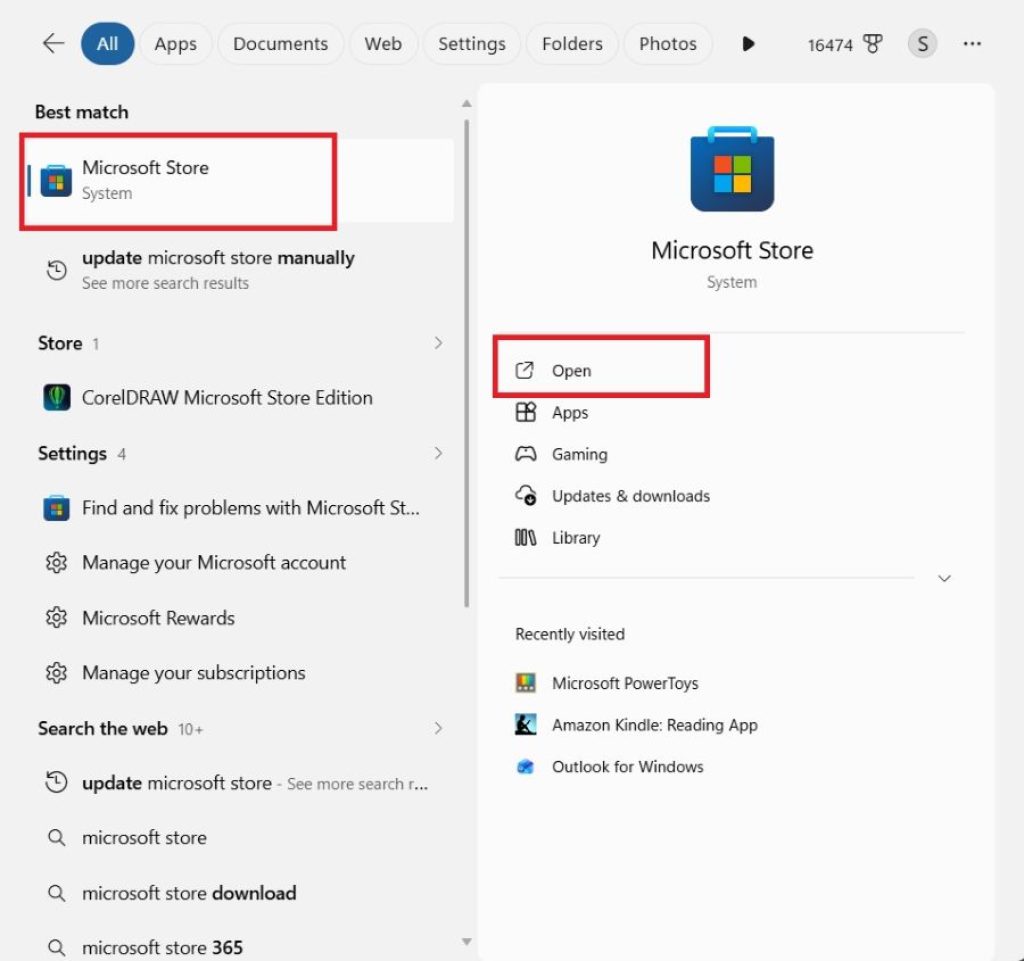
Search for “PowerToys” in the search bar, or go directly to the PowerToys page if you have a link.
Click Get or Install.
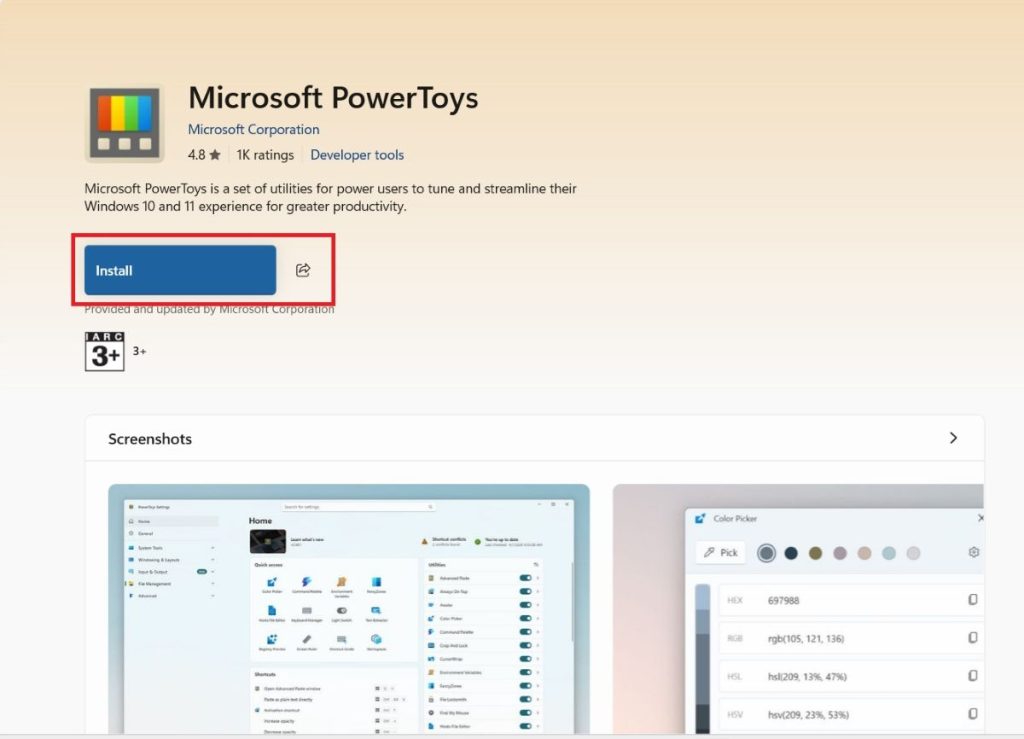
Wait for the download and installation to finish — no further prompts are needed.
Launch PowerToys from the Start menu once installation completes.
This method is ideal if you want a “set it and forget it” experience, since getting PowerToys from the Microsoft Store means you’ll receive automatic updates, using the Universal Windows Platform (UWP) version.
Method 2: Install via the GitHub Executable Installer
This is Microsoft’s own preferred distribution method and gives you the most control, including the choice between a per-user or machine-wide install.
- Visit the official Microsoft PowerToys GitHub releases page.
- Under the latest release, expand the Assets section.
- Choose the installer matching your machine’s architecture and install scope — for most users this is the x64, per-user version (
PowerToysUserSetup-x64.exe). Arm-based devices, like laptops with Qualcomm Snapdragon chips, should use the Arm64 build instead. - Download the
.exefile and double-click it to run the installer. - Follow the on-screen prompts. The installer will pull down an additional runtime component during setup, so don’t be surprised by a second download; otherwise you don’t need to do anything except wait.
- Once finished, a welcome screen introduces you to each tool with short illustrative clips.
If you’re comfortable managing your own updates and want the newest builds (including previews) as soon as they’re released, this is generally the recommended path.
Method 3: Install via Windows Package Manager (winget)
For anyone comfortable with the command line, winget is the fastest option and is easy to script or automate.
- Open Command Prompt, PowerShell, or Windows Terminal.
- Run the following command for a standard per-user install:
winget install Microsoft.PowerToys --source winget- If you’d prefer a machine-wide installation (available to every user account on the PC), use:
winget install --scope machine Microsoft.PowerToys --source winget- Press Enter and let winget handle the download and installation automatically.
PowerToys also supports being configured through winget configure using Desired State Configuration, which is handy for anyone setting up several machines with an identical PowerToys configuration.
Other Community Install Methods
If you prefer alternative package managers, community-maintained install methods such as Chocolatey and Scoop are also available, though these aren’t officially maintained by Microsoft, so treat them as a secondary option.
How to Use PowerToys’ Key Features
Once installed, PowerToys opens to a dashboard where every utility can be toggled on or off individually. Here are the tools most people get the most value from:
PowerToys Run — A fast, Spotlight-style launcher. Press Alt + Space to bring up a search box that finds and launches apps, opens files, does quick math, and even searches the web, all without touching your mouse.
FancyZones — A window-snapping upgrade. Hold Shift while dragging a window to see custom zone layouts you’ve defined (like a three-column split for coding, browsing, and notes), then drop the window into a zone to snap it instantly.
PowerToys Awake — Keeps your PC from sleeping during long tasks like downloads or renders, without you having to fiddle with your power settings. Set a timer or leave it running indefinitely from the system tray icon.
Color Picker — Press Win + Shift + C to sample any color on your screen and instantly copy its hex, RGB, or HSL value to your clipboard — great for designers and developers.
PowerRename — Right-click a batch of selected files in File Explorer and choose “PowerRename” to bulk-rename them using find-and-replace rules or regular expressions, with a live preview before you commit.
Image Resizer — Right-click one or more images and choose “Resize pictures” to quickly shrink them to preset or custom dimensions for email or web use.
Keyboard Manager — Remap individual keys or entire shortcuts system-wide, useful for anyone who wants to repurpose an unused key (like Caps Lock) into something more useful.
Text Extractor — Press Win + Shift + T to select any region of your screen and pull out the text within it using OCR, copying it straight to your clipboard.
PowerToys Peek — Select a file in File Explorer and press Ctrl + Space to preview its contents instantly without opening the associated app.
Each of these tools can be individually enabled, disabled, and customized (including changing default keyboard shortcuts) from the PowerToys settings dashboard, so you can strip the suite down to only the utilities you actually use.
Conclusion
PowerToys has matured from a scrappy internal Microsoft project into one of the most genuinely useful free add-ons available for Windows 11. Whether you install it through the Microsoft Store for hands-off automatic updates, grab the installer directly from GitHub for full control over versions and install scope, or use winget for a one-line command-driven setup, the process takes only a couple of minutes.
Once it’s running, tools like PowerToys Run, FancyZones, and PowerRename can meaningfully speed up daily tasks that Windows doesn’t handle well on its own. Since every utility can be toggled independently, there’s little downside to installing the whole suite and simply switching off anything you don’t end up using.
Frequently Asked Questions (FAQ)
1. Is Microsoft PowerToys free and safe to install?
Yes. PowerToys is a free, open-source project developed and maintained by Microsoft, with its source code publicly available on GitHub. Because it’s an official Microsoft tool, it’s safe to install through the Microsoft Store, the GitHub releases page, or winget.
2. Which installation method should I choose?
For most users, the Microsoft Store is the simplest option since it manages updates automatically. If you want the newest features as soon as they’re released, or need to choose between a per-user and machine-wide install, the GitHub installer gives you that flexibility. If you’re comfortable with the command line, winget is the fastest way to install or update PowerToys with a single command.
3. Does PowerToys slow down my PC?
PowerToys is lightweight and designed to run quietly in the background with minimal resource usage. You can also disable any individual utility you’re not using from the settings dashboard, which further reduces its footprint.
4. Can I use PowerToys on Windows 10 as well as Windows 11?
Yes. PowerToys supports Windows 11 in all versions, as well as Windows 10 version 2004 (build 19041) or newer, so you don’t need to be on Windows 11 specifically to use it.