
 Sukhdev Kamboj
Transferring files between your Android phone and Windows 11 PC no longer requires a USB cable or third-party apps. With Microsoft’s Phone Link app, you can quickly access photos, send files, and manage your mobile content directly from your computer. Whether you want to move documents for work, share pictures from a recent trip, or transfer videos, Phone Link provides a fast and convenient wireless solution.
Phone Link connects your Android phone to your Windows PC over Wi-Fi, allowing you to share files without repeatedly plugging in your device. Once connected, you can browse your phone’s storage, drag and drop files, and even copy content between devices on supported Android phones.
In this guide, you’ll learn the easiest ways to share files between your mobile phone and PC using Phone Link. The steps are beginner-friendly and work for most users running Windows 11.
What Is Phone Link?
Phone Link is a built-in Windows app developed by Microsoft that connects your Android phone to your PC. After pairing your devices, you can:
- Access your phone’s photos
- Send and receive text messages
- Make and receive calls
- View notifications
- Share files between your phone and PC
- Copy and paste content across devices (on supported phones)
To use all features, install the Link to Windows app on your Android phone and sign in with the same Microsoft account used on your PC.
Before You Begin
Before sharing files, make sure:
- Your PC is running Windows 11.
- Phone Link is installed (it’s included with Windows 11).
- Your Android phone has the Link to Windows app.
- Both devices are connected to the same Wi-Fi network.
- You’re signed in with the same Microsoft account on both devices.
- Bluetooth is enabled during the initial setup.
Method 1: Set Up Phone Link
If you haven’t connected your phone yet, you’ll need to pair it with your PC first.
Steps
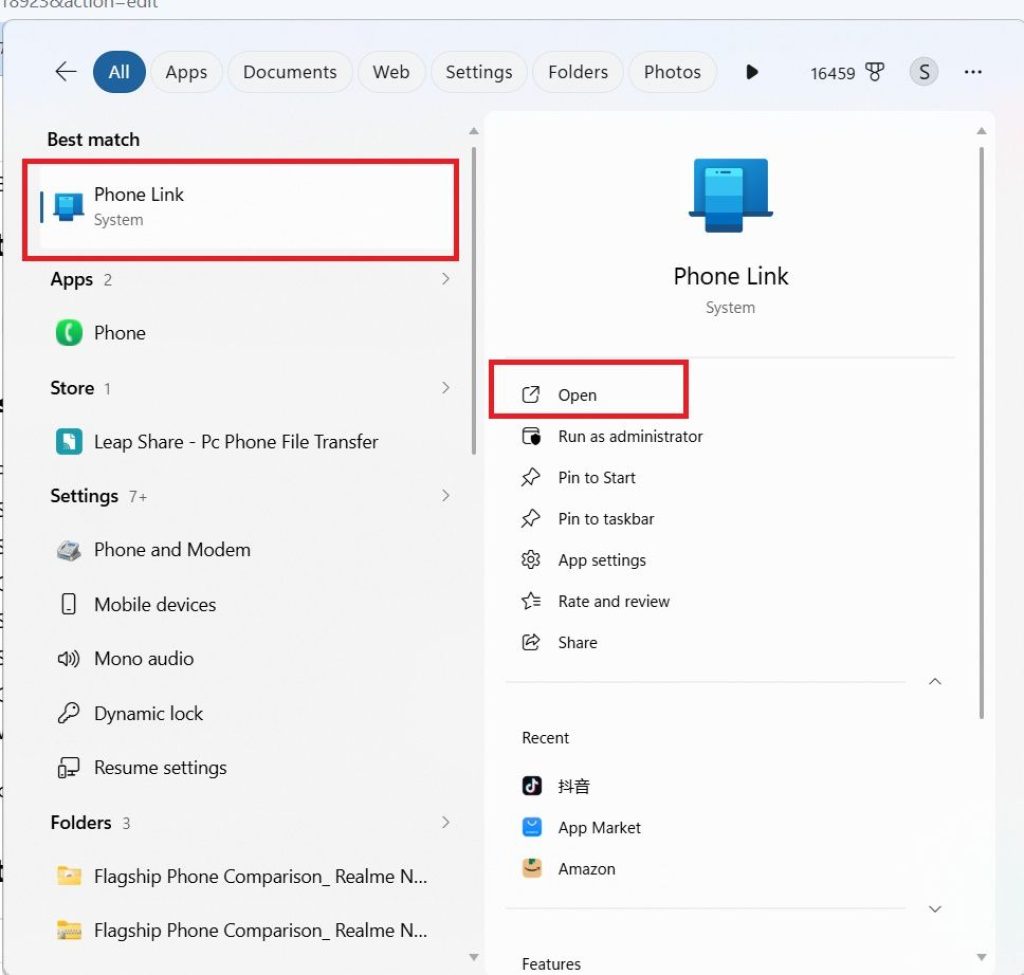
Press Windows + S, search for Phone Link, and open it.
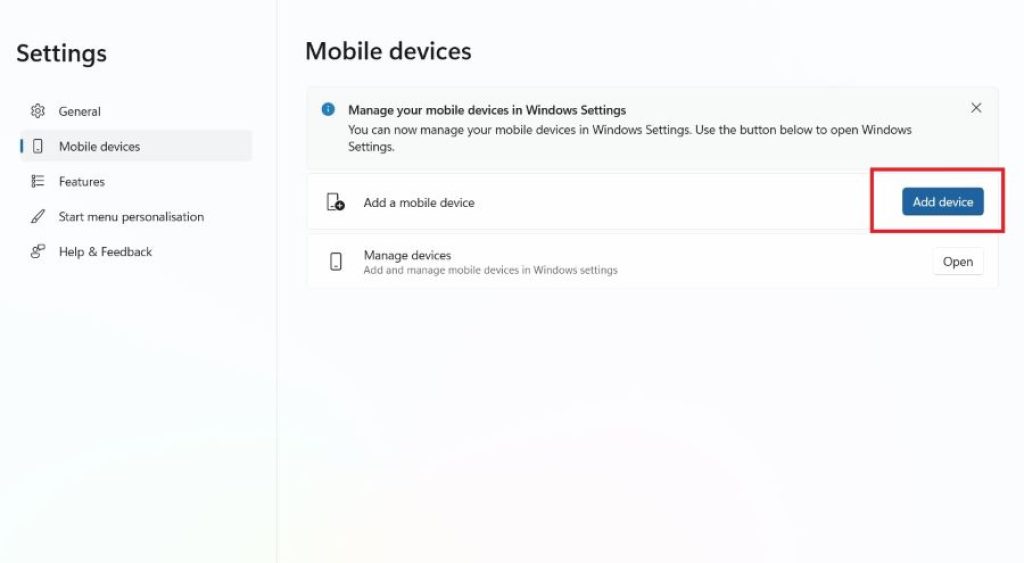
Select a device when asked to choose your device.
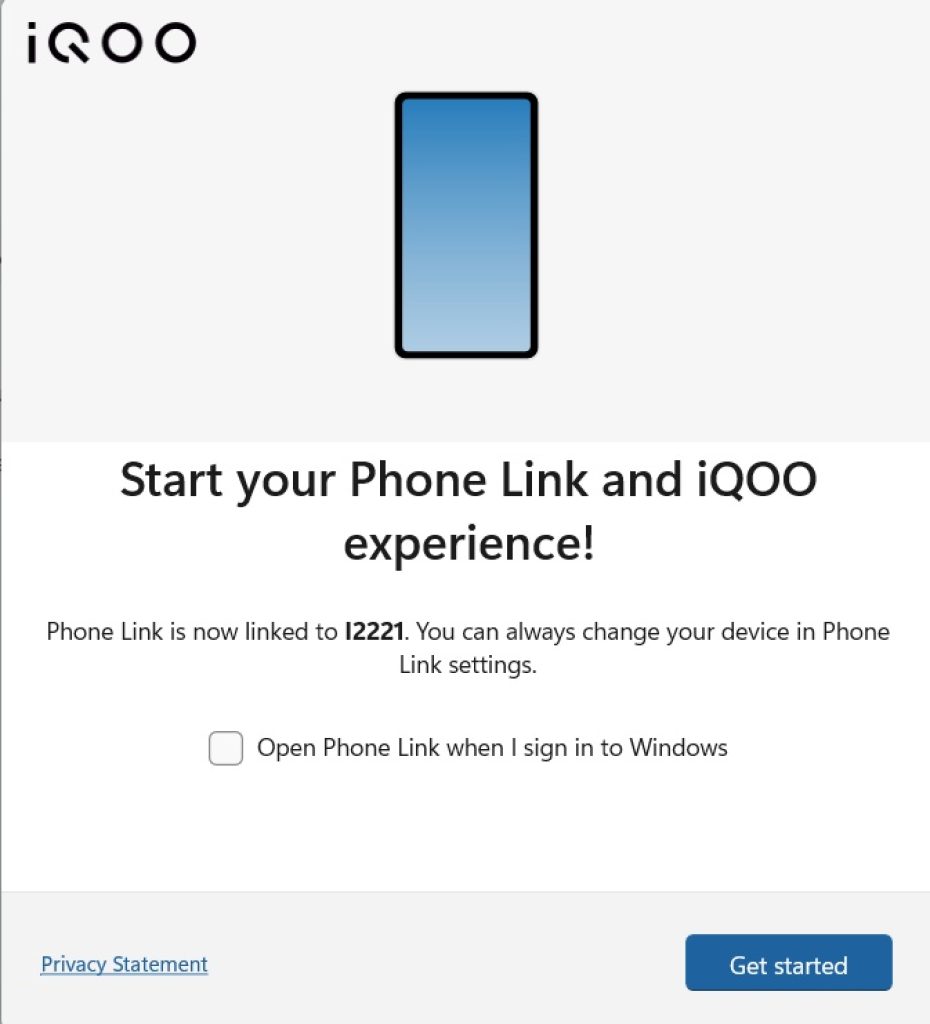
A new pop-up will appear confirming your mobile device. Just click on Get Started.
Now, open your mobile and enable the Phone Link feature through the Control Center.
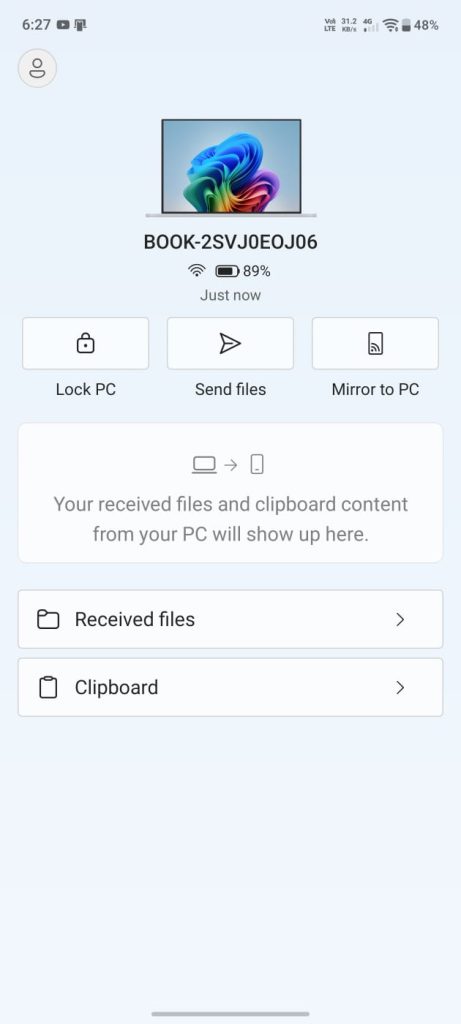
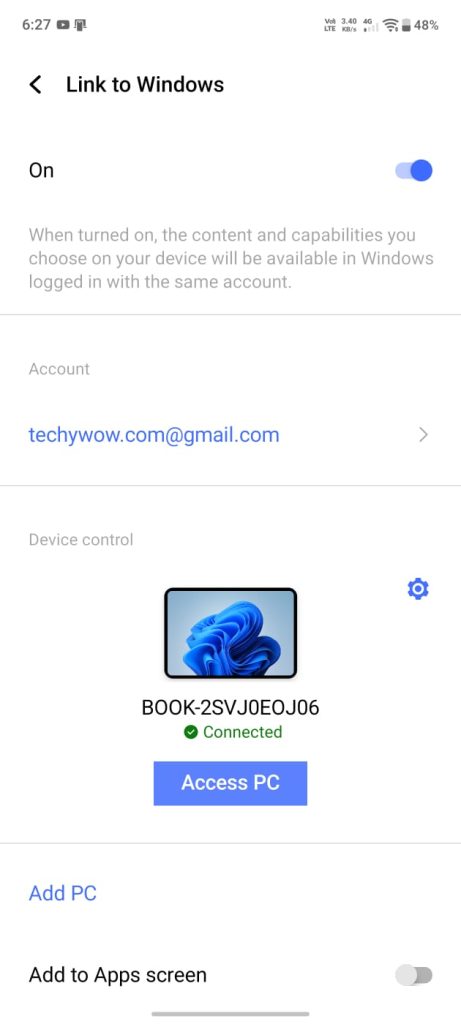
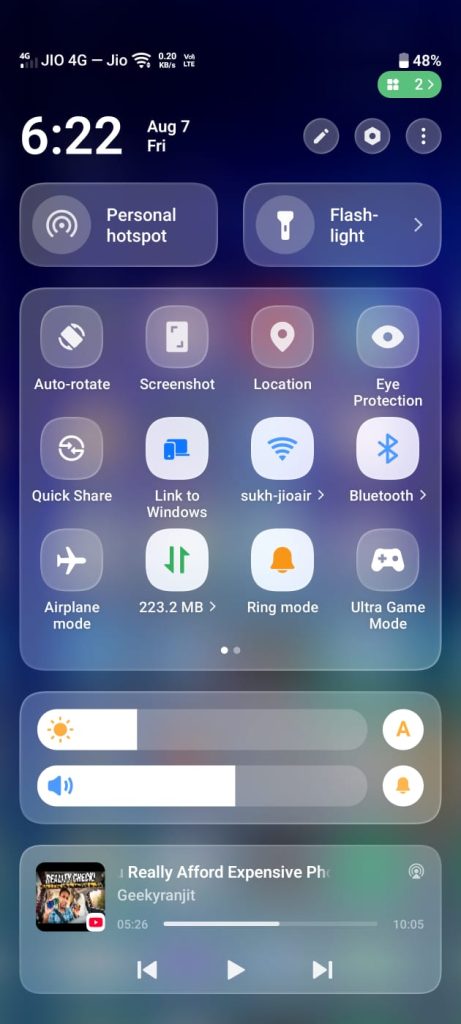
It may be different from device to device.
Some devices have a built-in feature, while others will require you to download the Link to Windows app from the Play Store.
Sign in with your Microsoft account if prompted.
Sign in using the same Microsoft account.
Scan the QR code displayed on your PC.
Grant the requested permissions on your phone.
Wait for the devices to finish pairing.
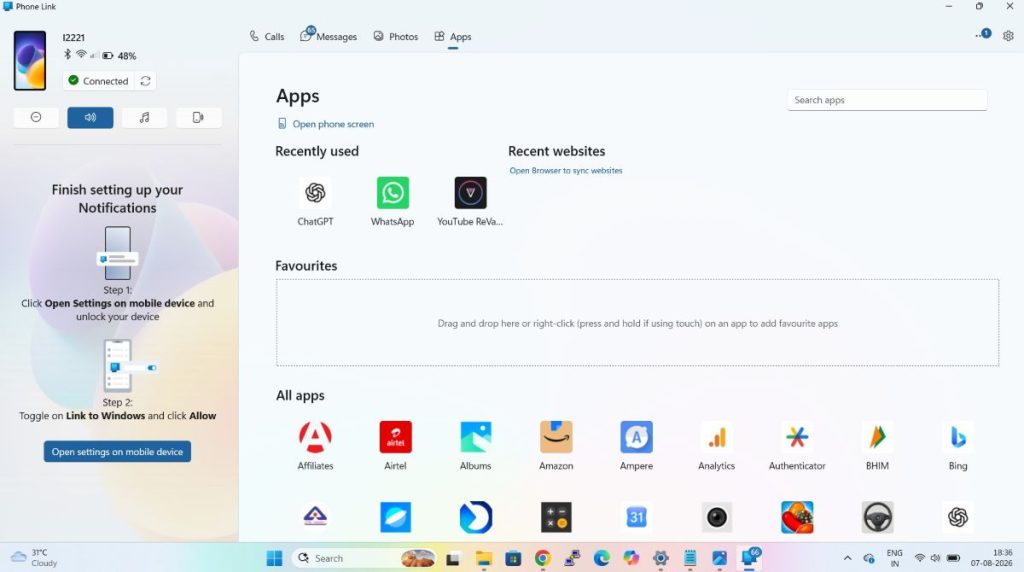
Once connected, your phone will appear inside the Phone Link app.
Method 2: Share Files from Your Phone to Your PC
After connecting your devices, transferring files from your phone to your computer becomes much easier.
Steps
- Open Phone Link on your PC.
- Select your connected phone.
- Open the Files section (available on supported devices).
- Browse your phone’s folders.
- Select the file you want to copy.
- Drag and drop it onto your desktop or another folder on your PC.
Alternatively, right-click the file and choose Save As if the option is available.
The selected file will be copied to your computer without using a USB cable.
Method 3: Send Files from Your PC to Your Phone
Phone Link also lets you move files from your Windows PC to your Android device on supported phones.
Steps
- Open Phone Link.
- Go to the Files section.
- Open the destination folder on your phone.
- Drag files from File Explorer into the Phone Link window.
You can also right-click a file in File Explorer and choose the Phone Link sharing option if it’s available on your system.
Wait for the transfer to complete before disconnecting your devices.
Method 4: Transfer Photos Using Phone Link
One of Phone Link’s most useful features is instant access to your recent photos.
Steps
- Open Phone Link.
- Click Photos.
- Browse the pictures stored on your phone.
- Right-click the image you want.
- Choose Save As.
- Select a folder on your PC.
- Click Save.
You can also drag photos directly from Phone Link into File Explorer or onto your desktop.
Method 5: Copy and Paste Content Between Devices
Some Android phones support cross-device copy and paste through Phone Link.
Steps
- Open Phone Link.
- Go to Settings.
- Enable Cross-device copy and paste if available.
- Copy text or an image on your phone.
- Press Ctrl + V on your PC to paste it.
Likewise, you can copy supported content from your PC and paste it on your phone.
Note: This feature is available only on supported Android devices.
Tips for Faster File Transfers
For the best experience:
- Connect both devices to the same Wi-Fi network.
- Keep Phone Link updated.
- Keep your phone unlocked during large transfers.
- Ensure both devices have a stable internet connection.
- Avoid closing the Phone Link app while files are transferring.
Frequently Asked Questions
Can I transfer files without a USB cable?
Yes. Phone Link allows wireless file transfers between your Android phone and Windows 11 PC.
Does Phone Link work with iPhones?
Phone Link supports iPhones for calls, messages, and notifications, but file-sharing features are much more limited than on Android.
Why can’t I see the Files option?
The Files feature is available only on supported Android phones and recent versions of the Link to Windows app. If it’s missing, update both Phone Link on your PC and Link to Windows on your phone.
Is Phone Link free?
Yes. Phone Link and the Link to Windows app are free to use.
Conclusion
Phone Link makes sharing files between your Android phone and Windows 11 PC simple and cable-free. After connecting your devices, you can transfer documents, photos, and other files, access recent images, and even copy and paste content across devices on supported phones.
For most users, setting up Phone Link once is all that’s needed to enjoy quick wireless file sharing whenever required. Keeping both the Phone Link and Link to Windows apps updated ensures you have access to the latest features and the smoothest transfer experience.





