Sukhdev Kamboj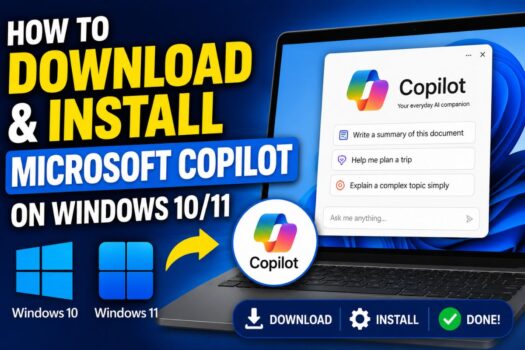
Artificial intelligence has become an essential part of modern computing, helping users complete tasks more efficiently and find information faster. Microsoft has embraced this technology by introducing Microsoft Copilot, an AI-powered assistant designed to improve productivity on Windows 10 and Windows 11. Whether you need help summarizing documents, drafting emails, generating ideas, answering questions, or changing Windows settings, Microsoft Copilot can assist you directly from your desktop.
Unlike traditional virtual assistants, Microsoft Copilot combines conversational AI with Windows features and Microsoft services to provide a smarter and more personalized experience. It can answer questions, help troubleshoot common computer problems, generate text, translate languages, summarize content, and even guide you through various Windows tasks without requiring extensive technical knowledge.
Installing Microsoft Copilot is generally straightforward, but the available installation methods depend on your Windows version, region, and whether Copilot is already included in your system. Some users can install it directly from the Microsoft Store, while others may receive it automatically through Windows Update. In certain situations, updating Windows first is necessary before Copilot becomes available.
This guide explains the different methods to download and install Microsoft Copilot on Windows 10 and Windows 11. You’ll also learn how to verify compatibility, launch Copilot, update the application, and troubleshoot installation issues if they occur.
What Is Microsoft Copilot?
Microsoft Copilot is Microsoft’s AI-powered assistant that helps users perform everyday tasks using natural language. Instead of manually searching through settings or browsing multiple websites, you can ask Copilot questions or request assistance in plain English.
Depending on your version of Windows and Microsoft account, Copilot can help you:
- Answer questions
- Generate text and ideas
- Summarize documents
- Translate languages
- Explain technical concepts
- Assist with coding
- Improve writing
- Provide Windows guidance
- Perform web searches
- Help with productivity tasks
Microsoft continues to expand Copilot’s capabilities through regular updates, making it one of the most useful built-in AI tools available for Windows users.
System Requirements
Before installing Microsoft Copilot, make sure your PC meets these basic requirements.
- Windows 10 (supported recent versions) or Windows 11
- Internet connection
- Microsoft account (recommended)
- Microsoft Store access
- Latest Windows updates installed
- Sufficient free storage
Some Copilot features may require newer Windows builds or region availability.
Method 1: Install Microsoft Copilot from Microsoft Store
The easiest way to install Microsoft Copilot is through the Microsoft Store.
Steps
- Open Microsoft Store.
- Click the Search box.
- Type Microsoft Copilot.
- Select the official Microsoft Copilot app.
- Click Get or Install.
- Wait for the download to finish.
- Click Open.
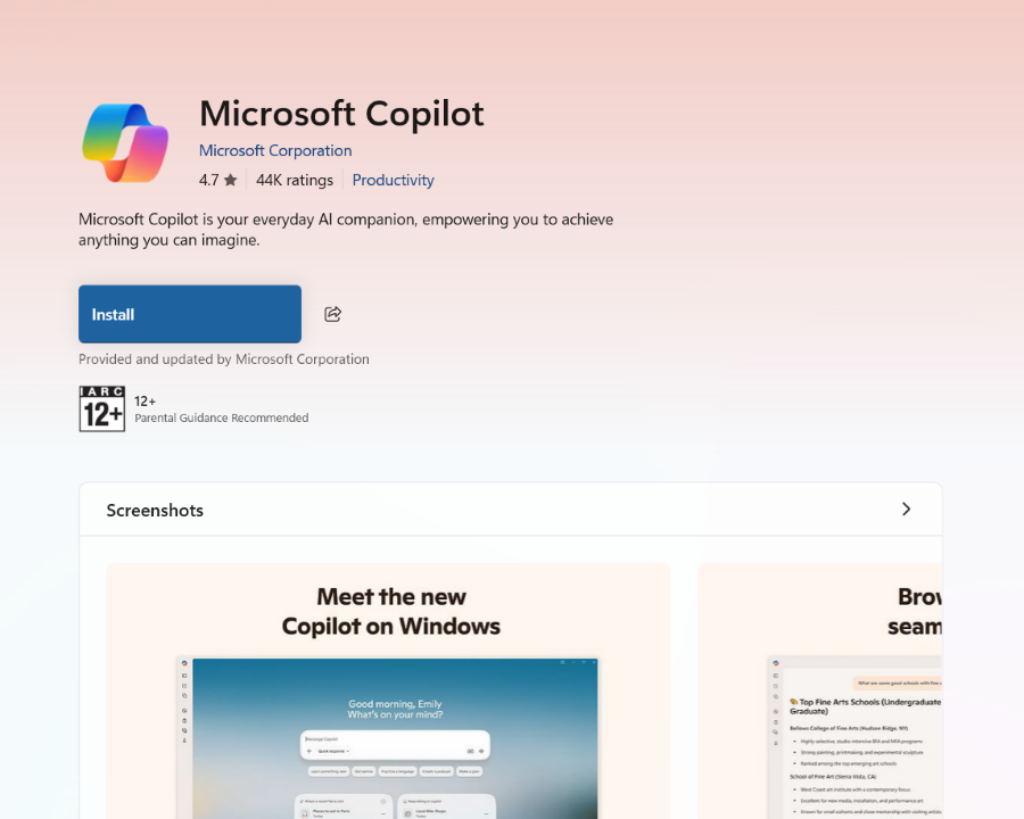
Installing from the Microsoft Store ensures you receive the official version directly from Microsoft. It also allows automatic updates whenever new features become available.
If the Install button is unavailable, your PC may already have Copilot installed or your Windows version may need updating before the app becomes available.
Method 2: Install Copilot Through Windows Update
Many Windows 11 and newer Windows 10 builds receive Microsoft Copilot automatically through Windows Update.
Steps
- Open Settings.
- Select Windows Update.
- Click Check for updates.
- Install all available updates.
- Restart your PC.

After restarting, look for the Copilot icon on the taskbar or search for “Copilot” in the Start menu.
Microsoft frequently rolls out Copilot in stages, so some devices may receive it earlier than others.
Method 3: Download Copilot from Microsoft’s Official Website
If you prefer downloading the installer manually, Microsoft provides the official application through its website.
Steps
- Visit Microsoft’s official Copilot download page.
- Download the installer.
- Run the downloaded file.
- Accept the prompts.
- Complete the installation.
- Launch Copilot.
Always download software only from Microsoft’s official website to avoid unofficial or modified installers.
Method 4: Install Copilot Using Winget
Windows Package Manager (Winget) provides another simple way to install applications.
Steps
- Open Terminal as Administrator.
- Type:
winget search Microsoft Copilot
- Locate the official package.
- Install it using:
winget install <PackageID>
- Wait for installation to complete.
- Launch Copilot.
Winget is especially useful for IT administrators and users who prefer command-line software installation.
Method 5: Sign In with a Microsoft Account
Some Copilot features require a Microsoft account.
Steps
- Open Copilot.
- Select Sign in.
- Enter your Microsoft account.
- Complete any verification.
- Start using Copilot.
Signing in synchronizes your conversations and enables personalized AI features across supported Microsoft services.
Method 6: Pin Copilot to the Taskbar
Once installed, you can pin Copilot for faster access.
Steps
- Open the Start menu.
- Search for Copilot.
- Right-click the app.
- Choose Pin to taskbar.
You can also pin it to the Start menu for quicker launching.
Method 7: Update Microsoft Copilot
Keeping Copilot updated ensures you receive new AI models, security improvements, and additional features.
Steps
- Open Microsoft Store.
- Click Library.
- Select Get updates.
- Install available updates.
- Restart the app if necessary.
Most users receive Copilot updates automatically through the Microsoft Store.
Method 8: Enable Copilot from Windows Settings
On some systems, Copilot is installed but disabled.
Steps
- Open Settings.
- Go to Personalization.
- Open Taskbar.
- Enable the Copilot toggle.
After enabling it, the Copilot icon appears on the taskbar.
If you don’t see the option, your Windows version may not yet support integrated Copilot.
Method 9: Reinstall Microsoft Copilot
If Copilot crashes, won’t launch, or behaves unexpectedly, reinstalling the application often fixes the problem.
Steps
- Open Settings.
- Go to Apps.
- Select Installed apps.
- Locate Microsoft Copilot.
- Choose Uninstall.
- Restart your computer.
- Install it again using Microsoft Store.
A clean reinstall replaces damaged application files and restores default settings.
Method 10: Verify Copilot Is Working Correctly
After installation, confirm that Copilot operates normally.
Steps
- Launch Copilot.
- Sign in if prompted.
- Ask a simple question.
- Wait for a response.
- Test additional features like writing assistance or web search.
If Copilot responds normally, the installation was successful.
Conclusion
Microsoft Copilot is quickly becoming one of the most valuable productivity tools available for Windows 10 and Windows 11 users. By combining artificial intelligence with Microsoft’s ecosystem, it allows you to search for information, generate content, solve problems, and interact with your computer more naturally than ever before.
For most users, installing Copilot is as simple as downloading it from the Microsoft Store or updating Windows. If the application isn’t immediately available, checking for Windows updates, signing in with a Microsoft account, or downloading the official installer usually resolves the issue. Once installed, keeping Copilot updated ensures access to the latest AI capabilities, security improvements, and performance enhancements.
Whether you’re a student, professional, developer, or casual computer user, Microsoft Copilot can help simplify everyday tasks and improve productivity. Following the methods in this guide will help you install, update, and start using Copilot safely on your Windows PC.
Frequently Asked Questions
1. Is Microsoft Copilot free?
Yes. Microsoft offers a free version of Copilot, although some advanced AI features may require a Microsoft subscription.
2. Can I install Copilot on Windows 10?
Yes. Microsoft Copilot is available for supported versions of Windows 10 as well as Windows 11, though available features may differ.
3. Do I need a Microsoft account?
You can install Copilot without signing in, but a Microsoft account is recommended to access personalized features and sync your experience.
4. Why can’t I find Microsoft Copilot on my PC?
Copilot may not yet be available for your Windows version or region. Updating Windows and checking the Microsoft Store usually resolves the issue.