Sukhdev Kamboj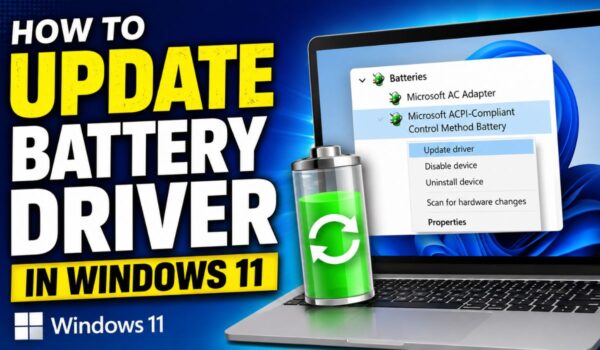
Battery-related problems on a Windows 11 laptop can be frustrating, especially when your device drains quickly, refuses to charge, displays an incorrect battery percentage, or suddenly shuts down despite showing remaining power. While many people immediately assume the battery itself has failed, the issue may actually be caused by outdated, corrupted, or improperly installed battery drivers.
Windows 11 relies on battery drivers to communicate with your laptop’s battery and charging hardware. These drivers help the operating system detect battery health, estimate remaining runtime, display charging status, and manage power efficiently. If a battery driver becomes corrupted after a Windows update, BIOS update, or unexpected shutdown, you may experience charging issues or inaccurate battery information.
Fortunately, updating the battery driver in Windows 11 is usually simple and does not require downloading drivers from the internet. In most cases, Windows automatically installs the correct battery driver after a restart. There are also several other methods that can help reinstall or refresh the driver if automatic updates don’t solve the problem.
This guide explains the different ways to update battery drivers in Windows 11, when you should update them, and how each method works. Whether your laptop battery isn’t charging, Windows shows “No Battery Detected,” or you simply want to ensure your battery drivers are working correctly, the following methods will help restore normal operation.
What Is a Battery Driver in Windows 11?
A battery driver is a small software component that allows Windows 11 to communicate with your laptop’s battery and charging controller. Unlike graphics or audio drivers that are provided by hardware manufacturers, battery drivers are usually built into Windows itself.
Most Windows laptops include two battery-related drivers:
- Microsoft AC Adapter
- Microsoft ACPI-Compliant Control Method Battery
These drivers work together to detect battery status, monitor charging, estimate remaining battery life, and manage power features. If either driver becomes damaged or stops working correctly, Windows may display incorrect battery information or fail to recognize the battery altogether.
Method 1: Update the Battery Driver Using Device Manager
Device Manager is the easiest place to check and update battery drivers. Windows scans for a newer driver already available on your computer or through Windows Update.
Steps
- Press Windows + X.
- Select Device Manager.
- Expand the Batteries category.
- Right-click Microsoft ACPI-Compliant Control Method Battery.
- Select Update driver.
- Choose Search automatically for drivers.
- Wait while Windows searches.
- Restart your computer if prompted.
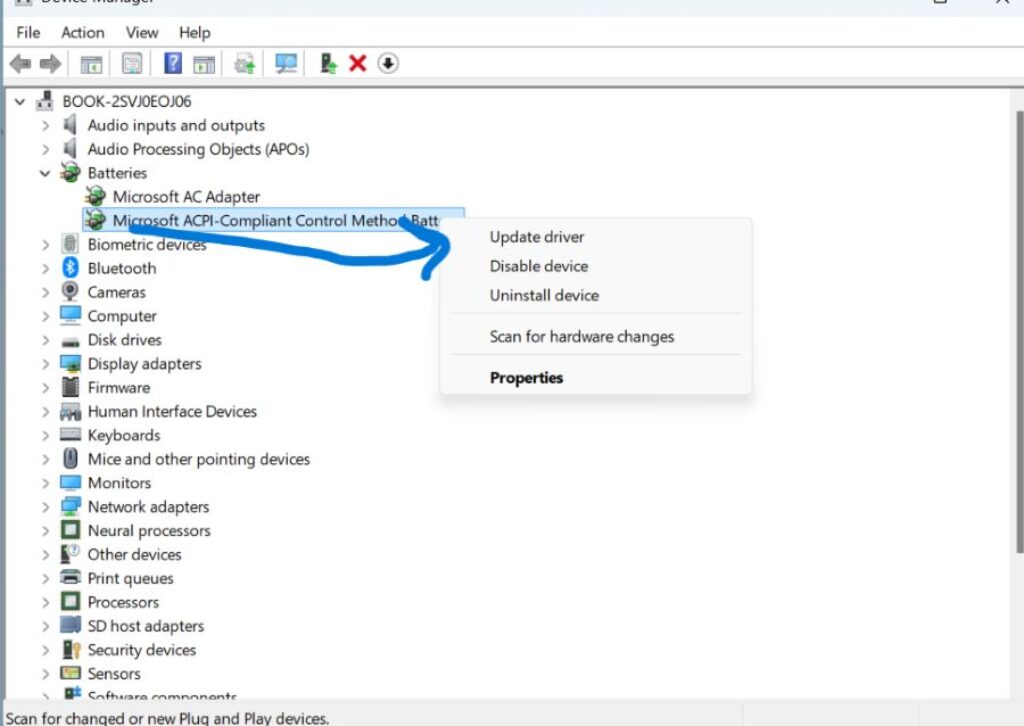
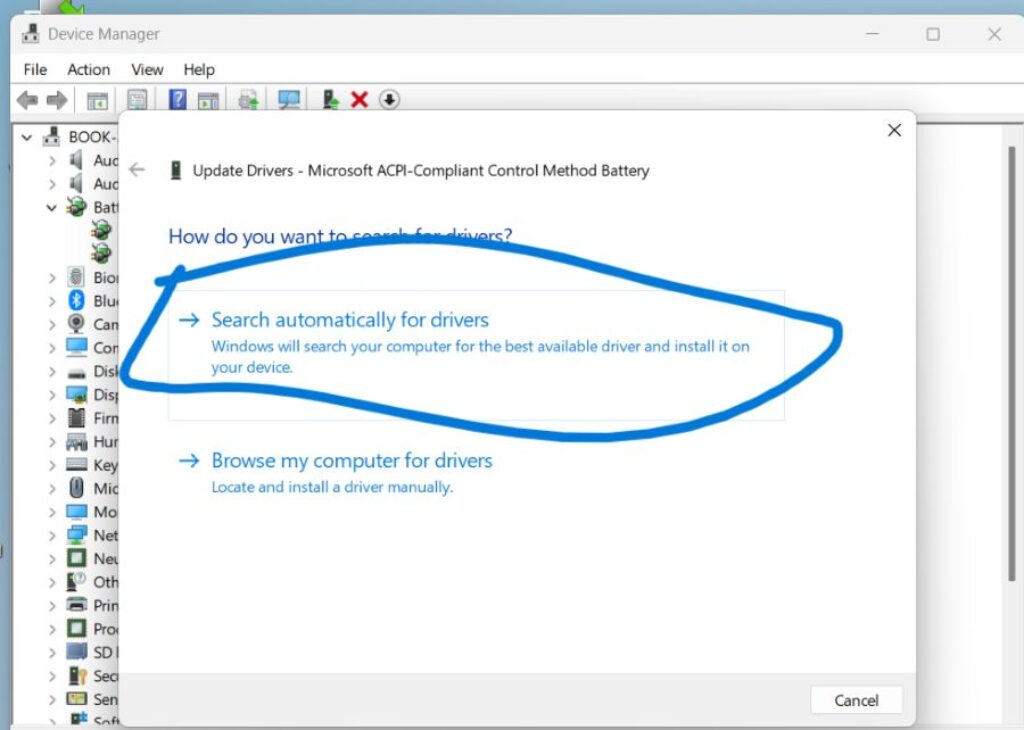
If Windows finds a newer version, it installs the updated driver automatically. If you receive a message saying that the best drivers are already installed, it simply means Windows could not find a newer compatible version. Even then, the driver is verified as the latest available for your system.
Updating through Device Manager is recommended before trying more advanced solutions because it is quick, safe, and doesn’t affect your files or installed applications.
Method 2: Reinstall the Battery Driver
Sometimes the driver itself isn’t outdated but has become corrupted. In that case, reinstalling it often resolves charging and battery detection issues.
Steps
- Open Device Manager.
- Expand Batteries.
- Right-click Microsoft ACPI-Compliant Control Method Battery.
- Choose Uninstall device.
- Confirm the uninstall.
- Restart your laptop.
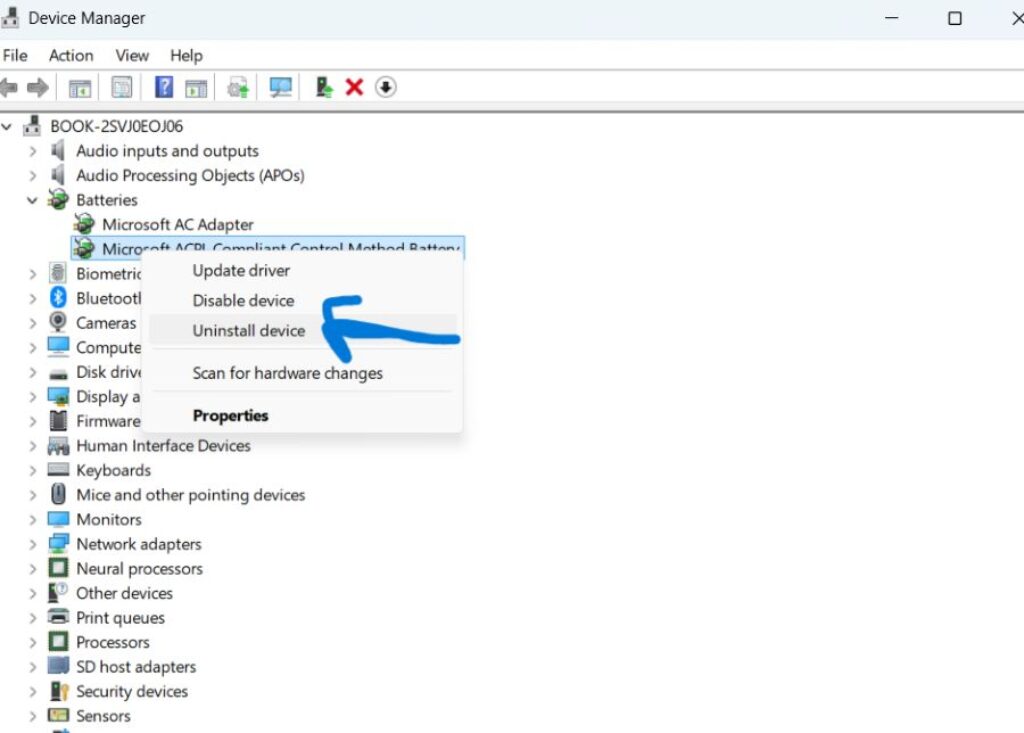
During startup, Windows 11 automatically detects the missing battery hardware and reinstalls the correct driver without requiring any manual download.
This method frequently fixes problems such as:
- Battery not charging
- Battery percentage stuck
- Battery not detected
- Incorrect remaining time estimate
- Charging icon missing
Many users are surprised to learn that uninstalling the battery driver is actually one of Microsoft’s recommended troubleshooting methods because Windows automatically rebuilds the driver during restart.
Method 3: Update Windows 11
Battery driver improvements are often delivered through Windows Update rather than Device Manager. Installing the latest Windows updates ensures your laptop receives compatibility improvements, bug fixes, and newer hardware support.
Steps
- Open Settings.
- Click Windows Update.
- Select Check for updates.
- Install all available updates.
- Restart your PC.
If optional driver updates are available:
- Go to Windows Update.
- Open Advanced options.
- Select Optional updates.
- Install available driver updates.
Windows Update frequently includes firmware improvements, chipset updates, and power management enhancements that indirectly improve battery performance and charging stability.
Method 4: Scan for Hardware Changes
If Windows fails to recognize the battery after reinstalling the driver, scanning for hardware changes forces the operating system to detect connected hardware again.
Steps
- Open Device Manager.
- Click the Action menu.
- Select Scan for hardware changes.
- Wait for Windows to detect the battery.
- Restart if necessary.
This refreshes Device Manager without making permanent changes to your computer. It is especially useful if the battery disappears from Device Manager after uninstalling the driver.
Method 5: Install Your Laptop Manufacturer’s Driver Updates
Although the Microsoft battery driver usually remains the same across Windows devices, laptop manufacturers often release updates for chipset drivers, power management software, firmware, and BIOS versions that improve battery operation.
Visit your laptop manufacturer’s support website and enter your laptop model number. Download any available updates related to:
- BIOS
- Chipset
- Power Management
- Intel Management Engine
- AMD Chipset Driver
- Embedded Controller Firmware
These updates improve communication between Windows and your battery hardware, especially after major Windows feature updates.
Avoid downloading battery drivers from third-party websites. Battery drivers are normally supplied by Windows itself, while manufacturer websites provide supporting system drivers rather than replacing Microsoft’s battery driver.
Method 6: Use Windows Power Troubleshooter
Although the Power Troubleshooter doesn’t directly update battery drivers, it can automatically repair power-related configuration issues that affect charging and battery reporting.
Steps
- Open Settings.
- Go to System.
- Select Troubleshoot.
- Click Other troubleshooters.
- Run the available power-related troubleshooter if your Windows version includes it.
If your version of Windows doesn’t display the Power Troubleshooter, Windows automatically performs many power diagnostics through the Get Help app instead.
Running the troubleshooter can restore default power settings, identify driver conflicts, and correct configuration errors that developed after Windows updates or software installations.
Method 7: Update the BIOS or UEFI Firmware
The BIOS controls low-level communication between the motherboard and battery. An outdated BIOS can sometimes cause charging problems even when Windows drivers are functioning correctly.
Before updating the BIOS:
- Connect the charger.
- Ensure the battery has sufficient charge.
- Follow the manufacturer’s instructions carefully.
- Never interrupt the BIOS update.
Updating the BIOS can resolve:
- Battery not charging above a certain percentage
- Battery not detected
- Charging interruptions
- Power management bugs
- Compatibility issues with Windows 11
Because BIOS updates modify firmware, they should only be installed when recommended by your laptop manufacturer or when they specifically mention battery or power management improvements.
Method 8: Check Battery Status in Device Manager
Sometimes the battery driver appears installed but reports an error that prevents proper operation.
Steps
- Open Device Manager.
- Expand Batteries.
- Double-click Microsoft ACPI-Compliant Control Method Battery.
- Open the General tab.
- Check Device Status.
If Windows reports that the device is working properly, the driver is functioning correctly. If you see an error code, reinstalling the driver or updating Windows often resolves the issue.
Checking Device Status can help determine whether the problem is software-related or if the battery hardware itself may require servicing.
Method 9: Generate a Battery Report
Before assuming the driver is responsible, it is helpful to examine the battery’s actual condition. Windows 11 can generate a detailed battery report showing design capacity, current capacity, charging history, and battery health.
Steps
- Open Command Prompt as Administrator.
- Type:
powercfg /batteryreport
- Press Enter.
- Open the generated HTML report.
If the report shows significantly reduced battery capacity, replacing the battery may be more effective than updating drivers. On the other hand, if battery health appears normal but Windows reports charging issues, reinstalling or updating the battery driver becomes a more likely solution.
Reviewing the battery report helps separate hardware wear from software-related problems and can save time during troubleshooting.
Method 10: Perform a Clean Restart After Driver Installation
Many users update drivers but continue experiencing problems because Windows hasn’t fully reloaded the battery management service. Restarting the computer after updating or reinstalling the driver ensures all battery-related services load correctly.
Steps
- Save your work.
- Restart the laptop.
- Allow Windows to boot normally.
- Verify the charging icon.
- Check battery percentage.
- Confirm Device Manager shows no warning symbols.
After restarting, monitor charging behavior for several minutes. If the battery percentage begins increasing normally and Windows accurately reports charging status, the update was successful.
Conclusion
Updating the battery driver in Windows 11 is a simple but effective way to resolve many common charging and battery recognition problems. In most situations, Windows automatically manages battery drivers, so manually downloading one from the internet is rarely necessary. Instead, using Device Manager to update or reinstall the Microsoft ACPI-Compliant Control Method Battery driver is usually enough to restore normal functionality.
If reinstalling the driver doesn’t solve the issue, updating Windows, installing manufacturer firmware updates, refreshing hardware detection, and checking the battery’s health report can help identify whether the problem lies with software or aging hardware. Keeping Windows, BIOS, and chipset drivers up to date also ensures the battery management system continues working efficiently with newer Windows 11 updates.
By following the methods in this guide, you can safely update or refresh your battery driver, improve communication between Windows and your laptop’s battery, and eliminate many common charging problems without risking your data or installing unnecessary software.
Frequently Asked Questions
1. Can I manually download a battery driver for Windows 11?
In most cases, no. Windows automatically installs the Microsoft battery driver, and downloading one from third-party websites is not recommended.
2. Is it safe to uninstall the battery driver?
Yes. Windows automatically reinstalls the Microsoft ACPI-Compliant Control Method Battery driver after restarting your computer.
3. Why is my battery still not charging after updating the driver?
The issue may be related to battery wear, the charger, BIOS firmware, charging circuitry, or power management settings rather than the driver itself.
4. How often should I update my battery driver?
Battery drivers rarely require manual updates. Simply keeping Windows 11 updated is usually enough to ensure you have the latest compatible battery driver and related improvements.