
 Sukhdev Kamboj
Windows 11 comes with strong built-in support for typing Chinese, whether you’re a student learning Mandarin, a professional communicating with Chinese-speaking colleagues, or someone who simply wants to send a message in Chinese characters. Unlike older versions of Windows that sometimes required extra downloads or complicated setup, Windows 11 lets you add a Chinese input method directly through the Settings app in just a few clicks.
There are several ways to type Chinese on Windows 11, ranging from the native Microsoft Pinyin Input Method Editor (IME) to handwriting recognition and third-party input tools. Each method has its own strengths depending on how familiar you are with Pinyin (the Romanized phonetic system for Mandarin), whether you know how to write Chinese characters by hand, or whether you prefer voice input. This guide walks through four practical methods for typing Chinese on Windows 11, along with step-by-step instructions, tips for switching between languages efficiently, and answers to common questions people run into along the way.

Before diving into the methods, it helps to understand two basic building blocks. First, Pinyin is the standard system for representing Mandarin Chinese sounds using the Latin alphabet, and it’s the most common way people type Chinese on a QWERTY keyboard — you type the pinyin spelling of a word, and the IME suggests the correct Chinese characters. Second, IME stands for Input Method Editor, which is the software layer that converts your keyboard input (or handwriting, or speech) into Chinese characters. With that context, let’s look at how to set this up on Windows 11.
Method 1: Add Chinese Pinyin Input Through Windows Settings (Recommended)
The most straightforward and widely used method is enabling the built-in Microsoft Pinyin IME through the Windows 11 Settings app. This is the best starting point for most users because it requires no extra software and works well for both casual and frequent typing.
Steps to enable Microsoft Pinyin:
Open Settings by pressing Windows key + I.
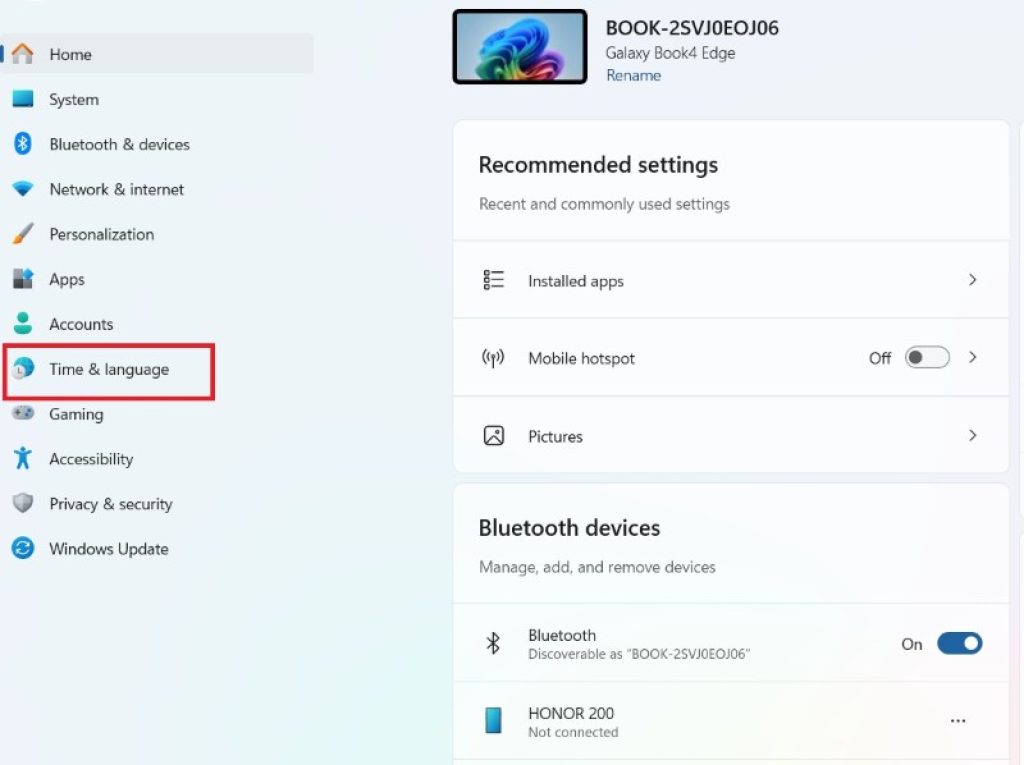
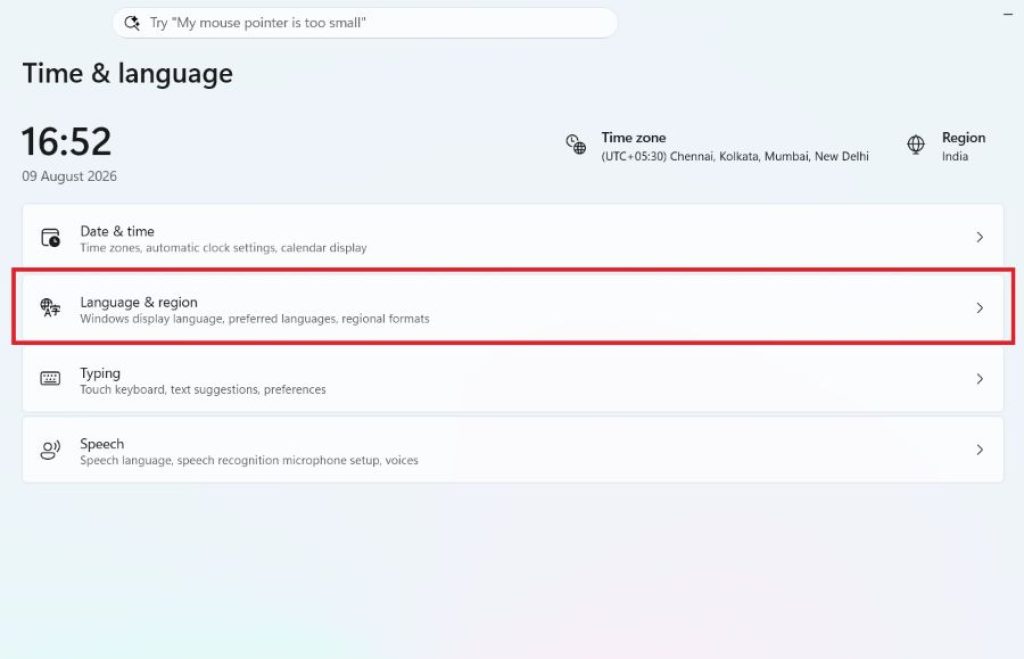
Go to Time & language in the left sidebar, then click Language & region.
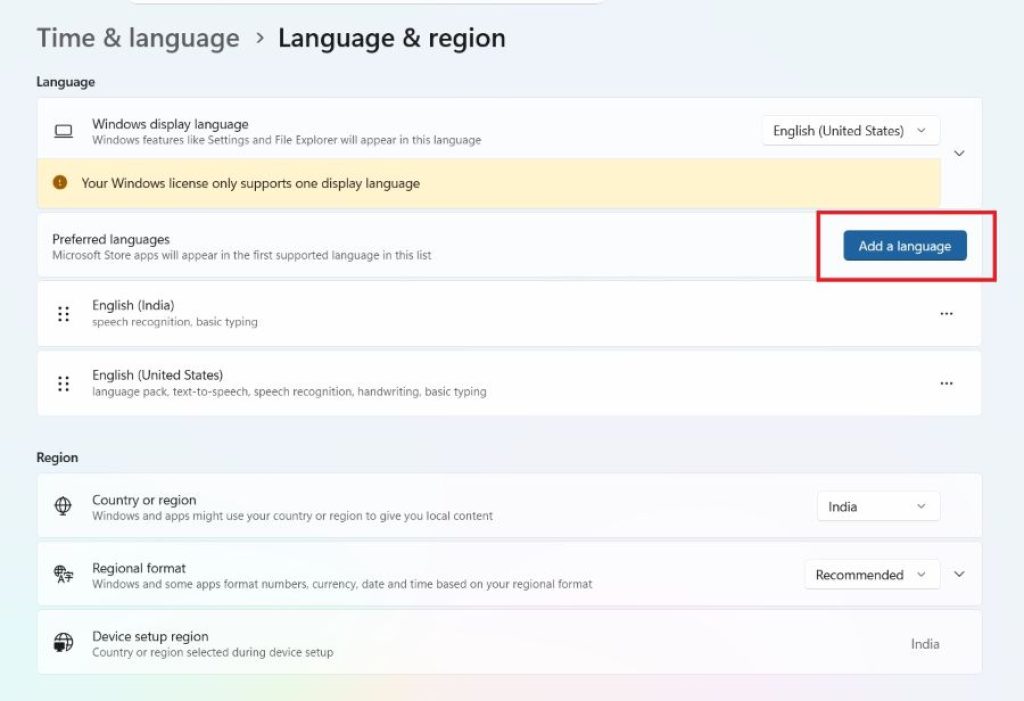
Under “Preferred languages,” click Add a language.
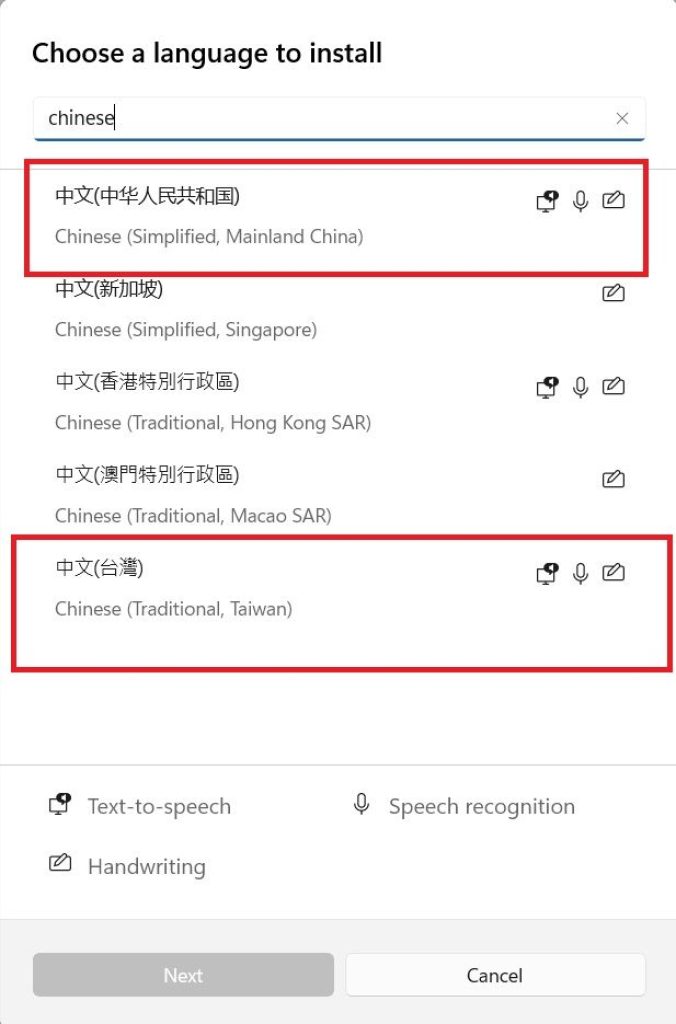
Search for Chinese (Simplified, China) or Chinese (Traditional, Taiwan) depending on which character set you need, then select it and click Next.
In the language features window, make sure the language pack and basic typing options are checked, then click Install.
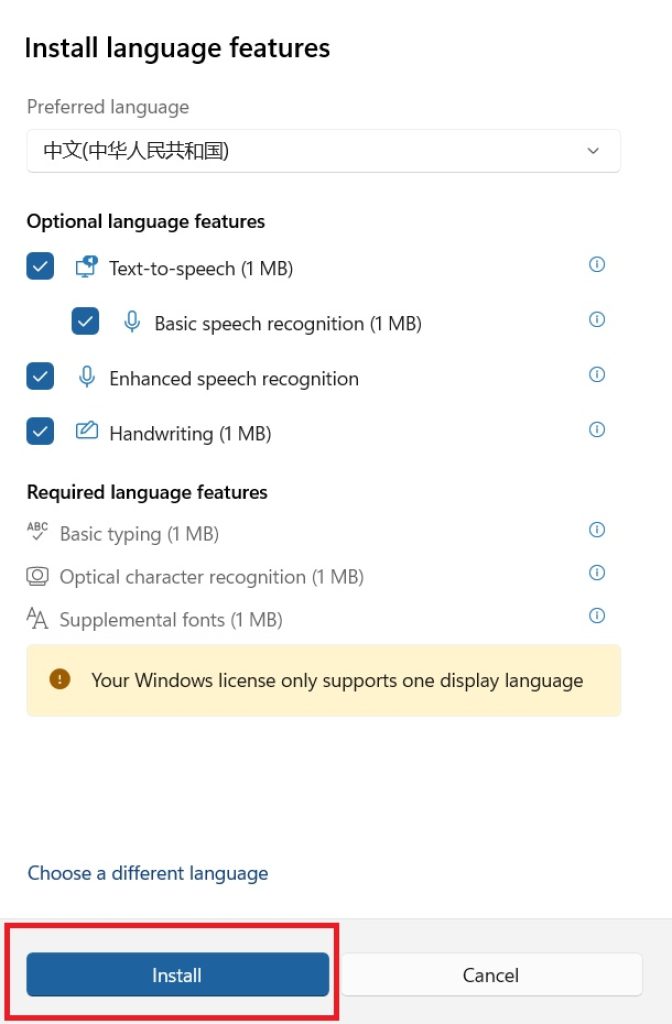
Once installed, Windows will automatically add the Microsoft Pinyin input method to your list of keyboards.
Switching to Chinese input while typing:
Press Windows key + Spacebar to cycle through your installed keyboards until you reach Microsoft Pinyin.
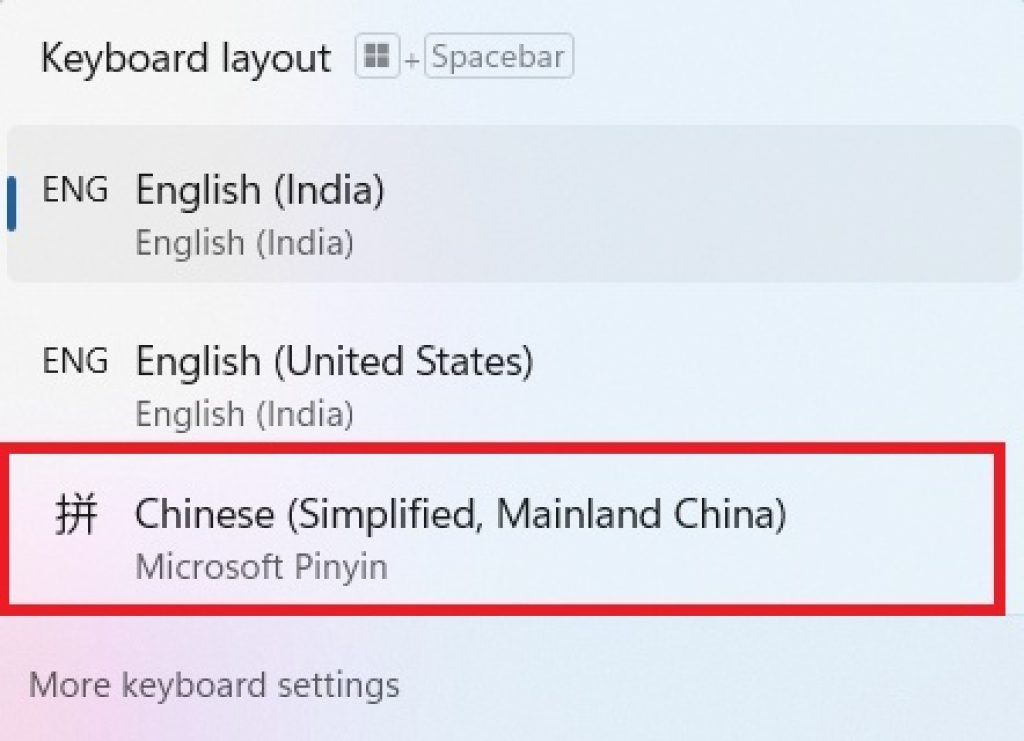
Alternatively, click the language indicator in the taskbar (usually shown as “ENG” or a similar abbreviation) and select Chinese Pinyin from the list.
Once active, simply type the pinyin spelling of a word (for example, typing “nihao” for 你好) and a candidate window will pop up showing possible Chinese characters. Use the number keys or arrow keys to select the correct one, then press Enter or Spacebar to confirm.
This method integrates directly into any application — browsers, Word, chat apps — because it works at the operating system level rather than within a single program. It also supports features like tone-based suggestions, sentence-level prediction (so typing a full sentence in pinyin can produce a grammatically appropriate string of characters), and a built-in symbol and emoji picker.
Method 2: Use the Touch Keyboard with Handwriting Input
If you’re more comfortable writing Chinese characters by hand than typing pinyin — which is common for beginners who haven’t memorized pronunciation, or for characters that are hard to search phonetically — Windows 11’s touch keyboard offers a handwriting panel that recognizes characters drawn with a mouse, touchscreen, or stylus.
Steps to use handwriting input:
- Make sure Chinese has already been added as a language (see Method 1, steps 1–5).
- Right-click the taskbar and make sure Show touch keyboard button is enabled, or go to Settings > Personalization > Taskbar and toggle on the touch keyboard icon.
- Click the touch keyboard icon in the taskbar to open it.
- Click the small keyboard/settings icon within the touch keyboard panel and switch the input mode to Handwriting.
- Use your mouse, touchscreen, or a pen/stylus to draw the Chinese character in the writing pad. Windows will display a list of recognized character candidates as you draw.
- Select the correct character from the suggestions, and it will be inserted into your active text field.
This method is especially useful on touchscreen laptops, tablets running Windows 11, or devices with a stylus like the Surface Pro. It’s slower than typing pinyin for long text, but it’s invaluable when you know what a character looks like but not how it’s pronounced — a common situation for language learners.
Method 3: Use Voice Typing for Chinese
Windows 11 includes a built-in voice typing feature that supports multiple languages, including Chinese. This can be a fast way to enter Chinese text without touching the keyboard at all, particularly useful for short messages, notes, or when your hands are occupied.
Steps to use voice typing in Chinese:
- Click into any text field (a Word document, browser search bar, chat window, etc.).
- Press
Windows key + Hto open the voice typing toolbar. - Click the gear/settings icon in the voice typing bar and check that your recognition language includes Chinese; if not, you may need to add Chinese speech recognition through Settings > Time & language > Speech.
- Once Chinese is selected as the active recognition language, speak clearly into your microphone, and Windows will transcribe your speech into Chinese characters in real time.
- Use simple voice commands like “delete” or punctuation names to edit as you go, similar to English voice typing.
Voice typing works best in a quiet environment with a decent microphone, and accuracy can vary depending on dialect, accent, and background noise. It’s a great supplementary tool but is generally less precise than typing with Pinyin for technical or formal documents.
Method 4: Install a Third-Party Chinese IME (Google Pinyin, Sogou, etc.)
While Microsoft’s built-in Pinyin IME is solid, many users — especially those who grew up using Chinese input tools or who want more advanced features like cloud-based word prediction, custom phrase libraries, or better handling of internet slang — prefer third-party input methods such as Google Pinyin Input, Sogou Pinyin, or Baidu Input.
General steps to install a third-party IME:
- Download the installer for your preferred IME from its official website (search for “Google Pinyin Input download” or the equivalent for Sogou/Baidu).
- Run the installer and follow the on-screen prompts. Some of these tools are primarily distributed for users in mainland China and may have interfaces mostly in Chinese, so it can help to have Chinese already enabled as a display language or to use a translation tool during setup.
- After installation, the new IME usually appears automatically in your Windows input method list, accessible via
Windows key + Spacebaror the taskbar language switcher. - Open the IME’s settings panel to customize behavior, such as enabling cloud-based suggestions, adjusting candidate window size, or importing a custom dictionary.
Third-party IMEs often offer richer autocomplete, better recognition of modern internet vocabulary, and sometimes support for additional input styles like Wubi (a shape-based input method popular for very fast typists). However, because these tools are made by third-party companies, it’s worth reviewing their privacy policies before installing, since some cloud-based prediction features send typed data to remote servers for processing.
Frequently Asked Questions
1. Do I need to change my entire system language to Chinese to type in Chinese? No. You only need to add Chinese as an additional input language, not change your display language. Your menus, apps, and system language can remain in English (or any other language) while you switch to a Chinese keyboard layout only when you need it, using Windows key + Spacebar or the taskbar language switcher.
2. What’s the difference between Simplified and Traditional Chinese, and which should I choose? Simplified Chinese characters are used in mainland China and Singapore, while Traditional Chinese characters are used in Taiwan, Hong Kong, and Macau. If you’re communicating with people or businesses in mainland China, choose Simplified; if your audience is in Taiwan or Hong Kong, choose Traditional. You can install both if you need to switch between them.
3. Why isn’t the candidate window showing up when I type pinyin? This usually means the Chinese IME isn’t actually active, even if it’s installed. Check the language indicator in your taskbar to confirm you’ve switched to the Chinese keyboard, not just added it as a language. Also make sure you’re typing inside a text field that supports IME input; some specialized applications or games may not.
4. Can I type Chinese without knowing Pinyin? Yes. If you don’t know the pronunciation of a character, you can use the handwriting input method described above, which lets you draw the character with a mouse, touchscreen, or stylus. Some IMEs also support input by character radicals or stroke order for users who prefer not to rely on pronunciation at all.
5. How do I type Chinese punctuation marks, like the full-width period or Chinese quotation marks? Most Chinese IMEs automatically convert standard punctuation into full-width Chinese punctuation when the IME is active — for example, typing a period often produces “。” instead of “.”. You can usually toggle between full-width and half-width punctuation using a button in the IME’s toolbar that appears near the taskbar when the input method is active.
6. Is there a faster way to type Chinese than pinyin for experienced users? Yes, methods like Wubi (a shape-based system that maps character components to keyboard keys) allow very experienced typists to input Chinese significantly faster than pinyin, since it doesn’t rely on selecting from a list of homophones. However, Wubi has a steep learning curve and is far less common among casual users and learners.
7. Can I use Chinese input methods in Microsoft Word and other Office apps? Yes. Since the IME operates at the operating system level, it works seamlessly in Word, Excel, PowerPoint, Outlook, browsers, and most other Windows applications. Some apps may also offer additional Chinese-specific formatting tools, such as vertical text layout, once you’ve set your document’s language to Chinese.
Conclusion
Typing in Chinese on Windows 11 is more accessible than ever, thanks to a combination of built-in tools and flexible third-party options. For most users, adding the Microsoft Pinyin IME through Settings is the quickest and most reliable starting point, offering smooth integration across all your apps with no extra downloads required. If you’re a visual learner or don’t yet know pinyin pronunciations, the handwriting input method lets you draw characters directly, while voice typing offers a hands-free alternative for quick notes and messages. For those who want more advanced features — richer predictive text, custom dictionaries, or alternative input systems like Wubi — third-party IMEs such as Google Pinyin or Sogou Pinyin can provide a more tailored experience.
Ultimately, the best method depends on your comfort level with Chinese pronunciation, your device (touchscreen vs. traditional keyboard), and how often you plan to type in Chinese. Many users end up using a combination of these methods: pinyin typing for everyday use, handwriting for unfamiliar characters, and voice typing when multitasking. Whichever method you choose, Windows 11 makes it easy to switch between languages on the fly, so you can move fluidly between English and Chinese without interrupting your workflow. With a little practice, typing in Chinese will start to feel just as natural as typing in your native language.





